


Como configurar o Portal Cativo no TP-Link TL-WA1201
O Portal Cativo (Captive Portal) permite desenhar uma página de portal para verificação de acesso à rede. Os clientes são direcionados a visualizar um anúncio ou aceitar os termos definidos antes de receberem acesso à internet. Isso torna a configuração do portal cativo uma opção útil para pequenas empresas que gerenciam o acesso Wi-Fi de visitantes. Observe que o Portal Cativo está disponível apenas quando o TL-WA1201 está operando no modo Ponto de Acesso (Access Point) ou no modo Multi-SSID.
Principais Conclusões
- O Portal Cativo está disponível apenas quando o TL-WA1201 está no modo Ponto de Acesso ou Multi-SSID.
- Dois tipos de autenticação são suportados: Senha Simples (Simple Password - requer uma senha para conectar) e Sem Autenticação (No Authentication - permite acesso aberto sem senha).
- Uma URL de redirecionamento opcional pode ser definida para enviar os clientes recém-conectados a um site específico após a autenticação.
- A página de login de autenticação pode ser personalizada usando a opção "Clique para Editar" (Click to Edit) nas configurações do portal.
- O Tempo Limite de Autenticação (Authentication Timeout) controla por quanto tempo um cliente permanece conectado antes de precisar se autenticar novamente.
Passos para Configurar o Portal Cativo no Ponto de Acesso TP-Link
Passo 1. Conecte seu computador à rede do ponto de acesso.
Passo 2. Acesse http://tplinkap.net e faça login com a senha que você definiu para o ponto de acesso.
Se você tiver problemas para fazer login na página de gerenciamento, consulte por que você não consegue fazer login na utilidade de gerenciamento web de um dispositivo TP-Link.
Passo 3. Vá para Sem Fio > Portal (Wireless > Portal).
Passo 4. Ative o Portal.
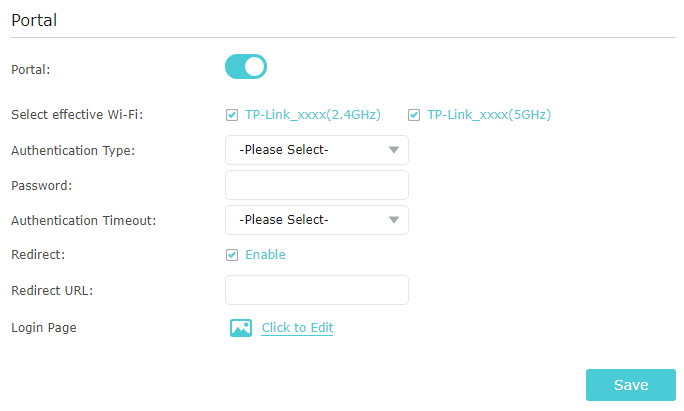
Passo 5. Selecione a rede Wi-Fi ativa para a autenticação do portal.
Passo 6. Defina o Tipo de Autenticação (Authentication Type) como Senha Simples (Simple Password) e crie uma senha para os clientes, ou selecione Sem Autenticação (No Authentication) para permitir que os clientes acessem a rede sem uma senha.
Passo 7. Selecione um período para o Tempo Limite de Autenticação (Authentication Timeout). O cliente terá que se reconectar à rede quando o tempo de autenticação expirar.
Passo 8. (Opcional) Ative o Redirecionamento (Redirect) e insira o site desejado. Os clientes recém-conectados serão redirecionados para o site especificado.
Passo 9. (Opcional) Clique em Clique para Editar (Click to Edit) para personalizar a página de login de autenticação.
Nota: O TL-WA1201 V3.0 não suporta o upload de imagens.
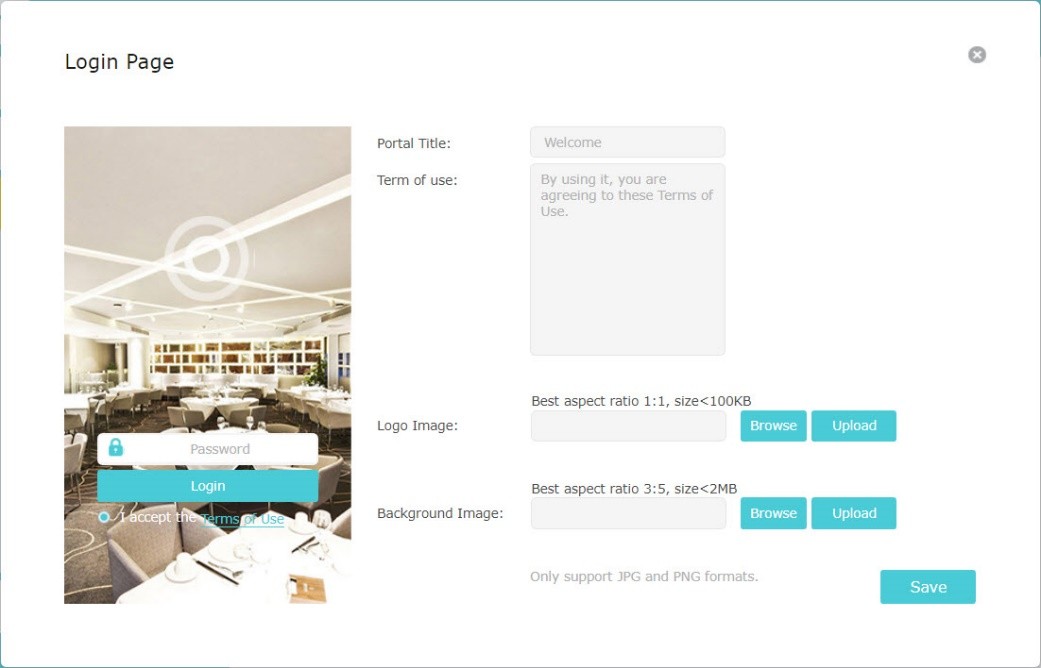
Passo 10. Salve suas configurações.
Procurando por mais
Esta FAQ é útil?
Seu feedback ajuda a melhorar este site.


-F_large_1560310831908g_normal_1577328413052u.jpg)

TP-Link Community
Still need help? Search for answers, ask questions, and get help from TP-Link experts and other users around the world.