


How to Reset Your Tapo Doorbell
If you need to factory reset your Tapo doorbell when transferring ownership, troubleshooting setup issues, or reconnecting the device to a different TP-Link account. This guide explains how to reset your doorbell using the physical reset button or directly through the Tapo app.
Key Takeaways
- Different Tapo doorbell models use either a RESET button or a SYNC/RESET button.
- Most doorbells can be reset by pressing and holding the reset button for 5 seconds, while some models require 10 seconds.
- You can also reset and remove the doorbell directly from your TP-Link account through the Tapo app.
- The Anti-theft Alarm must be disabled before resetting if the doorbell does not respond to reset operations.
Note: When Anti‑theft Alarm is triggered, the doorbell will not respond to reset operations. Before resetting, disable the anti‑theft alarm by pressing and holding the SYNC/RESET button and the Anti‑theft button simultaneously for 10 seconds. For detailed instructions, refer to How to Pause or Stop the Anti‑theft Alarm on Your Tapo Doorbell.
Method 1: Via the Reset Button
Note: Make sure the doorbell is powered on before you begin.
Step 1. Detach the Doorbell from the Mounting Bracket
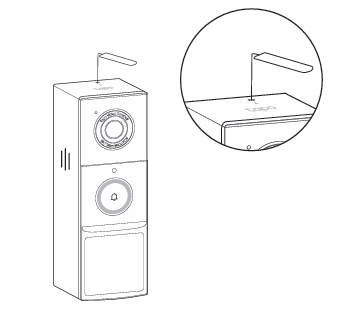
Case 1: For Tapo D130/Tapo D210/Tapo D230S1/Tapo D235/Tapo D225
Use the doorbell detaching pin to detach the doorbell from the bracket.
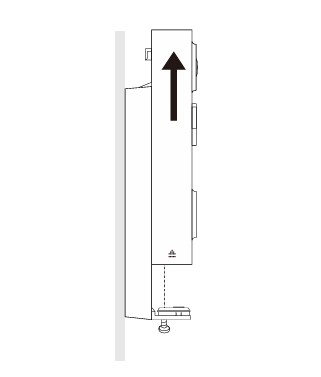
Case 2. For Tapo D205/Tapo D260
Loosen the screw at the bottom of the bracket. Hold the doorbell and pull it up to detach it from the bracket.
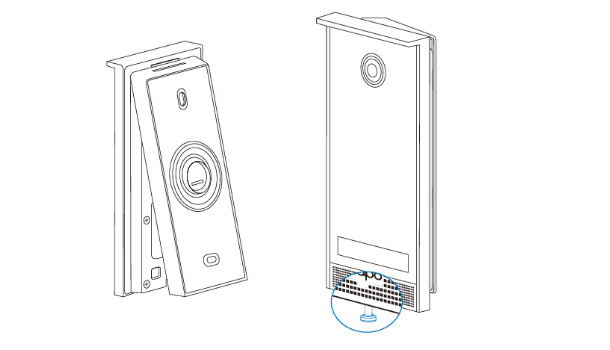
Case 3. For Tapo D315 KIT
Loosen the screw at the bottom of the intercom panel. Hold the intercom panel and lift it upward to disengage the tab from the bracket slot. Pull the intercom panel away from the bracket to remove it completely.
Step 2. Locate the Reset Button and Reset the Doorbell
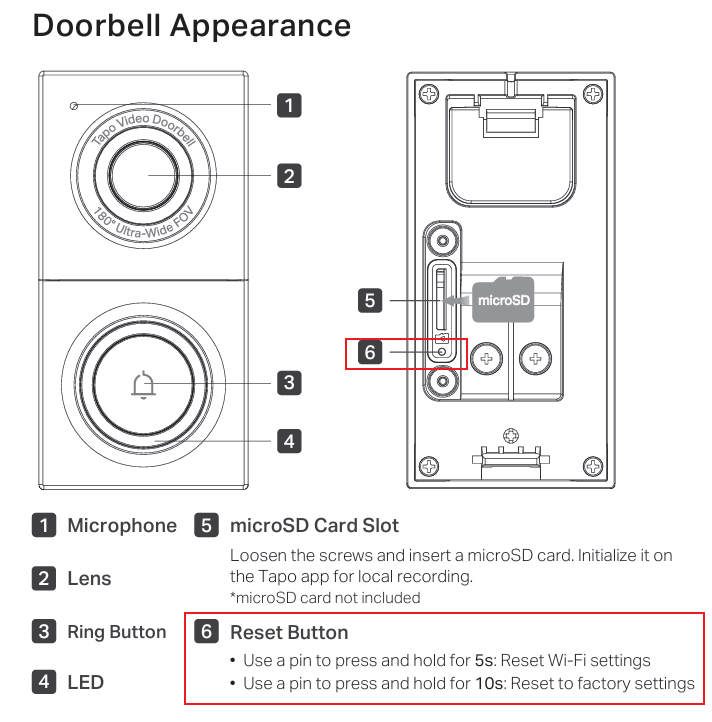
Case 1. For Tapo D130
- Reset Wi-Fi Settings: Use a pin to press and hold the RESET button for 5 seconds.
- Reset to Factory Settings: Use a pin to press and hold the RESET button for 10 seconds.
Case 2. For Tapo D205/TD20
Press and hold the RESET button for 5 seconds.
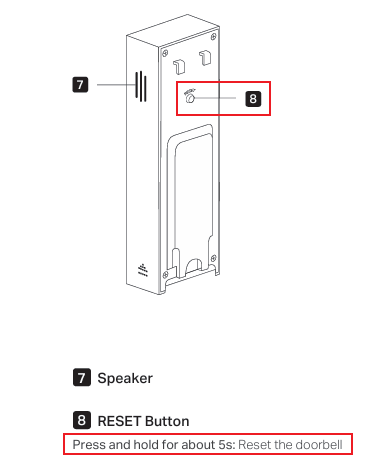
Case 3. For Tapo D210/TD21
Press and hold the SYNC/RESET button for 5 seconds.
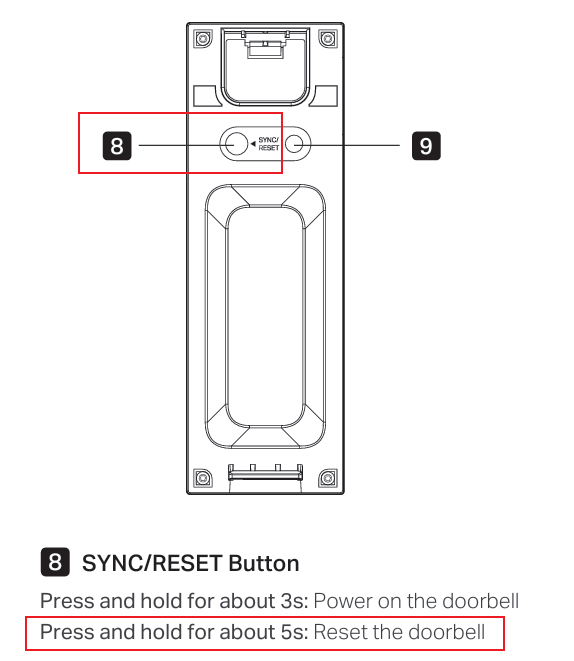
Case 4. For Tapo D230/TD23
Press and hold the SYNC/RESET button for 5 seconds.
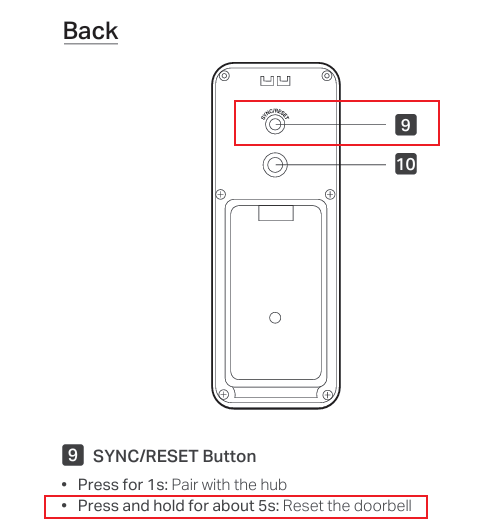
Case 5. For Tapo D235/Tapo D225/TD25
Press and hold the SYNC/RESET button for 5 seconds.
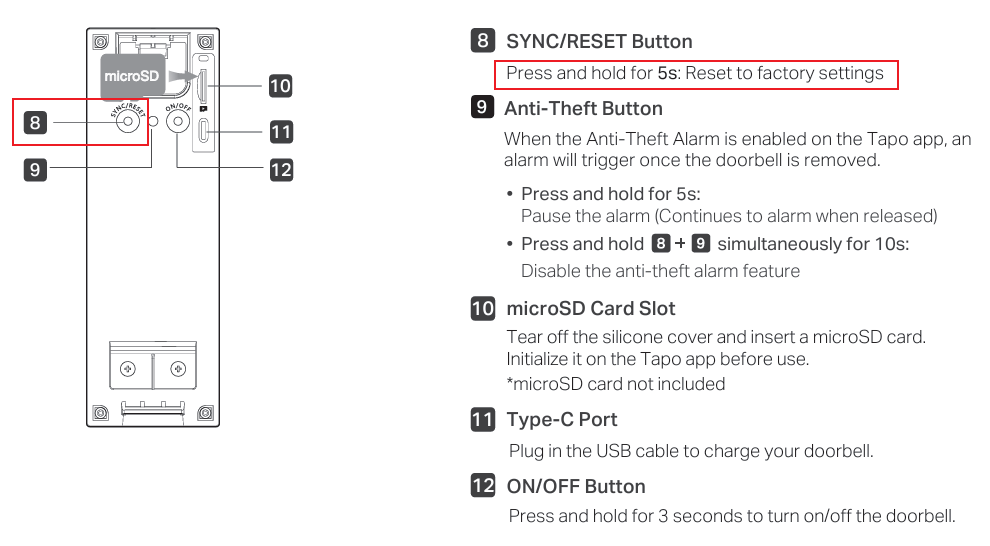
Case 6. For Tapo D260
Press and hold the RESET button for 5 seconds.
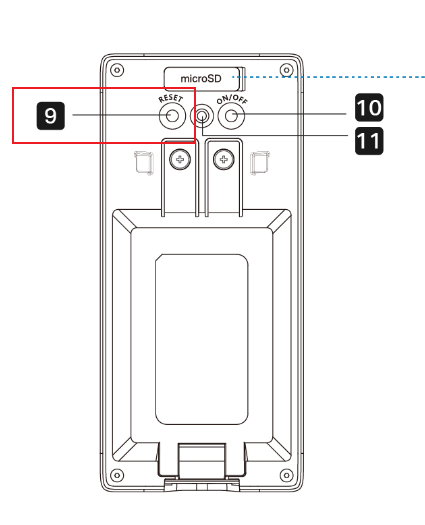
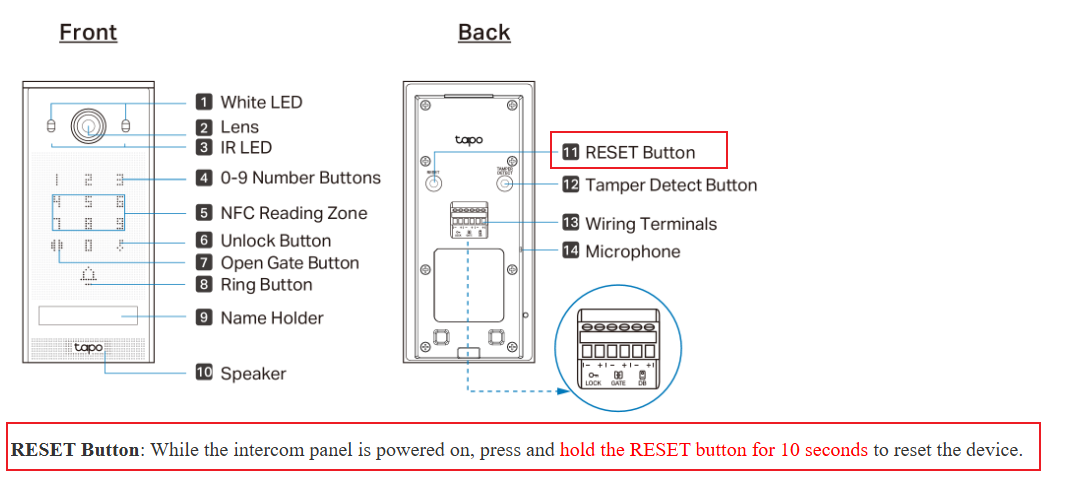
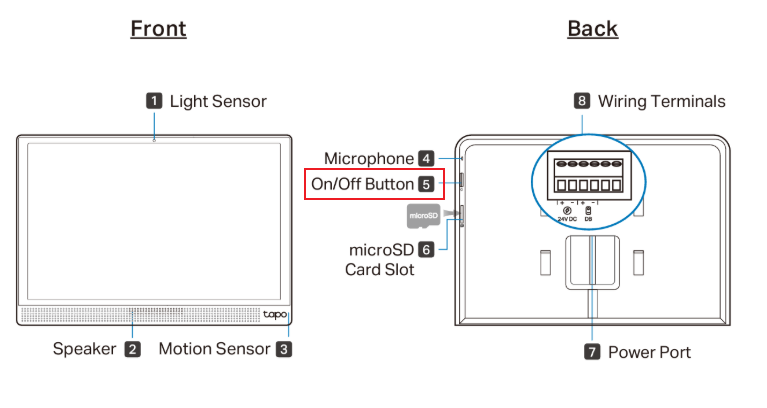
Case 7. For Tapo D315 KIT (Tapo D315 & Tapo H600W)
- Reset Tapo D315: Keep the device powered on, press and hold the RESET button for 10 seconds.
- Reset Tapo H600W: Press and hold the On/Off button on the side for 10 seconds until the reset screen appears.
Method 2: Via the Tapo App
Note: The doorbell must be online to perform an app-based reset.
Case 1: Remove the Doorbell from the Home Page
On the Tapo App Home page, long-press your Doorbell device card, then tap the minus icon. The doorbell will be removed from your TP-Link account and reset to default settings. Note that this action also disconnects the doorbell from any linked third-party services, such as Alexa and Google Home.
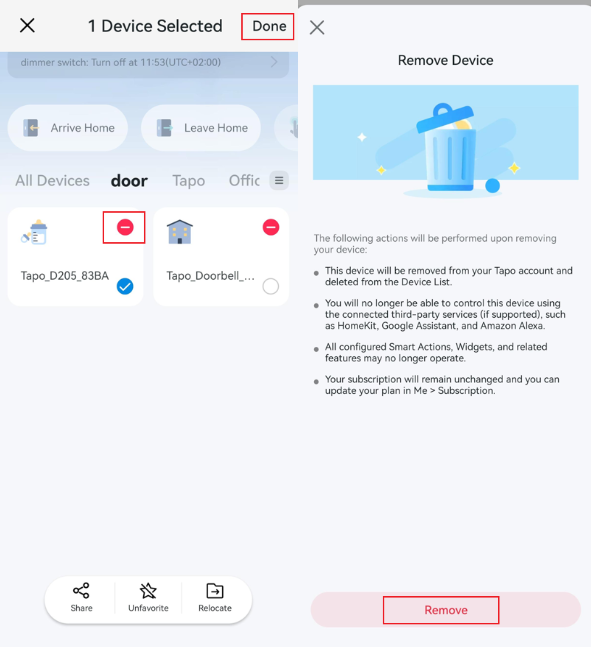
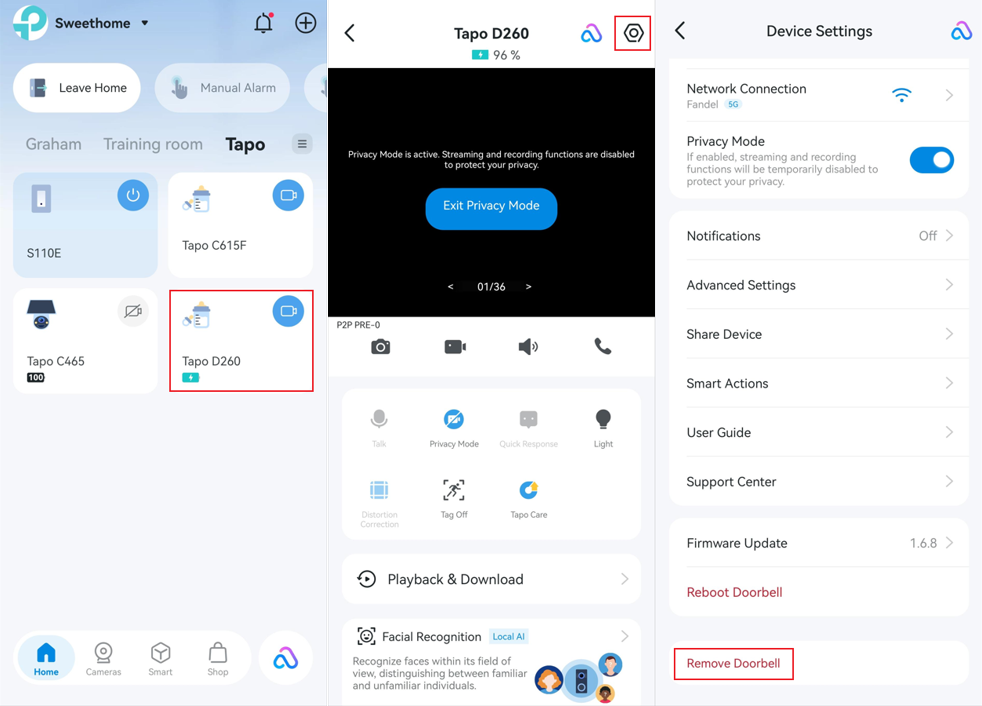
Case 2: Remove the Doorbell from the Doorbell Settings Page
On the Tapo App Home page, tap your doorbell device card to enter the live view page. Then tap the gear icon in the top right corner to open Doorbell Device Settings. Tap Remove Doorbell to remove the Tapo doorbell from your TP-Link account.
Looking For More
¿Es útil este artículo?
Tus comentarios nos ayudan a mejorar esta web.



TP-Link Community
Still need help? Search for answers, ask questions, and get help from TP-Link experts and other users around the world.