


How to Set Up and Pair Your TP-Link Powerline Adapters
A TP-Link powerline adapter network lets you extend your home network to any room with a power outlet using your home's existing electrical wiring — no long Ethernet cables needed. Once set up, powerline adapters deliver reliable connectivity throughout the home. This guide explains how to create a basic powerline network, manually pair the adapters, and add supported devices using the tpPLC app or tpPLC utility.
Key Takeaways
- A powerline network requires at least two units connected to the same electrical circuit. Adapters on different circuits cannot communicate with each other.
- You can pair the adapters manually: plug both units into wall sockets in the same room, then press and hold the Pair button on each unit within two minutes of each other.
- If the Powerline LED turns red, the adapter is experiencing poor signal strength and should be moved to a different wall socket.
- TP-Link powerline adapters can also be set up using the tpPLC smartphone app or the tpPLC desktop utility, both of which require entering the 16-digit powerline key printed on the device label.
Before You Begin
- Make sure the powerline devices are connected to the same electrical wiring system.
- Plug each powerline device directly into a wall outlet. Do not use a power strip, extension cord, or surge protector.
- Use an Ethernet cable to connect one powerline adapter to a LAN port on your router.
- For initial setup or pairing, place the powerline devices in the same room or as close together as possible.
Note: Models beginning with TL-WPA include Wi-Fi. Models beginning with TL-PA provide Ethernet connectivity only. Features and button locations vary by model.
Here we take the TL-WPA8630P KIT as an example.
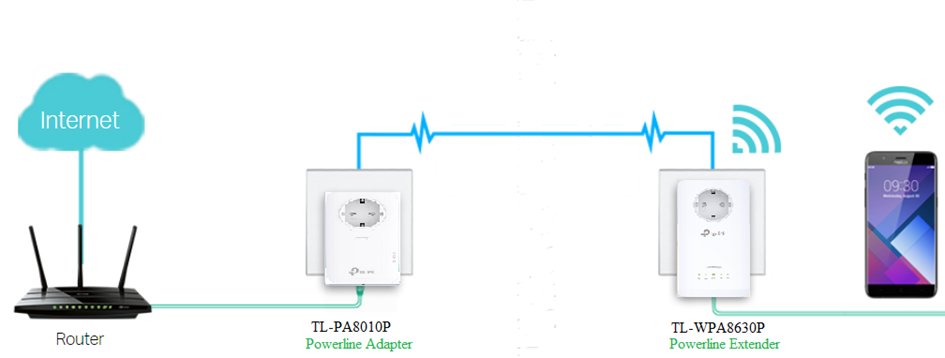
Step-by-Step Guide
Method 1: Set Up TP-Link Powerline Adapters via Pair Button (Recommended)
Step 1: Locate the Pair Button
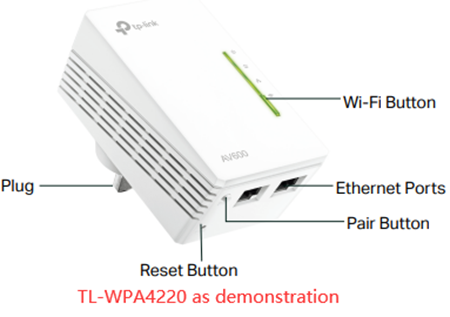
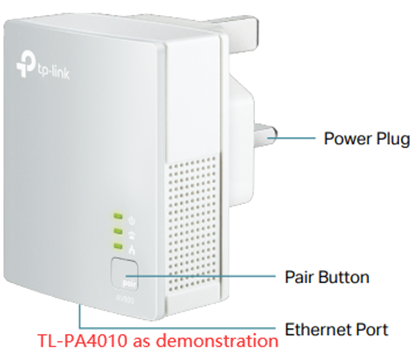
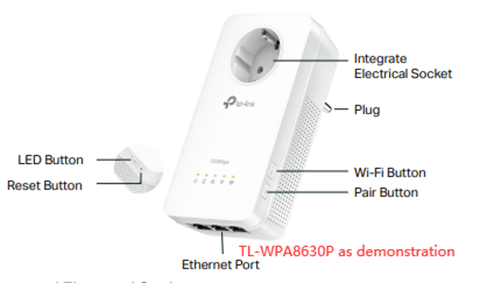
Step 2: Pair the Powerline Devices
1. Press the Pair button on the first powerline device for about one second. Its Power LED should start blinking.
2. Within two minutes, press the Pair button on the second powerline device for about one second.
3. Wait about one minute. Pairing is complete when the Powerline LED turns solid.
Note: For TL-PA201, TL-PA211 V1, TL-PA210 V1, and TL-PA251 V1, press and hold the Pair button for 3-8 seconds to start pairing.
Step 3: (Optional) Add More Powerline Devices
To add more powerline extenders, press the Pair button on the adapter, then press the Pair button on the new extender within two minutes. Wait about one minute. Pairing is complete when the Powerline LED turns solid.
Step 4: Locate the Powerline Extender
1. Move the second powerline device to the required room and plug it directly into a wall outlet.
2. Wait for the Powerline LED to turn on, then connect your end device by Ethernet or Wi-Fi, depending on the powerline model.
Note: For a powerline Wi-Fi extender, the default Wi-Fi name and password are printed on the Wi-Fi Info Card or device label.
Method 2: Set Up TP-Link Powerline Adapters via the tpPLC App
To use this method, at least one powerline device must support Wi-Fi.
Step 1: Download and install the tpPLC app from Google Play or the App Store.
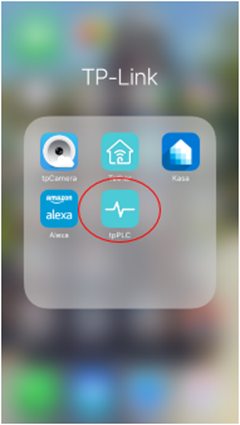
Step 2: Connect your phone or tablet to the powerline Wi-Fi extender's Wi-Fi network. Open the tpPLC app. Wait for the app to detect the connected powerline Wi-Fi extender.
Note: For a powerline Wi-Fi extender, the default Wi-Fi name and password are printed on the Wi-Fi Info Card or device label.
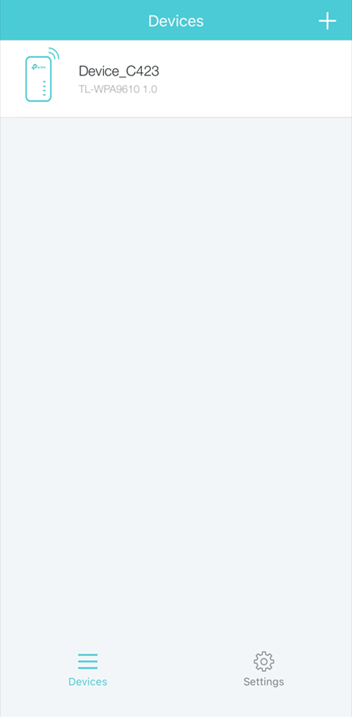
Step 3: Add Powerline Devices
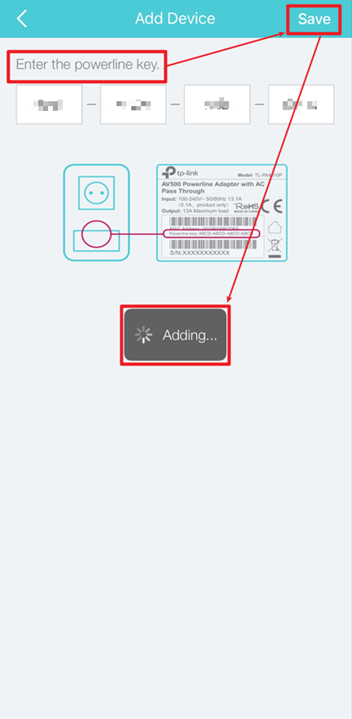
1. Locate and record the 16-digit Powerline Key printed on the label of the adapter you want to add.
2. Plug the adapter into a wall socket and wait until its LEDs become stable
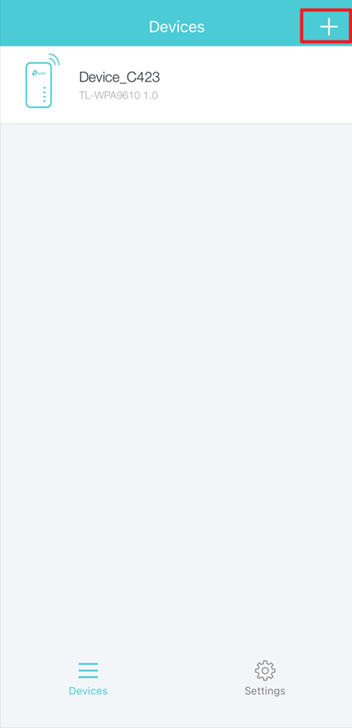
3. In the app, tap the plus (+) icon in the upper-right corner.
4. Enter the 16-digit powerline key printed on the new device's label, then tap Save. Wait for the app to confirm the device was added successfully.
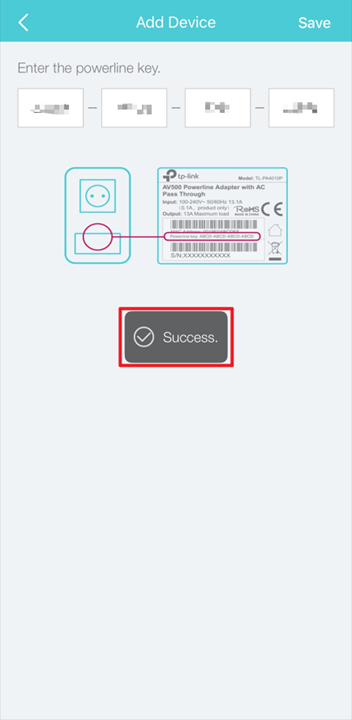
Setup complete! Your TP-Link powerline devices are now connected and ready to extend the network.
To add more powerline devices, simply follow the same steps.
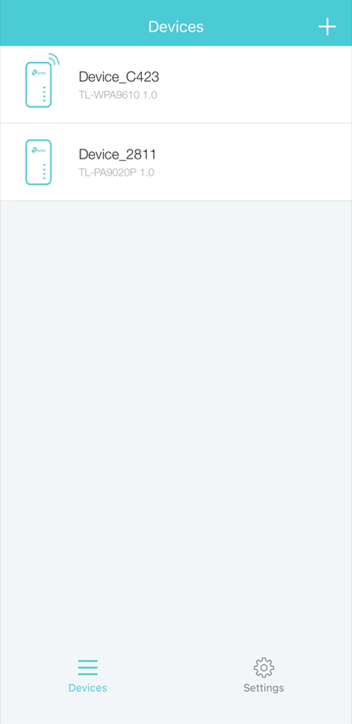
Step 4: Locate the Powerline Extender
1. Move the second powerline device to the required room and plug it directly into a wall outlet.
2. Wait for the Powerline LED to turn on, then connect your end device by Ethernet or Wi-Fi, depending on the powerline model.
Note: For a powerline Wi-Fi extender, the default Wi-Fi name and password are printed on the Wi-Fi Info Card or device label.
Method 3: Set Up TP-Link Powerline Adapters via the tpPLC Utility
Use the tpPLC utility on a compatible computer to add and manage powerline devices.
Step 1: Download and install the tpPLC utility for your model from the TP-Link Download Center.
Step 2: Connect your computer to one powerline device via Ethernet or Wi-Fi. Plug the other powerline device into a wall outlet next to the first one and wait for its LEDs to stabilize.
Step 3: Add Powerline Devices
1. Locate and record the 16-digit Powerline Key printed on the label of the adapter you want to add.
2. Plug the adapter into a wall socket and wait until its LEDs become stable
3. Open the tpPLC utility and click Add Device in the left menu.
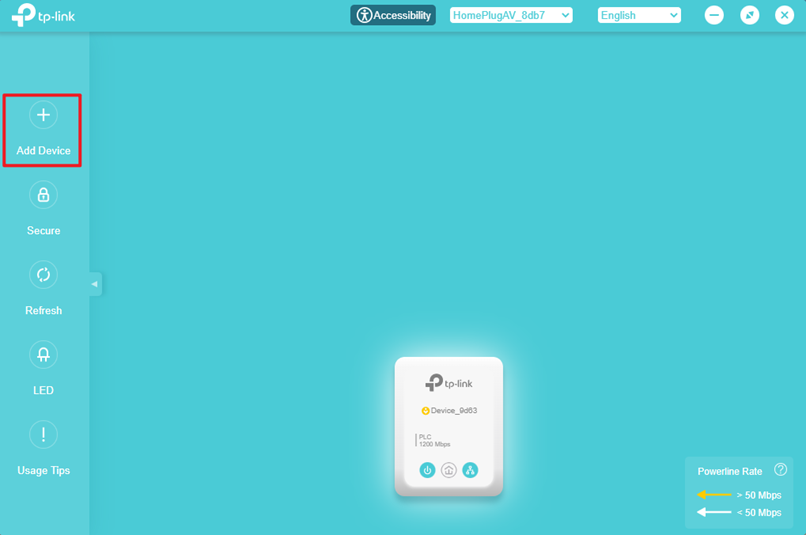
4. Enter the 16-digit powerline key printed on the new device's label, then click Save. Click OK when the utility confirms that the device was added successfully.
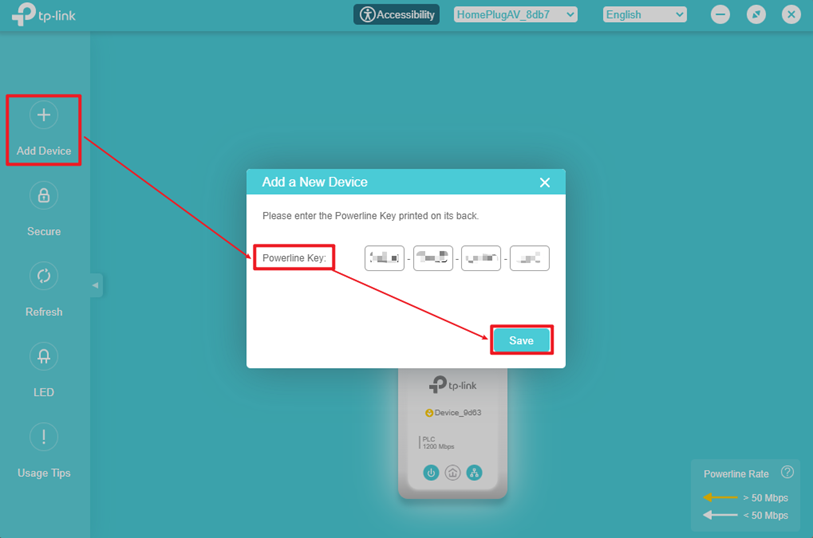
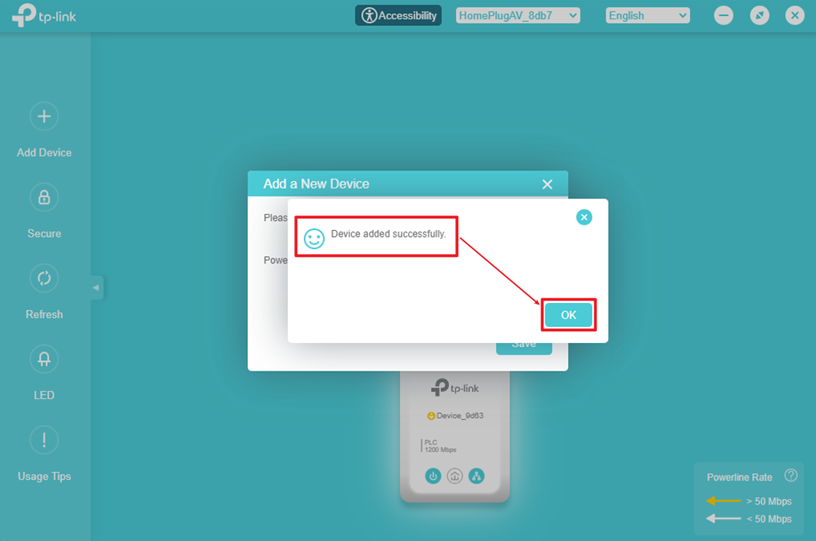
Note: If the Powerline LED is off or red, plug the device into another wall outlet closer to the first adapter. Avoid outlets near high-power appliances that may introduce electrical interference.
Setup complete! Your TP-Link powerline devices are now connected and ready to extend the network.
To add more powerline devices, simply repeat the same steps.
Step 4: Locate the Powerline Extender
1. Move the second powerline device to the required room and plug it directly into a wall outlet.
2. Wait for the Powerline LED to turn on, then connect your end device by Ethernet or Wi-Fi, depending on the powerline model.
Note: For a powerline Wi-Fi extender, the default Wi-Fi name and password are printed on the Wi-Fi Info Card or device label.
Looking For More
¿Es útil esta pregunta frecuente?
Sus comentarios nos ayudan a mejorar este sitio.



TP-Link Community
Still need help? Search for answers, ask questions, and get help from TP-Link experts and other users around the world.