


How to Set Up Recording and Playback on a PC Using VIGI Security Manager
If you don’t have a NVR, you can save recordings on the computer via VIGI Security Manager. Here will show you how to set up.
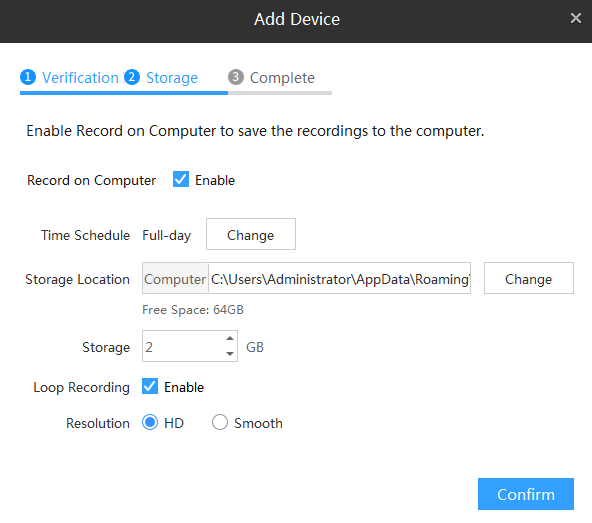
Step 1. Add VIGI cameras via VIGI Security Manager. In step 2 of Add Device, please enable the Record on Computer. Set the time schedule and other parameters as you want. After cameras are added, you can go to Settings > Storage > Storage Schedule to change recording settings.
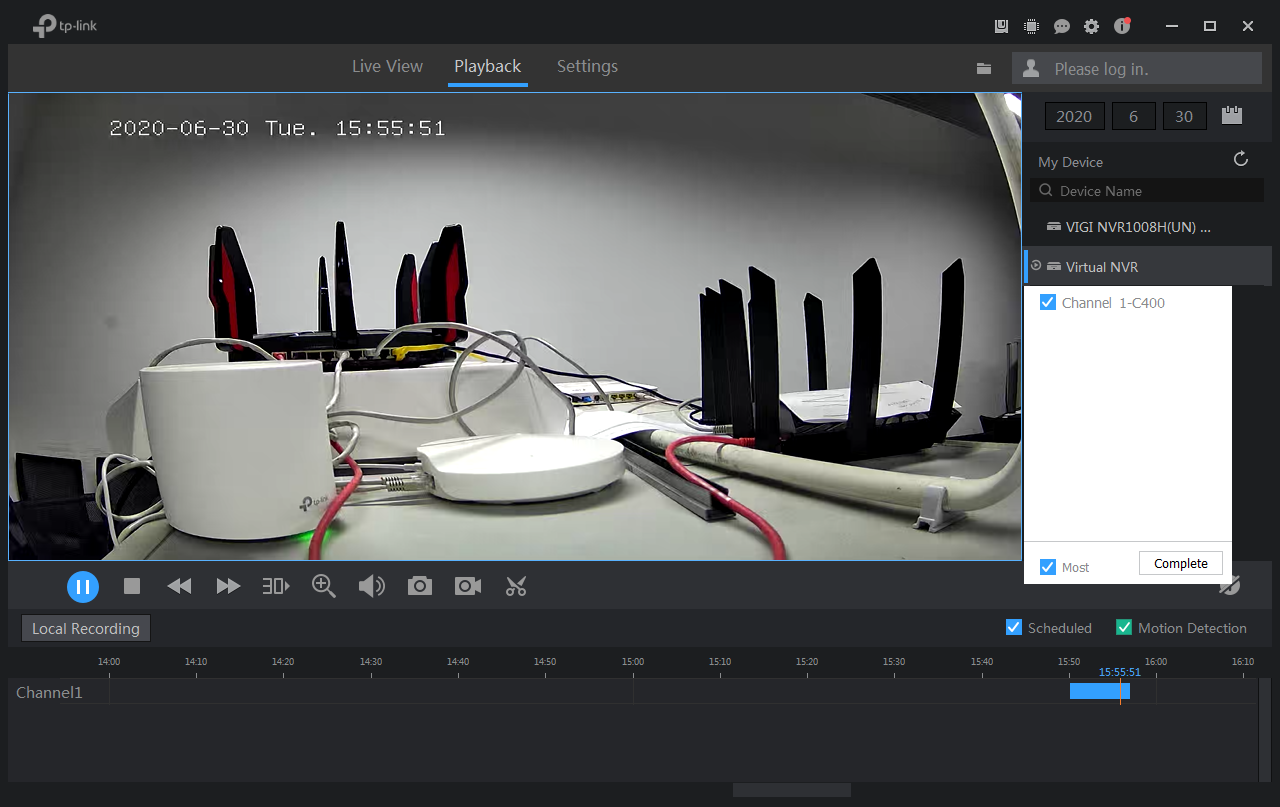
Step 2. Go to Playback page, click the Virtual NVR and select the corresponding camera. Then you can watch local recordings.
Note: Only when VIGI Security Manager is running on your computer and your computer is connected to the same network as the camera, recordings can be saved on your computer in real time.
To learn more about each function and configuration, please visit Support Home to download or check the manual for your product.
Looking For More
Byla tato FAQ užitečná?
Vaše zpětná vazba nám pomůže zlepšit naše webové stránky



TP-Link Community
Still need help? Search for answers, ask questions, and get help from TP-Link experts and other users around the world.