


How to Configure Organizations, Sites, and User Accounts in VIGI Cloud VMS and VIGI VMS
Contents
Configure organizations and sites in VIGI Cloud VMS
Configure user accounts in VIGI Cloud VMS
Configure organizations and sites in VIGI VMS
Configure user accounts in VIGI VMS
Introduction
VIGI Cloud VMS and VIGI VMS support multi-site and multi-user management for surveillance deployments of different sizes. Organizations, sites, and user accounts can be configured to separate management responsibilities and assign different permission levels. This article explains how to configure organizations, sites, and user accounts in VIGI Cloud VMS and VIGI VMS.
Requirements
- VIGI Cloud VMS
- VIGI VMS
Configuration
Use the following steps to create and manage organizations, sites, and user accounts.
Configure organizations and sites in VIGI Cloud VMS
- Organization settings
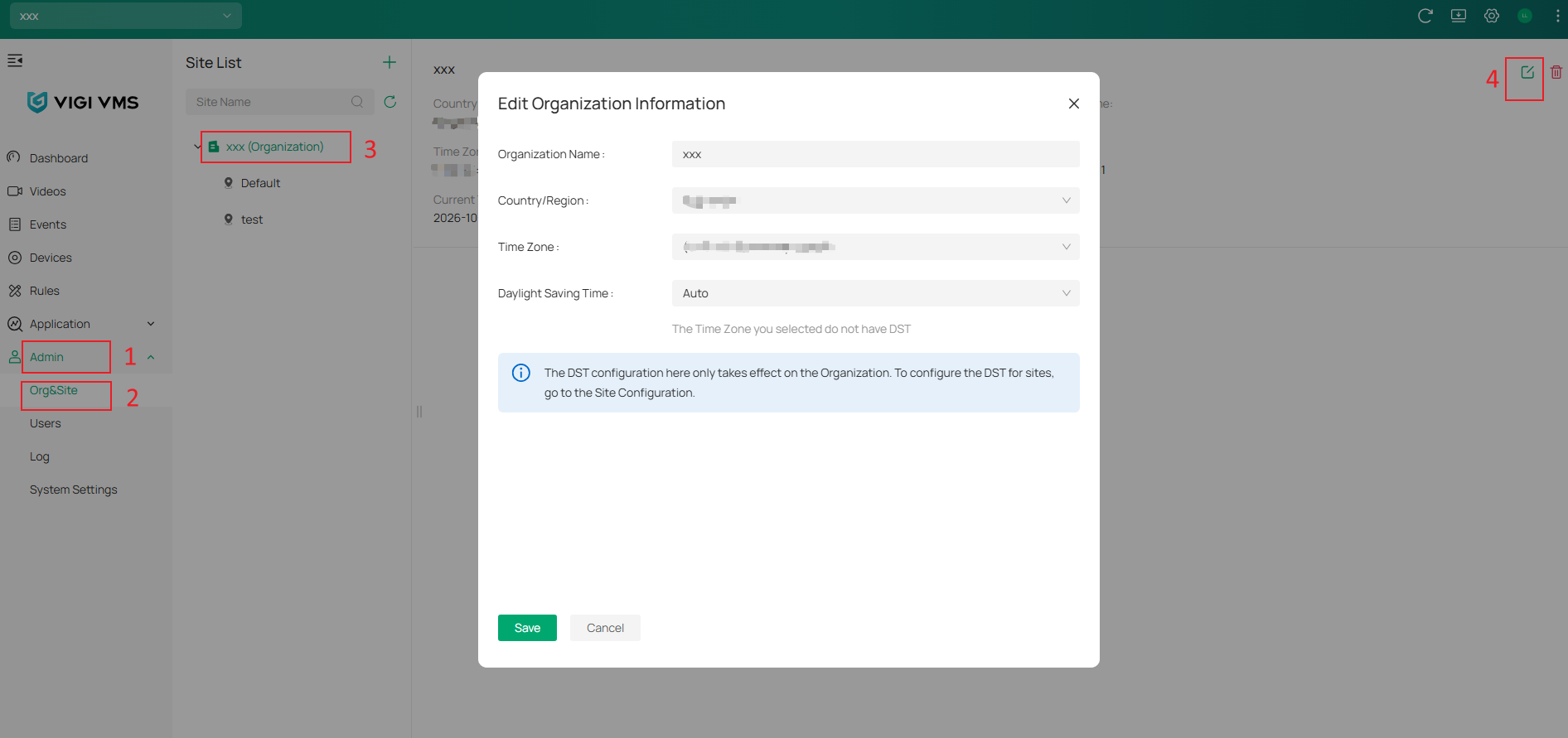
An organization is the top-level management entity in VIGI Cloud VMS. You can configure organization information by navigating to Admin > Org&Site > Organization, then click Edit to modify the organization settings.
- Site settings
A site represents a physical location within an organization.
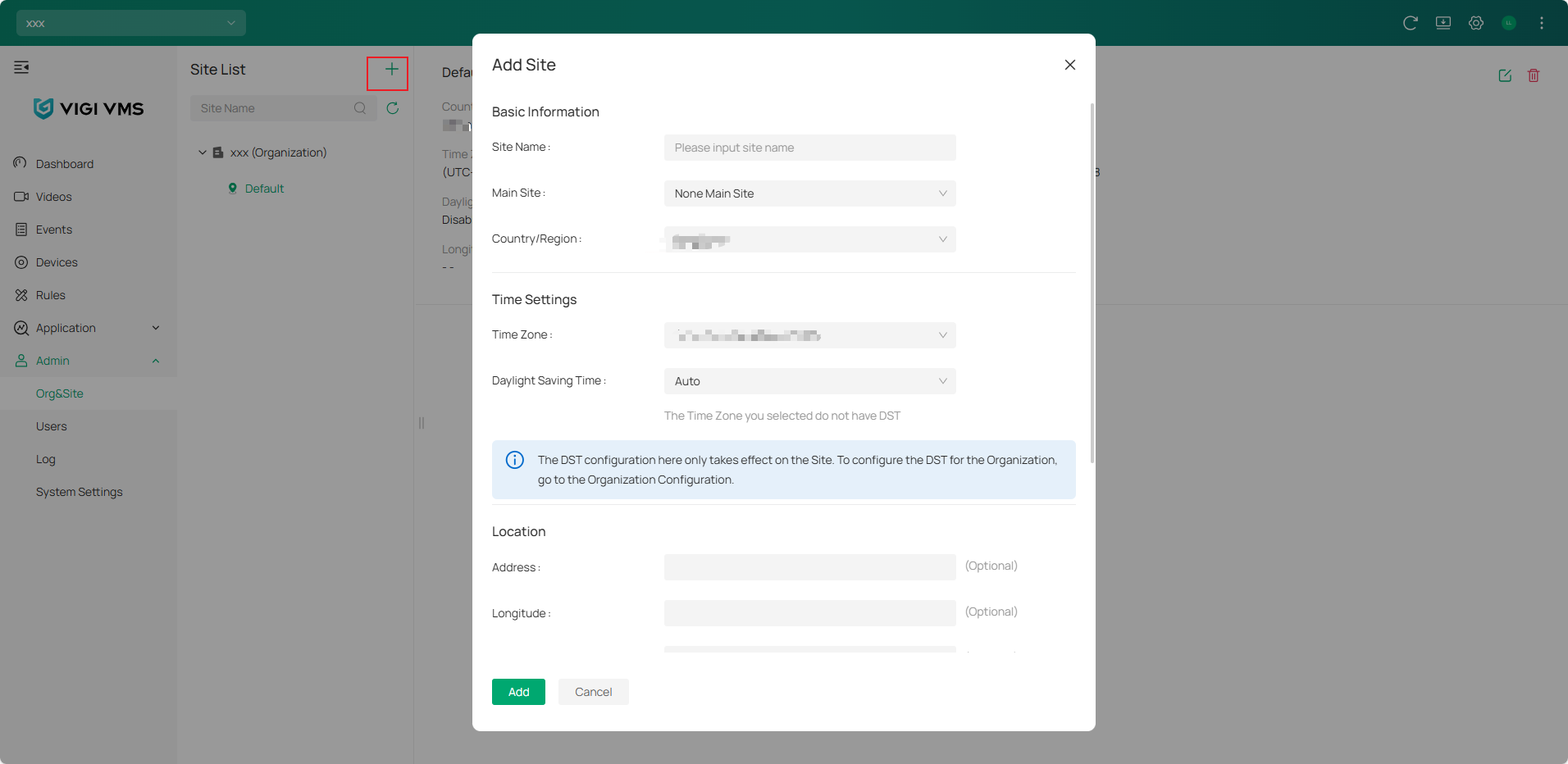
Navigate to Admin > Org&Site > Site List, then click Add to create a new site.
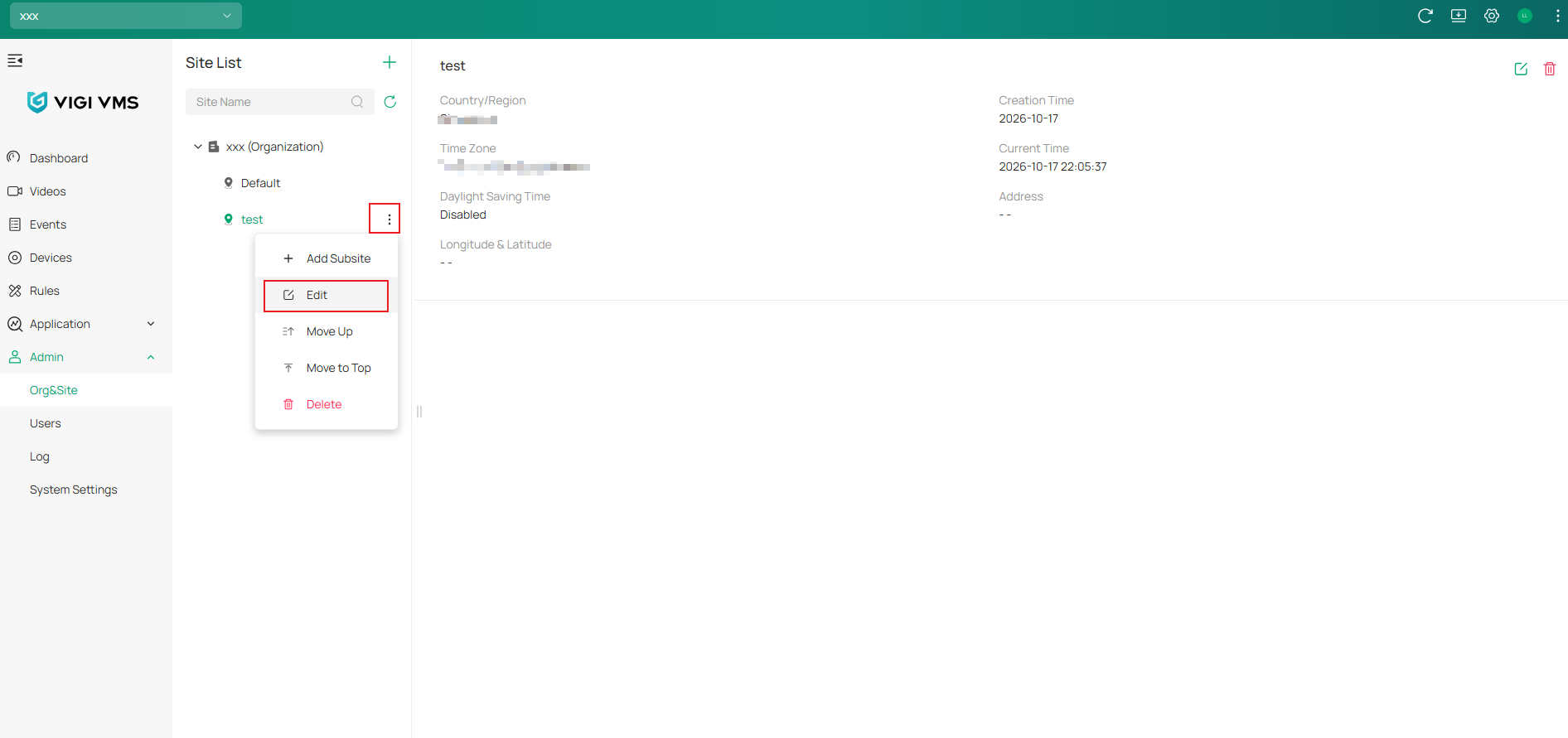
You can also click on the three dots next to the site to select Edit, then modify the existing site.
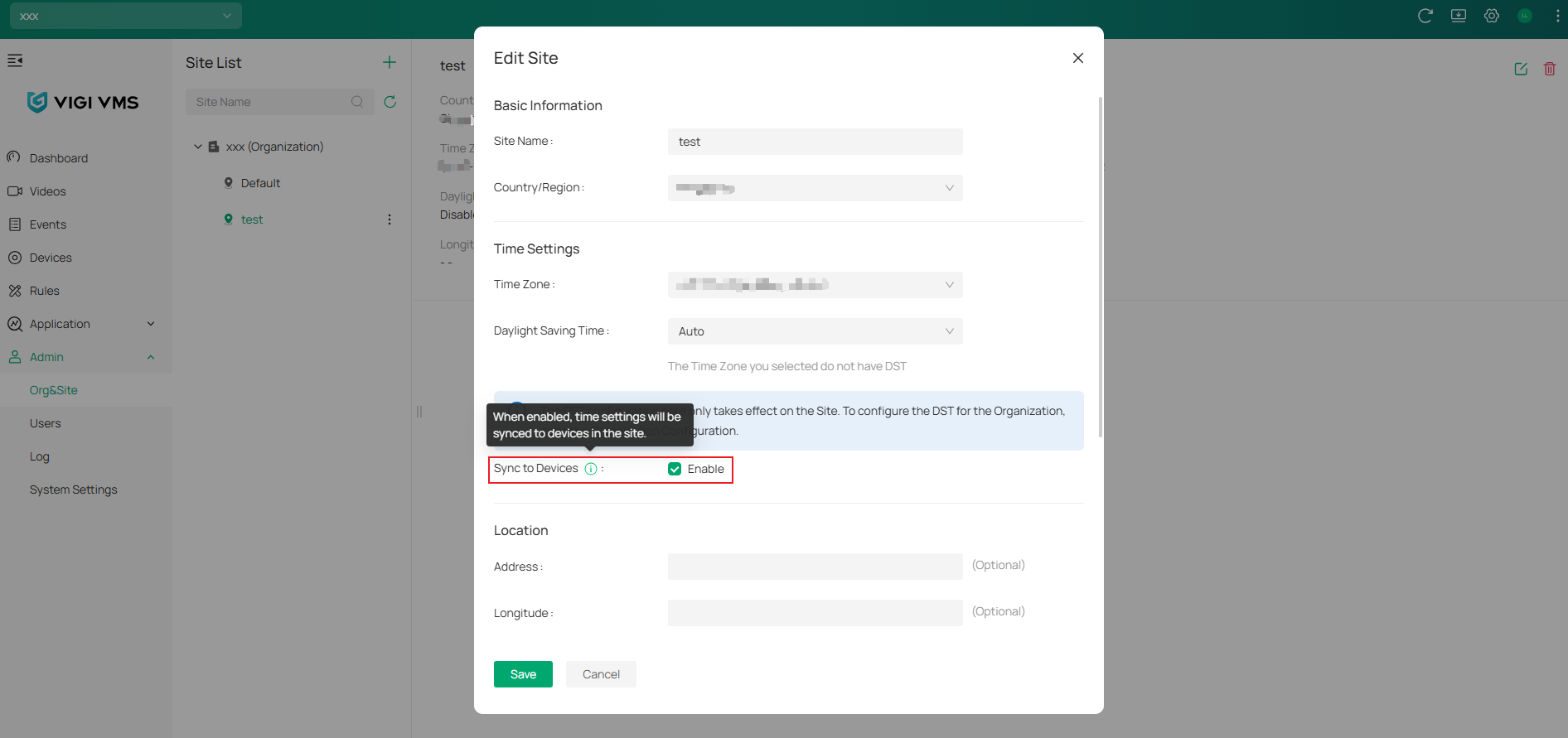
Note: The Sync to Device option is enabled by default. When enabled, the site time zone is synchronized to devices within the site. If the configured site time zone differs from the device time zone, the device time displayed in OSD, recordings, and events may change accordingly.
If the device time does not match your expectations, verify both the site time zone and the Sync to Device setting.
Configure user accounts in VIGI Cloud VMS
Users can be granted access to one or more selected sites with the same assigned role.
Navigate to Organization > Admin > Users, then click Add to create user accounts and assign the required permissions.
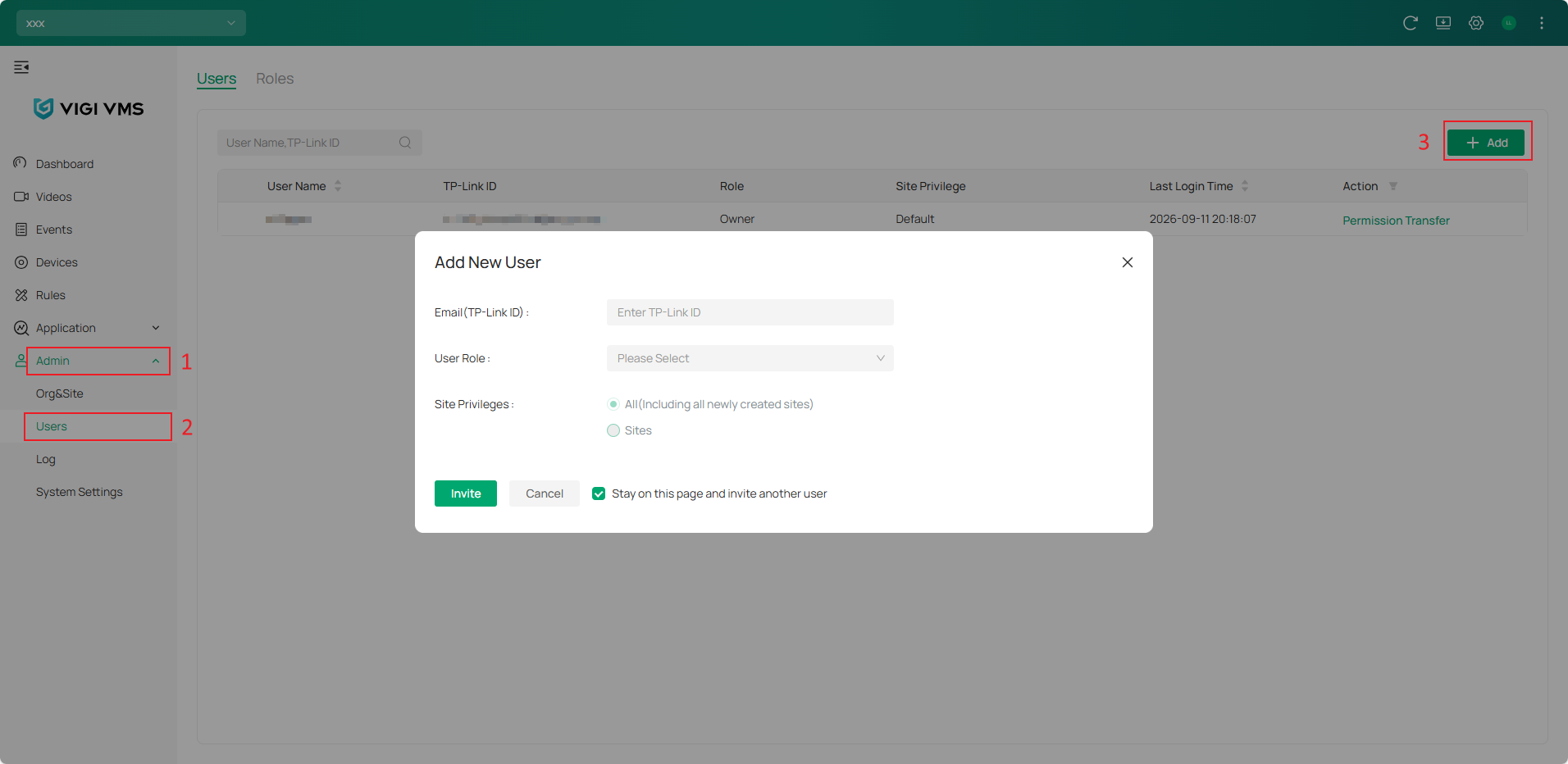
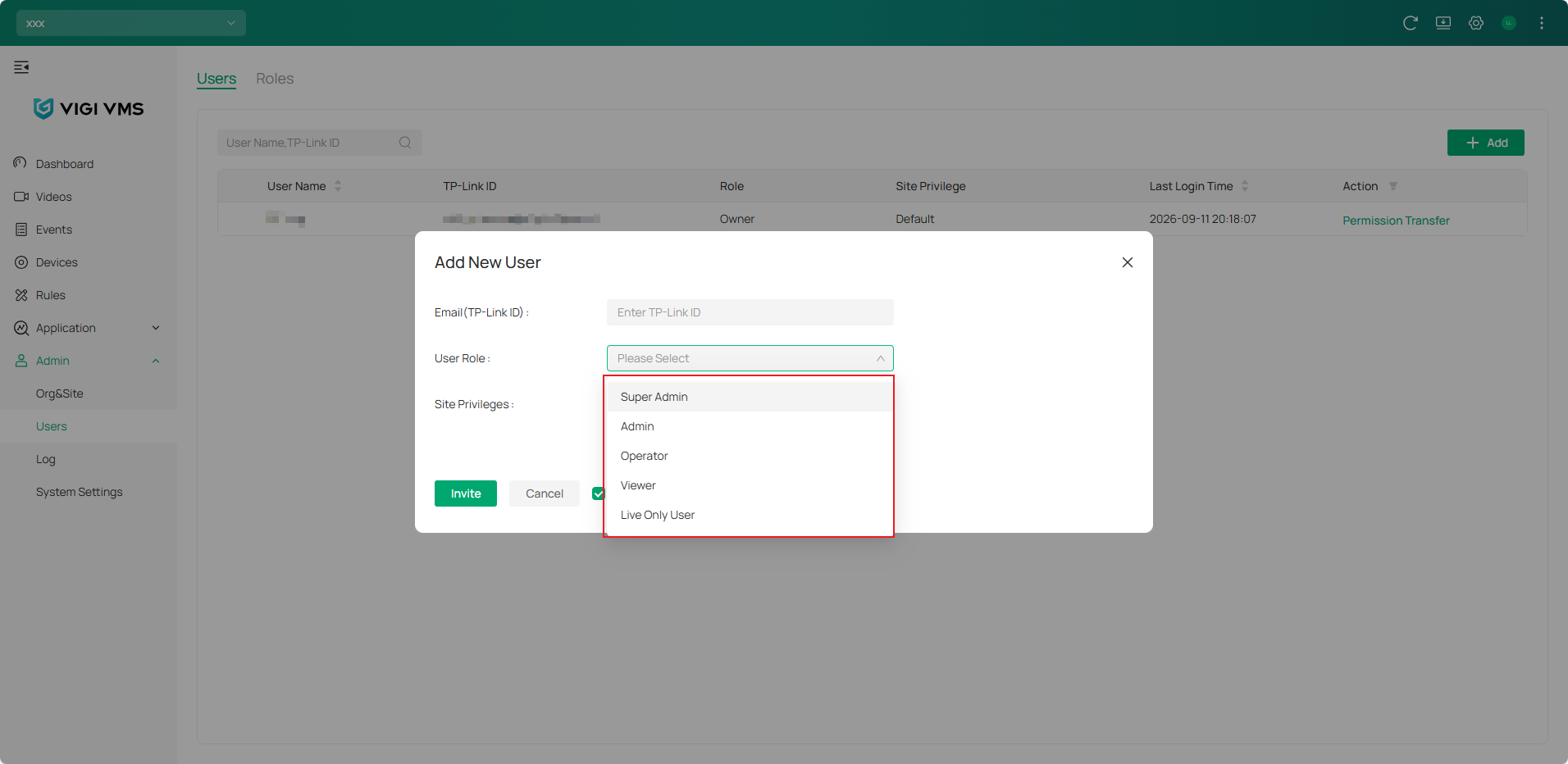
VIGI Cloud VMS supported permission levels include:
|
Role |
Permission |
|
Owner |
Has full access to all resources. Owns the organization and the device binding relationships. Can transfer organization ownership and device ownership to another user. |
|
Super Admin |
Has full access to all resources. Cannot transfer organization ownership or device ownership. |
|
Admin |
Add, manage, and control the devices Preview and play back the videos of a site View and edit site settings |
|
Operator |
Can perform device operations but lacks user and system management permissions. |
|
Viewer |
Preview and play back the videos of a site |
|
Live Only |
Preview the videos of a site |
Configure organizations and sites in VIGI VMS
- Organization settings
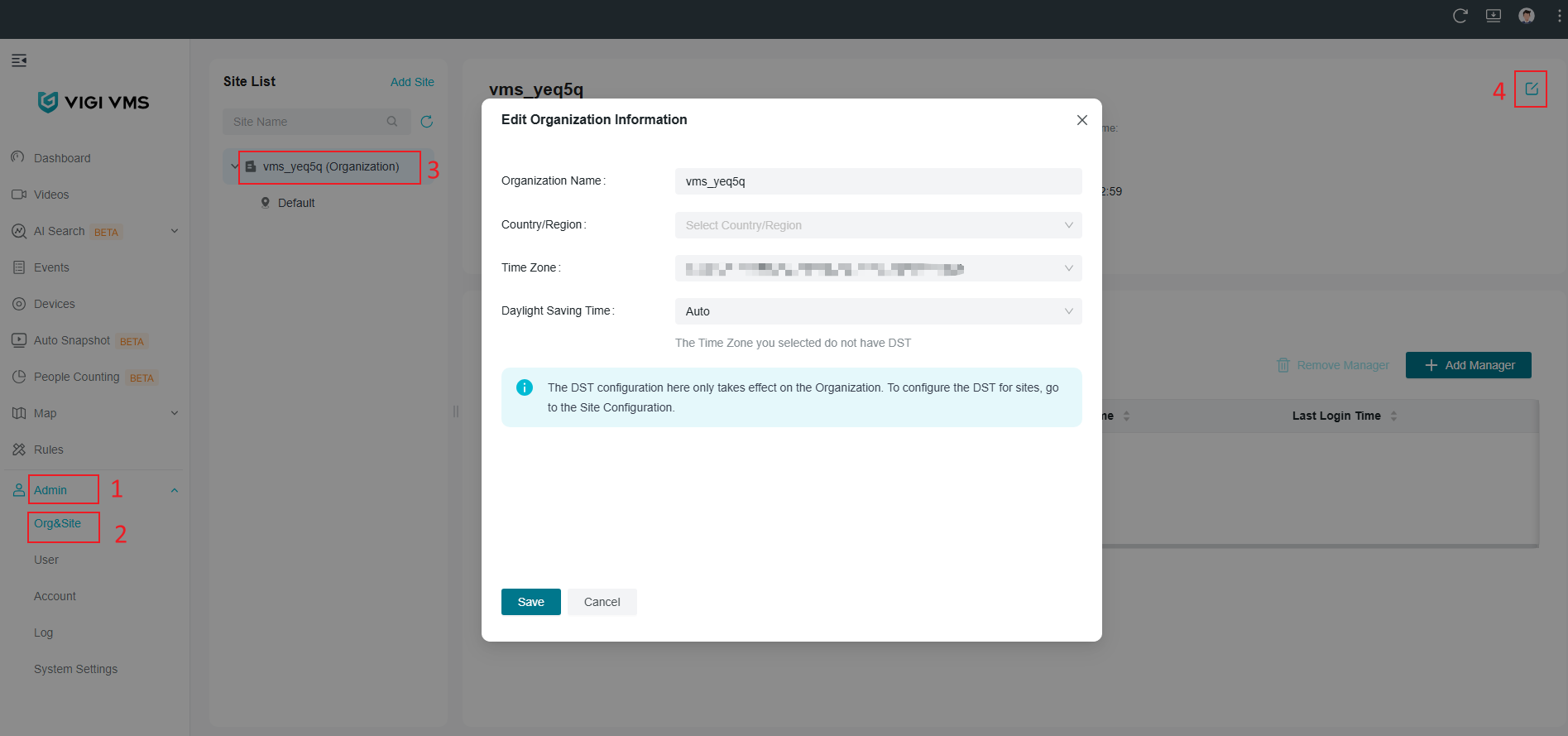
In VIGI VMS, you can also navigate to Admin > Org&Site > Organization to edit organization settings.
- Site settings
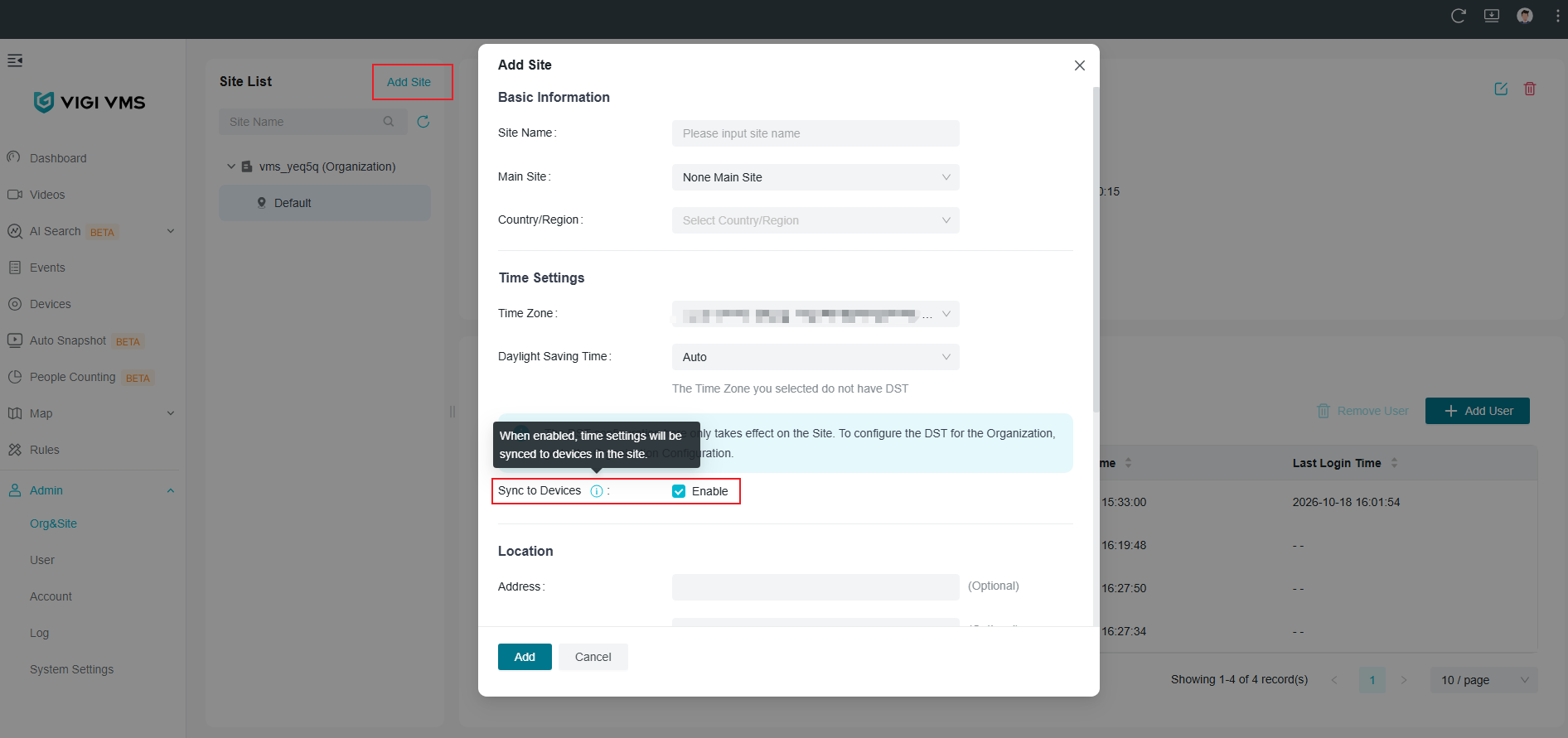
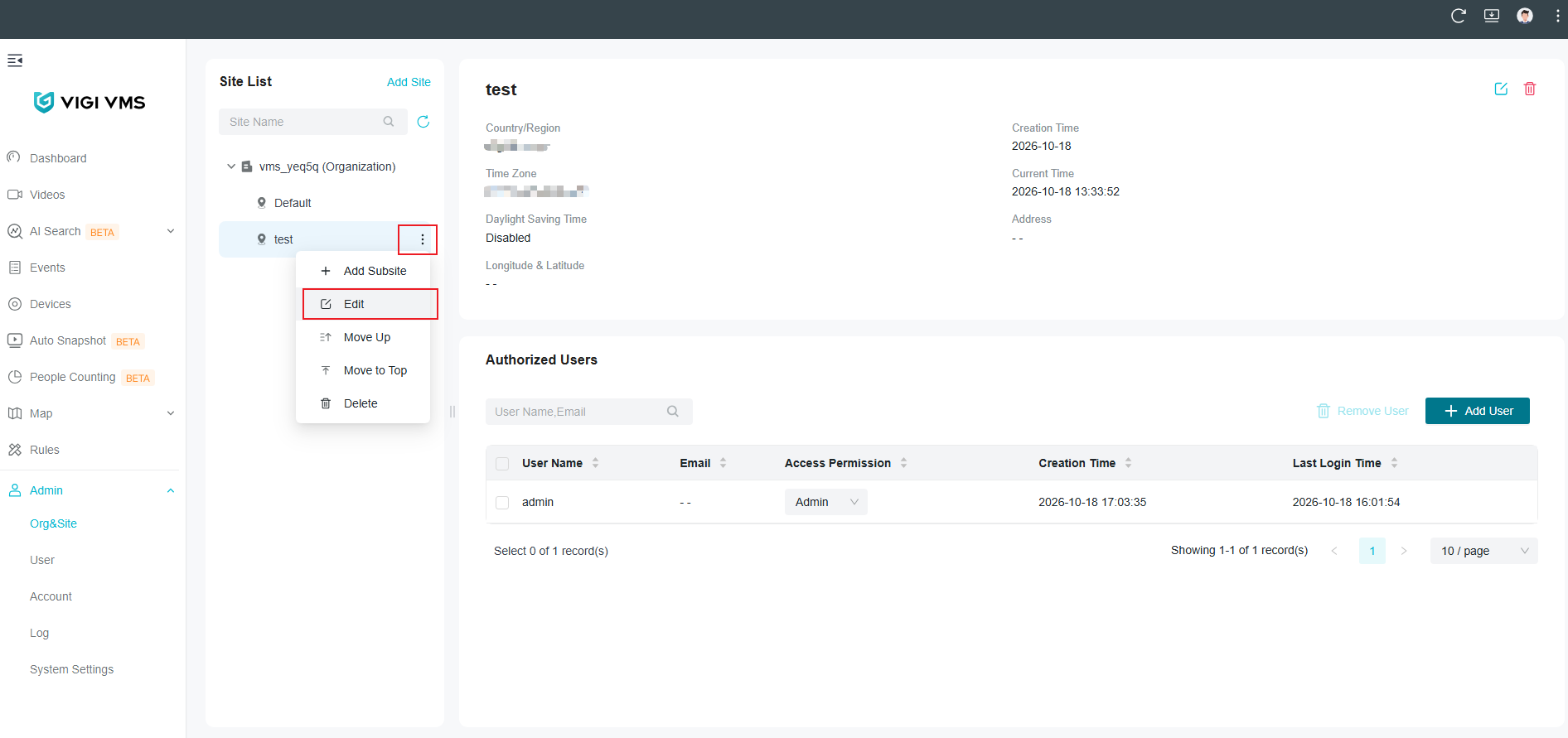
You can create and edit sites used within VIGI VMS by navigating to Admin > Org&Site > Site List to select Add Site or Edit Site.
Note: The Sync to Device option in the VIGI VMS Add Site section is also enabled by default.
Configure user accounts in VIGI VMS
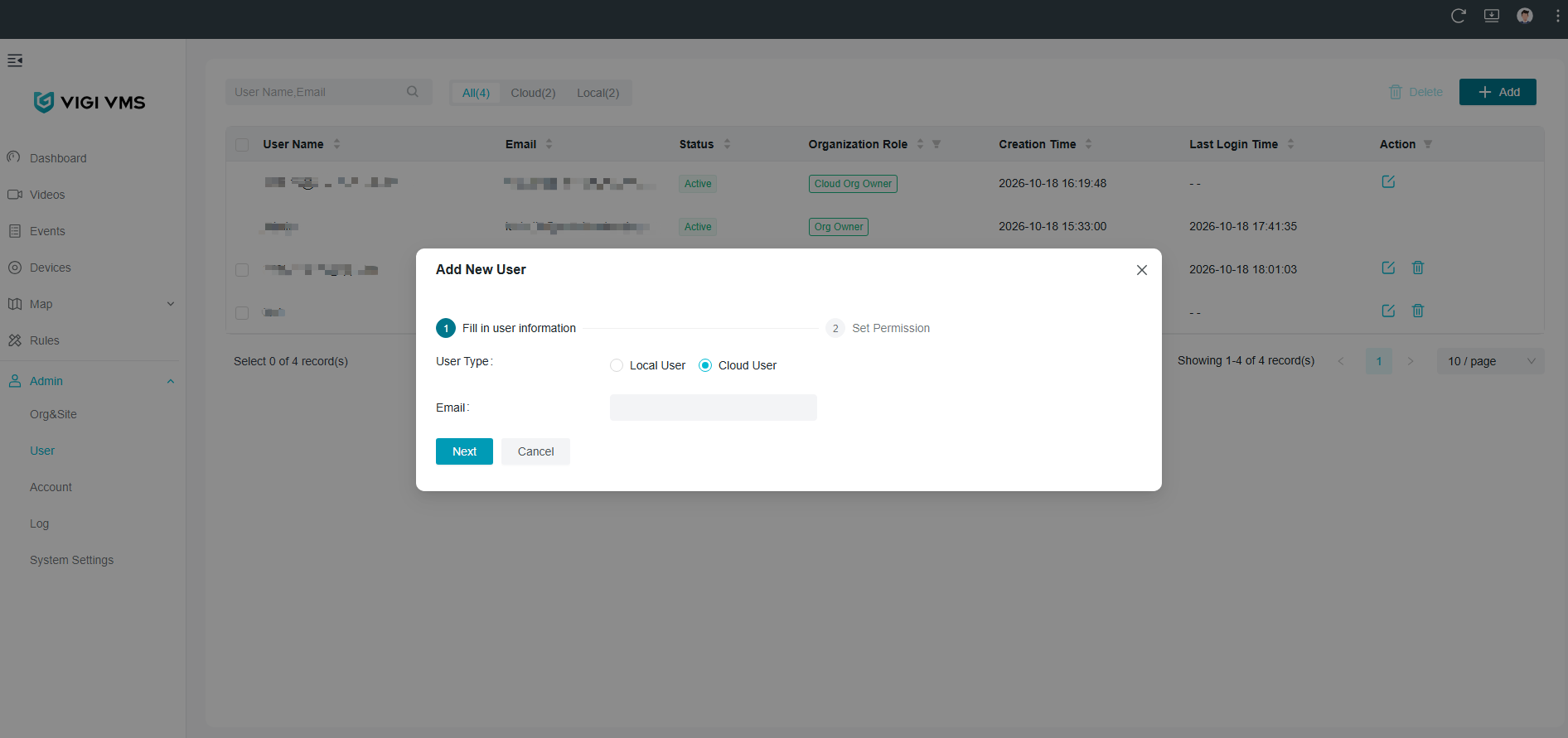
Navigate to Admin > User to add a user account. VIGI VMS supports adding both Local User and Cloud User.
- Local User
Local Users use credentials configured specifically within VIGI VMS.
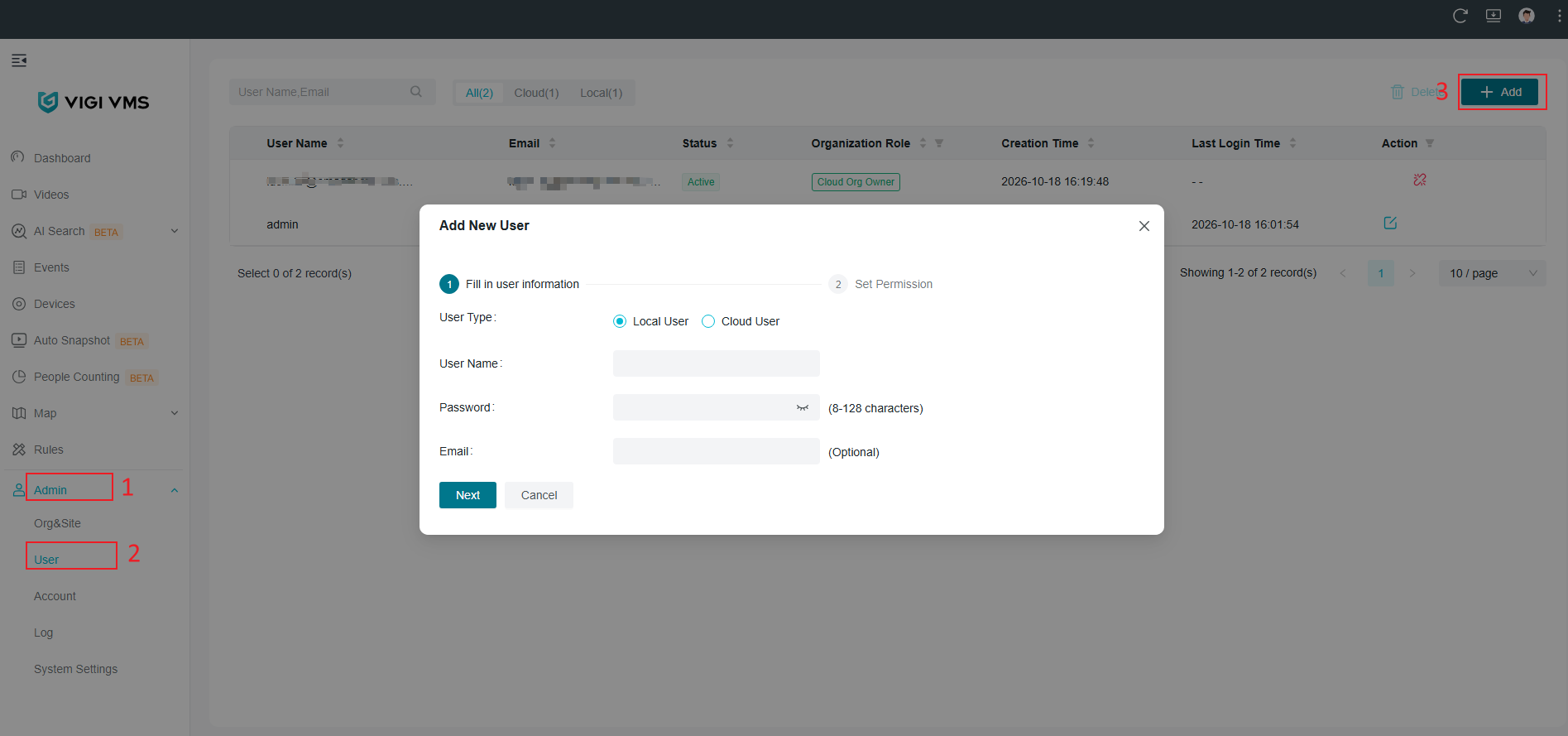
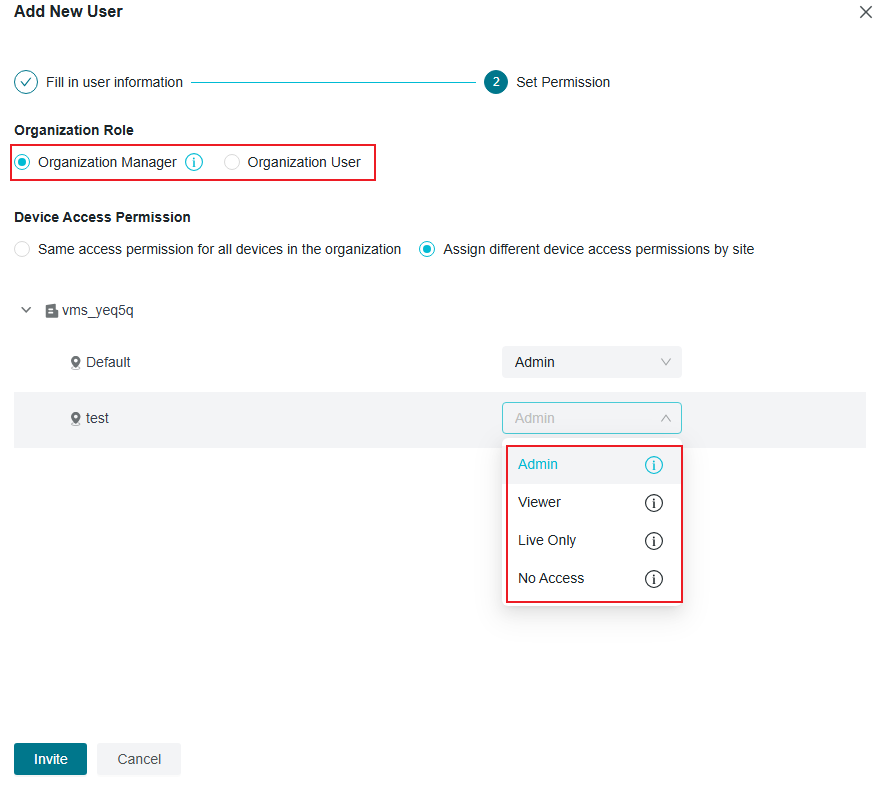
You can assign the required Organization Role and Device Access Permissions for the user.
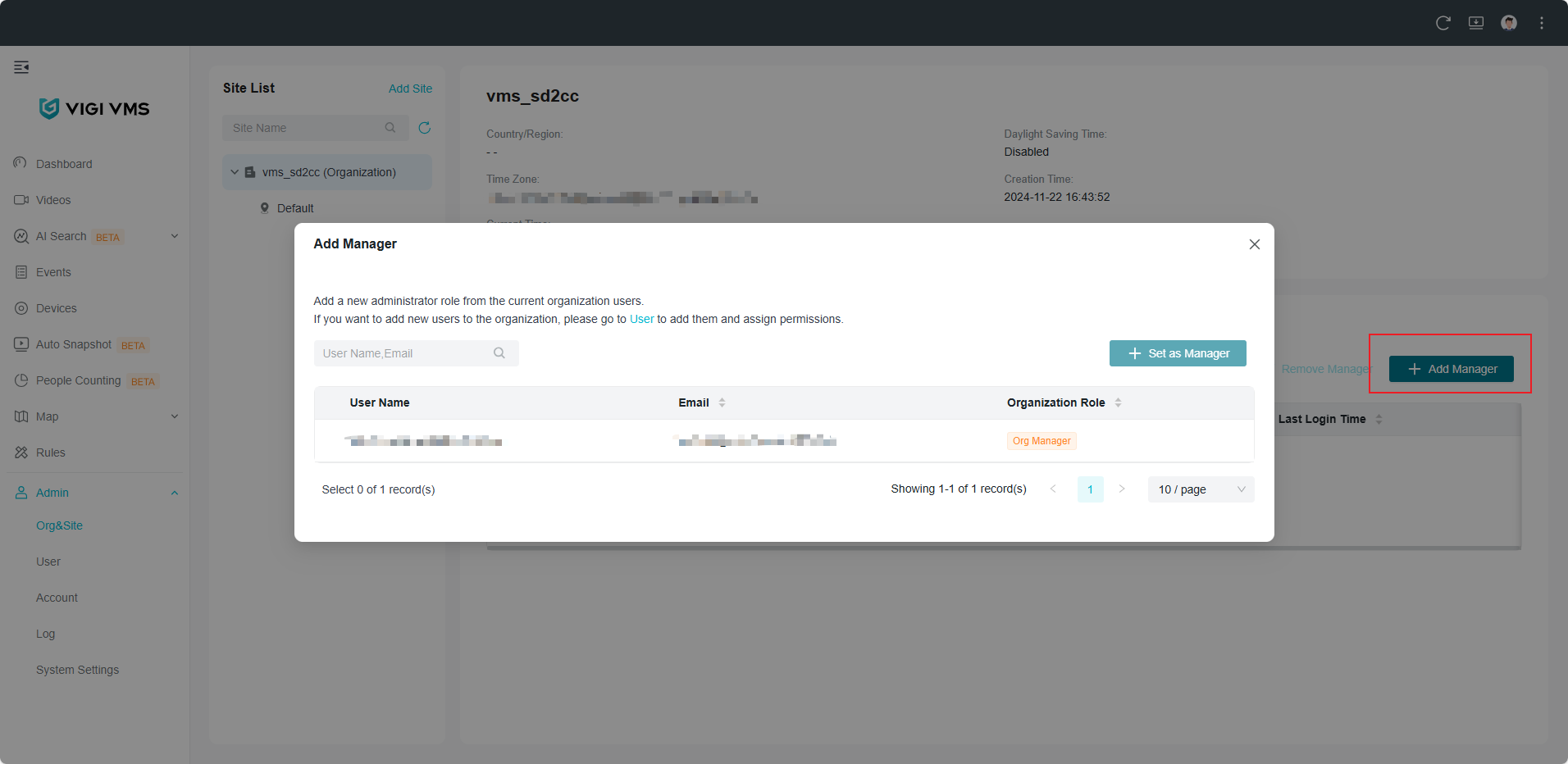
You can also click Add Manager on the Organization page to assign organization administrators for the account users you've added. Organization managers can be viewed and managed on the Organization page.
Note: Organization Manager has all permissions except managing Org Owner and some system settings
VIGI VMS supported permission levels include:
|
Role |
Permission |
|
Owner |
Has full access to all resources. Owns the organization and the device binding relationships. Can transfer organization ownership and device ownership to another user. |
|
Admin |
Add, manage, and control the devices Preview and play back the videos of a site View and edit site settings |
|
Viewer |
Preview and play back the videos of a site |
|
Live Only |
Preview the videos of a site |
|
No Access |
Users cannot access devices on the site. |
- Cloud User
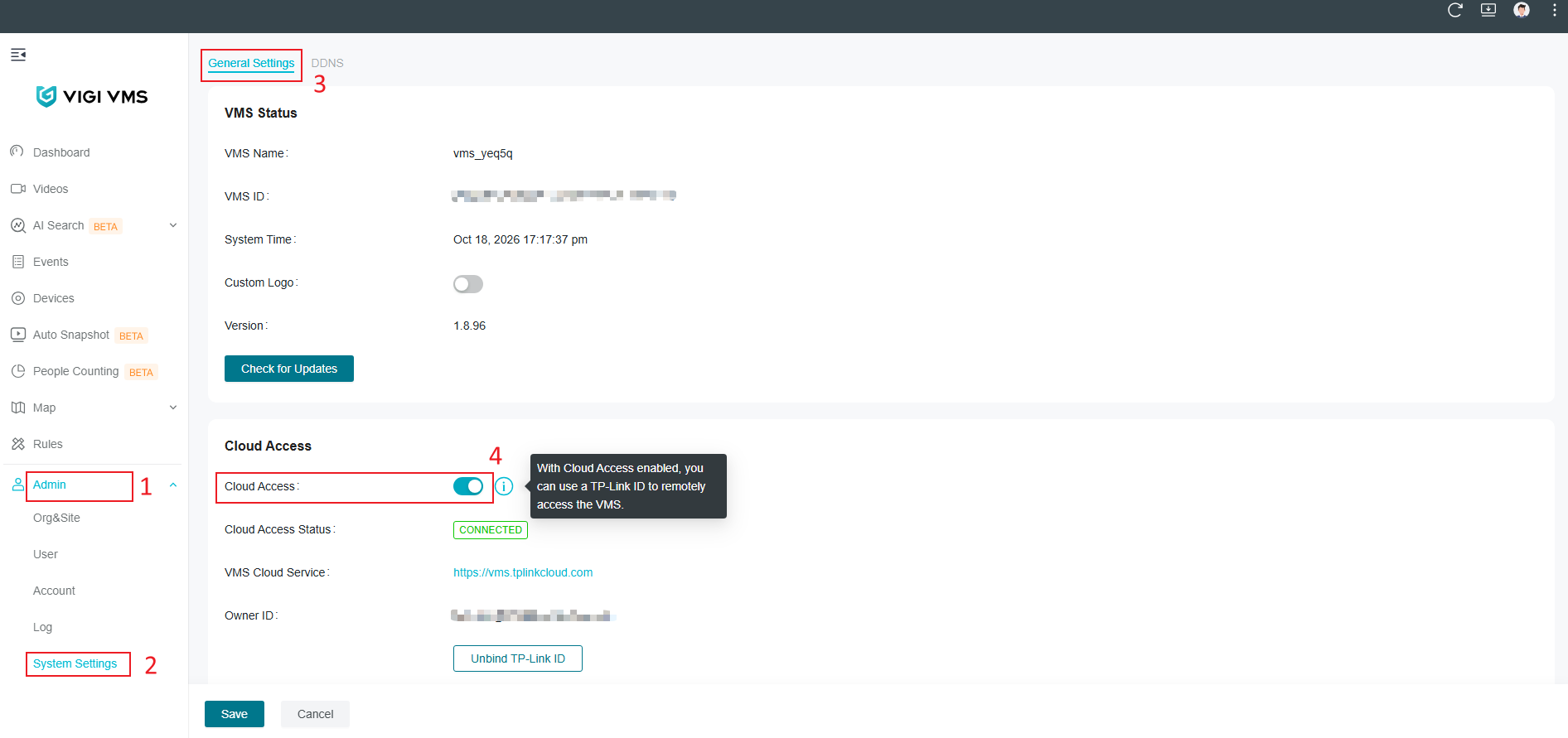
For cloud users, you may need to confirm Cloud Access is enabled. Navigate to Admin > System Settings > General Settings to enable it.
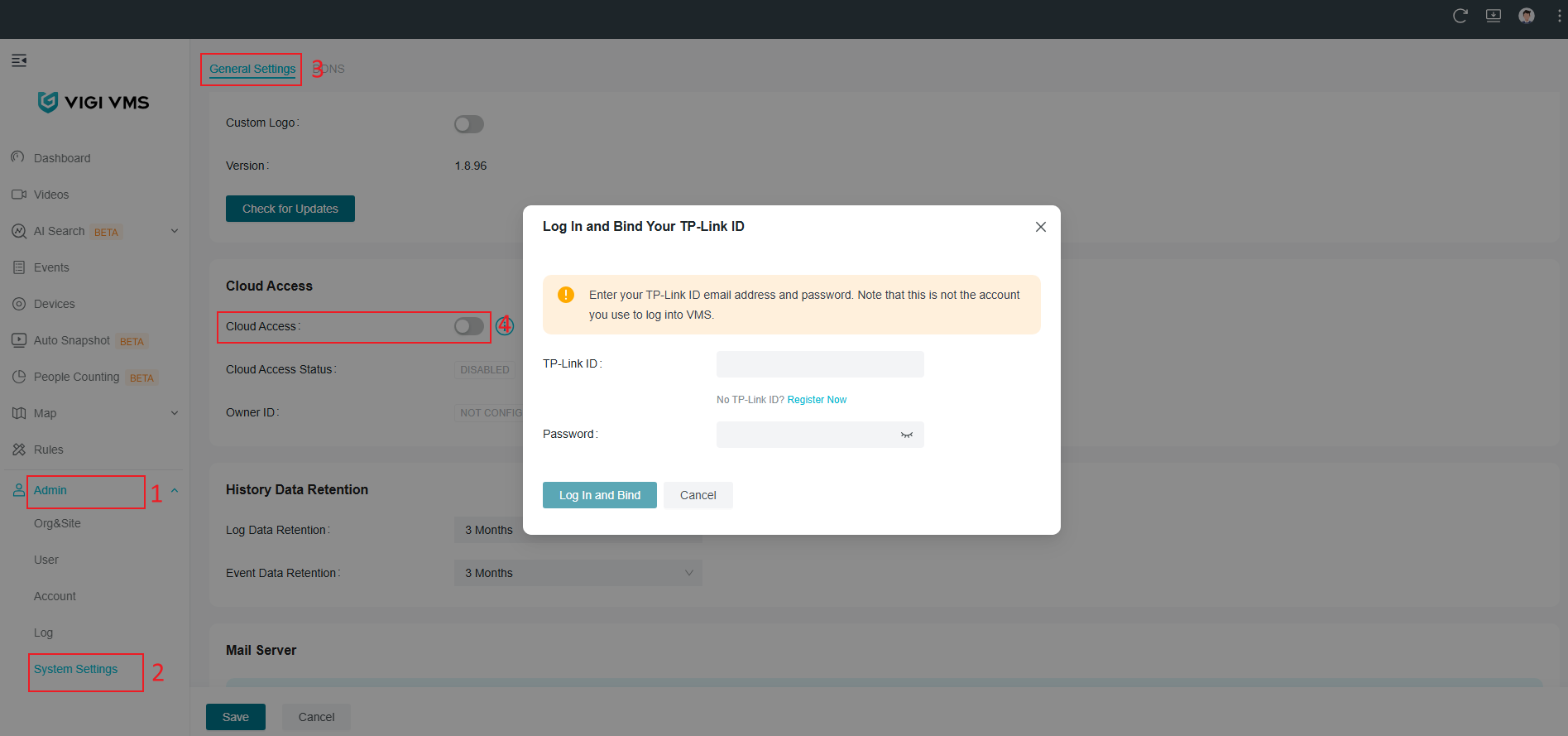
If you haven't enabled cloud access before, you may need to bind your TP-Link ID first.
Then you can add a Cloud User similar to the Local User steps.
Conclusion
Organizations, sites, and user accounts help simplify large-scale surveillance management by separating devices, locations, and user permissions. Properly configuring these settings can improve operational efficiency and provide more flexible access control within VIGI Cloud VMS and VIGI VMS.
To learn more about each function and configuration, please visit Support Home to download or check the manual for your product.
Looking For More
Byla tato FAQ užitečná?
Vaše zpětná vazba nám pomůže zlepšit naše webové stránky



TP-Link Community
Still need help? Search for answers, ask questions, and get help from TP-Link experts and other users around the world.