


How to Configure Dark Mode in VIGI VMS
Contents
Configure dark mode in VIGI Cloud VMS
Configure dark mode in VIGI VMS Software
Introduction
VIGI VMS supports both Light Mode and Dark Mode to accommodate different user preferences and working environments. Dark Mode can help reduce screen glare and improve visibility in low-light environments. This article explains how to enable or disable Dark Mode in VIGI Cloud VMS and VIGI VMS Software.
Requirements
- VIGI Cloud VMS
- VIGI VMS Software 1.5.14 or later
Configuration
Follow the steps below to configure Dark Mode.
Configure dark mode in VIGI Cloud VMS
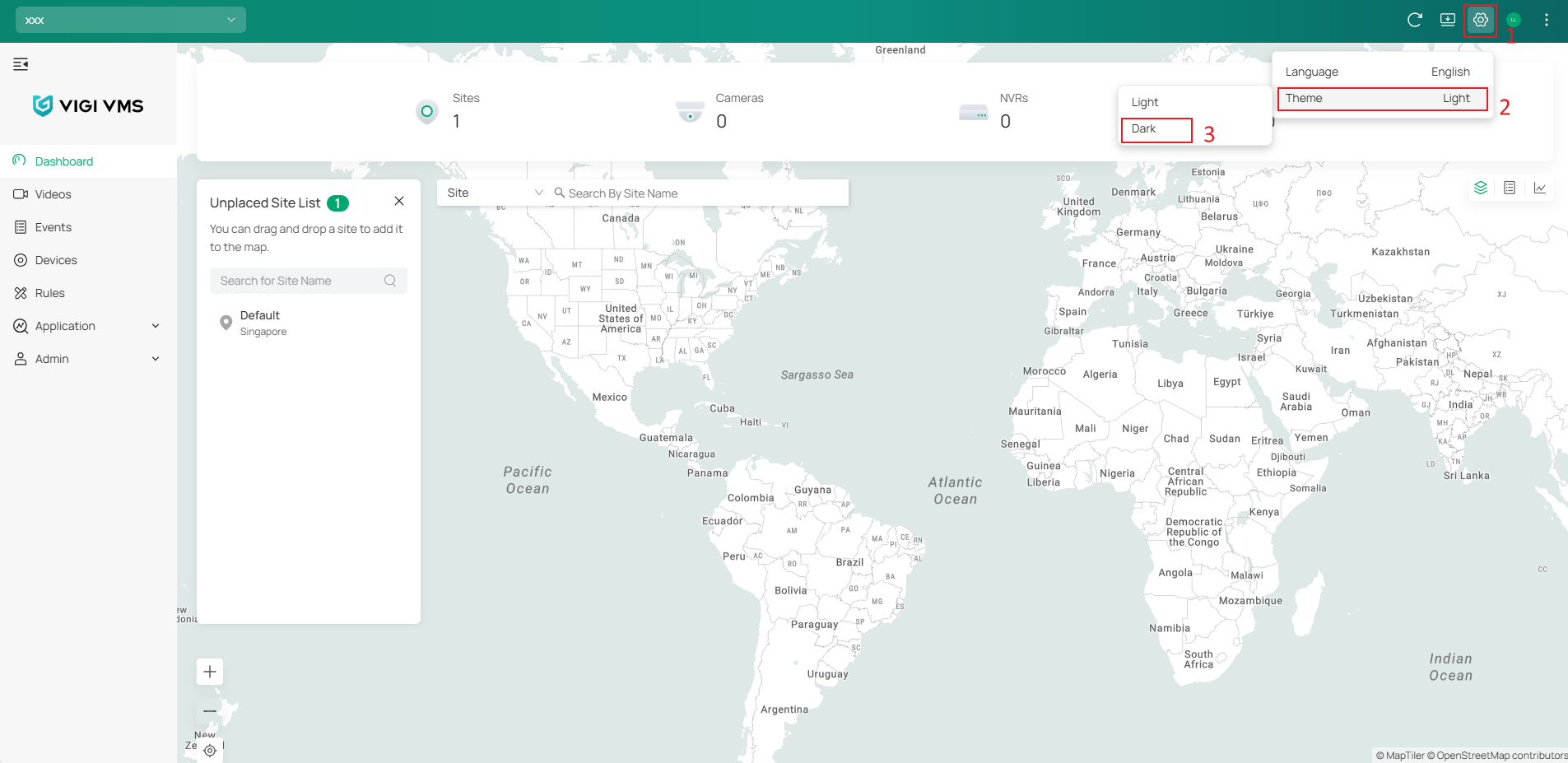
After logging in to VIGI Cloud VMS, click the Settings icon in the upper-right corner, then select the desired theme: Light or Dark.
Configure dark mode in VIGI VMS Software
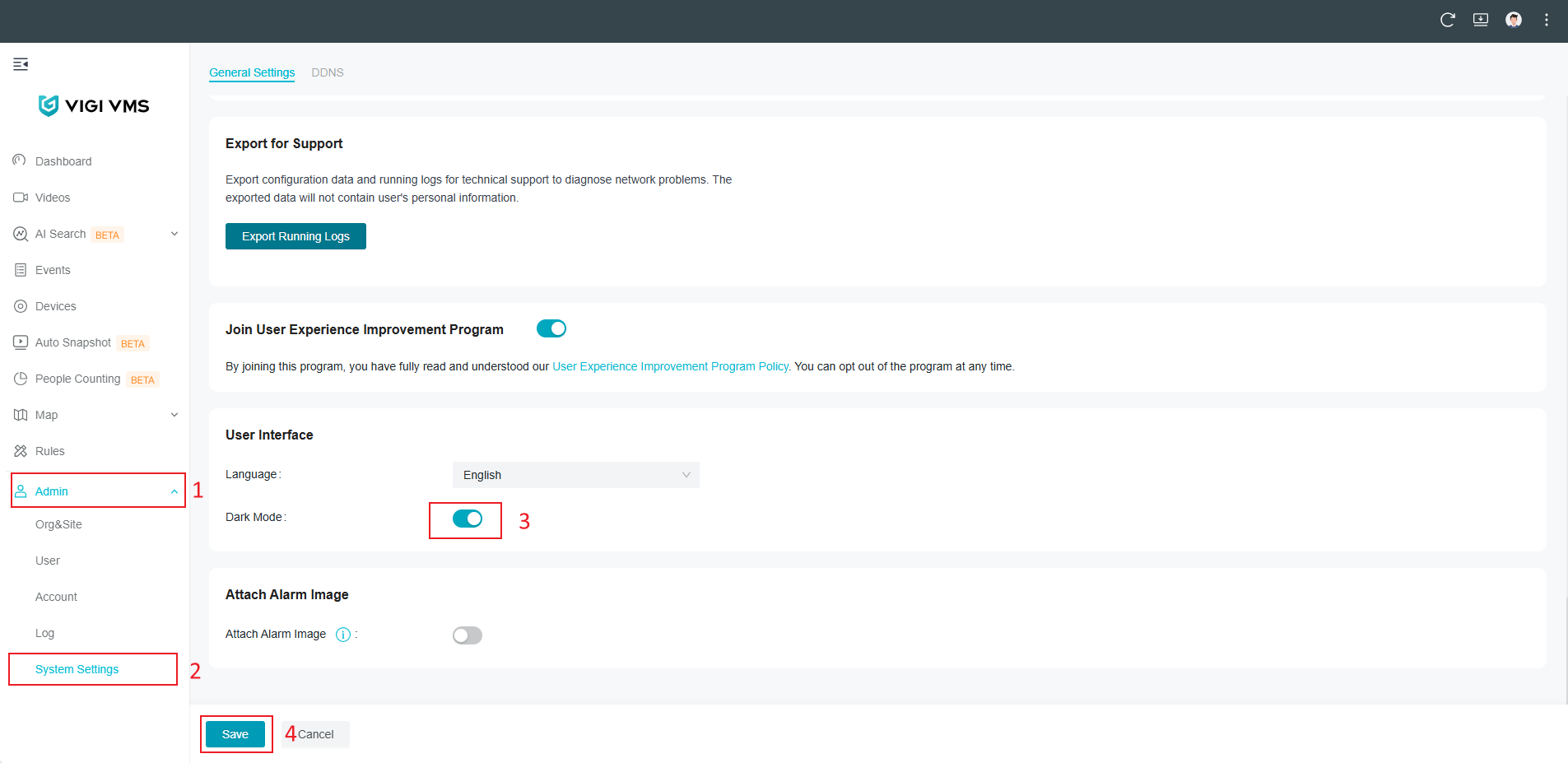
Log in to VIGI VMS Software and navigate to Admin > System Settings > General Settings > User Interface, then enable Dark Mode.
Conclusion
You have now successfully configured Dark Mode in VIGI Cloud VMS and VIGI VMS. You can switch between Light Mode and Dark Mode at any time to match your viewing preferences and working environment.
To learn more about each function and configuration, please visit Support Home to download or check the manual for your product.
Looking For More
Byla tato FAQ užitečná?
Vaše zpětná vazba nám pomůže zlepšit naše webové stránky



TP-Link Community
Still need help? Search for answers, ask questions, and get help from TP-Link experts and other users around the world.