


How to Update TP-Link Deco Firmware (3 Methods)
 923746
This guide covers the TP-Link Deco firmware update process using three methods: the Deco app, the web management page (web UI), and a dedicated upgrade utility tool. The Deco app method works for all Deco models and is the best starting point for most users. Follow the steps below and choose the method that fits your setup.
Key Takeaways
- TP-Link Deco firmware can be updated using three methods: the Deco app, the web management page (web UI), or a dedicated upgrade utility tool.
- The Deco app method works for all Deco models and is the most broadly applicable option. Access it by opening the app and navigating to More > System > Update Deco.
- The web UI method requires downloading firmware from tp-link.com, extracting the BIN file, and navigating to Advanced > System > Firmware Upgrade at http://tplinkdeco.net.
- The upgrade utility method applies only to the Deco M5 and Deco M9 Plus V2.
- After any firmware upgrade, wait approximately five minutes for the Deco to reboot. A solid green or white LED indicates the update was successful.
Requirements
- A smartphone with the Deco app installed, or a computer
- TP-Link Deco mesh system
- (Optional) If the firmware release notes indicate the upgrade will reset your settings, back up your configuration first so you can restore it after upgrading
Method 1: Update Deco Firmware via the Deco App
This method applies to all Deco models and is the recommended starting point for most users. The steps below use Deco M5 as an example, but the process is the same across Deco models.
To perform a Deco firmware update using the app, log in to the Deco app and tap More > System > Update Deco. The app will show whether your current firmware is up to date. If an update is available, follow the on-screen instructions to install the latest version.
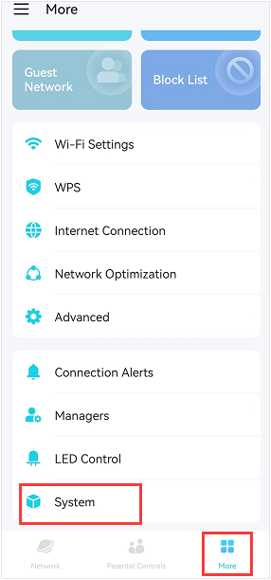
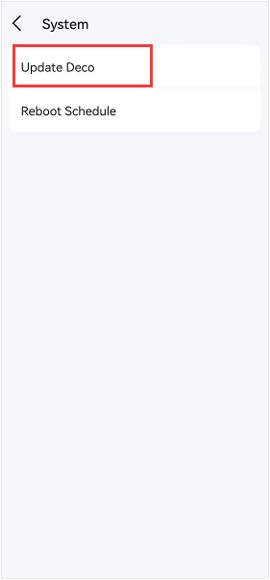
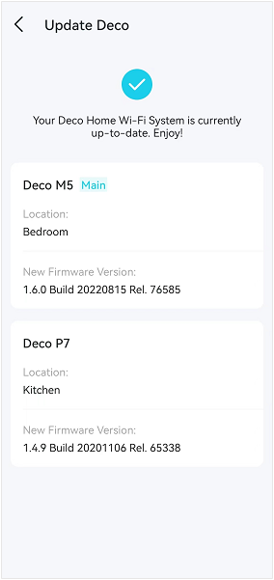
Note: If the firmware update fails, reboot the main Deco, move the Satellite Deco closer to the main Deco, then try to update again.
Method 2: Update Deco Firmware via the Web Management Page
Note: Currently, some Deco models do not support the web management page, but don't worry, they will support the web page via firmware updates in the future.
Step 1. Download the TP-Link Deco firmware that matches your Deco's model and hardware version from the TP-Link official website at www.tp-link.com.
Step 2. Find and navigate to the zip file from which you want to extract the content. Right-click on the file and select Extract All from the context menu to extract the BIN file. (Google Chrome and Windows system as an example)
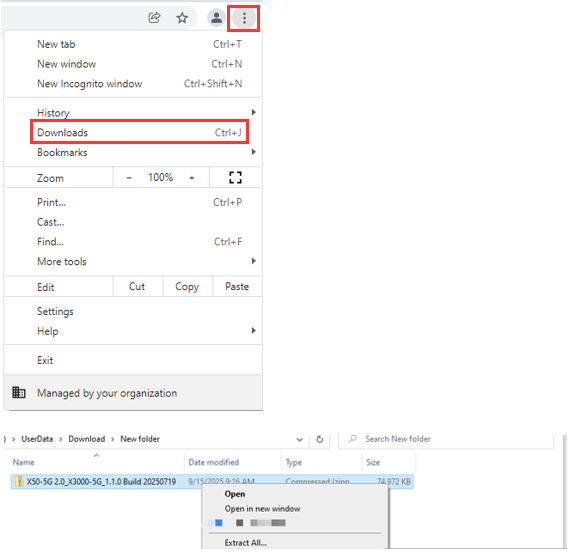
Step 3. Log in to the TP-Link device by typing http://tplinkdeco.net in the address bar of any web browser, such as Chrome or Firefox.
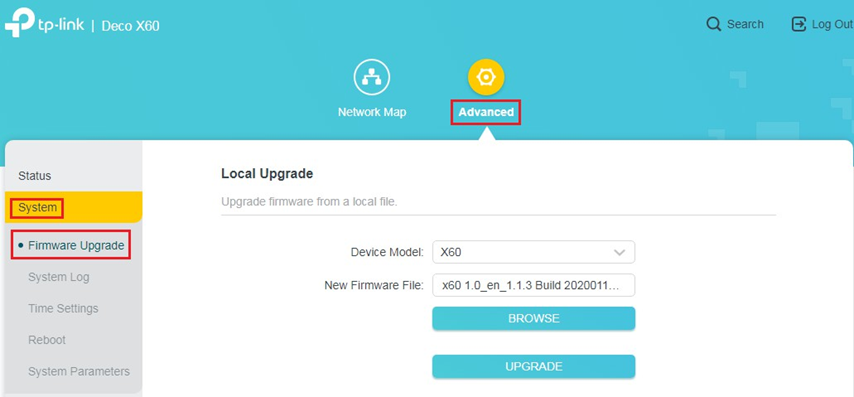
Step 4. Click Advanced > System > Firmware Upgrade, then click BROWSE to select the firmware you have already extracted from the folder. The firmware type is usually a BIN file.
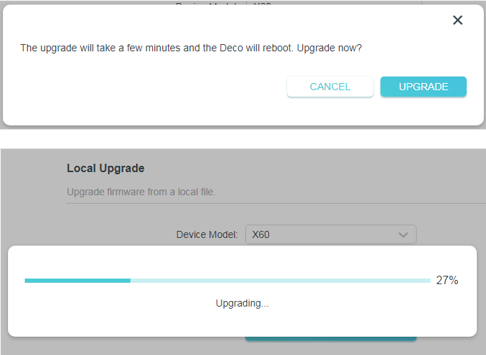
Step 5. Click UPGRADE. The device will reboot automatically.
After the upgrade, please wait about five minutes until the LED turns solid green or white.
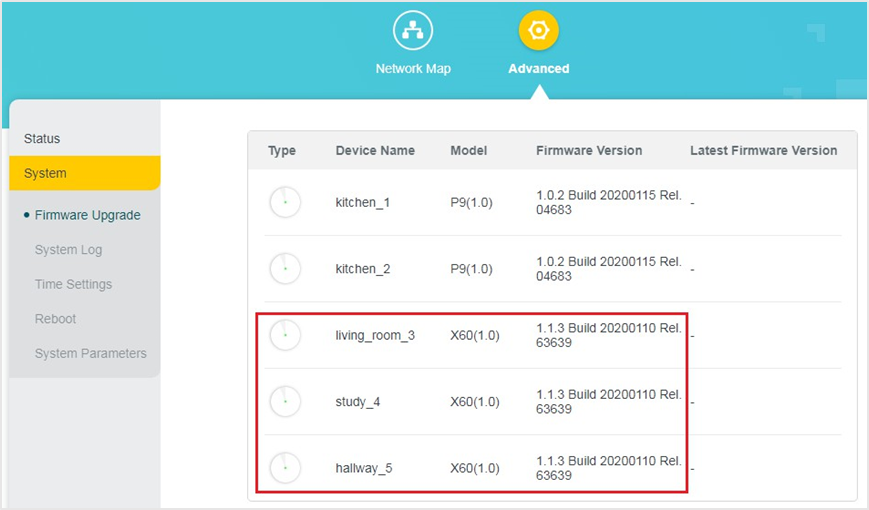
Step 6. Verify that the Deco's firmware has been successfully upgraded on the same page.
Method 3: Update Deco Firmware via the Upgrade Utility
This method applies exclusively to the Deco M5 and Deco M9 Plus V2. The steps below use Deco M5 as an example.
Step 1. Download the upgrade utility on your computer using the link for your model, then extract the file and run the update tool.
- Deco M5 V1: Download the Deco M5 upgrade utility
- Deco M9 Plus V2: Download the Deco M9 Plus V2 upgrade utility
Step 2. Log in to the Deco M5 Update Assistant with your TP-Link ID and password that you used to set up the Deco M5 in the Deco app.
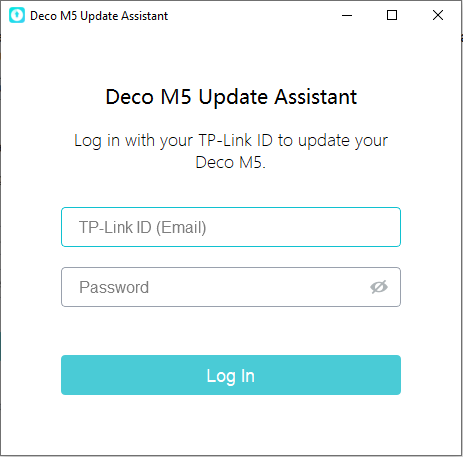
Step 3. Ensure the computer is connected to the main Deco (either wired or wireless) and all the Deco units are online. Then click the Scan button.
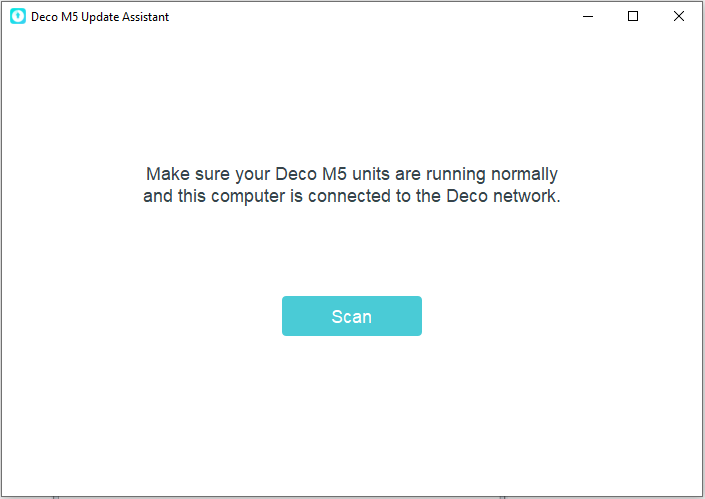
Step 4. After the Update Assistant finds the Deco units, click Next.
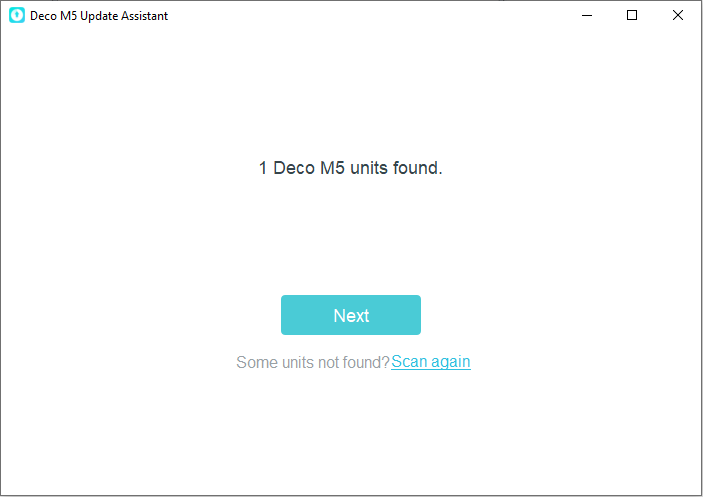
Step 5. Click Choose File and select the firmware for the Deco M5 in the folder (the bin file).
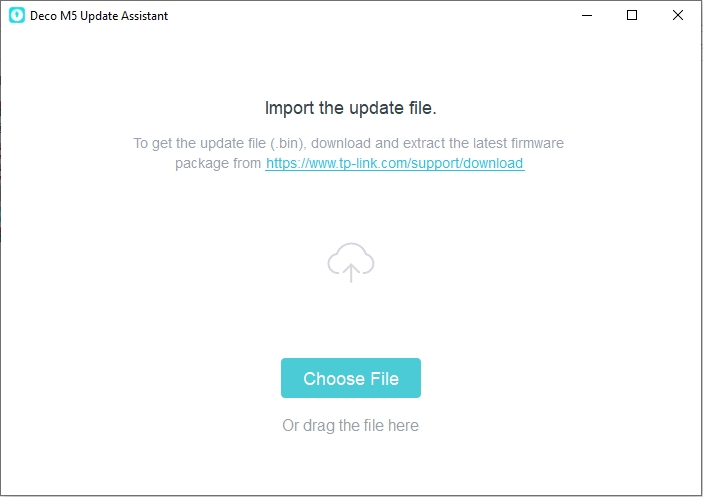
Step 6. Click Update.
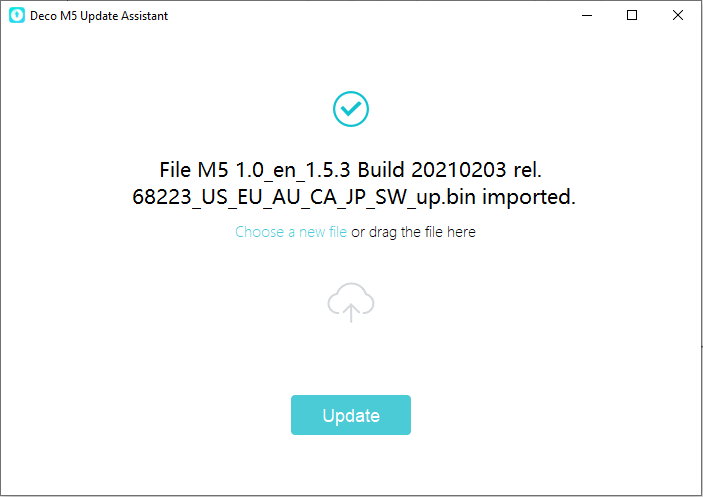
Step 7. Wait for about five minutes until the Deco completes the update and reboots. The LED light will finally turn to solid green, indicating that the upgrade has been done successfully.
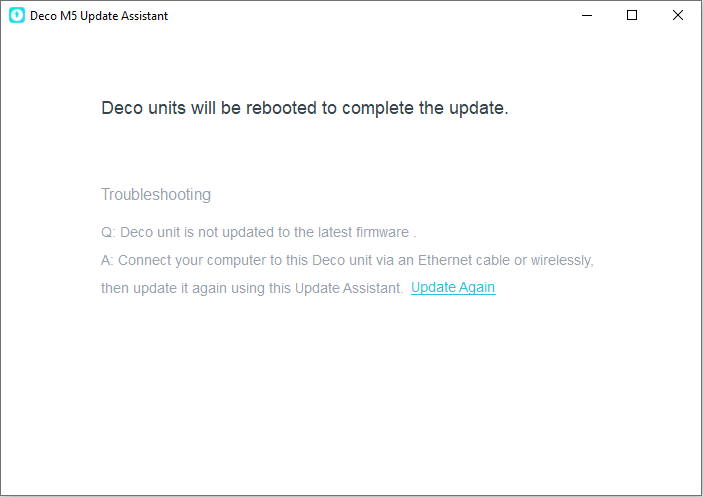
- If you have trouble updating the Deco M9 Plus V2 (password incorrect) with the upgrade utility, refer to Troubleshooting for the Deco Upgrade Utility.
- If the Deco M9 Plus V2 has firmware version 1.4.0 or later, the firmware can be updated through the Deco app or the web management page instead.
Is this faq useful?
Your feedback helps improve this site.
_Overview_normal_20230128023814m.png)



TP-Link Community
Still need help? Search for answers, ask questions, and get help from TP-Link experts and other users around the world.