


How to Set Up Deco in Access Point Mode
 2607196
Deco Access Point mode lets your Deco system extend an existing wired network and expand wireless coverage throughout your home, without creating its own subnet. Instead of managing your network independently, your Deco simply forwards data between your root router and your connected devices. This is a great option if you already have a router you want to keep and just need better Wi-Fi coverage. You will need the Deco app downloaded on your phone to change this configuration.
Key Takeaways
- Your Deco must be fully set up through the Deco app before you can switch to Access Point mode.
- Always keep your Deco firmware up to date before switching modes. To check, open the Deco app and tap More > System > Update Deco.
- Make sure the latest version of the Deco app is installed on your phone.
- Your root router's Dynamic Host Configuration Protocol (DHCP) server must be enabled. In access point mode, your Deco will not assign IP addresses to devices — your root router handles that.
- In Access Point mode, some features will not be available in the Deco app, including Antivirus, Parental Controls, Port Forwarding, Address Reservation, and TP-Link DDNS.
- Ethernet Backhaul is supported in Access Point mode. For more details, see Deco Ethernet Backhaul: Setup, Wiring Rules, and Troubleshooting.
Before You Start
Before switching your Deco to Access Point mode, confirm the following:
- Firmware is up to date. Open the Deco app and tap More > System > Update Deco to check.
- Latest Deco app is installed. Make sure you have the most current version of the app on your phone.
- Root router's DHCP server is enabled. Your root router needs to be ready to assign IP addresses to devices on the network.
Typical Setup
Your Deco system can use either Ethernet or Wi-Fi to connect units together in Access Point mode. The diagrams below show both configurations.
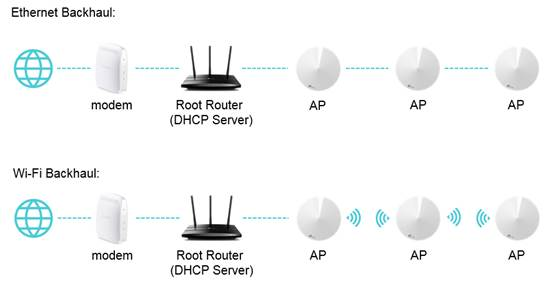
The following steps use the Deco X60 as an example. Steps and screens may vary depending on your model and app version.
Step 1: Open Operation Mode in the Deco App
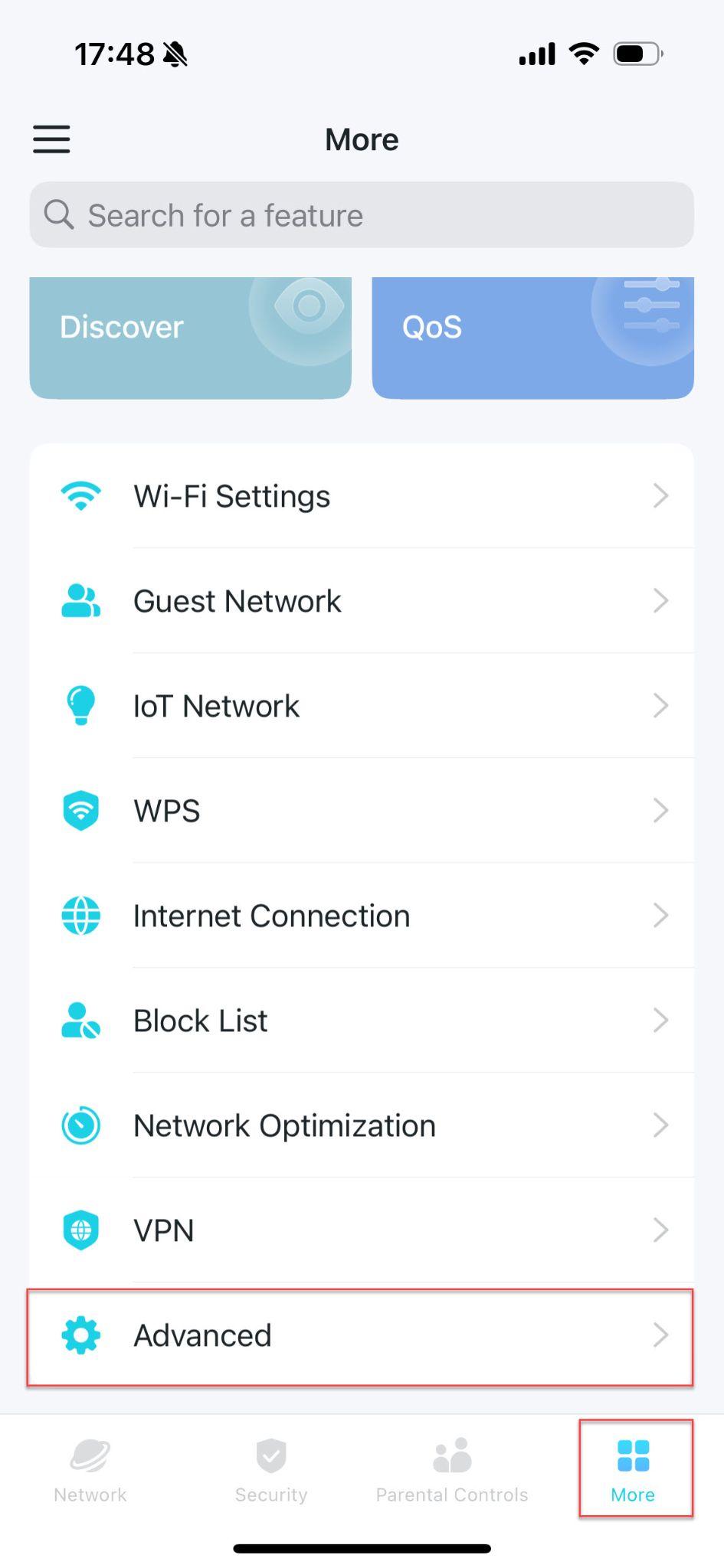
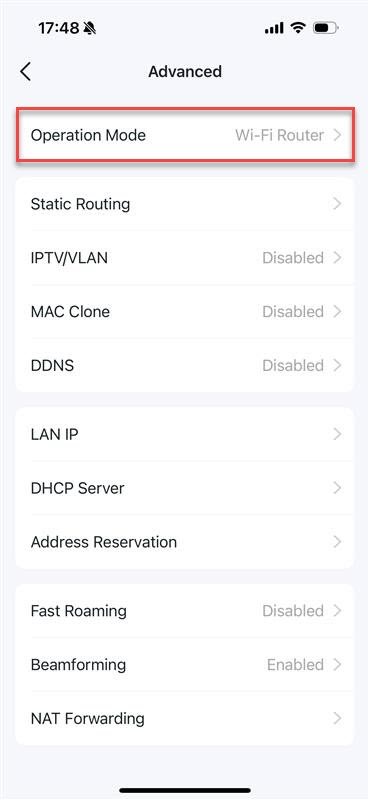
Connect your phone to your Deco Wi-Fi and launch the Deco app. Tap More > Advanced > Operation Mode. This is where you can view and change how your Deco system operates on your network.
Step 2: Select Access Point Mode and Save
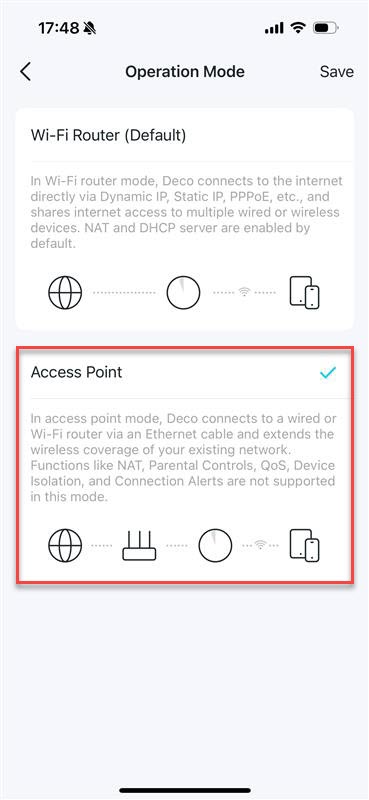
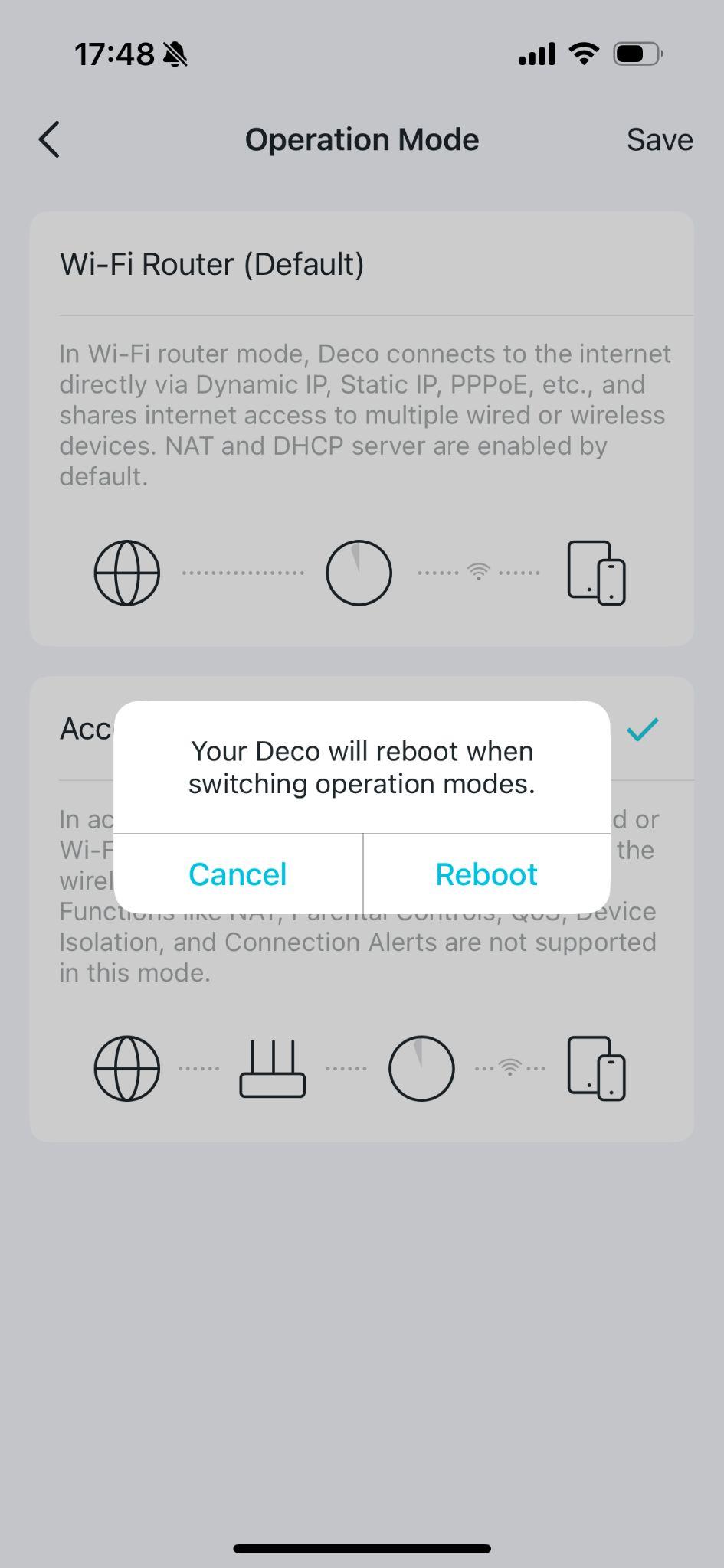
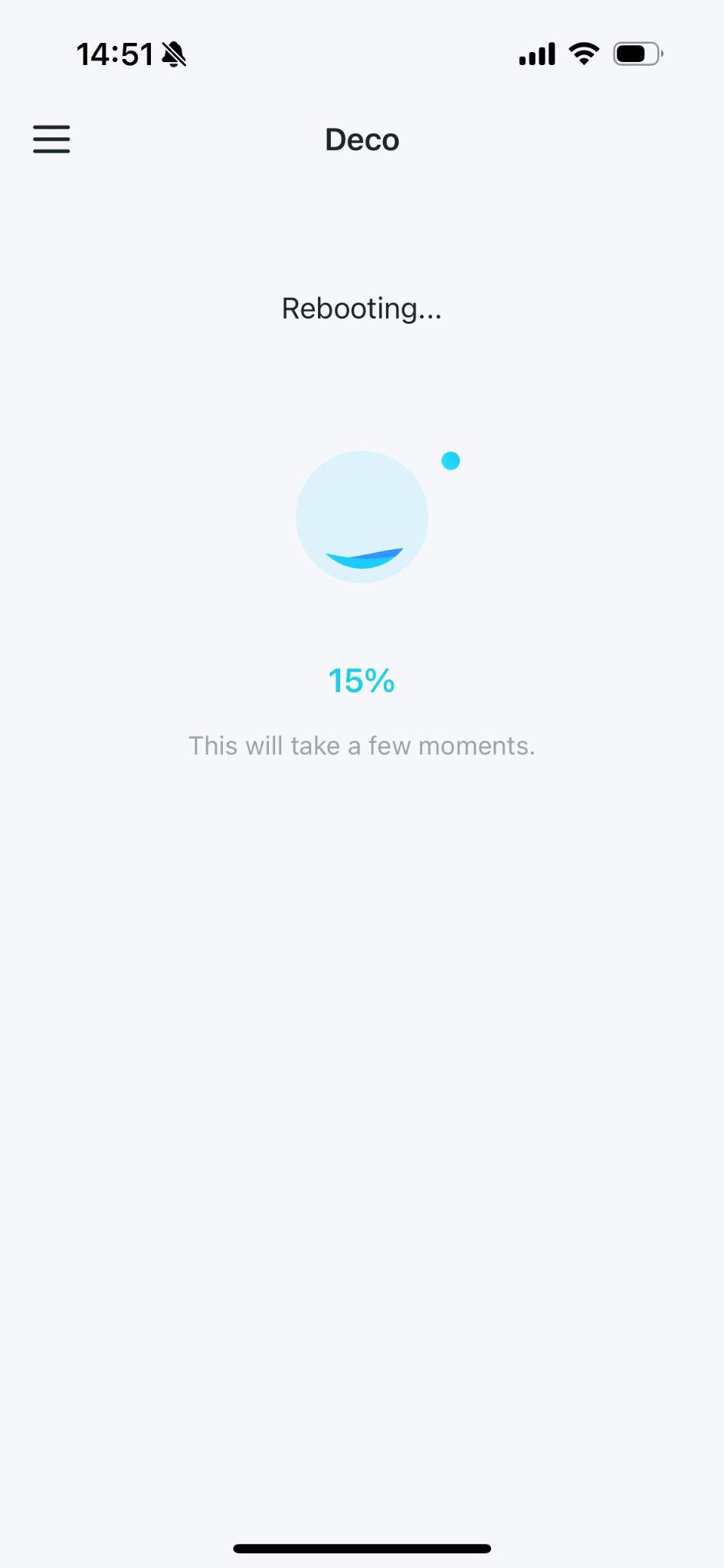
Tap Access Point and then tap Save. A confirmation prompt will appear, letting you know your Deco will reboot when switching operation modes. Tap Reboot to confirm. Your Deco will restart to apply the change.
Step 3: Wait for the Reboot to Complete
After confirming the reboot, wait about two minutes. Once the LED light on your Deco recovers to solid green, your Deco system is running in Access Point mode.
Is this faq useful?
Your feedback helps improve this site.
_normal_20230201014412u.png)
_Overview_normal_20211225093612j.png)


TP-Link Community
Still need help? Search for answers, ask questions, and get help from TP-Link experts and other users around the world.