


How to Replace the Battery for Tapo Sensor
If your Tapo sensor battery is low or depleted, you can quickly replace it to restore normal operation. This guide shows you how to replace the battery for Tapo Motion Sensors, Door/Window Sensors, and Human Presence Sensors.
Key Takeaways
- Replace the battery by opening the sensor cover and installing a new battery with the correct polarity.
- Ensure the positive side of the battery faces up when inserting a replacement battery.
- Follow different cover removal methods depending on the Tapo sensor model.
- Reassemble the sensor cover securely after completing the battery replacement.
Instructions
For Tapo Motion Sensor
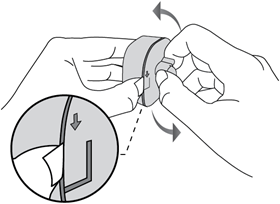
1. Pull up the clip on the back. Then twist the cover anticlockwise with your other hand to remove the cover.
2. Remove the old battery.
3. Insert the new battery into the battery compartment, making sure the battery is level and its positive side is facing up.
4. Put the cover back on the device.
For Tapo Door/Window Sensor
1. Remove the cover.
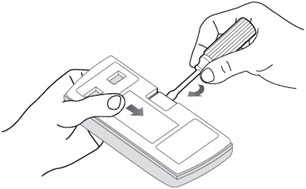
1) If you haven’t installed it on a door or window:
Use a screwdriver to pull up the clip. Slide the cover down with the other hand.
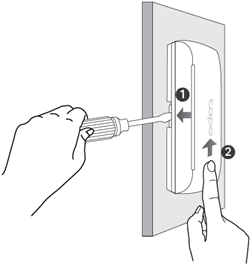
2) If you have installed it on a door or window:
Remove the sensor cover by pushing the cover up.
2. Unscrew the screw securing the battery and remove the old battery.
3. Insert the new battery into the battery compartment, making sure the battery is level and its positive side is facing up.
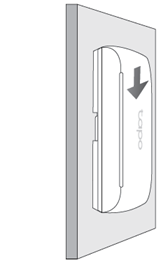
4. Replace the cover by sliding the cover down.
For Tapo Human Presence Sensor
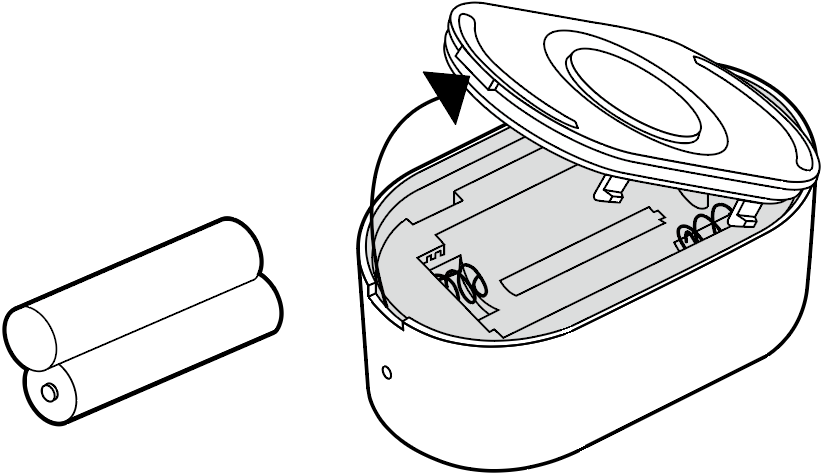
1. Remove the back cover.
2. Replace with the new batteries (AAA/LR03).
To learn more about each function and configuration, please visit the Download Center to download the manual for your product.
Looking For More
Is this faq useful?
Your feedback helps improve this site.



TP-Link Community
Still need help? Search for answers, ask questions, and get help from TP-Link experts and other users around the world.