WiFi Explained: How Wireless Internet Works at Home
Published: May 31, 2024 | Last Updated: July 7, 2026
Quick Answer
-
Median fixed broadband speed in the Philippines is 105.17 Mbps (DataReportal Digital 2026 / Ookla end-2025)
-
Median mobile speed in the Philippines is 59.64 Mbps
-
The NTC allocated the lower 6 GHz band (5925-6425 MHz) for WiFi use in the Philippines under Memorandum Circular No. 002-07-2024
WiFi is a wireless networking technology that uses radio waves to connect phones, laptops, and smart devices to the internet without cables. In the Philippines, home WiFi runs on the 2.4 GHz, 5 GHz, and now partially 6 GHz bands, broadcast through a router connected to an ISP like PLDT, Globe, or Converge.
Table of Contents
Radio Frequencies: 2.4 GHz vs 5 GHz vs 6 GHz
How to Set Up a WiFi Network at Home
Common WiFi Problems and Solutions
Best TP-Link WiFi Devices for Philippine Homes
What Is WiFi
Wi-Fi is a wireless networking technology that uses radio waves to provide high-speed internet and network connections to devices without physical cables. It lets smartphones, laptops, tablets, and smart home gadgets like security cameras or robot vacuums communicate with each other and connect to the internet at the same time. WiFi helps us in many different ways, from entertainment and schoolwork to remote work for the many OFWs and WFH households across the Philippines.
WiFi means wireless fidelity, a name that reflects the technology's original goal of providing reliable, high-fidelity wireless connections. Using a modem and a wireless router, internet access can be enjoyed in homes, businesses, public spaces, and even on transportation like airplanes and trains. WiFi networks are governed by a set of standards known as IEEE 802.11, which dictate how data is transmitted, the frequencies used, and the speed at which data is transferred.
How Does WiFi Work
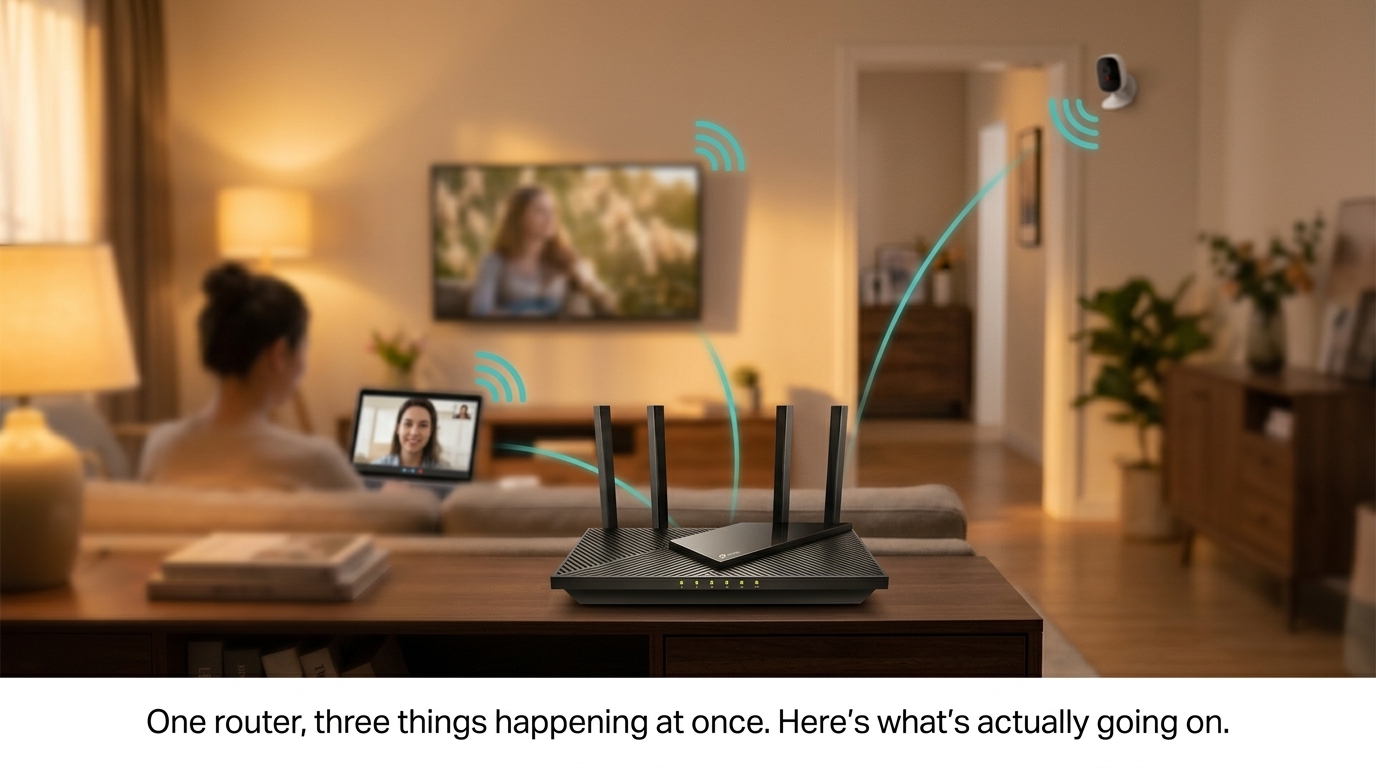
WiFi networks rely on a central hub, typically a router, to transmit data between the internet and connected devices. The router sends and receives data through radio waves, which travel through the air to reach devices like smartphones, laptops, and tablets. This wireless communication lets users move freely within the coverage area while maintaining a stable connection.
The router connects to an internet service provider, which provides access to the broader internet. The router then creates a wireless network that devices join by entering a password or connecting through a secure method like WPA2 or WPA3 encryption, which keeps transmitted data protected from unauthorized access.
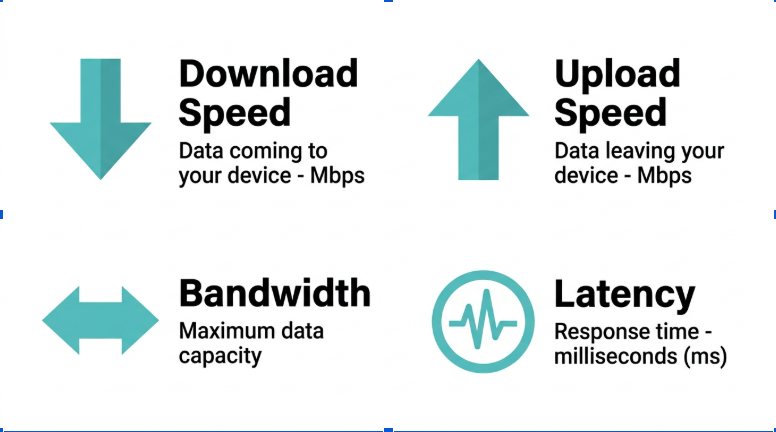
What it means for you: for a typical Philippine household on a PLDT, Globe, or Converge fiber plan, this means one router can carry your video calls, streaming, and gaming traffic at once, as long as the plan speed and the router's WiFi standard can keep up during the 7 to 10 PM peak hours when most of the household is online together.
IEEE 802.11 Standards
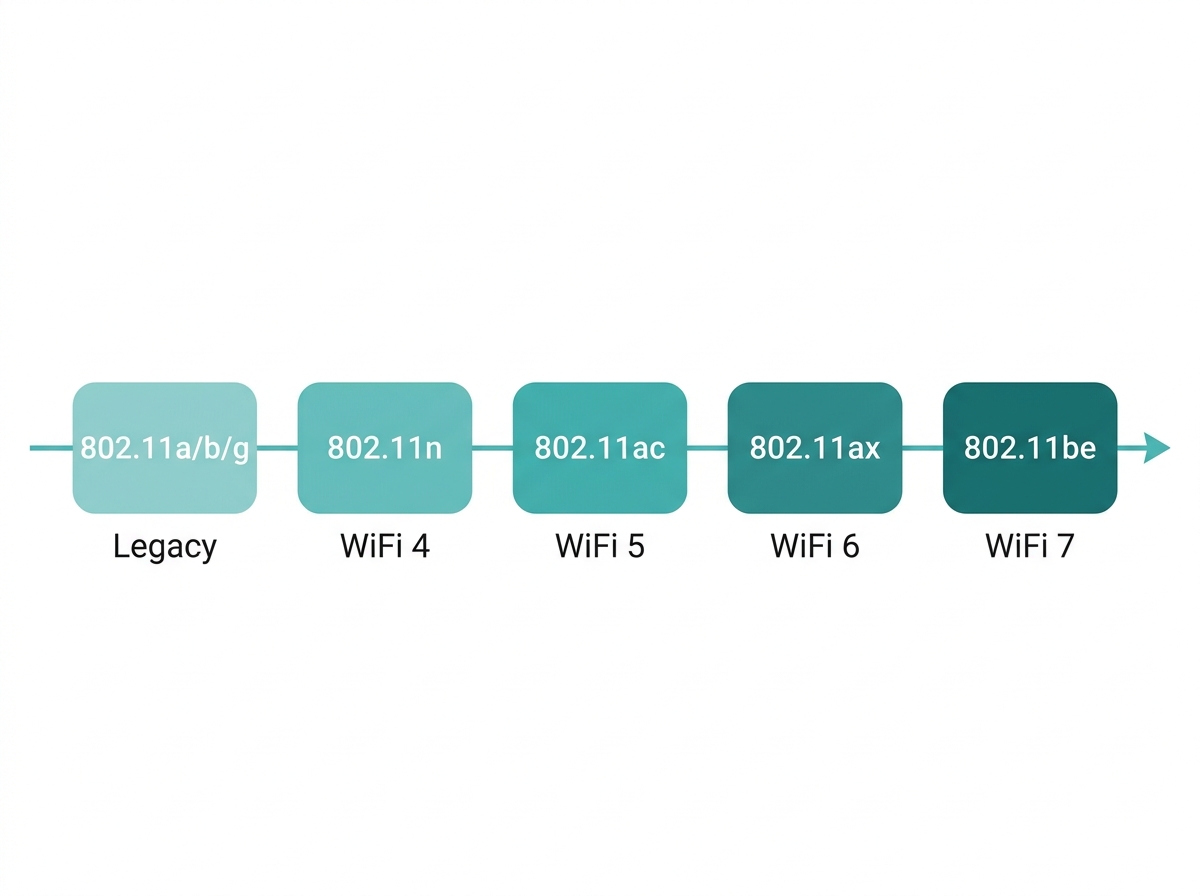
The IEEE 802.11 standards govern WiFi technology. Over the years, different versions of the standard have been developed, each offering improvements in speed, capacity, and range.
-
802.11a/b/g: early WiFi standards with limited speed and range, rarely used today.
-
802.11n: a significant improvement over earlier standards, offering faster speeds and wider coverage.
-
802.11ac: also known as WiFi 6's predecessor, this standard provides fast speeds and supports multiple devices at once.
-
802.11ax: known as WiFi 6, this is a current mainstream standard, offering higher speeds, better performance in dense environments, and improved energy efficiency.
-
802.11be: the latest standard, known as WiFi 7, builds on WiFi 6 with even higher throughput and lower latency.
If you are comparing generations to decide what to buy, our dedicated WiFi 5 vs WiFi 6 comparison guide breaks down the real-world performance differences in detail.
Feature-to-Benefit: WiFi Standards at a Glance
|
Feature |
Specification |
Practical Benefit |
|---|---|---|
|
802.11n |
Up to 600 Mbps |
Adequate for a single user browsing and messaging, but strained once a PH household adds streaming devices and IoT gadgets |
|
802.11ac (WiFi 5) |
Up to 3.5 Gbps |
Handles HD streaming and video calls comfortably in small-to-mid-size PH homes with a handful of connected devices |
|
802.11ax (Wi-Fi 6) |
Up to 9.6 Gbps, OFDMA |
Keeps a busy household of 15+ devices responsive during the 7-10 PM peak hours instead of everyone competing for the same slice of bandwidth |
|
802.11be (WiFi 7) |
Up to 46 Gbps theoretical, MLO |
Built for multi-gigabit PLDT and Globe fiber plans, heavy local file transfers, and dense smart home setups in Metro Manila condos |
What it means for you: if your household still runs mostly on phones and one or two laptops, WiFi 5 hardware is often still enough. Once you add smart TVs, IP cameras, and multiple work-from-home devices competing during peak hours, WiFi 6 becomes a more noticeable upgrade.
Radio Frequencies: 2.4 GHz vs 5 GHz vs 6 GHz
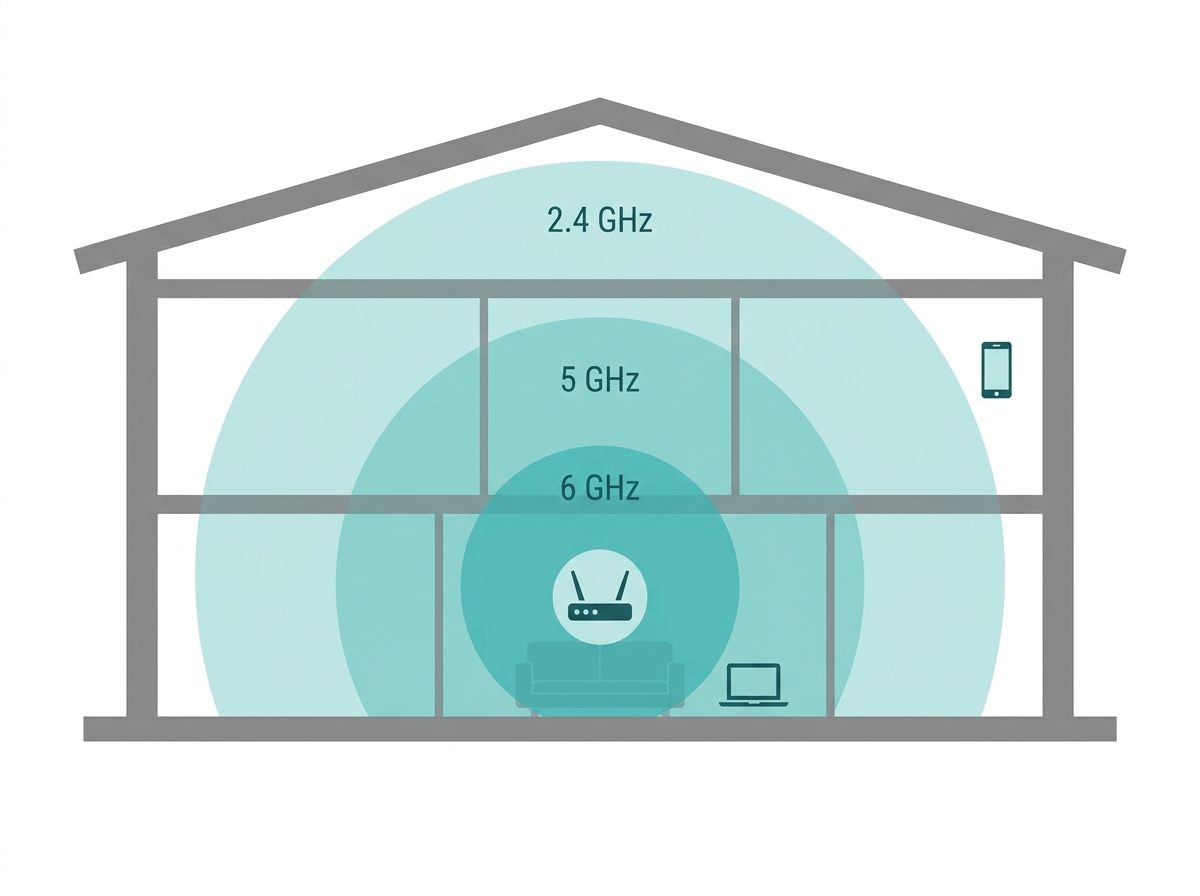
WiFi operates primarily on the 2.4 GHz and 5 GHz frequency bands, with 6 GHz now partially available in the Philippines. Many modern routers support more than one band. Understanding how each band behaves can help you choose the best WiFi solution for your specific home layout and needs.
-
2.4 GHz: longer range and better penetration through walls and obstacles, making it the more reliable band for Philippine homes with thick concrete walls and multiple floors. It is more prone to interference from other devices like microwaves and cordless phones.
-
5 GHz: faster speeds and less interference, but a shorter range that struggles more with concrete construction and is more susceptible to signal obstruction.
-
6 GHz: the newest band, used by WiFi 6E and WiFi 7 devices for extra bandwidth and less congestion. The Philippine NTC has allocated the lower portion of this band, 5925 to 6425 MHz, for WiFi use under Memorandum Circular No. 002-07-2024, so 6 GHz-capable devices sold and used in the Philippines can legally tap into part of this spectrum, even though the full international 6 GHz range has not yet been opened locally.
What it means for you: in a typical Philippine duplex or multi-floor home with thick concrete walls, 2.4 GHz is usually the better choice for far bedrooms or the garage, while 5 GHz is best reserved for devices near the router, like a gaming PC or a 4K streaming box in the same room.
Routers vs Access Points
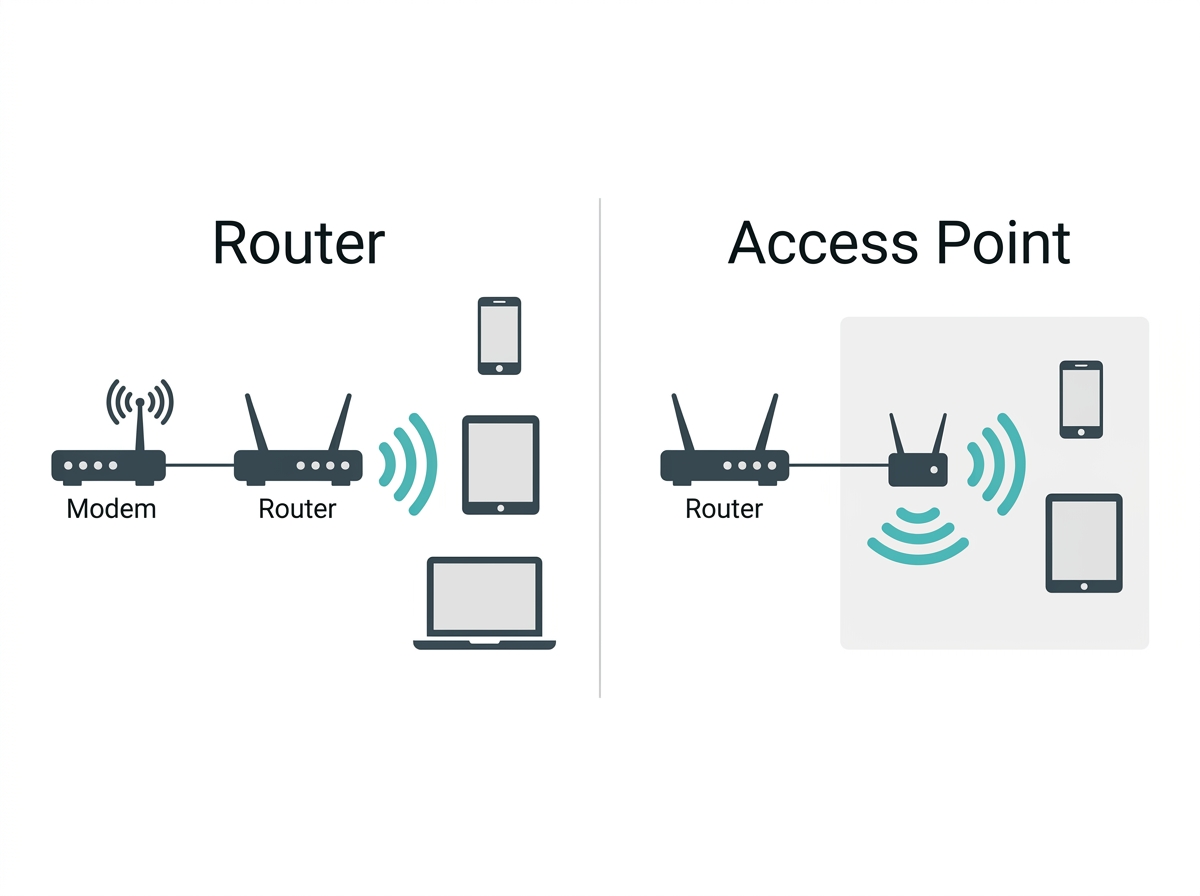
A wireless router and an access point are often confused, but they serve different roles. A router connects your home network to the internet, manages IP addresses for every connected device, and usually includes built-in WiFi radios. An access point, on the other hand, only broadcasts WiFi, and it does not manage internet connections on its own; instead plugs into an existing router or network to extend wireless coverage into a specific area.
What it means for you: most Philippine households only need a router, since it does everything a home network requires in one box. Access points become useful in larger homes, boarding houses, or small offices where a router's built-in WiFi cannot physically reach every room and a dedicated access point is added to strengthen coverage in a specific zone.
Public vs Private WiFi
Public WiFi networks, such as PisoWiFi, are available in public spaces like cafes, airports, and libraries. They offer convenient internet access but often lack security, so anyone can join, and you should avoid transmitting sensitive information unless you are using a virtual private network.
Private WiFi networks are typically used in homes and businesses. These require a password to join and often use stronger encryption to enhance security. Users should choose a unique network name and set a strong password to protect against unauthorized access. Some examples of private WiFi are pocket WiFi devices and home or office WiFi networks.
Advantages of WiFi
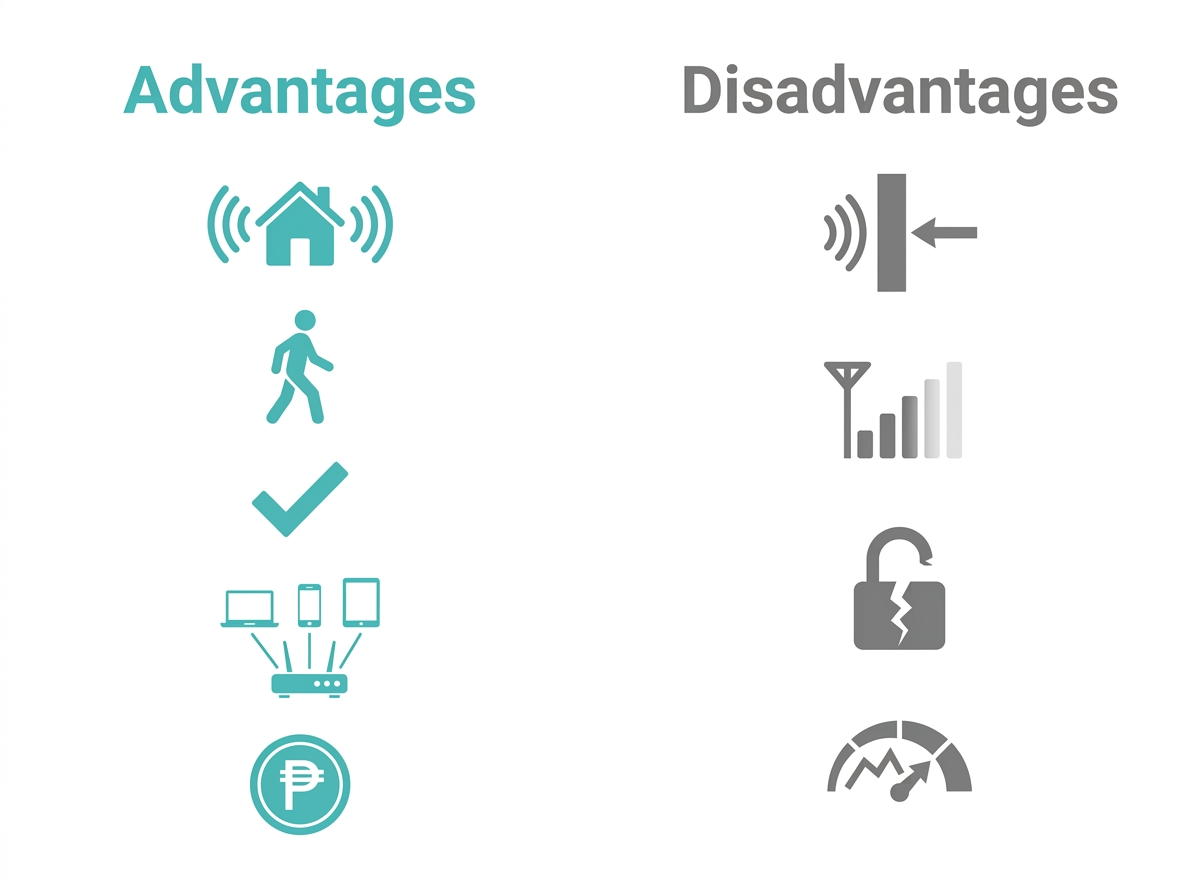
These are the main advantages of having a WiFi network at home:
-
Convenience: connect without cables anywhere within range. Since it's wireless, you can add WiFi extenders or set up a mesh Wi-Fi system in order to eliminate dead spots or areas where WiFi signal is weak.
-
Mobility: move freely while staying connected, whether at home or across other Wi-Fi hotspot areas.
-
Easy setup: no complicated wiring required, just a router and a WiFi-capable device.
-
Multiple device connectivity: supports connecting, streaming, browsing, or working with multiple devices at once.
-
Cost-effective: eliminates the need for expensive cabling and infrastructure throughout the home.
Disadvantages of WiFi
WiFi has real limitations worth knowing before you set expectations:
-
Interference: electronic devices, walls, and obstacles can cause slower connection speeds and reduced signal strength.
-
Limited range: signals weaken or drop entirely the farther you are from the router.
-
Security risks: networks can be vulnerable to hacking if not properly secured with encryption and strong passwords.
-
Speed variability: performance can vary with signal strength, congestion, and the number of connected devices, especially during PH peak hours of 7 to 10 PM.
How to Set Up a WiFi Network at Home
Setting up WiFi is not complicated. Start by connecting the wireless router to the modem provided by your router from an internet service provider (ISP), which creates the connection between your local network and the internet. Once connected, choose a secure password and a unique network name to protect the network.
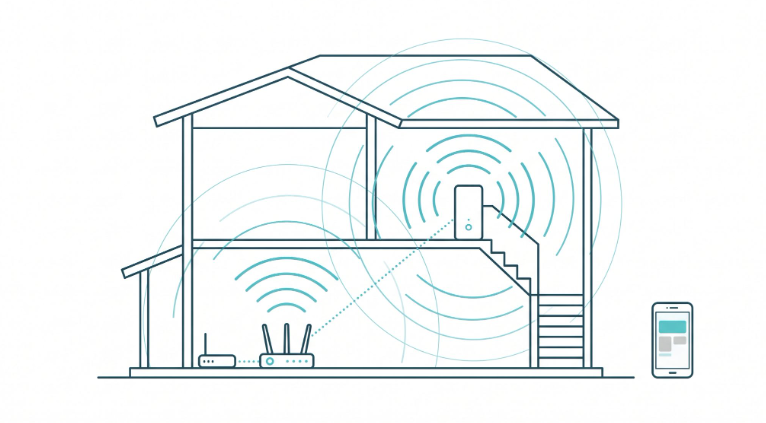
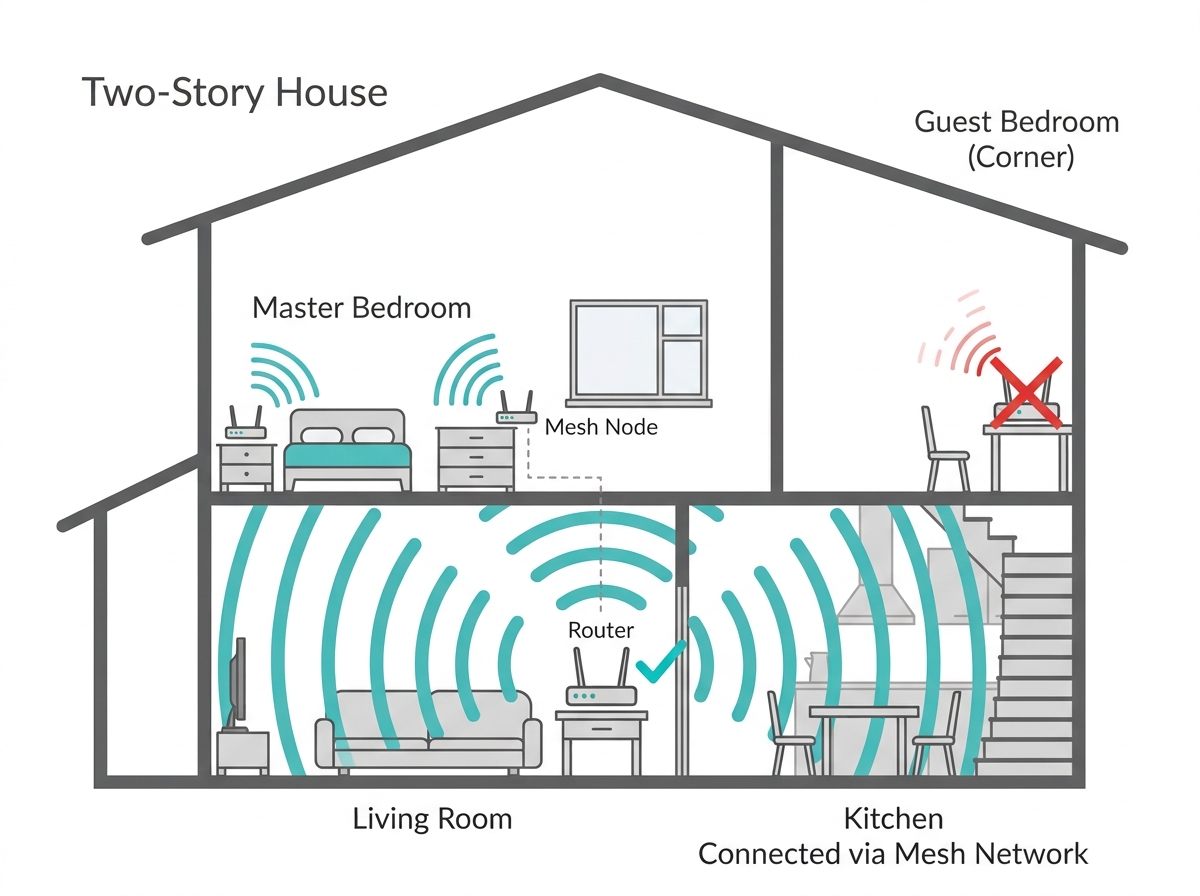
Router placement matters for signal strength and coverage. Place the router in a central location, away from walls and obstacles that could interfere with the signal. If coverage is limited in a large or multi-floor Philippine home, consider using WiFi extenders or WiFi 6 mesh systems to extend the signal into distant rooms.
What it means for you: for a typical two-story Philippine townhouse with concrete walls, placing the router centrally on the ground floor and adding a single extender or mesh node upstairs is usually enough to eliminate the weak-signal spot in the master bedroom that most single-router setups struggle with.
WiFi for Business Networks
Setting up WiFi in businesses, where digital assets are at risk, is different from setting up a home network. Enhancing enterprise data security protects the privacy, integrity, and accessibility of company information and is a priority for any Philippine SMB or office network handling client data, payroll, or internal systems.
Common WiFi Problems and Solutions
Some of the most common WiFi problems include slow speeds, dropped connections, and weak signals.
-
Slow speeds: often caused by interference or network congestion. Switching frequency bands, restarting the router, or updating firmware can help. You can apply the same tips to increase your upload and download speeds here.
-
Dropped connections: usually the result of signal interference or outdated hardware. Repositioning the router or updating firmware can stabilize the connection.
-
Weak signal: typically caused by distance or obstacles. Using WiFi extenders or mesh networks helps boost signal strength and coverage in these cases.
The Future of WiFi
WiFi technology continues to evolve. WiFi 6E extends WiFi 6 into the 6 GHz band for more bandwidth and less interference, now partially usable in the Philippines under the current NTC allocation. WiFi 7, the next-generation standard, offers even higher speeds, lower latency, and improved capacity for smart home devices and Internet of Things (IoT) applications.
Whether upgrading to WiFi 7 actually makes sense for your household right now depends heavily on your current internet plan speed and device count. Our dedicated guide on whether WiFi 7 is worth it for Philippine homes walks through that decision in full.
Best TP-Link WiFi Devices for Philippine Homes
For a stable home network, consider TP-Link Wi-Fi devices, which range from single routers to full mesh systems designed for fast, reliable connections that support smooth streaming, gaming, and browsing throughout the home. Here are a few top picks:
Archer Air R5 WiFi 6 Router - armed with AX3000 WiFi 6, the Air R5 delivers a strong boost in speed, capacity, and coverage in an ultra-thin design.
AX1500 Wi-Fi 6 Router - this dual-band router reaches speeds up to 1.5 Gbps (1201 Mbps on 5 GHz, 300 Mbps on 2.4 GHz), is easy to set up, and is built to reduce lag while connecting more devices.
TD-W8961N - this Wireless N ADSL2+ modem router suits heavy bandwidth or interruption-sensitive applications like online gaming, Internet calls, and HD video streaming.
Deco BE25 Whole Home Mesh WiFi 7 System - this mesh system provides comprehensive network protection, robust parental controls, and real-time IoT security, and is compatible with all WiFi generations and any ISP or modem.
Archer Air E5 AX3000 Dual-Band Wi-Fi 6 Air Range Extender - designed to easily mount onto walls, it uses intelligent algorithms and different antenna arrays to ensure all-round stable signals even in duplex houses.
Frequently Asked Questions
How do I get WiFi at home?
You need a WiFi router to get WiFi at home or in the office. You can get a router from an ISP when you sign up for an internet plan or buy one separately. Buying your own router instead of using the ISP-provided unit usually gets you better range and more control over your network in a typical PH household.
Do I need to pay for WiFi?
You usually need to pay for WiFi service from an ISP, signing up for an internet plan with a monthly fee for network access. Budget for both the ISP subscription and, if you want better coverage or speed than the ISP-provided router offers, a separate router or mesh system purchase.
What do I need to set up WiFi?
To set up WiFi, you need a WiFi router, a modem like the 4G LTE WiFi modem, and a WiFi-capable device such as a smartphone or laptop, plus your ISP's setup instructions. Most PH ISPs provide a modem-router combo, so you may only need to buy extra hardware if you want mesh coverage or extended range.
How can I improve my WiFi signal?
Place your router in a central location away from walls and obstructions, and consider a WiFi extender or mesh network to extend coverage. In concrete PH homes, moving the router just a few meters to a more central spot often fixes weak signal complaints without buying new hardware.
What is the difference between WiFi 5 and WiFi 6?
WiFi 6 supports more simultaneous device connections and handles crowded networks far better than WiFi 5, though both remain common in the Philippine market today. Households with many connected devices benefit more from WiFi 6, while smaller households can often stick with WiFi 5 hardware without a noticeable difference.
Is WiFi 7 worth upgrading to right now?
WiFi 7 offers major throughput and latency improvements, but the benefit depends heavily on your internet plan speed and device count. If your PLDT, Globe, or Converge plan is under 500 Mbps, a WiFi 6 setup remains the more practical choice for most PH households today.
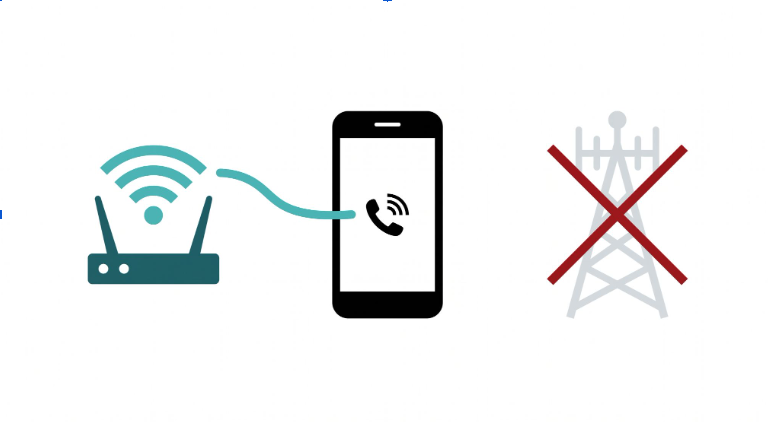
What is WiFi calling, and how is it different from regular WiFi?
WiFi calling lets your phone make and receive calls over a WiFi network instead of the cellular network, which is different from simply using WiFi for internet browsing. WiFi calling can save cellular signal and improve call quality indoors, particularly useful in concrete PH buildings with weak carrier signal.
Can I use WiFi without an internet plan?
No, WiFi itself only creates a local wireless network; you still need an internet connection from an ISP or a mobile hotspot to access the internet over that WiFi network. A router without an active internet subscription can still connect your devices locally, but none of them will reach the internet.
Final Thoughts
A stable WiFi network is what keeps evening video calls with family abroad running smoothly, what gets a WFH setup through a 7 PM deadline, and what stops a house full of streaming devices from fighting each other for bandwidth. If your current setup is struggling with any of that, start by checking whether the problem is your router, your frequency band, or simply your router's placement in a concrete-walled home.
Ready to upgrade? The Archer Air R5 above is a strong single-router option for small to mid-size homes, while the Deco BE25 is built for larger, multi-floor households that need whole-home coverage without dead zones.
Browse the full TP-Link Philippines catalog to compare every router, extender, and mesh option available for your specific setup.
By Laviet Joaquin, Head of Marketing, TP-Link Philippines
_20260709090929l.png)