


Deco Ethernet Backhaul: Setup, Wiring Rules, and Troubleshooting
 3176107
Ethernet backhaul is a feature that lets you connect Deco units together using Ethernet cables, creating a wired backhaul mesh network that delivers faster, more stable performance than a wireless connection between nodes. This guide covers most things you need to know about Deco Ethernet backhaul, including how to set it up, wiring rules for each operating mode, compatible switches, and how to troubleshoot common issues.
Key Takeaways
- Ethernet backhaul connects Deco units via Ethernet cable for faster, more reliable performance than Wi-Fi backhaul, and Wi-Fi backhaul disconnects automatically once the Ethernet backhaul is established.
- Set up all Deco units wirelessly first using the Deco app, then connect the Ethernet cables. The Ethernet backhaul activates on its own.
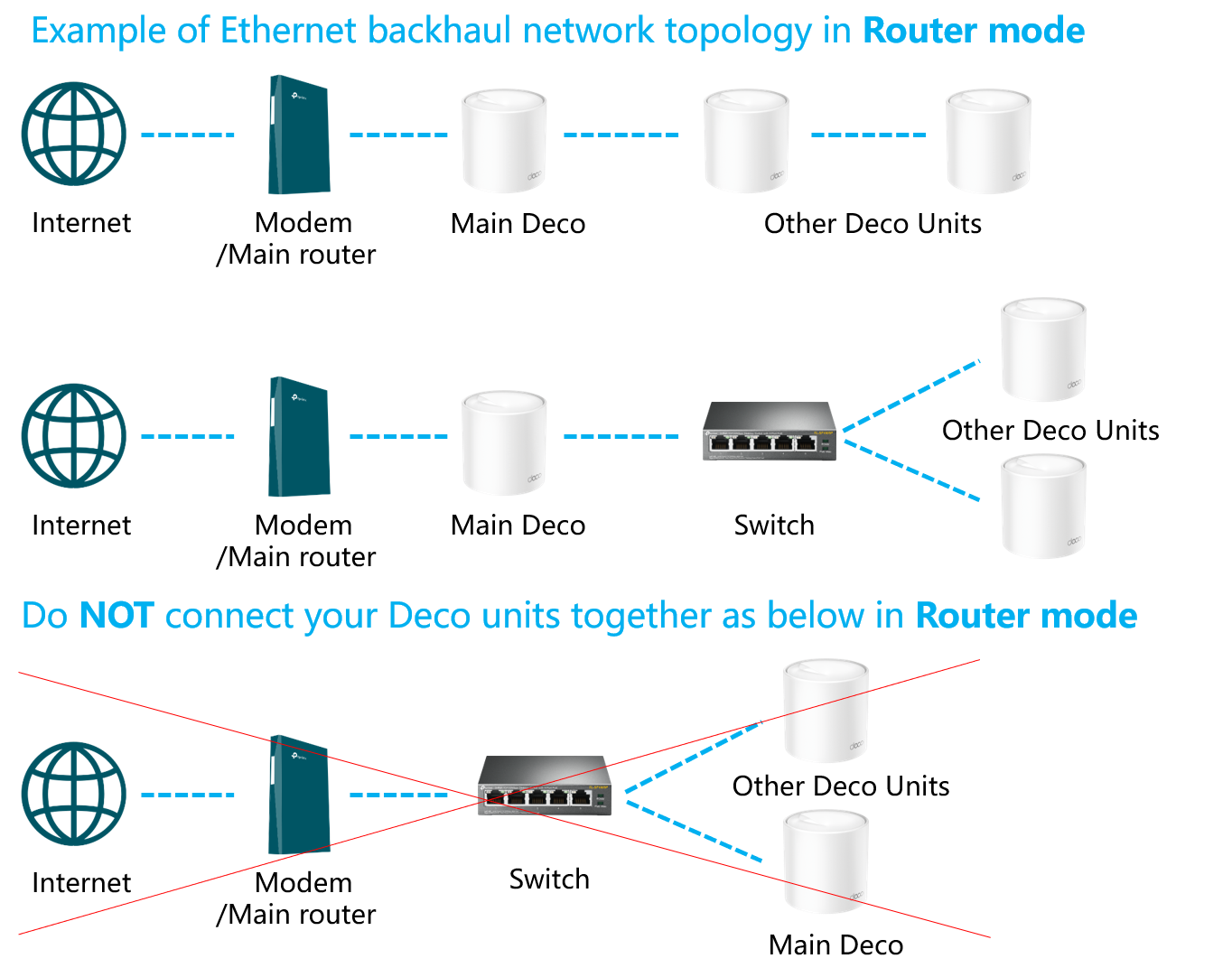
- In Router mode, satellite Decos must connect to the main Deco's LAN port, or to a switch connected to that LAN port, to prevent a network loop.
- In Access Point mode, satellite Decos can be wired to any Deco unit or the main router.
- You do not need to wire every Deco unit. You can mix wired and wireless backhaul in the same network.
What Is Ethernet Backhaul?
Ethernet backhaul allows any two Deco units to communicate over a physical Ethernet cable instead of over Wi-Fi. Because the data travels over a wired connection, it does not need to use any of the wireless bandwidth that would otherwise be shared with your connected devices. This results in lower latency and no bandwidth loss from a wireless hop, which makes wired backhaul mesh a strong choice for multi-story homes, spaces with thick walls, or any home already wired with Ethernet cabling. It is also a good option if you have high-demand use cases like gaming or video streaming.
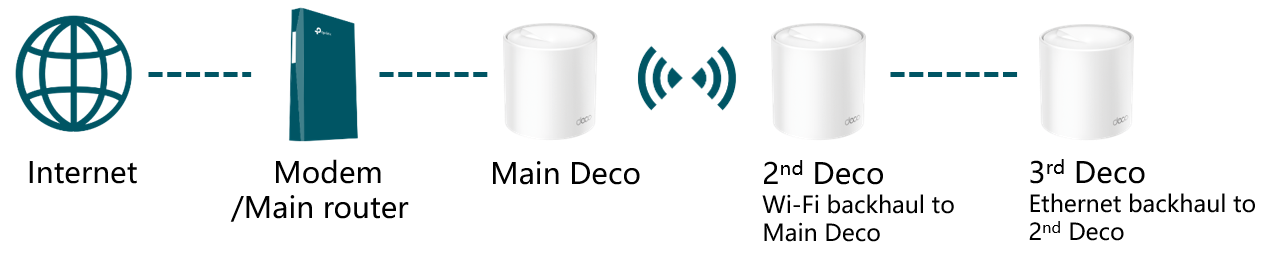
Once a wired connection is detected between two Deco units, the Wi-Fi backhaul between those units disconnects automatically. You can verify each Deco's backhaul type by opening the Deco app, navigating to the network map, and tapping on any satellite Deco to see how it is connected.
When to Use Ethernet Backhaul vs. Wi-Fi Backhaul
Wi-Fi backhaul works well in most homes where running cables is not practical. However, Ethernet backhaul is worth considering if your home already has Ethernet runs in the walls, if you experience weak signals due to thick walls or long distances between floors, or if you want consistent performance for latency-sensitive activities like online gaming or 4K streaming. You can also mix both methods in the same network, using wired backhaul where cables are available and wireless backhaul everywhere else.
How to Set Up Deco Ethernet Backhaul
Before connecting any cables, you must first set up all Deco units on the same network wirelessly through the Deco app. If you have not done this yet, see how to set up your Deco and how to add an additional unit to your Deco network for step-by-step instructions.
Once all units are running on your Wi-Fi network:
- Place each satellite Deco in its intended location.
- Connect the Deco units together using Ethernet cables.
- The Ethernet backhaul activates automatically. No additional configuration is needed in the app.
Note: You do not need to wire every satellite Deco. Ethernet backhaul only applies between the specific units that are physically cabled together. Any unwired units continue to use Wi-Fi backhaul.
Wiring Rules by Mode
The wiring rules differ depending on whether your Deco system is operating in Router mode or Access Point mode. To learn about the differences between these modes, see the difference between Access Point mode and Router mode on the Deco.
Router mode (default)
In Router mode, satellite Decos must connect to the LAN port of the main Deco, or to a switch that is itself connected to the main Deco's LAN port. Do not connect satellite Decos directly to the modem or router that sits in front of the main Deco, as this creates a network loop.
Access Point mode
When the Deco system runs in Access Point mode, satellite Decos can connect to any Deco unit or to the main modem/router. The wiring restriction that applies in Router mode does not apply here because the main router upstream handles network routing.
Using Deco ports
On the main Deco, one Ethernet port connects to the modem or router for Internet access. The other port can be used for Ethernet backhaul or to connect a wired device, such as a desktop computer.
Multi-floor installations
You can wire Deco units on different floors using Ethernet cables, but be sure to follow the correct wiring rules for your operating mode as described above.
Compatible Switches
Most switches on the market support Deco's Ethernet backhaul. If you need a switch or your current switch has been confirmed incompatible, the following TP-Link models are verified to work:
Unmanaged switches:
Managed switch:
For additional switch options, visit TP-Link's switch catalog.
Troubleshooting Ethernet Backhaul
If Ethernet backhaul is not activating, or if your Deco units become unstable after connecting through a switch, use the steps below to identify and resolve the issue.
Ethernet backhaul not taking effect
1. Please check if Deco has enabled the IPTV feature. And if yes, the selected IPTV port can't use to establish the ethernet backhaul, and it can be used for IPTV only.
2. Please connect the satellite Deco to a different port on the Deco/Switch.
3. Try a different Ethernet cable.
4. Please connect two Deco units directly without the switch if there is one between the Deco units. If the direct connection works, the issue may be related to the switch.
A: Deco switching from Wi-Fi backhaul to Ethernet backhaul may create a short loop in the network for 1~2s. If your switch supports loop detection, it may block the port used by Deco. Please turn off the loop detection function on your switch, then reboot your switch and try again.
B: Contact the switch's technical support to confirm if it has loop detection enabled by default or if it has a hardware problem.
Deco units become unstable after connecting through a switch
1.Try a different port on the Deco/Switch. On the main Deco, one port should connect to the modem/router to get internet, another port can be used for Ethernet backhaul. You can swap the Internet port and the Ethernet backhaul port for a try.
2.Try a different Ethernet cable.
3.Please try connecting two Deco units directly by using one Ethernet cable, bypassing the switch. If the Deco units become stable. It's probably that you're using a switch that does not forward specific multicast packets.
The Deco Ethernet backhaul feature is based on the standard IEEE 1905.1 protocol. However, we find that some switches, mainly the D-Link switches, will not forward packets based on IEEE 1905.1 protocol, causing all Deco units in a network loop and becoming quite unstable, you might consider changing another switch or contacting switch’s support directly. TP-Link Switches are mostly compatible with our Deco’s Ethernet backhaul.
Additional Questions
Do I need to wire all my Deco units?
No. You can choose which satellite Decos to connect with Ethernet cables. Ethernet backhaul only applies between the units that are physically wired together. Other units in the network continue using Wi-Fi backhaul.
Can I mix different Deco models in the same Ethernet backhaul network?
Yes. Add all models to the same Deco network first through the Deco app, then connect the Ethernet cables between units. For guidance on using multiple Deco models together, see can different Deco models work together.
How do I turn off Ethernet backhaul?
Disconnect the Ethernet cable between the Deco units. The units will return to Wi-Fi backhaul automatically.
Is this faq useful?
Your feedback helps improve this site.



TP-Link Community
Still need help? Search for answers, ask questions, and get help from TP-Link experts and other users around the world.