


How to Log In to Your TP-Link Deco Web Management Page
 2178027
Once your Deco network is set up through the Deco app, you can also manage your settings through a web browser. Use tplinkdeco.net or 192.168.68.1 as your Deco login address. While the Deco app is the primary management tool, the Deco web management interface gives you access to additional advanced settings.
Key Takeaways
- The Deco login address is tplinkdeco.net or 192.168.68.1
- You sign in using the password for your owner TP-Link ID account.
- Your device must be connected to the Deco network (wired or wireless) to reach the web management page.
- Not all Deco models support web management yet. Other models will gain this feature through future firmware updates.
- If you changed the default IP address, open the Deco app and go to More > Advanced > LAN IP to find the current address.
Step 1: Connect Your Device to the Deco Network
Your device must be connected to the Deco network before you can access the web management page. An active Internet connection is not required, but a connection to the Deco itself is.
Option A: Wired connection
Plug an Ethernet cable from your computer into one of the LAN ports on your Deco unit. A wired connection is recommended.
Option B: Wireless connection
Connect your device to the Deco's Wi-Fi network. This should be the network you configured during the initial setup process. If you need to look up your Wi-Fi password, open the Deco app and go to More > Wi-Fi Settings.
Step 2: Open the Deco Login Page in Your Browser
Chrome, Firefox, and Edge work best with the Deco web management page. Older browsers may cause login failures or display issues.
In the address bar of your browser, type one of the following and press Enter:
- tplinkdeco.net
- 192.168.68.1
Note: Enter the address directly in the address bar, not the search bar. Searching for it in a search engine will not take you to the Deco login page.
If the default IP address 192.168.68.1 does not work, your Deco may be using a different LAN IP. You can navigate to the Deco app > More > Advanced > LAN IP or see find your Deco's current IP address to find your Deco’s LAN IP.
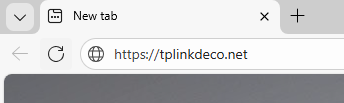
Step 3 (Optional): Proceed Past the Privacy Warning
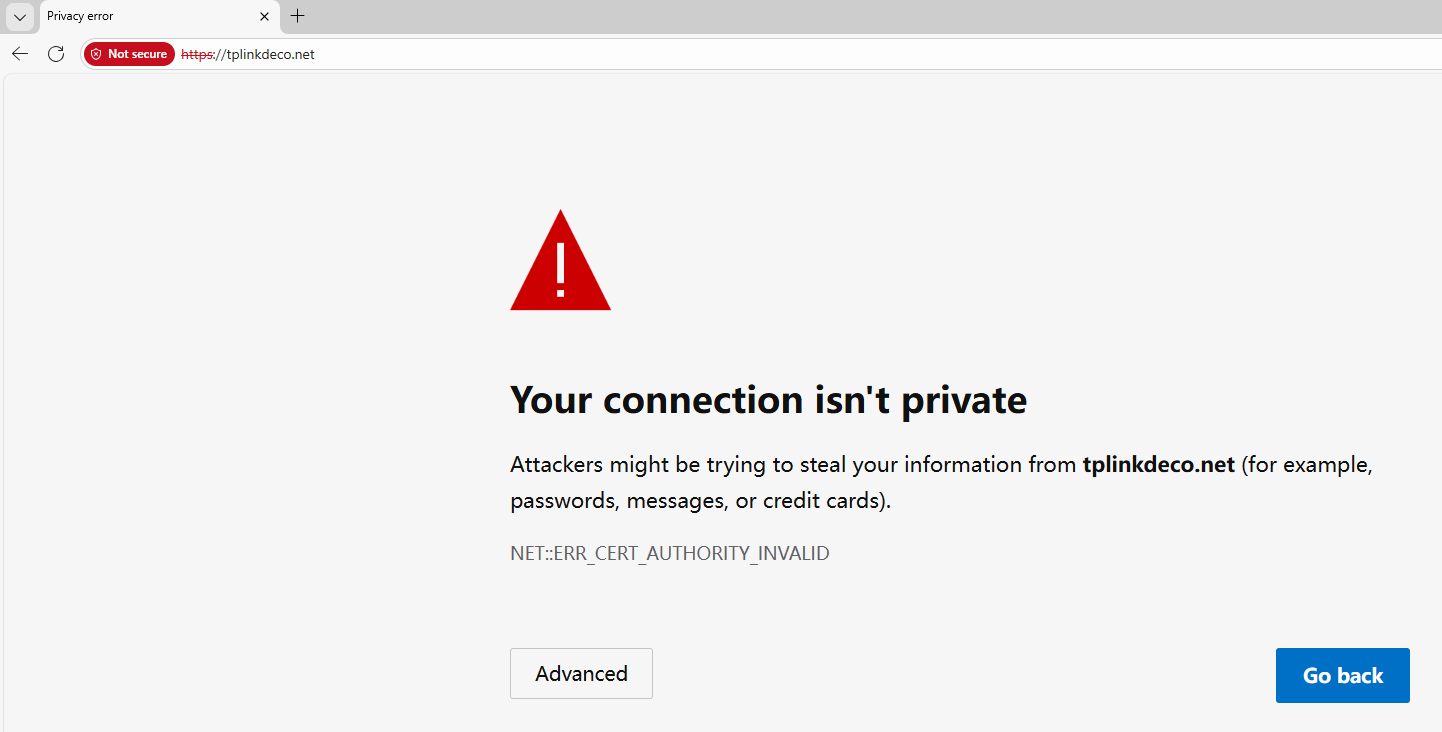
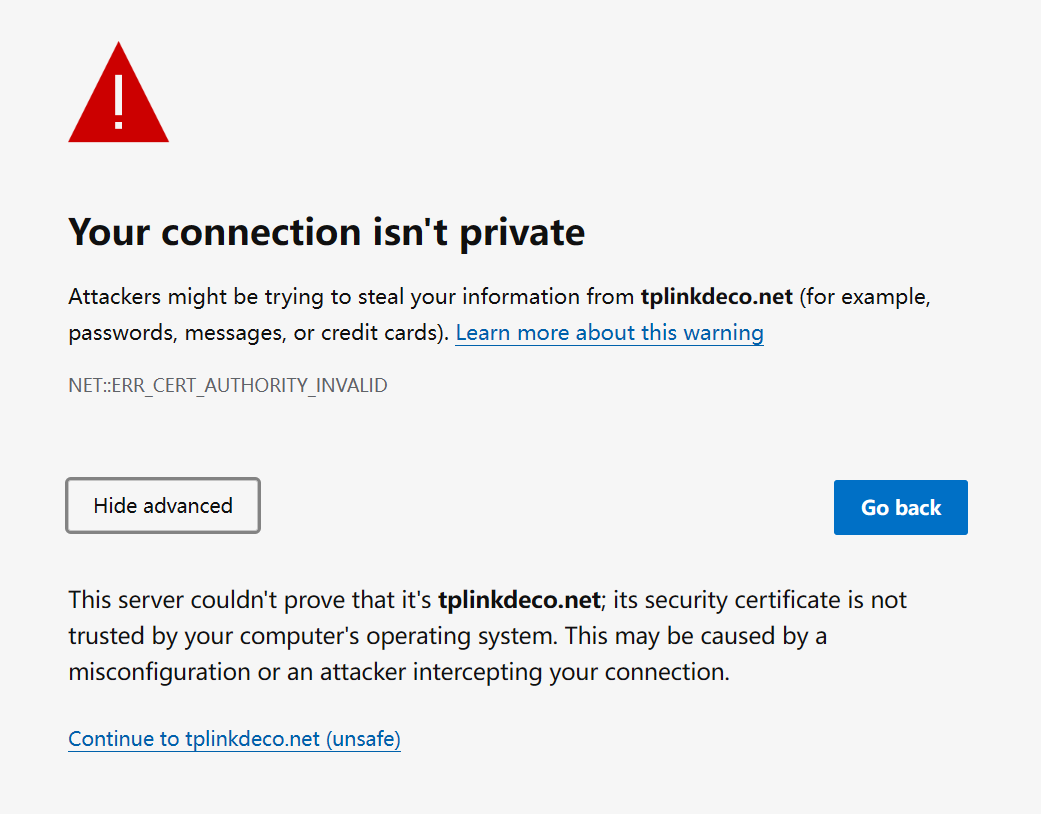
Some browsers will display a "Privacy Error" or "Your connection isn't private" warning when you try to open the Deco web management page. This is expected. The Deco interface uses a self-signed certificate rather than one from a trusted certificate authority. Your connection is still secure.
To continue, click Advanced, then select Proceed to tplinkdeco.net (unsafe) or Proceed to 192.168.68.1 (unsafe).
If no warning appears, skip ahead to Step 4.
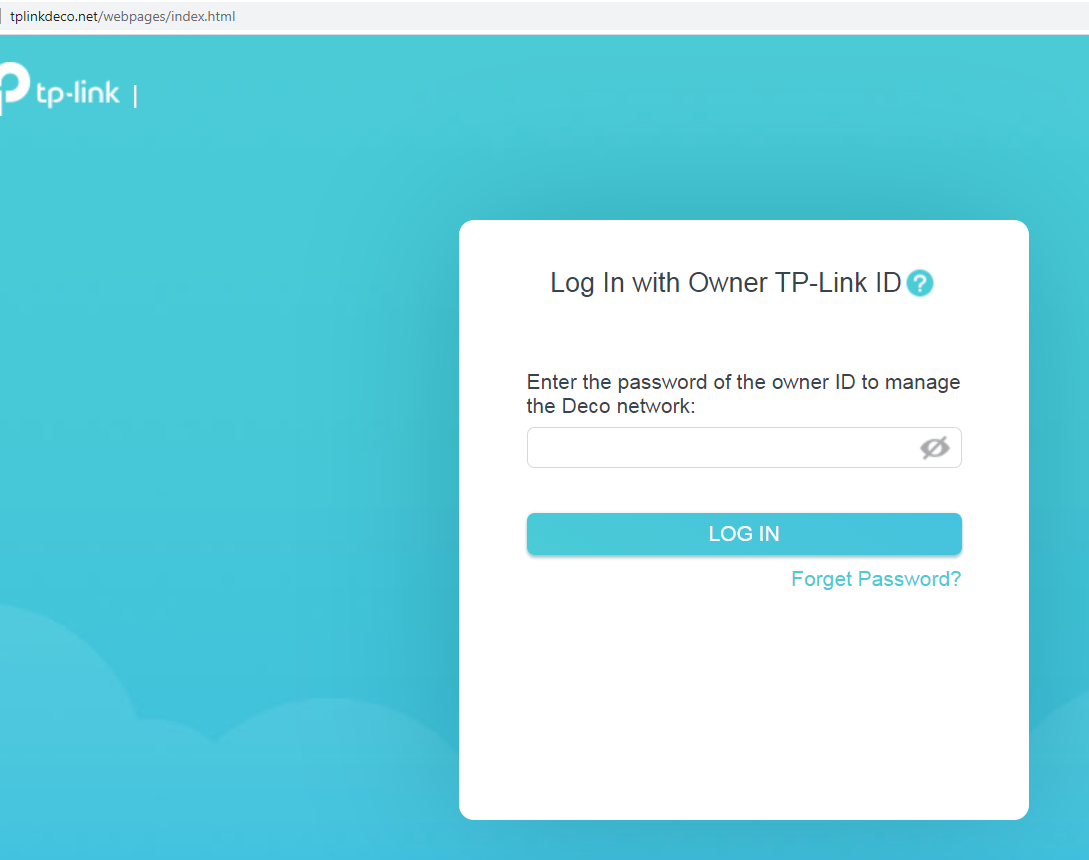
Step 4: Enter Your TP-Link ID Password to Sign In
The Deco web management page uses your TP-Link ID for authentication. Enter the password for the owner account — this is the TP-Link ID you used when you first set up the Deco network in the app.
Troubleshooting: Can't Reach the Deco Login Page?
If you see errors like "no internet" or "this site can't be reached" when trying to access the Deco web management page, try the following:
- Try the IP address instead: If tplinkdeco.net does not load, enter 192.168.68.1 directly in the address bar.
- Check your network connection: Only devices connected to the Deco network can reach the web management page. Confirm your device is connected via Ethernet or Wi-Fi.
- Try a different browser: Browser cache issues can sometimes block the page from loading. Switching browsers or clearing your cache may help.
- Owner vs. manager accounts: Only the owner TP-Link ID can access the web management page. Manager accounts do not have web management access.
- Check for firmware updates: Web management is only available on supported models running the latest firmware. If your model does not support web management yet, it may be added through a future firmware update.
For more detailed help, see what to do if you fail to log in to the Deco web management page.
Is this faq useful?
Your feedback helps improve this site.



TP-Link Community
Still need help? Search for answers, ask questions, and get help from TP-Link experts and other users around the world.