


How to Factory Reset Your TP-Link Router
 8559230
A factory reset restores your TP-Link router to its original default settings, erasing all custom configurations. This guide covers two ways to reset your TP-Link router: using the physical reset button and the web interface. Common reasons to reset TP-Link router settings include a forgotten password, persistent connectivity issues, or preparing the device to sell or give away.
Key Takeaways
- With the router powered on, press and hold the Reset button for more than 10 seconds to perform a hard reset.
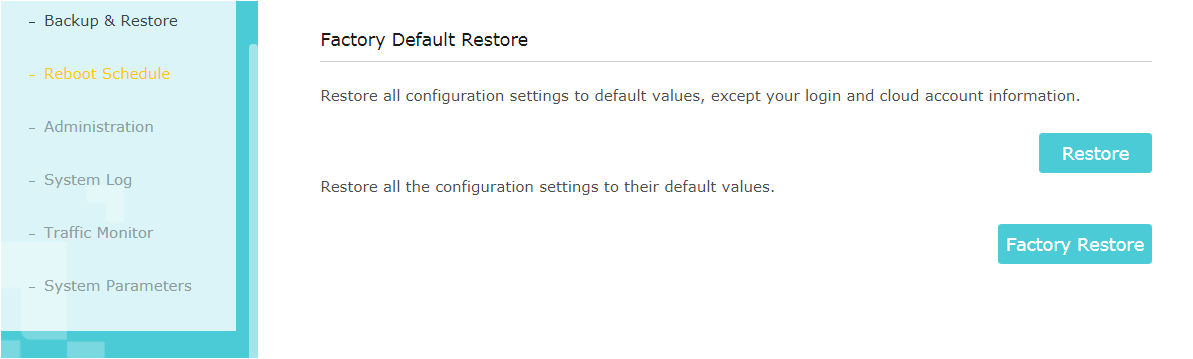
- You can also reset via the web interface by navigating to Advanced > System/System Tools> Backup and Restore > Factory Default Restore.
- A factory reset erases all custom settings, including your Internet settings, Wi-Fi settings, port forwarding rules, and parental controls.
- After resetting, the router returns to its default login credentials and IP address, which you can find on the bottom label.
- Before you reset, consider backing up your configuration file so you can restore your settings afterward.
Before You Reset
A factory reset cannot be undone, so it's worth taking a moment to prepare. If you've forgotten your router password, a reset is a better option.
If you do need to reset, back up your router's configuration file first through the web interface. That way, you can restore your custom settings after the reset without starting from scratch.
Method 1: Reset Using the Physical Button
This is the quickest way to factory reset your TP-Link router and does not require access to the web interface.
Step 1: Identify your reset button. Check your router's rear or front panel. Depending on your model, you may have one of three button types:
- A dedicated Reset button
- A combined WPS/Reset button (pressing for less than five seconds activates WPS; pressing for 10 or more seconds triggers a reset)
- A pinhole reset requiring a pin or paperclip to press
Check the bottom label of your router to identify the button location and type on your specific model.
Step 2: Press and hold the button. With the router powered on, press and hold the Reset or WPS/Reset button for more than 10 seconds. Release when the SYS LED changes from slow-flash to quick-flash.
Step 3: Wait for the router to reboot. The router will restart and return to factory default settings. Make sure the router stays powered on during this process.
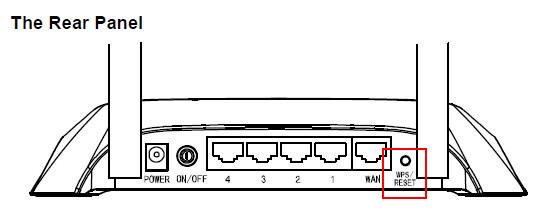
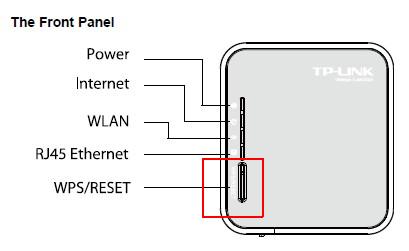
Note: The images above show older TL-WR series hardware. The reset button location may look different on newer Archer models. Always check the bottom label of your specific router to confirm button placement.
Method 2: Reset via the Web Interface
If you can still access your router's admin panel, you can trigger a factory reset from within the settings.
Step 1: Log in to your router. Open a browser and go to tplinkwifi.net or 192.168.0.1. Enter your admin password. For full login instructions, see how to log in to your TP-Link router's web management page.
Step 2: Navigate to the restore page. Go to Advanced > System/System Tools > Backup and Restore.
Step 3: Click Factory Restore. On the Factory Default Restore page, click Factory Restore and wait for the router to reboot. Keep the router powered on until the process is complete.
What Happens After a Factory Reset
The router will revert to the default login credentials and default IP address printed on the bottom label. To get back online, reconnect to the router's default Wi-Fi network, then log in to the web management page and run the setup process again. For step-by-step setup instructions, see how to set up a TP-Link Wi-Fi router on the web management page.
Note: If you backed up your configuration file before the reset, you can reload it from the same Backup and Restore page to restore your previous settings.
Is this faq useful?
Your feedback helps improve this site.



TP-Link Community
Still need help? Search for answers, ask questions, and get help from TP-Link experts and other users around the world.