


How to View VIGI Devices in the VIGI App and VIGI Cloud VMS
Contents
View devices in VIGI Cloud VMS
Introduction
VIGI app has Personal Edition (My VIGI) and Enterprise Edition (My Organization). You can use the VIGI app (My Organization) to access the VIGI Cloud VMS to view VIGI devices. This article introduces how to view devices on the VIGI app and the VIGI Cloud VMS.
Requirements
- VIGI Cloud VMS
- VIGI App
- VIGI Camera or VIGI NVR
Configuration
Follow the steps below to locate and view VIGI devices.
View devices in VIGI Cloud VMS
Step 1. Log in to the VIGI Cloud VMS web portal (https://vms.tplinkcloud.com/).
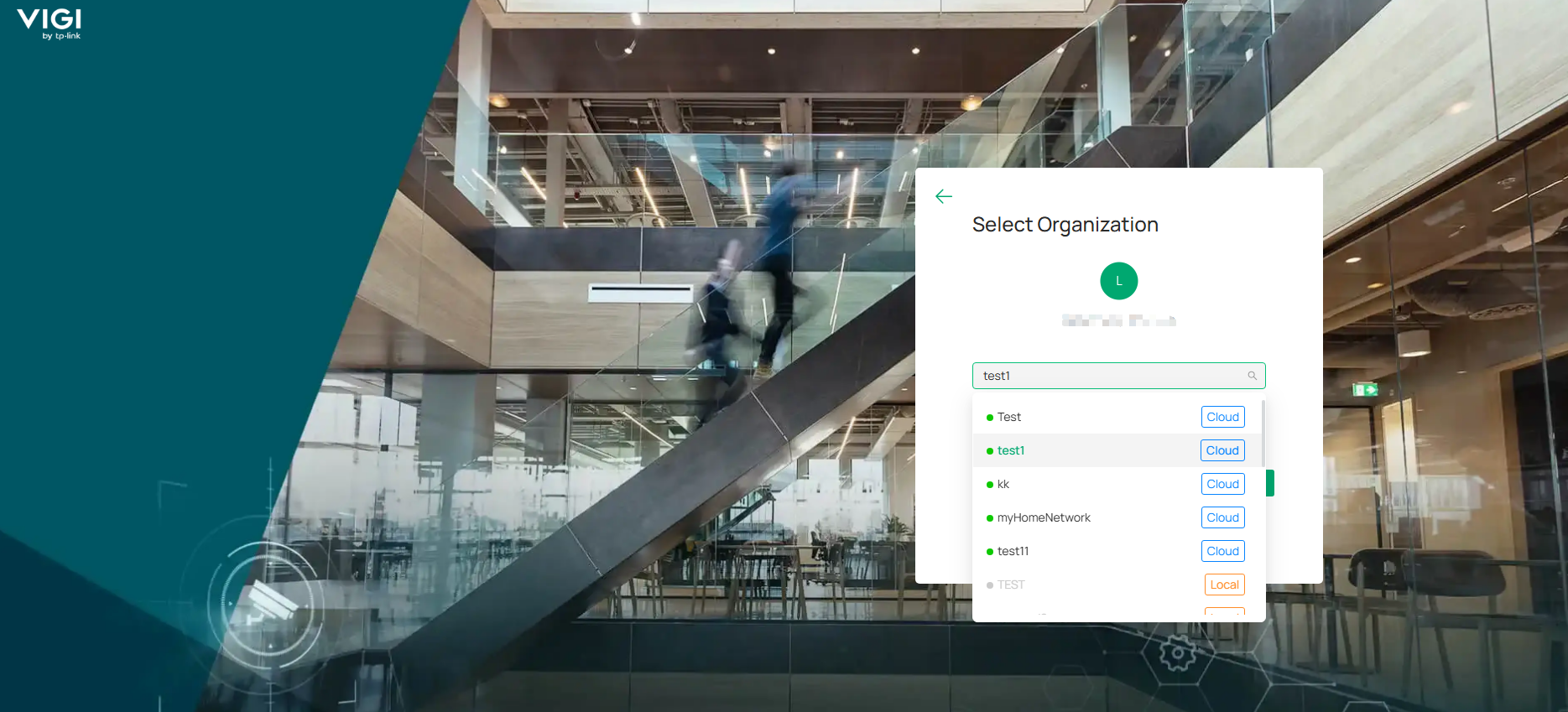
Step 2. Select the desired organization and the site where the devices are located.
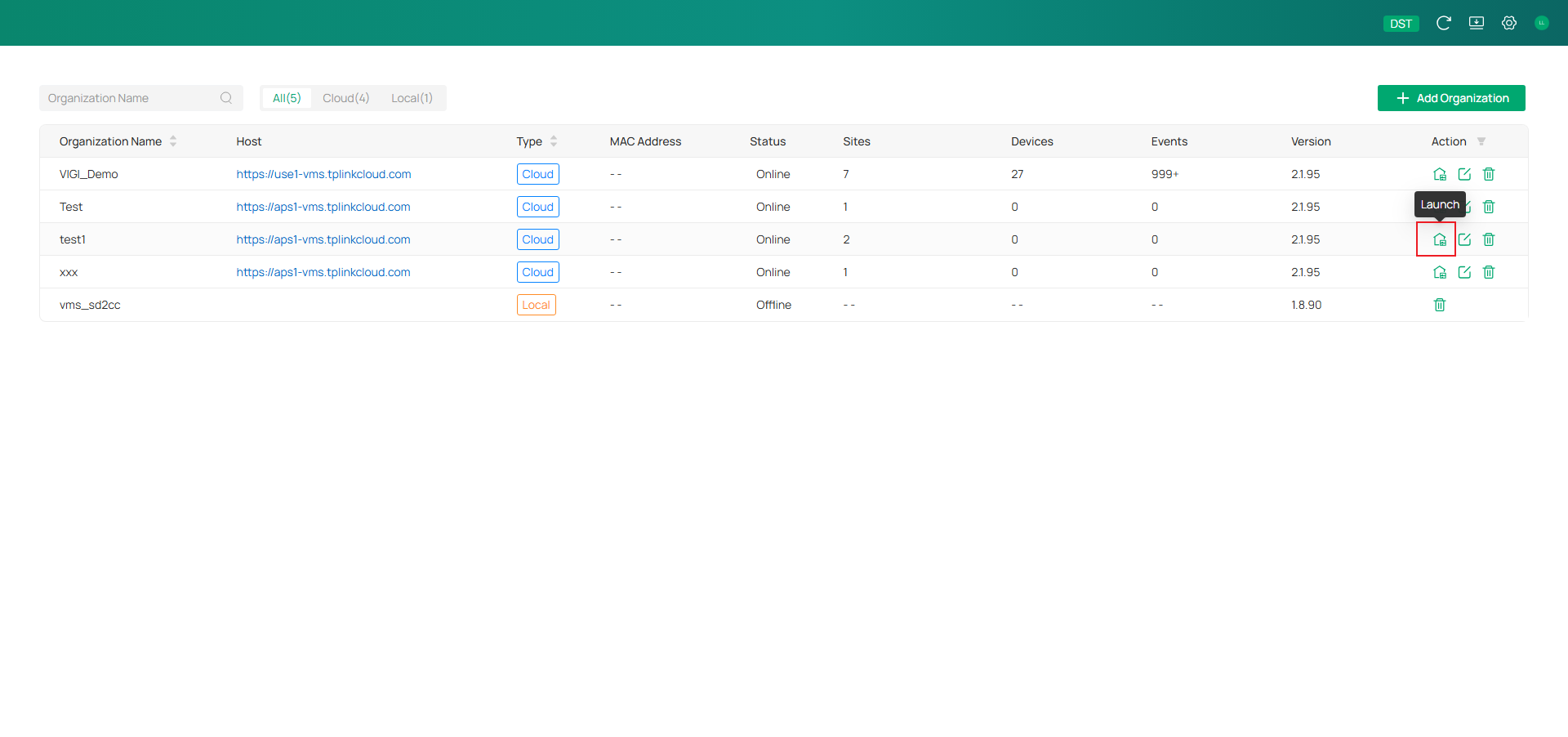
(Optional) Go to Manage Organization to launch the desired organization.
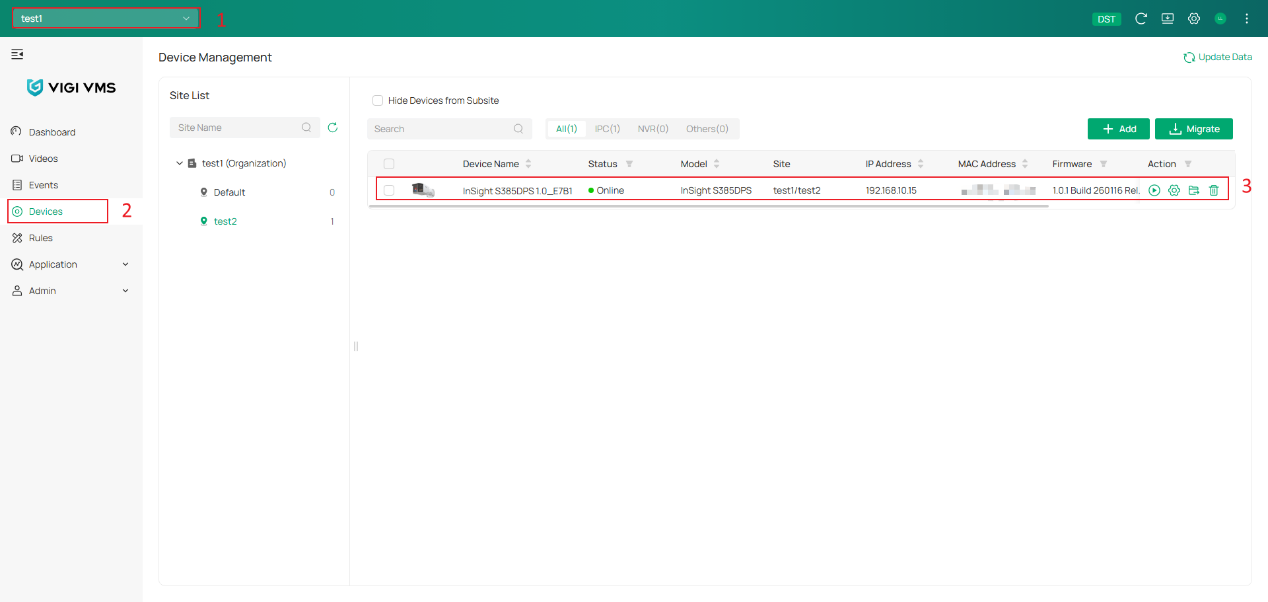
Step 3. Navigate to the Device page to view the devices associated with the selected site.
View devices in the VIGI App
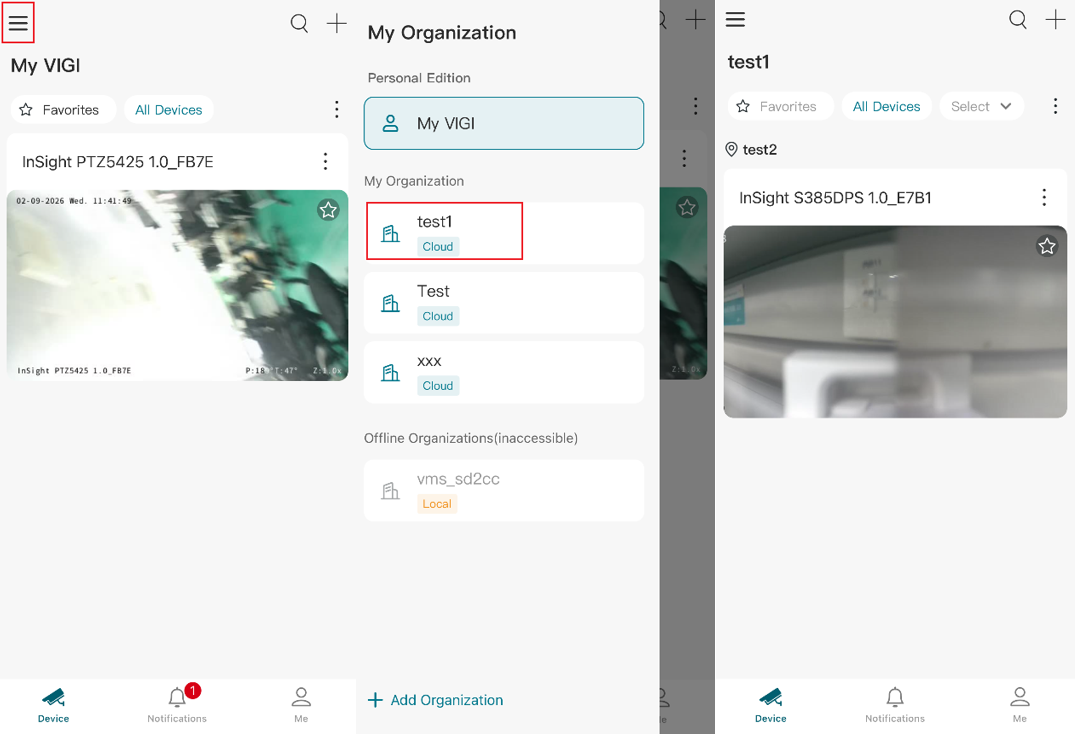
Step 1. Open the VIGI App and sign in using your TP-Link ID. Select an organization and choose a site to view VIGI devices.
Note: My VIGI is the Personal Edition, where devices are directly bound to a TP-Link ID for remote management without being added to an organization.
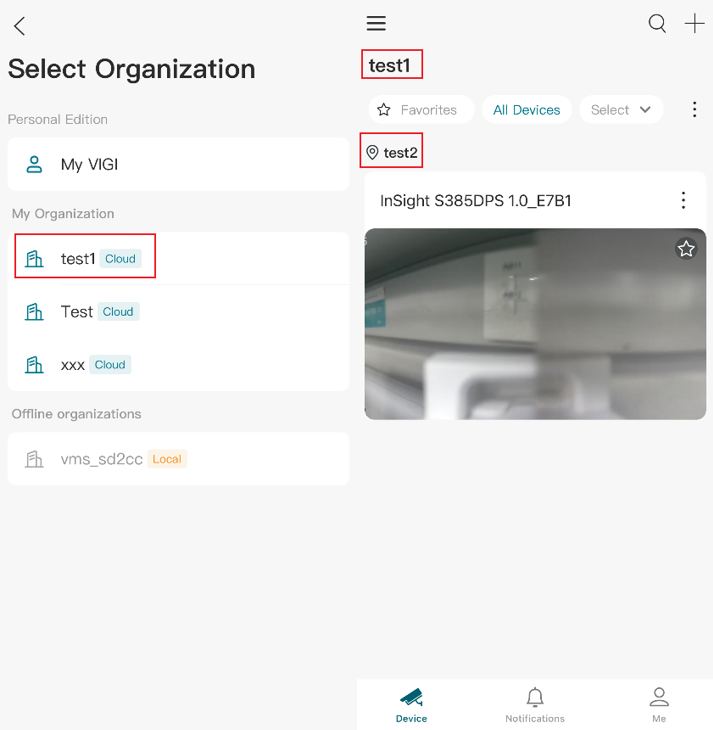
Step 2. If you have already logged in to the VIGI app (My VIGI), please tap the three lineinon the top-left corner to switch to Enterprise Edition (My Organization), then you can view devices associated with the selected site.
Conclusion
You have now successfully located and viewed VIGI devices through the VIGI Cloud VMS web portal and the VIGI App. By selecting the correct organization and site, you can easily access devices deployed across different locations.
To learn more about each function and configuration, please visit Support Home to download or check the manual for your product.
QA
Q1: Why can't I find my devices in VIGI Cloud VMS?
A1: Devices added to the VIGI App Personal Edition are not automatically displayed in VIGI Cloud VMS. To manage devices through VIGI Cloud VMS, the devices should be added to an organization and site in VIGI Cloud VMS. If your devices were previously added to Personal Edition, a migration process may be required. Please refer to: A Migration Guide from the VIGI App Personal Edition to VIGI Cloud VMS | TP-Link.
Q2: Which platform can display both Personal Edition and Enterprise Edition devices?
A2: VIGI PC Client supports access to both Personal Edition and Enterprise Edition devices. However, devices added to Personal Edition and VIGI Cloud VMS are managed independently on their respective cloud platforms.
Looking For More
Is this faq useful?
Your feedback helps improve this site.


TP-Link Community
Still need help? Search for answers, ask questions, and get help from TP-Link experts and other users around the world.