


TP-Link Smart Connect: What It Is and How to Enable It on Your Router
TP-Link Smart Connect automatically assigns each connected device to the 2.4GHz or 5GHz Wi-Fi band that provides the fastest speed. This is what TP-Link Smart Connect does at its core. By balancing network load across bands, Smart Connect TP-Link can reduce delays and interruptions. When Smart Connect is enabled, both bands share the same network name (SSID) and password, so devices connect seamlessly without you needing to switch manually. You can enable Smart Connect through your router's web management page at tplinkwifi.net or through the TP-Link Tether app.
Key Takeaways
- TP-Link Smart Connect automatically assigns each connected device to the 2.4GHz or 5GHz Wi-Fi band that offers the fastest speed, balancing network load to reduce delays and interruptions.
- When Smart Connect is enabled, the router's 2.4 GHz and 5 GHz networks share the same SSID and password. Devices connect seamlessly without the user needing to manually switch bands.
- Smart Connect can be enabled via the router's web management page at tplinkwifi.net (go to Advanced > Wireless > Wireless Settings) or through the TP-Link Tether app (go to Wireless settings and toggle on Smart Connect).
- Smart Connect is particularly useful when you have a mix of older and newer devices on the network. Legacy devices that only support 2.4GHz are handled automatically without overloading that band.
TP-Link Smart Connect automatically assigns connected devices to the Wi-Fi band that offers the fastest speed. By balancing the load and assigning devices to the most appropriate band, Smart Connect can reduce delays and interruptions.
When Smart Connect is enabled, the router’s 2.4 GHz and 5 GHz networks share the same SSID (network name) and password. You can enjoy seamless connectivity between 2.4 GHz and 5 GHz networks.
TP-Link Smart Connect On or Off: When to Enable It
1) When you are not sure which frequency band or which location provides the best wireless signal
Wireless signals cannot stay stable all the time. Thus, sometimes it is necessary to adjust the frequency to improve the signal. If you are not sure which frequency band or which location provides the best, just relax and try the Smart Connect on your TP-Link router.
2) When you have devices released at different times
Devices released at different periods have different compatibility with the 5 GHz wireless network. Some legacy devices can only work well on the 2.4 GHz wireless network. If you have many legacy devices mixed with the newer devices in the wireless network, your 2.4 GHz network might be overloaded from piling too many devices on it. Enable Smart Connect to let the router automatically choose the most efficient band, so every device can reach its full potential.
How to Enable TP-Link Smart Connect on Your Router
Here, Archer AX50 as an example. The actual interface may vary slightly from the product model. For more details, please refer to the User Guide of your router.
Via Web Management
Step 1: Verify the hardware connection and make sure your router is connected to the Internet.
Step 2: Connect to the router via either Wi-Fi or an Ethernet cable, visit http://tplinkwifi.net , and log in with your TP-Link ID or the password you set for the router.
Step 3: Go to Advanced > Wireless > Wireless Settings and enable Smart Connect.
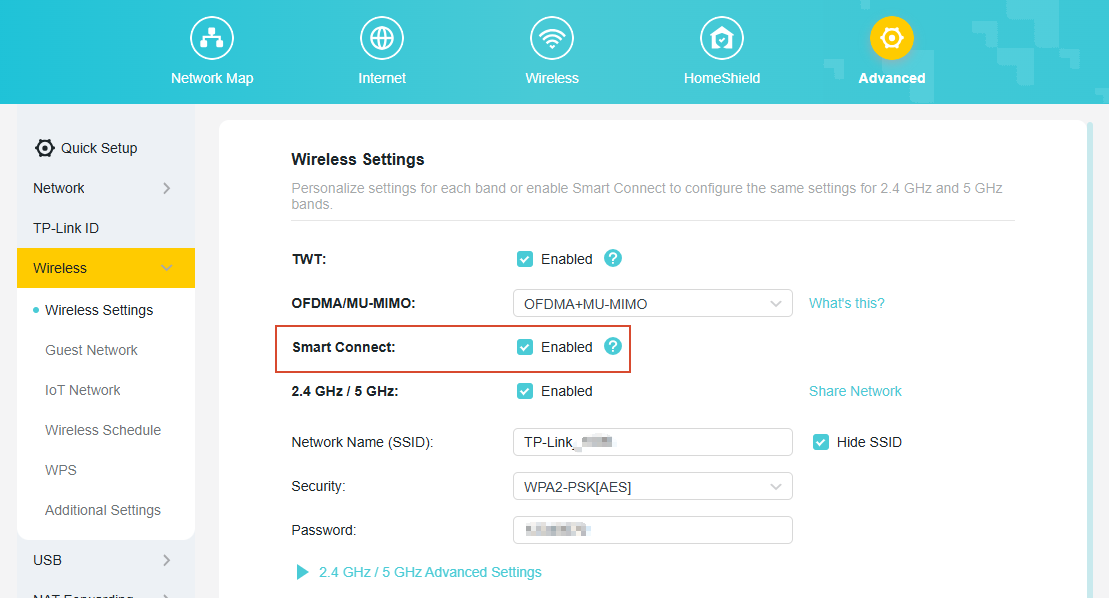
Step 4: Customize your network name and password. Click Save to apply your settings.
Via Tether App
Step 1: Connect to your TP-Link Wi-Fi Router.
Step 2: Launch the Tether App, select your router from the Device list, and log into it.
Step 3: Go to More > Wi-Fi Settings > 2.4GHz & 5GHz Network.
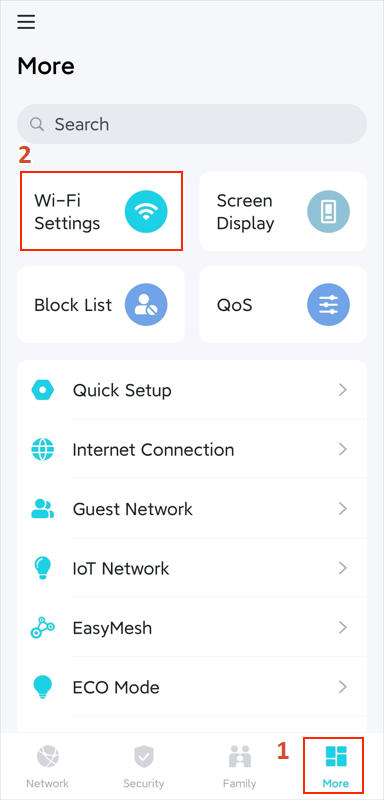
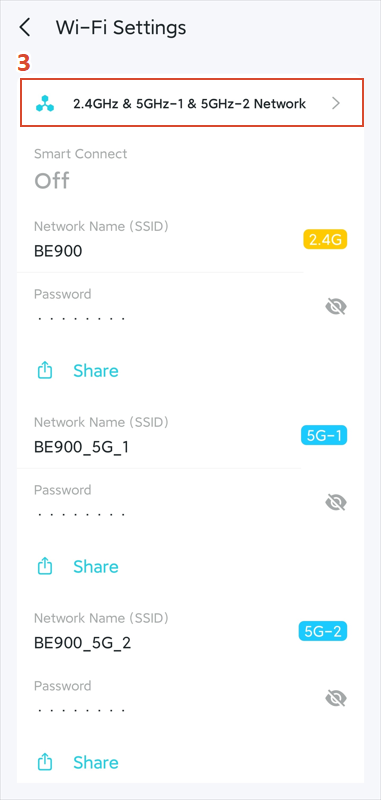
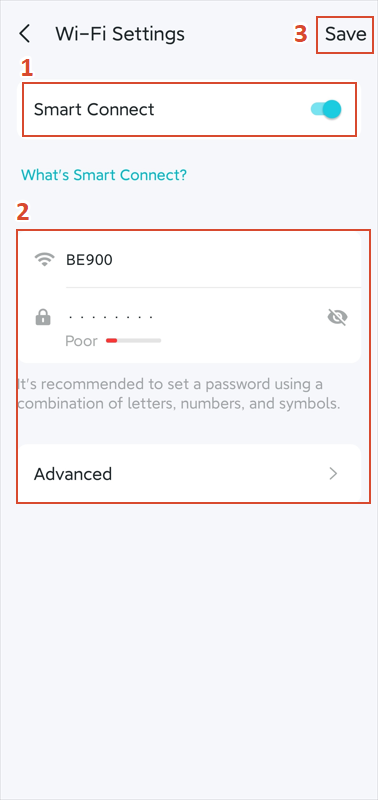
Step 4: Toggle on Smart Connect, customize your network name and password, and then click SAVE to apply your settings.
How to Disable Smart Connect on TP-Link Router
Disabling Smart Connect can be useful when you need to separate your 2.4 GHz and 5 GHz bands. For example, some smart home devices only support 2.4GHz and may have trouble connecting when both bands share the same SSID. Turning Smart Connect on or off takes just a moment and can be reversed at any time.
You may disable Smart Connect where you enabled it, either through the web management page (Advanced > Wireless > Wireless Settings) or the Tether app (More > Wi-Fi Settings > 2.4GHz & 5GHz). For detailed instructions, please refer to the above.
Get to know more details of each function and configuration please go to the Download Center to download the manual of your product.
Więcej
Czy ten poradnik FAQ był pomocny?
Twoja opinia pozwoli nam udoskonalić tę stronę.


TP-Link Community
Still need help? Search for answers, ask questions, and get help from TP-Link experts and other users around the world.
z United States?
Uzyskaj produkty, wydarzenia i usługi przeznaczone dla Twojego regionu.