


Troubleshooting for Deco Units and Connected Devices Showing Offline
This page covers two distinct scenarios where a TP-Link Deco unit may appear offline in the app while your network is actually working, and where connected client devices may appear on the Offline Devices list despite having Internet access. Both apply across the Deco lineup. For many users, a simple app refresh or reboot resolves the Deco offline issue without any deeper troubleshooting.
Key Takeaways
- If your Deco shows as offline in the app while managing locally, first confirm that your phone has Internet access via the Deco network. Disable mobile data and any active virtual private network (VPN), then try refreshing the app.
- If the Internet still works through your Deco but the app shows units offline, the issue is likely a display refresh problem in the app rather than an actual network outage.
- To refresh the app, try tapping Check Again on the offline unit, swiping down the network map, force-closing and reopening the app, or rebooting all Deco units.
- If clients appear on the Offline Devices list even though they are connected to Deco network, check whether the client has a static IP address configured or is using a private address.
- It may take several attempts for the Deco app to refresh and accurately reflect your network's current status.
Some users may experience an issue where the Deco units/clients appear online but are reported as offline in the Deco app. Below are the instructions to troubleshoot.
Case 1: Deco Units Showing Offline When Managing Locally
The Deco app may show that one or more Deco units are offline or report an “Unable to connect to the Internet” error.
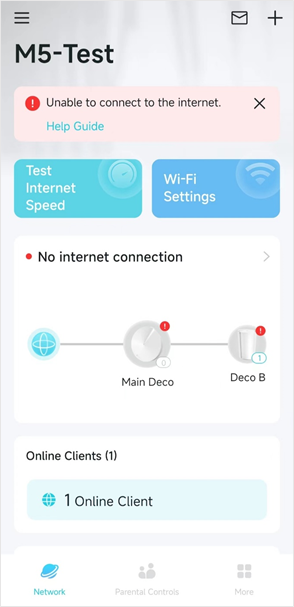
Possible Solutions:
Connect your phone to Deco’s Wi-Fi network to see if internet access works (remember to turn off mobile data and VPN). If not, refer to Fix Deco Disconnecting and Internet Instability Issues to troubleshoot.
If Deco has internet access, please try the following steps to refresh the internet connection.
- Tap the Deco map on the app > tap the offline Deco unit > tap "Check Again" to refresh the status.
- Swipe down the Network page, then release.
- Force to close the App completely and launch it again.
- Reboot all the Deco units.
Note: It may take several attempts for the app to refresh successfully.
Case 2: Online Clients Appearing on the Offline Devices List
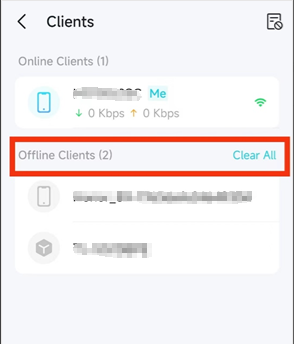
Solution:
- Check the affected clients’ IP settings to ensure they are not using a static IP.
- Make sure the affected clients aren’t using a private address. If it is, this may cause the Deco app to misidentify the device as offline even when it is connected.
If your issue is not resolved by either of the cases above, visit the TP-Link Community for additional help or contact TP-Link technical support directly.
Citește despre:
A fost util acest FAQ?
Părerea ta ne ajută să îmbunătățim acest site.
-F_large_1560310831908g_normal_1577328413052u.jpg)
_Overview_normal_20211130021244m.png)


TP-Link Community
Still need help? Search for answers, ask questions, and get help from TP-Link experts and other users around the world.