


How to Reset a Forgotten TP-Link ID Password for Tapo and Kasa Devices
The TP-Link ID is the shared account used to log in to both the Tapo and Kasa apps. If you have a Tapo/Kasa account and have forgotten your password, this page provides step-by-step instructions to reset it. There are two methods: via the Tapo/Kasa app or via the TP-Link Cloud website.
Key Takeaways
- The TP-Link ID is a shared account used for both the Tapo and Kasa apps — resetting the password applies to both.
- Passwords can be reset via the Tapo/Kasa app or the TP-Link Cloud website.
- A reset email is sent to the email address associated with the TP-Link ID — click the link in the email to set a new password.
- If the reset email is not received within 60 seconds, tap Resend in the app and verify the email address is correct.
How to Reset TP-Link ID Password
Method 1: Via Tapo/Kasa app
Step 1. On the Log In page of your Tapo/Kasa app, click on Forgot Password?
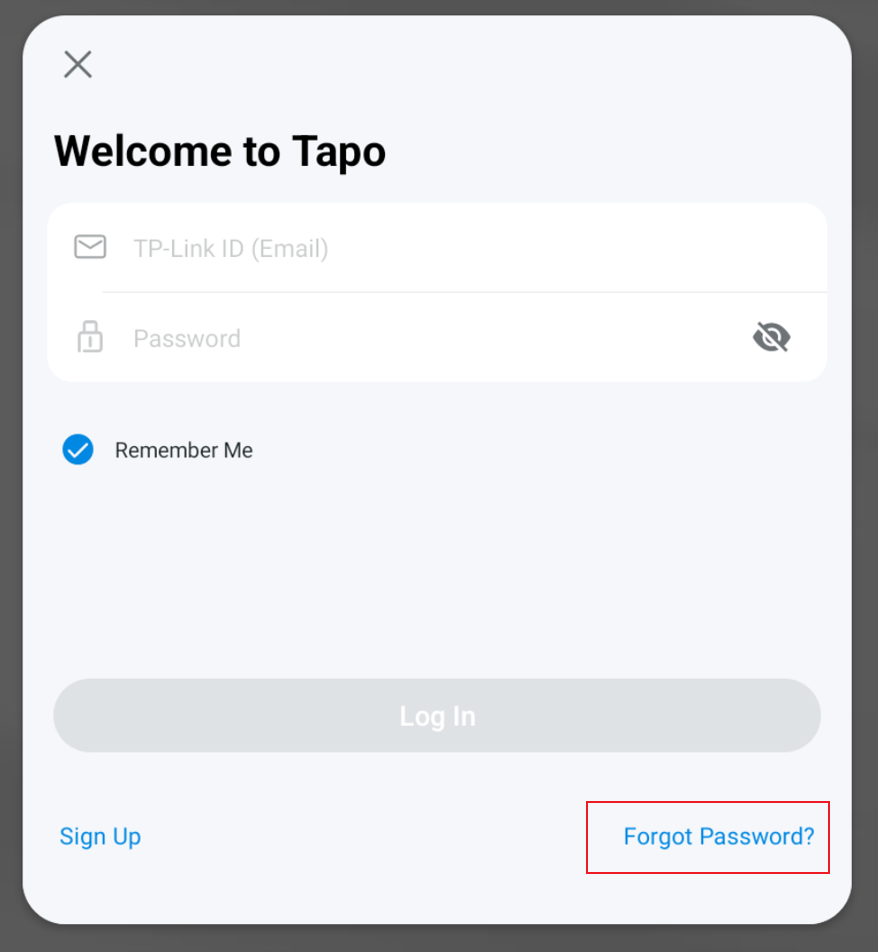
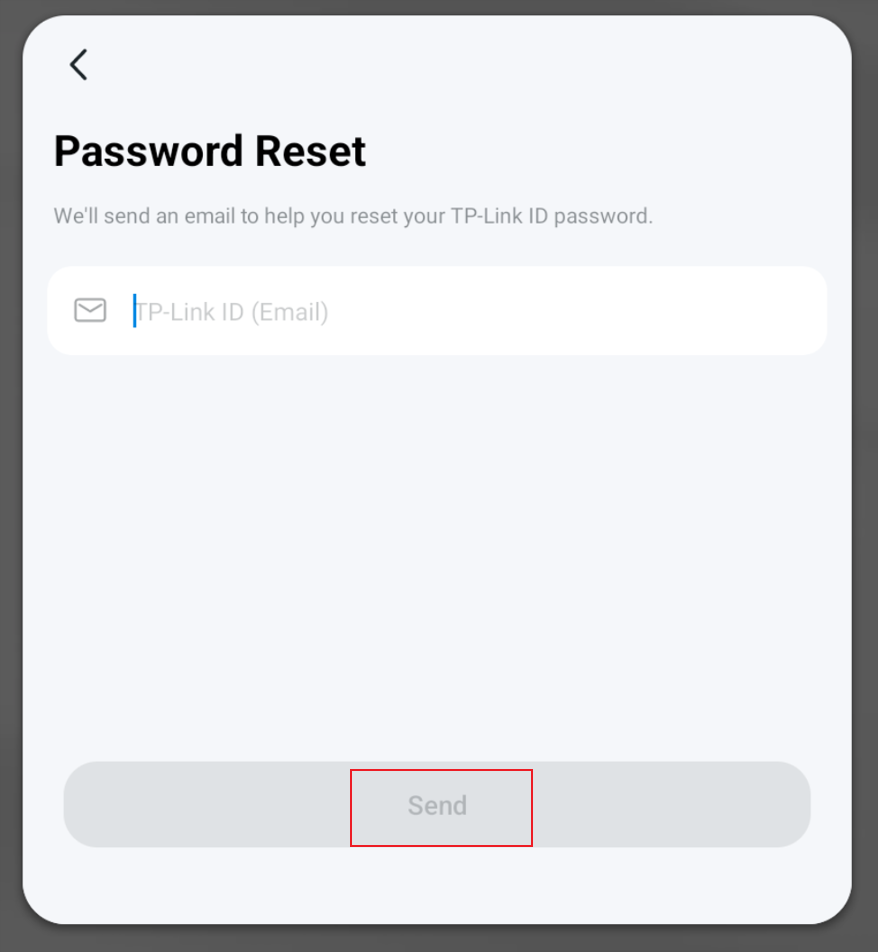
Step 2. Input your TP-Link ID (Email Account), then click on Send.
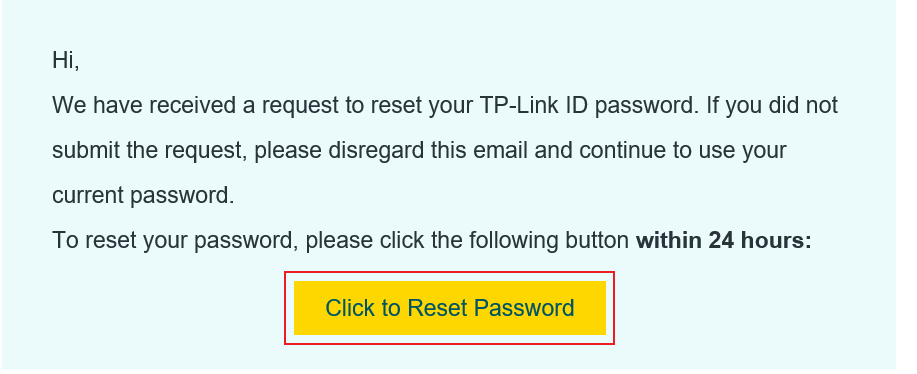
Step 3. Open the inbox for the email address linked to your TP-Link ID, find the email from TP-Link, and click Click to Reset Password to be taken to the password reset page.
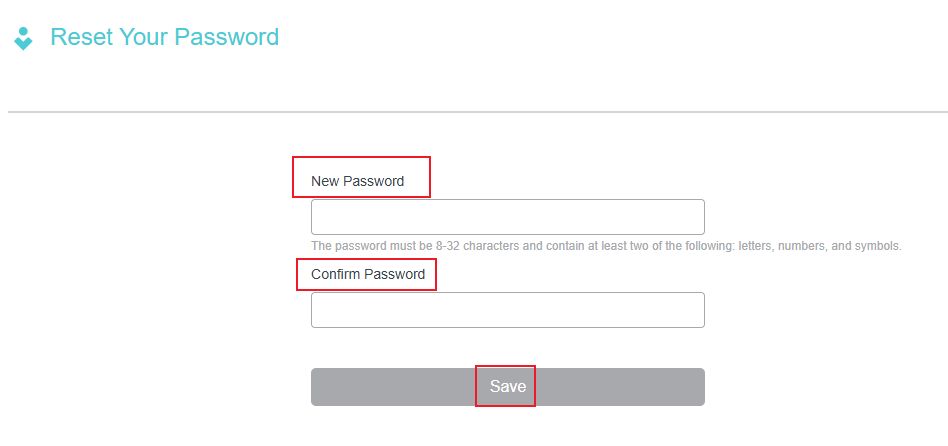
Step 4. Enter the new password for your TP-Link ID, confirm it, then click Save.
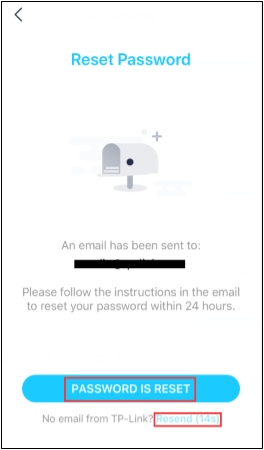
Step 5. Password reset is complete. Return to the Tapo/Kasa app, tap PASSWORD IS RESET, and log in with your new password.
Note: If you don’t receive the reset email within 60 seconds, please click Resend in the app and ensure you have entered the correct email address.
Method 2: Via TP-Link Cloud Website
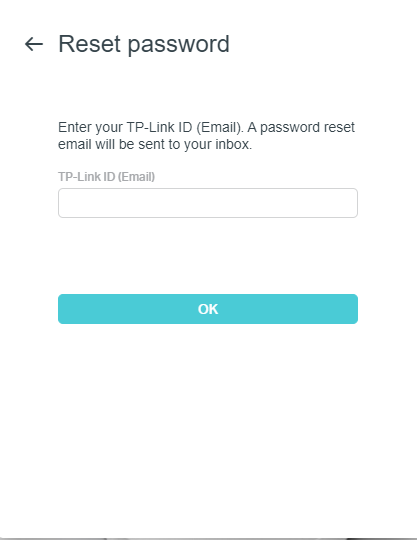
Step 1. Open a browser and log in to the TP-Link Cloud website. Enter your TP-Link ID email account, and a password reset email will be sent to your mailbox.
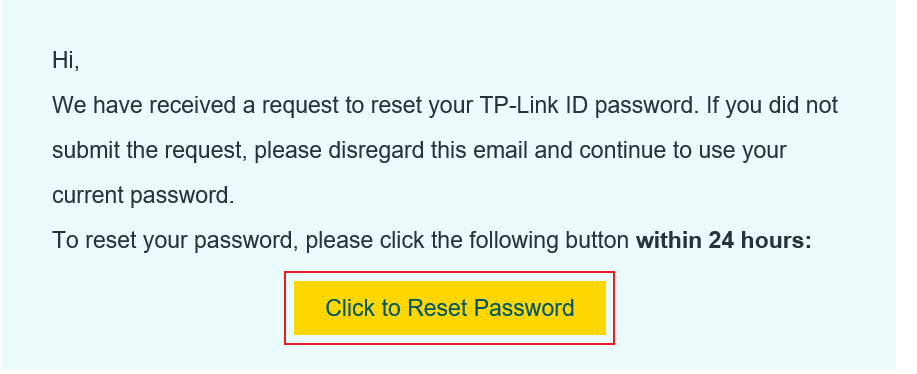
Step 2. Open the inbox of the email account associated with your TP-Link ID, find the email from TP-Link, and click on Click to Reset Password. This will take you to the password reset page on the TP-Link cloud website.
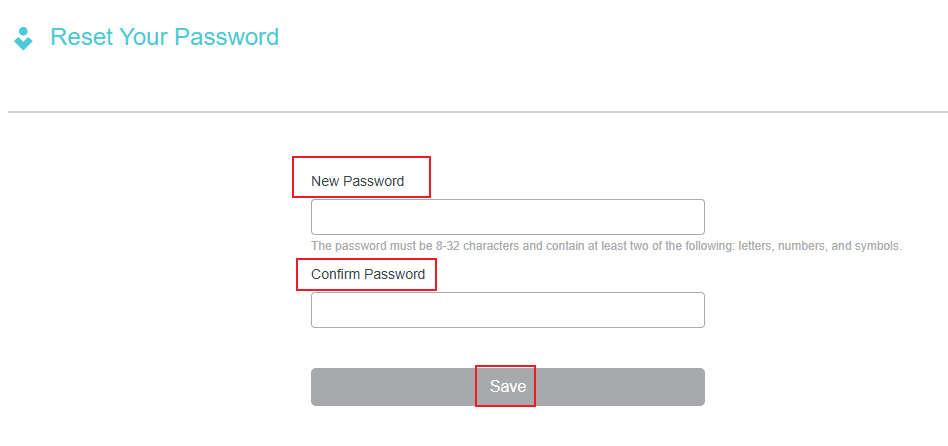
Step 3. Enter the new password for your TP-Link ID, confirm it, then click Save.
QA
Q1: What should I do if I don’t receive the password reset email?
You may refer to this FAQ for troubleshooting suggestions: What should I do if I don't receive the email when I register a cloud account or reset my password?
To learn more about each function and configuration, please visit the Download Center to download the manual for your product.
Looking For More
Is this faq useful?
Your feedback helps improve this site.


TP-Link Community
Still need help? Search for answers, ask questions, and get help from TP-Link experts and other users around the world.