


How to Customize TP-Link Band Steering and Wireless Settings on an Aginet Router
This guide covers how to customize the wireless settings on a TP-Link router or modem provided by your internet service provider (ISP). Your device ships with default wireless settings, including the network name (SSID), password, and security type, printed on the product label. These settings — identified by names like TP-Link_XXXX — can be changed through the web management page or the Aginet app. This guide covers six wireless settings categories: TP-Link band steering, the wireless function toggle, SSID, password, Hide SSID, and advanced settings.
Key Takeaways
- Band Steering on a TP-Link ISP-customized router automatically selects the stronger 2.4GHz or 5GHz signal for connected devices. Disabling it lets you manually choose which band to connect to.
- When Band Steering is disabled, a "_5G" suffix is automatically added to the 5GHz network name, and this suffix can be customized.
- Band Steering requires the connecting device to support both the 2.4 GHz and 5 GHz Wi-Fi bands.
- The wireless function can be enabled or disabled separately for 2.4 GHz and 5 GHz. Disabling it stops the router from broadcasting the Wi-Fi signal entirely.
- The SSID supports up to 32 characters and is case-sensitive. If you change the SSID or password over Wi-Fi, write down the new credentials before saving, as your connection will drop when the new settings take effect.
Method 1:Modify Wireless Network on Web UI
How to Access the Wireless Settings
Step 1. Firstly, please find the default access settings for your router/modem on the label. Here takes NX510v(EU1) for example:
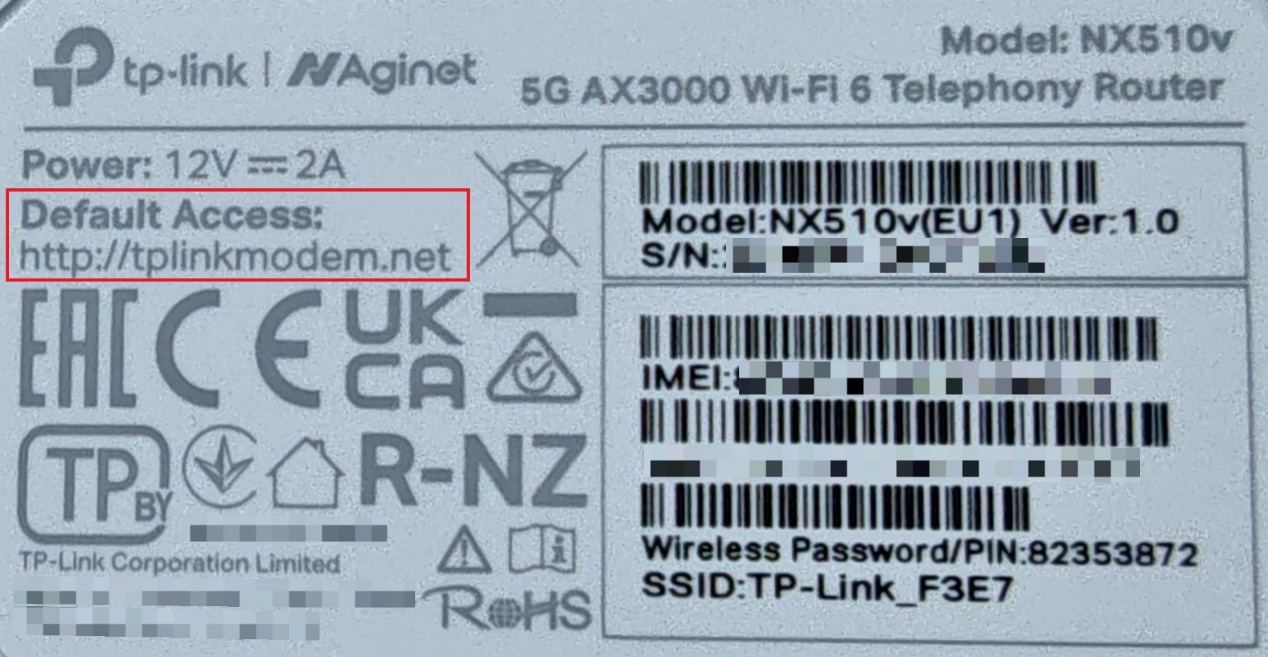
Connect to the modem/router’s network and visit the default access via browser. Then, log in to the router/modem. If you need help logging in to the modem, please refer to the following article: How to log into the web management page of the TP-Link ISP-customized Mesh device How to log in to the web management page of TP-Link ISP-customized DSL Modem Router, How to log in to your ISP-customized 4G or 5G router.
Step 2. Go to Basic > Wireless page.
How to Turn Band Steering On or Off
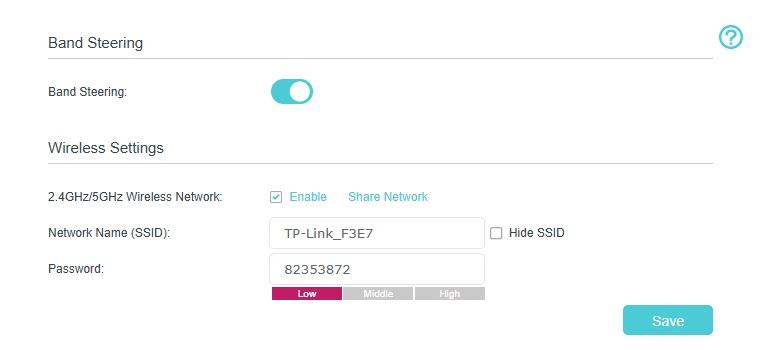
The Band Steering feature automatically selects the stronger signal between 2.4 GHz and 5 GHz for connected devices. If you prefer to manually choose which frequency band to connect to, please click to disable the Band Steering option.
Notes:
1. After disabling Band Steering, a "_5G" suffix is automatically added to the 5GHz network name, which can be customized.
2. To implement the Band Steering function, the device connecting to Wi-Fi must support both 2.4GHz and 5GHz Wi-Fi bands.
How to Enable or Disable the Wireless Function
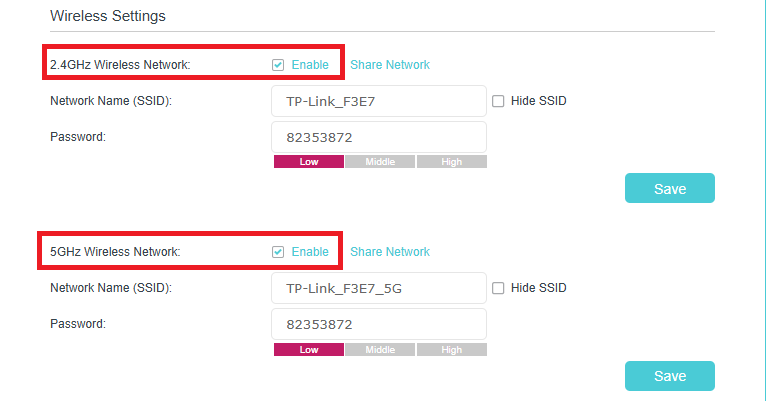
Enable the Wireless Network 2.4GHz or 5GHz. If you don’t want to use the wireless function, just uncheck the box. If you disable the wireless function, the router will not even broadcast the Wi-Fi signal.
Wi-Fi Network Name (SSID) and Password Setting
Change the Wi-Fi Network Name (SSID) and Password
Enter a new SSID using up to 32 characters. The default SSID is TP-Link_XXXX or ISP-Customized, and the value is case-sensitive.
Note: If you use a wireless device to change the wireless settings, you will be disconnected when the settings take effect. Please write down the new SSID and password for future use.
Hide the Wi-Fi Network Name (SSID)
Select Hide SSID to stop broadcasting the network name. The network will not appear in nearby Wi-Fi lists and must be joined manually.
Change Advanced Wireless Settings
Step 1. We recommend that you don’t change the default mode or channel unless necessary. Some settings may vary by model.
Step 2. Go to Advanced > Wireless > Wireless Settings page and select the 2.4GHz or 5GHz wireless network.
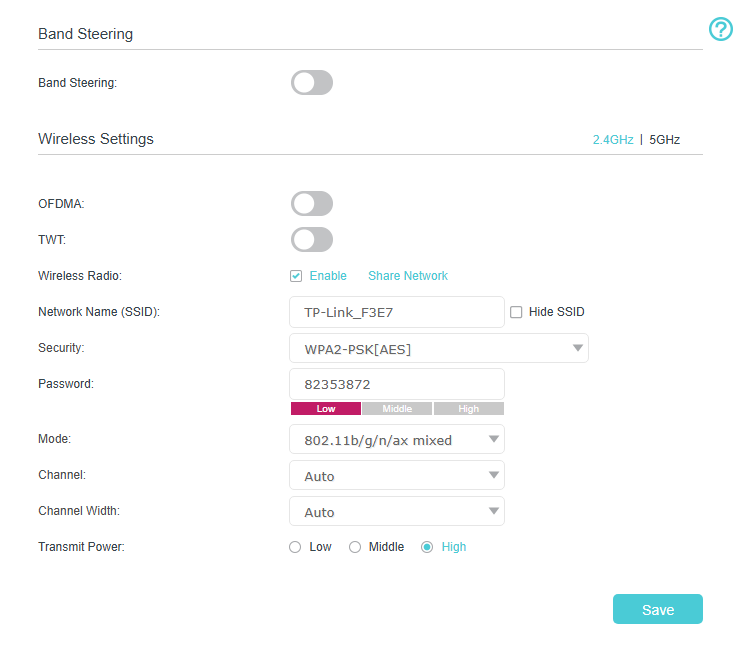
Step 3. 2.4 GHz | 5 GHz: Select the Wi-Fi band you want to modify. This option will show only when you disable Band Steering.
Security: Modify the Wi-Fi encryption method; you can choose 'No security' to set it as open (we do not recommend doing this).
Channel: Select an operating channel for the wireless network. It is recommended to leave the channel on ‘Auto’ if you are not experiencing intermittent wireless connection issues.
Channel Width: Select a channel width (bandwidth) for the wireless network. If you are not sure, select ‘Auto’.
Method 2: Modify Wireless Network on Aginet App
Step 1. Launch the Aginet app. Select the router/modem you want to modify the wireless network.
If you need help, please refer to How do I set up an ISP-Customized DSL modem router on the Aginet app? How to set up TP-Link Customized Whole Home Mesh System on the Aginet App.
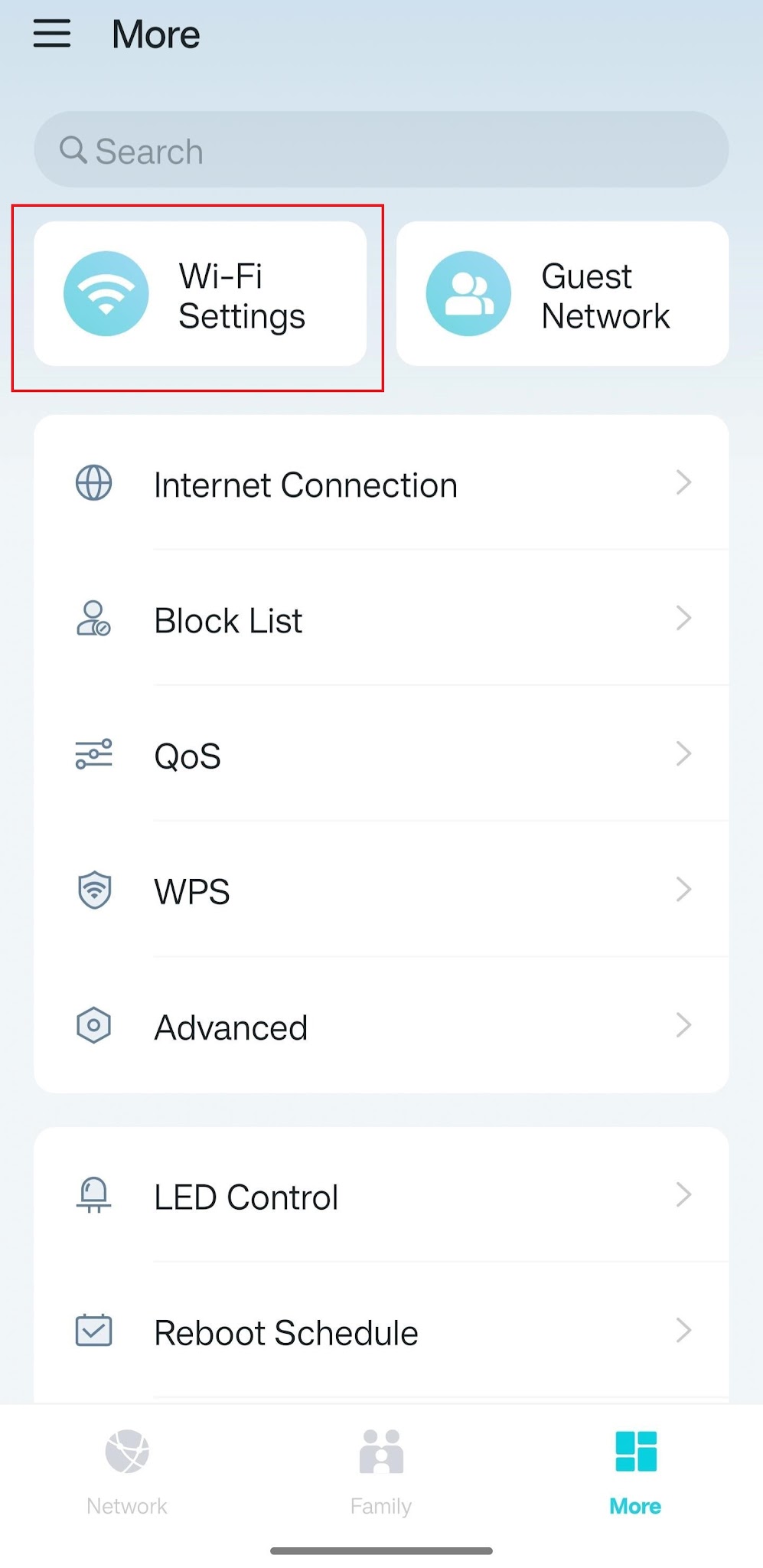
Step 2. Go to More > Wi-Fi Settings to customize your router/modem’s wireless settings.
For more details, download the manual for your product from the Download Center.
更多相關文章
這篇faq是否有用?
您的反饋將幫助我們改善網站

TP-Link Community
Still need help? Search for answers, ask questions, and get help from TP-Link experts and other users around the world.