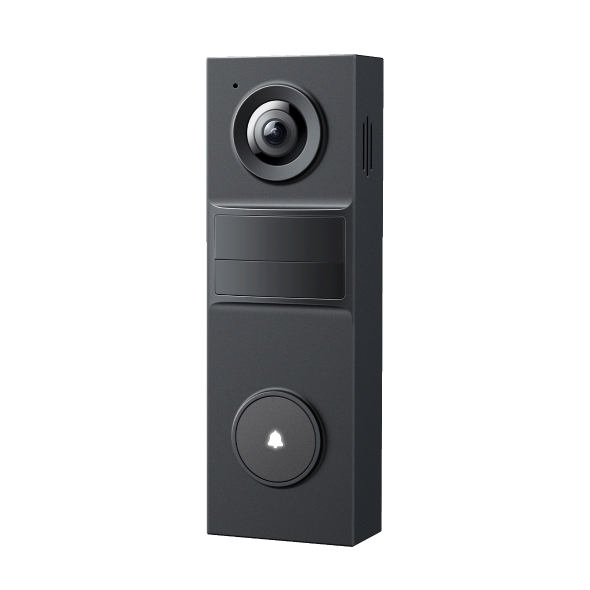
How to Factory Reset Your Tapo Doorbell

User Application Requirement
更新April 22, 2026

This guide explains how to reset the Tapo Doorbell to factory settings, covering both the physical reset button method and the Tapo app method for multiple Tapo Doorbell models.

Note: When Anti‑theft Alarm is triggered, the doorbell will not respond to reset operations. Before resetting, disable the anti‑theft alarm by pressing and holding the SYNC/RESET button and the Anti‑theft button simultaneously for 10 seconds. For detailed instructions, refer to How to Pause or Stop the Anti‑theft Alarm on Your Tapo Doorbell.


Method 1: Via the Reset Button

Step 1. Detach the Doorbell from the Mounting Bracket

Case 1: For Tapo D130/Tapo D210/Tapo D230S1/ Tapo D235/Tapo D225

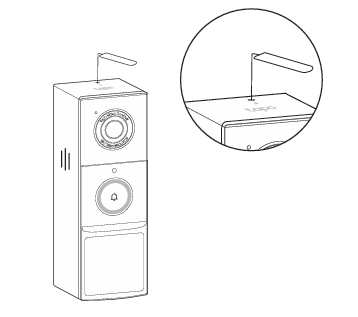
Use the doorbell detaching pin to detach the doorbell from the bracket.

To detach the doorbell using a pin.

Case 2. For Tapo D205

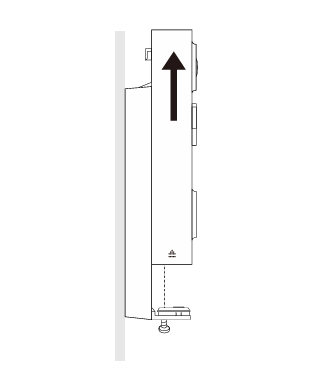
Loosen the screw at the bottom of the bracket. Hold the doorbell and pull it up to detach it from the bracket.

Detach the doorbell: loosen the screw and pull the doorbell up.

Step 2. Locate the Reset Button and Reset the Doorbell

Case 1. For Tapo D130

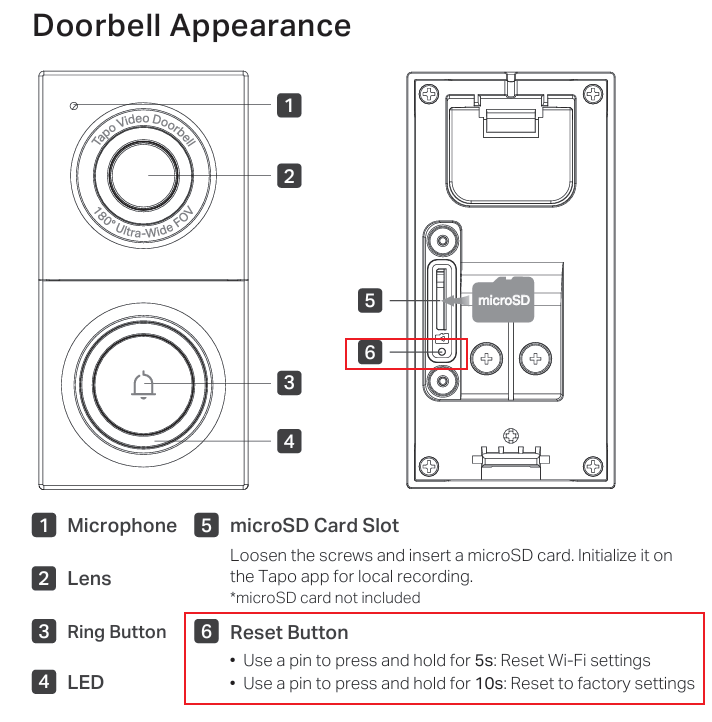
  • Reset Wi-Fi Settings: Use a pin to press and hold the RESET button for 5 seconds.
  • Reset to Factory Settings: Use a pin to press and hold the RESET button for 10 seconds.

The location of the Tapo D130 reset button.

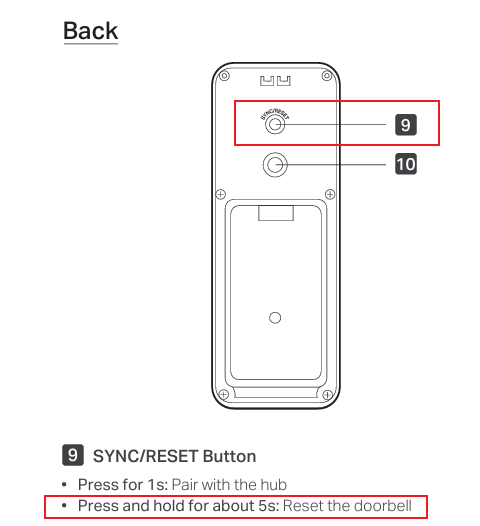
Case 2. For Tapo D205/TD20

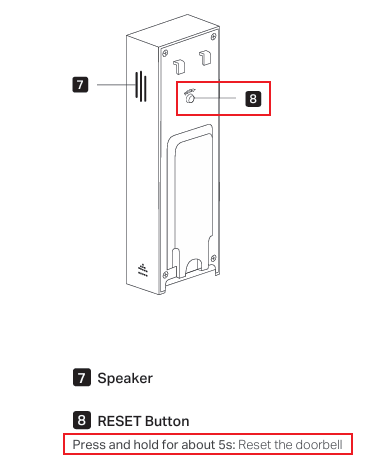
Press and hold the RESET button for 5 seconds.

The location of the Tapo D205 reset button.

Case 3. For Tapo D210/TD21

Press and hold the SYNC/RESET button for 5 seconds.

The location of the Tapo D210 SYNC/RESET button.

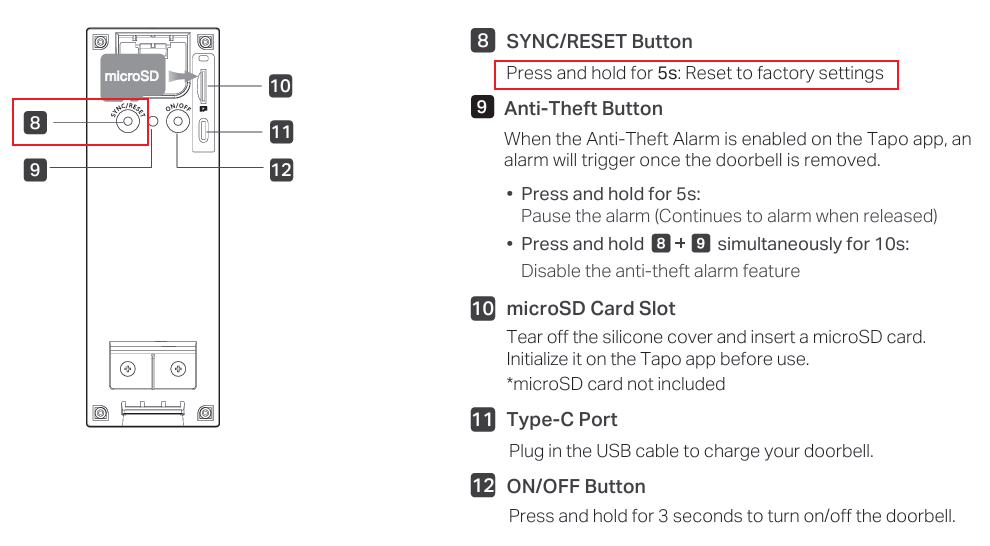
Case 4. For Tapo D230/TD23

Press and hold the SYNC/RESET button for 5 seconds.

The location of the Tapo D230 SYNC/RESET button.

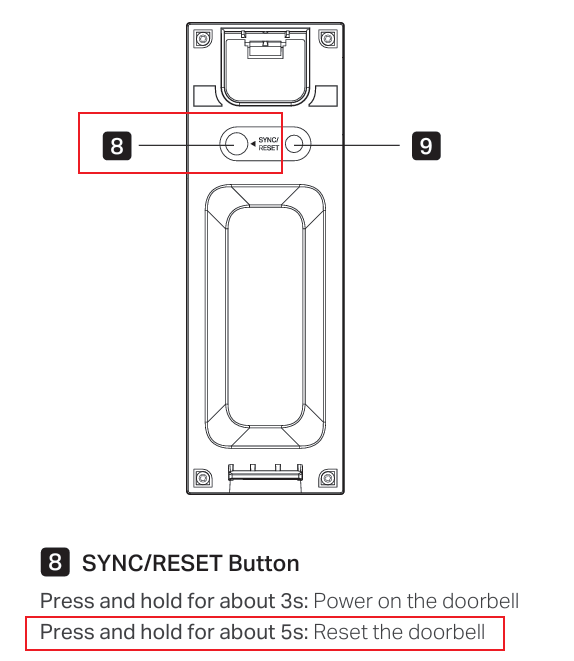
Case 5. For Tapo D235/Tapo D225/TD25

Press and hold the SYNC/RESET button for 5 seconds.

The location of the Tapo D235 SYNC/RESET button.


Method 2: Via the Tapo App

Case 1: Remove the Doorbell from the Home Page

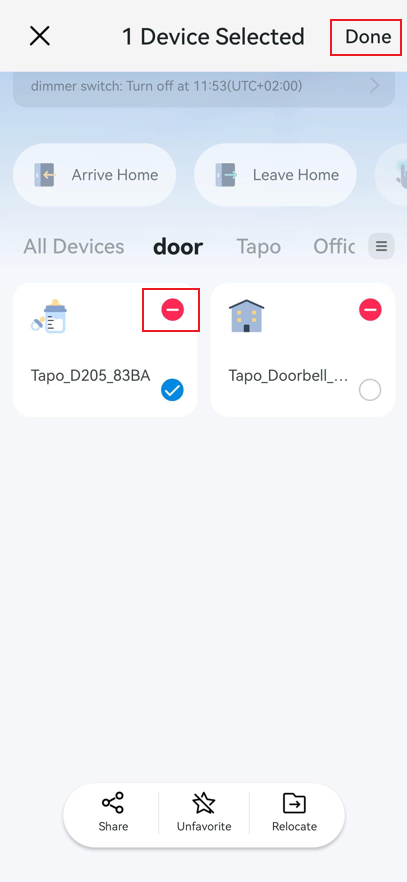
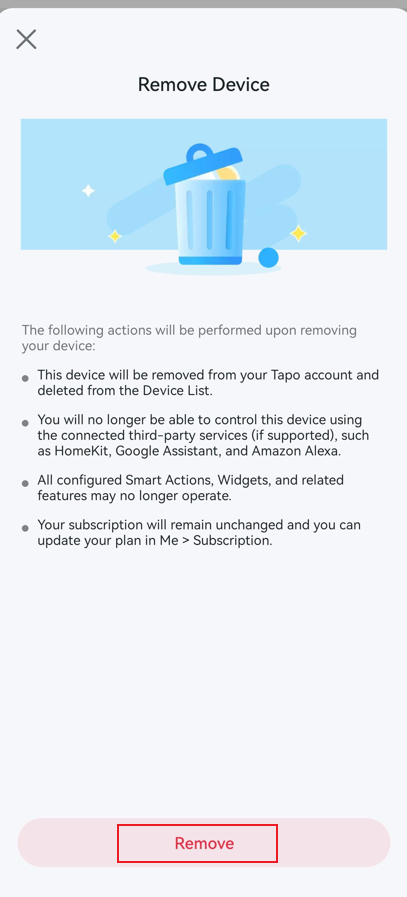
On the Tapo App Home page, long-press your Doorbell device card, then tap the minus icon. The doorbell will be removed from your TP-Link account and reset to default settings. Note that this action also disconnects the doorbell from any linked third-party services, such as Alexa and Google Assistant.

The Tapo App Home page with a minus icon highlighted on a doorbell device card. The Remove Device page with the Remove button highlighted.

Case 2: Remove the Doorbell from the Doorbell Settings Page

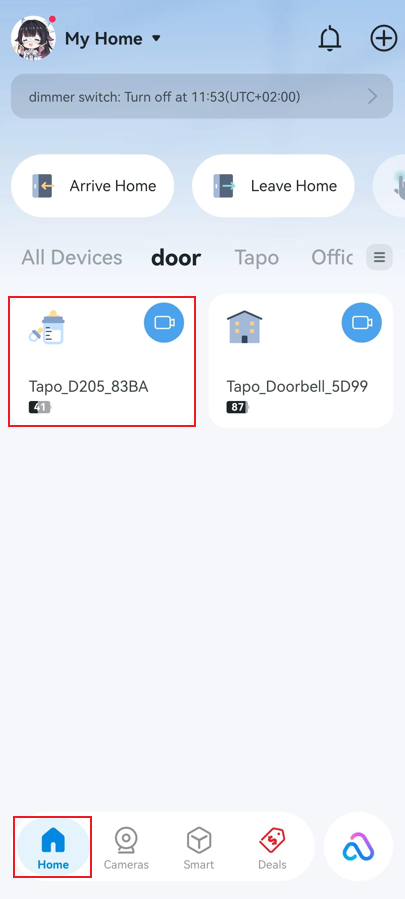
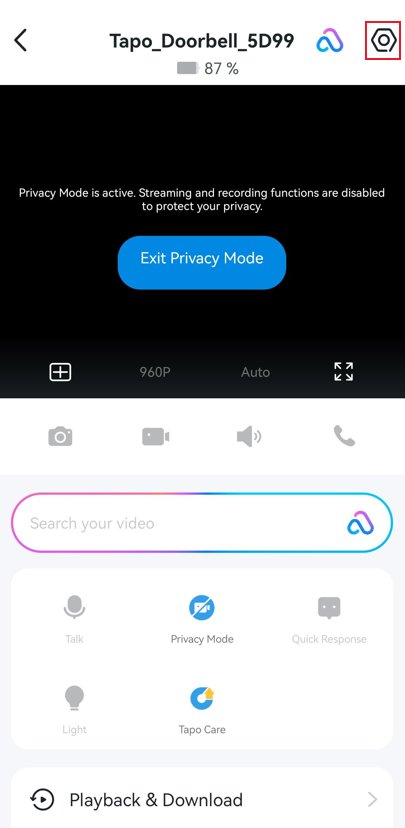
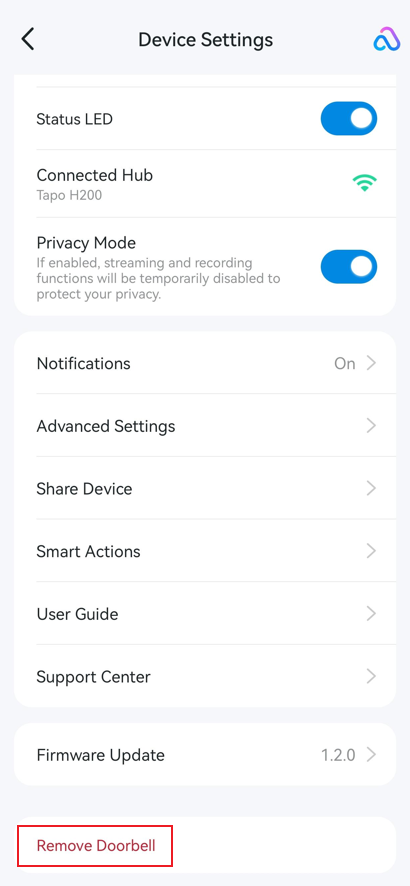
On the Tapo App Home page, tap your doorbell device card to enter the live view page. Then tap the gear icon in the top right corner to open Doorbell Device Settings. Tap Remove Doorbell to remove the Tapo doorbell from your TP-Link account.

The Tapo App Home page with a doorbell device card highlighted. The doorbell live view page with the gear icon in the upper right highlighted. The doorbell device settings page with the Remove Doorbell option highlighted.

Related FAQs

Looking For More

這篇faq是否有用?

您的反饋將幫助我們改善網站

This Article Applies to:

Community

TP-Link Community

Still need help? Search for answers, ask questions, and get help from TP-Link experts and other users around the world.

Visit the Community >