


Comment modifier les paramètres MTU sur TP-Link Deco
Cet article explique étape par étape comment modifier le paramètre MTU dans l'application Deco.
L'unité de transmission maximale (MTU) détermine la taille maximale des paquets (en octets) pouvant être envoyés sur votre réseau sans fragmentation. Bien que la plupart des fournisseurs d'accès Internet et des réseaux Ethernet utilisent la valeur standard de 1 500 octets (qui est également le paramètre par défaut de Deco), votre fournisseur d'accès peut exiger une valeur différente. Une MTU incorrecte peut entraîner des ralentissements ou des problèmes de connexion.
Avant de commencer
- Téléchargez l'application Deco en vous rendant sur le Google Play Store, l'App Store ou en scannant le code QR.

- Contactez votre fournisseur d'accès Internet pour connaître la taille MTU recommandée pour votre connexion.
Guide étape par étape
Étape 1 : Accéder aux paramètres Internet
Connectez votre téléphone au Wi-Fi du Deco.
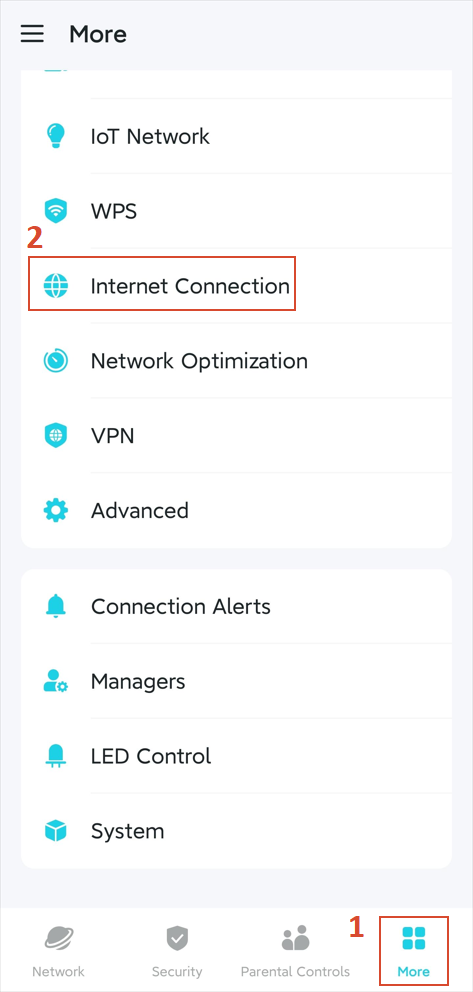
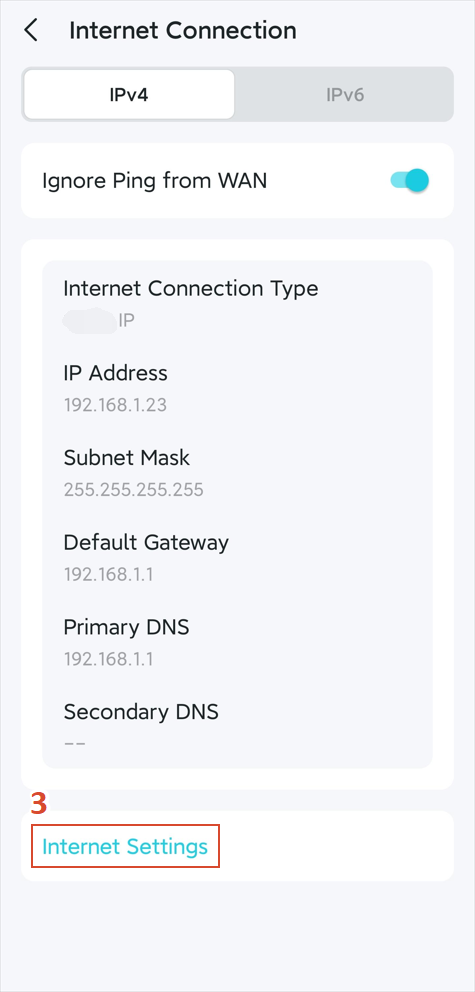
Ouvrez l'application Deco et accédez à Plus > Connexion Internet > Paramètres Internet .
Étape 2 : Ajuster les paramètres MTU
Trouvez et appuyez sur Taille MTU, puis saisissez la valeur fournie par votre FAI.
Cliquez sur Enregistrer pour appliquer les paramètres.
Assurance qualité
Q1. Comment savoir si je dois modifier mes paramètres MTU ?
A1. En général, vous n'avez besoin de modifier la MTU que si votre FAI l'exige spécifiquement.
Pour en savoir plus sur chaque fonction et configuration, veuillez vous rendre dans le Centre de téléchargement pour télécharger le manuel de votre produit.
Pour en savoir plus
Est-ce que ce FAQ a été utile ?
Vos commentaires nous aideront à améliorer ce site.

_US_1.0_F_normal_20250208094019q.png)


TP-Link Community
Still need help? Search for answers, ask questions, and get help from TP-Link experts and other users around the world.