


How to Reset a Forgotten VIGI NVR Password
Contents
Recover the password using E-mail Verification
Recover the password using QR Code Verification
Recover the password using Security Questions
Introduction
If the administrator password for a VIGI NVR is forgotten, access can be restored using the built-in Password Recovery feature. Depending on the NVR's network connectivity and recovery settings, password recovery can be completed through E-mail Verification, QR Code Verification, or Security Questions. This article describes the available recovery methods and the requirements for each option.
Requirements
Before you begin, ensure the following requirements are met:
- A VIGI NVR that supports the Password Recovery feature.
- A Reset Password Email was configured during the initial setup.
- A mobile device with the VIGI App installed.
Additional requirements may apply depending on the recovery method:
- E-mail Verification: The NVR must be connected to the internet with Platform Access enabled.
- QR Code Verification: The VIGI App must be signed in with the Email account associated with the NVR, and the mobile device running the app must have internet access.
- Security Questions: Security Questions must have been configured during the initial setup.
Password recovery methods
You can reset the NVR password using one of the following methods based on the network status of the NVR.
Recover the password using E-mail Verification
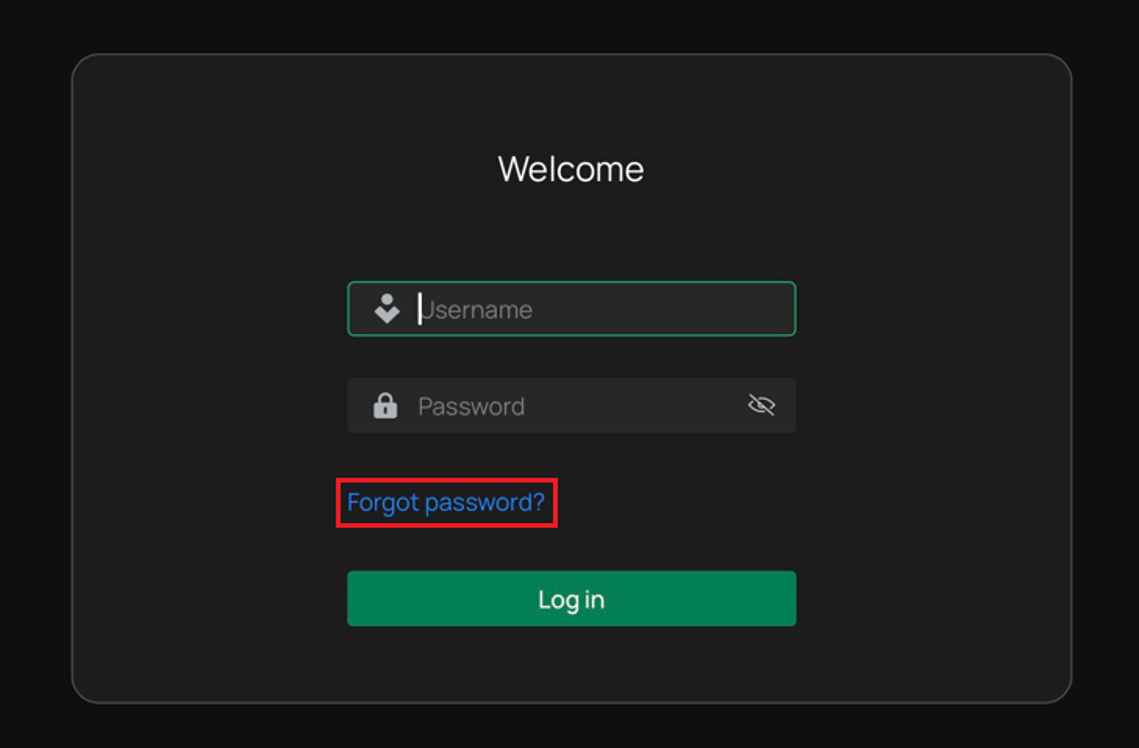
Step 1. On the NVR login page, click Forgot Password.
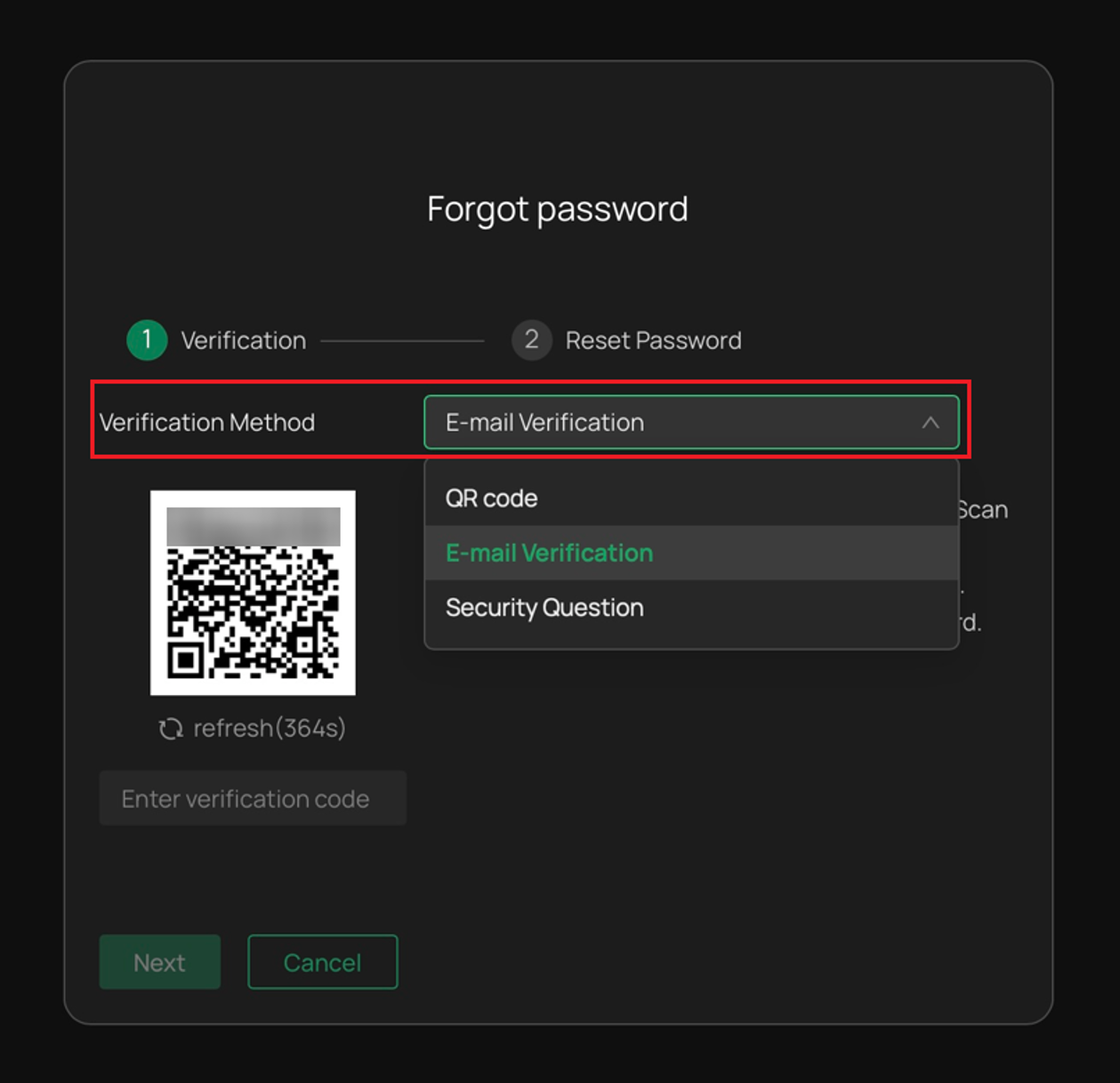
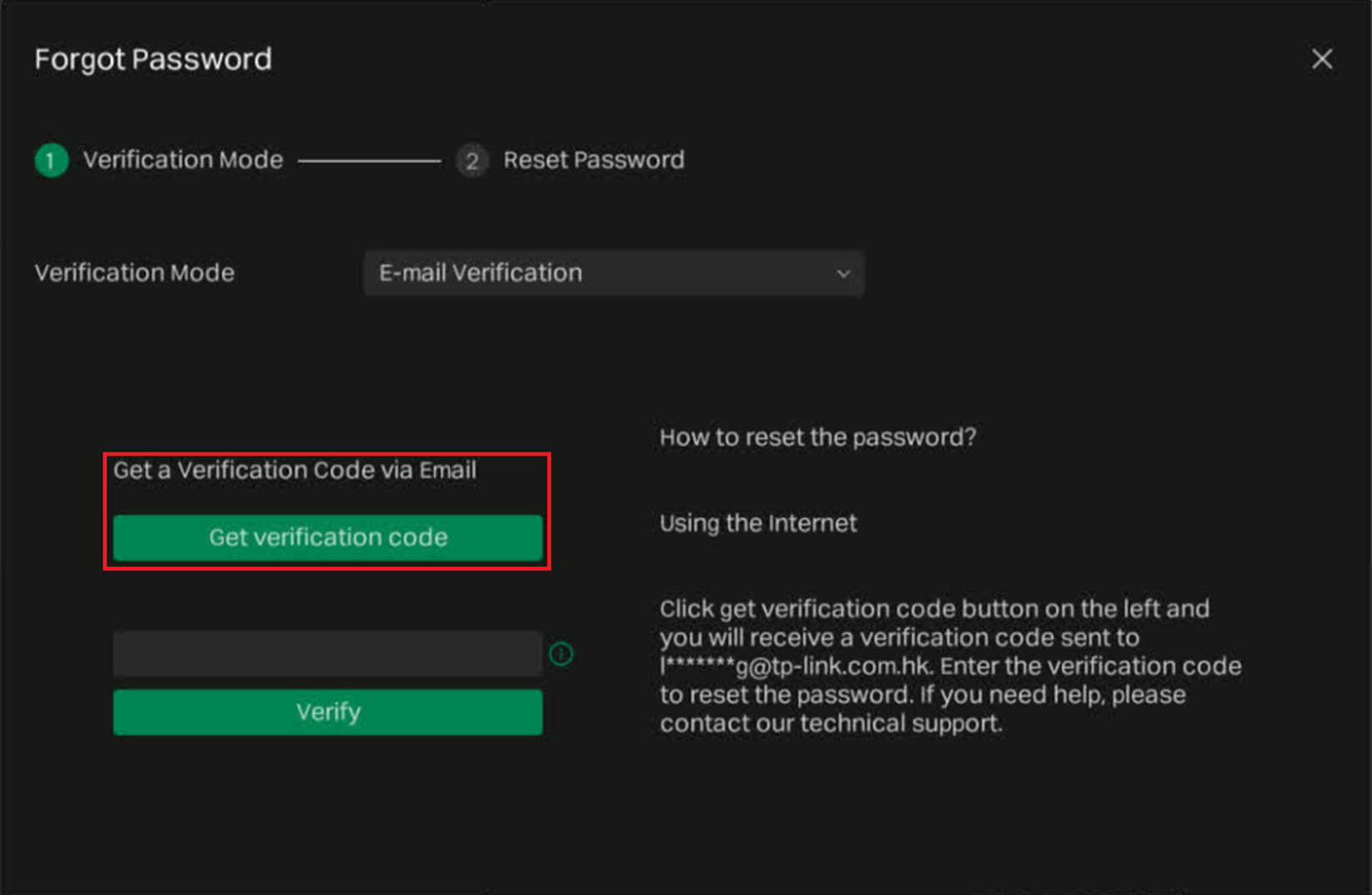
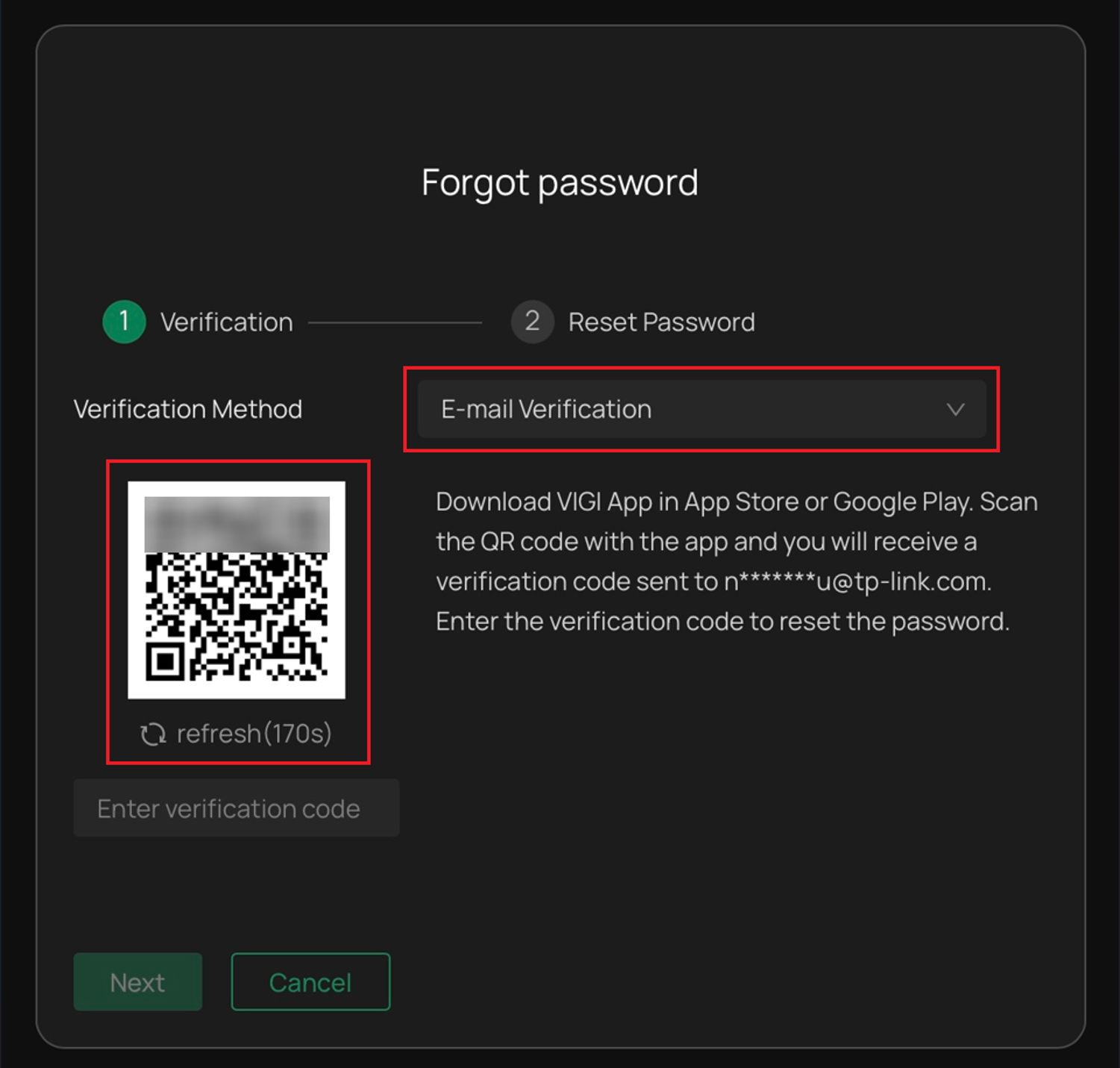
Step 2. Select E-mail Verification and click Get verification code.
If the NVR is connected to the internet, Platform Access is enabled, and a Reset Password Email has been configured, the verification code will be sent directly to the registered Email address. Otherwise, proceed to Step 3 to obtain the verification code using the VIGI App.
Step 3. (If required) Open the VIGI App and sign in using the Email address associated with your NVR. Tap the + icon in the upper-right corner and scan the QR code displayed on the NVR.
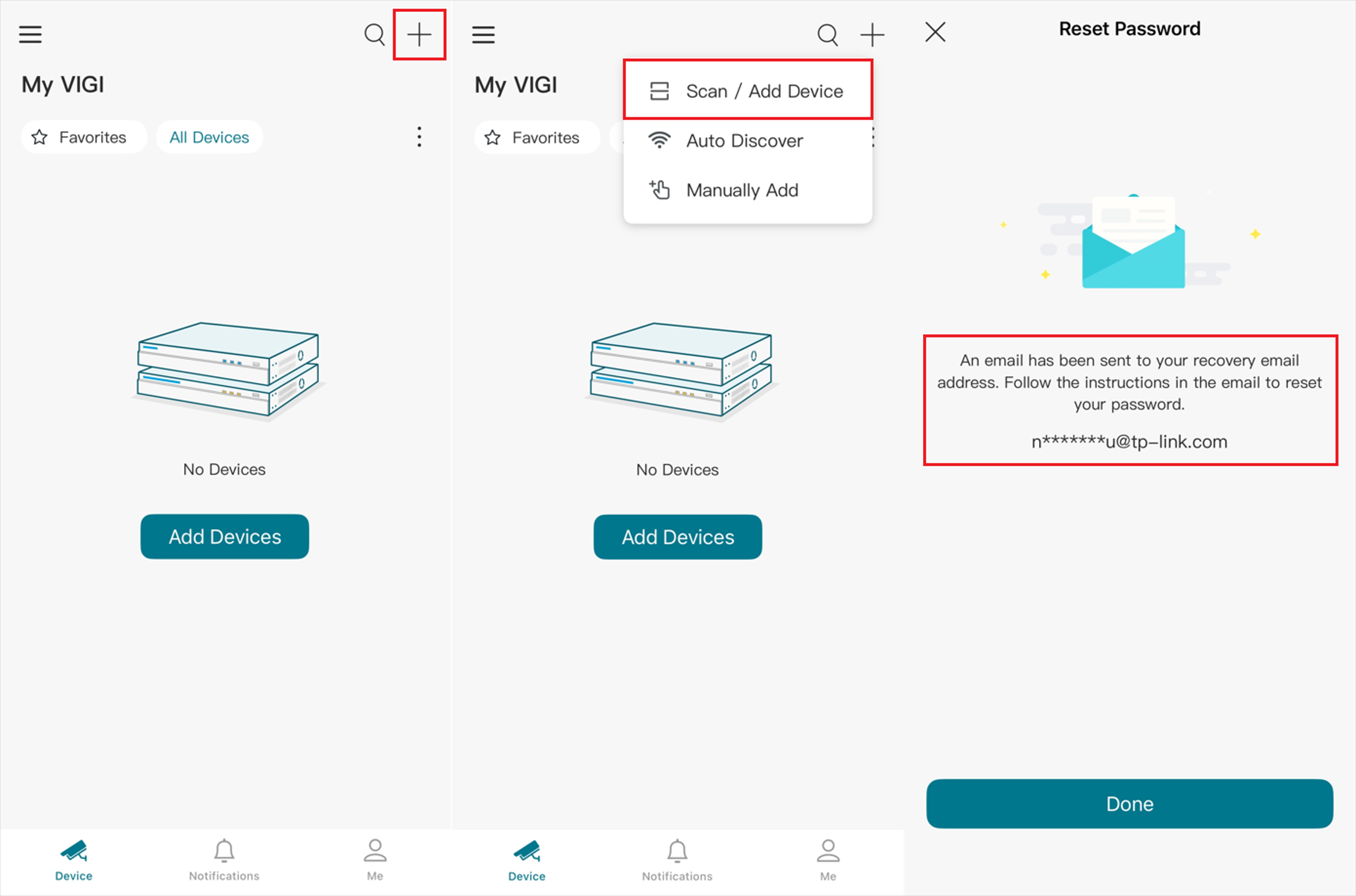
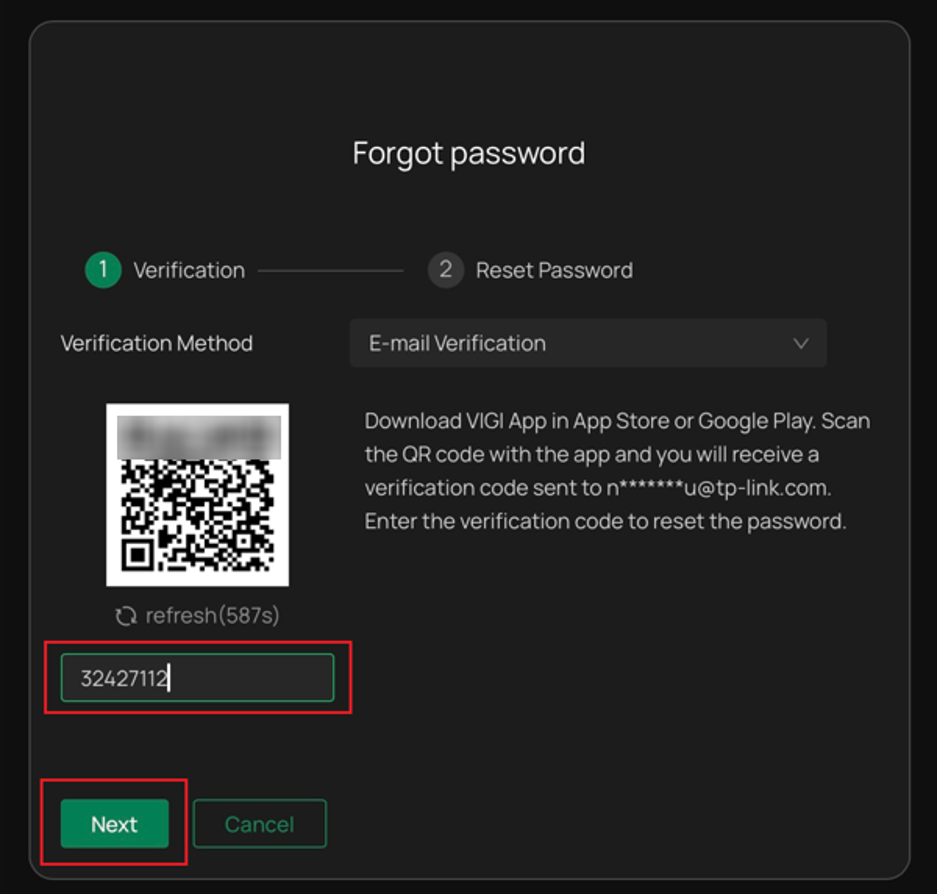
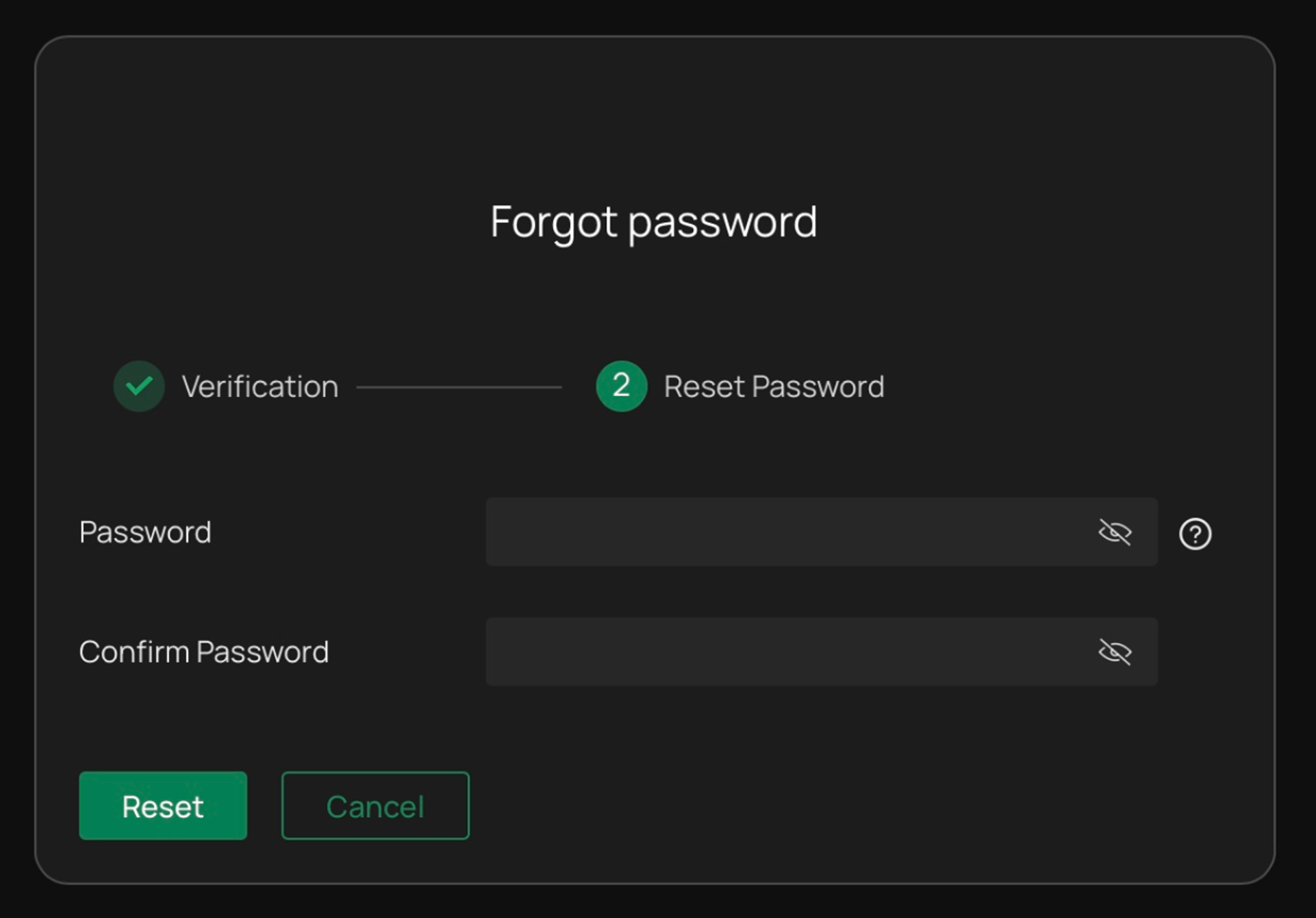
Step 4. Enter the verification code and follow the prompts to create a new administrator password.
Recover the password using QR Code Verification
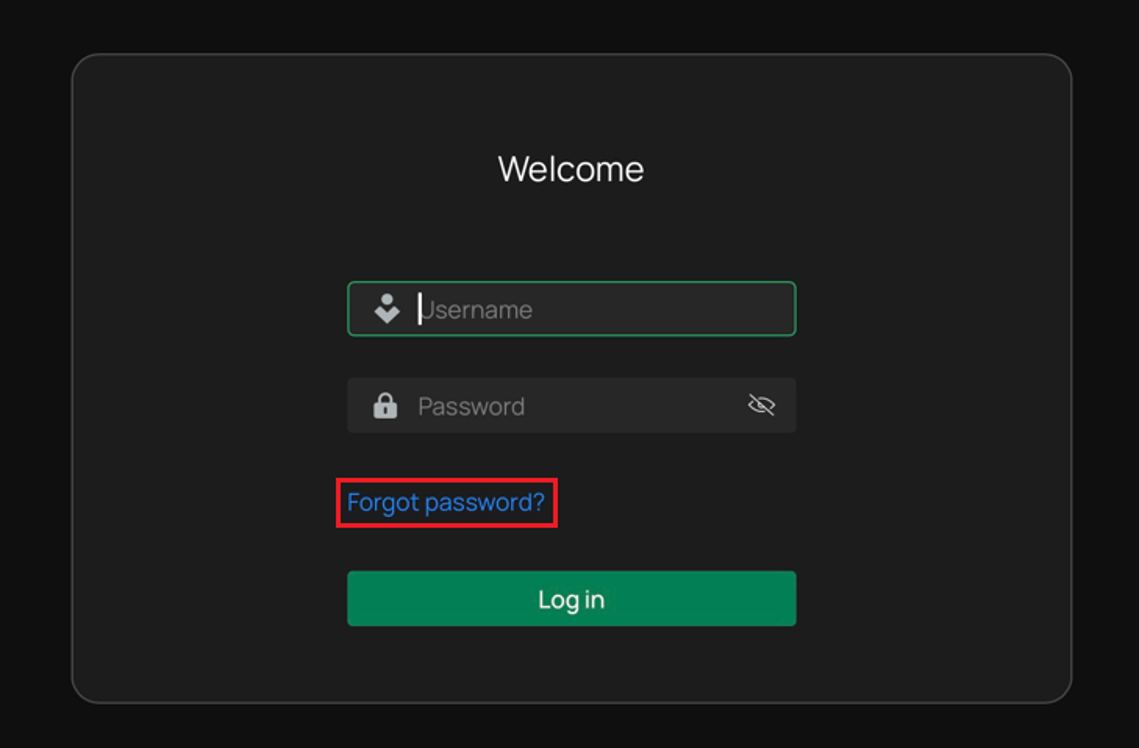
Step 1. On the NVR login page, click Forgot Password.
Step 2. Select QR code verification
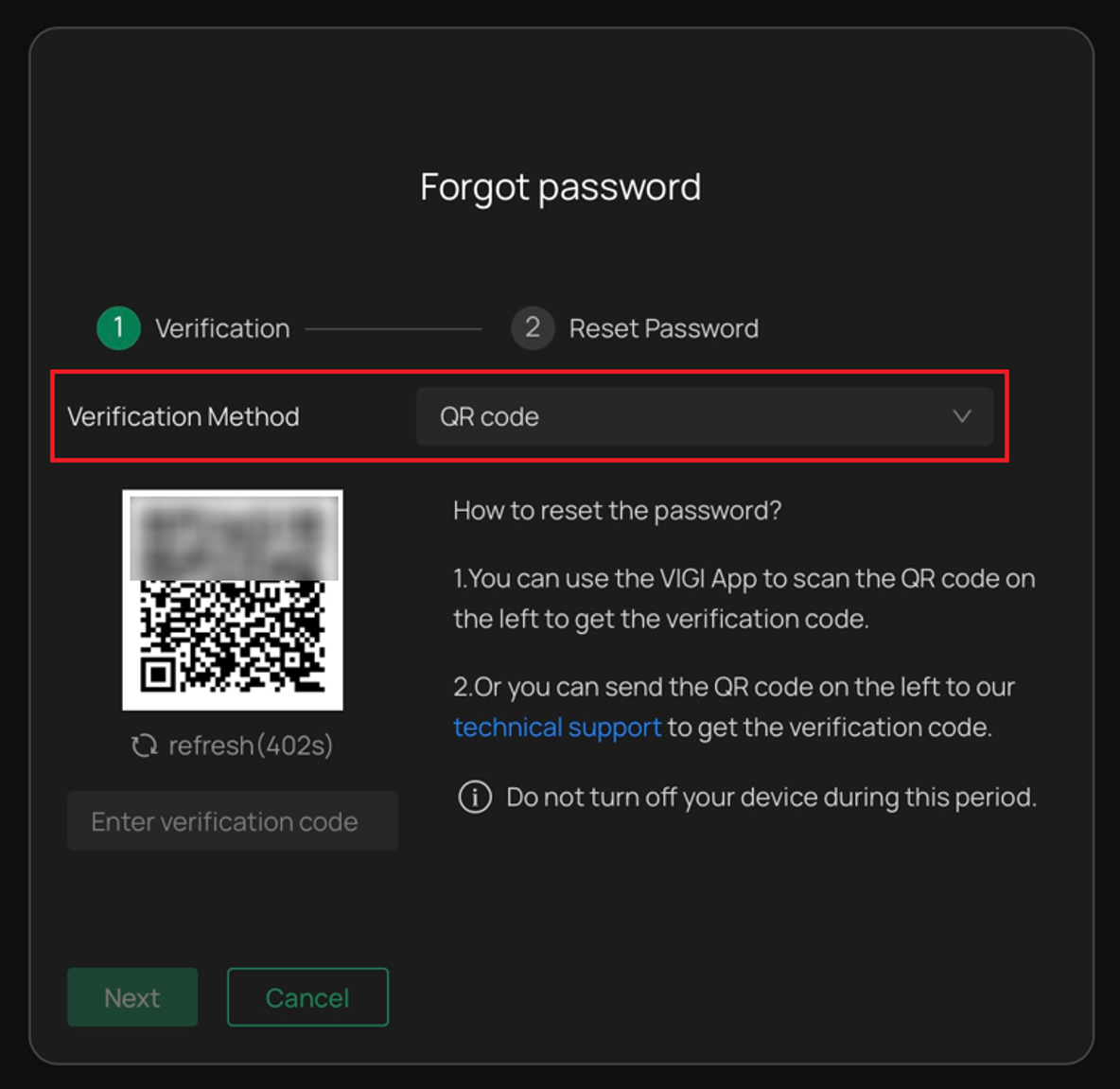
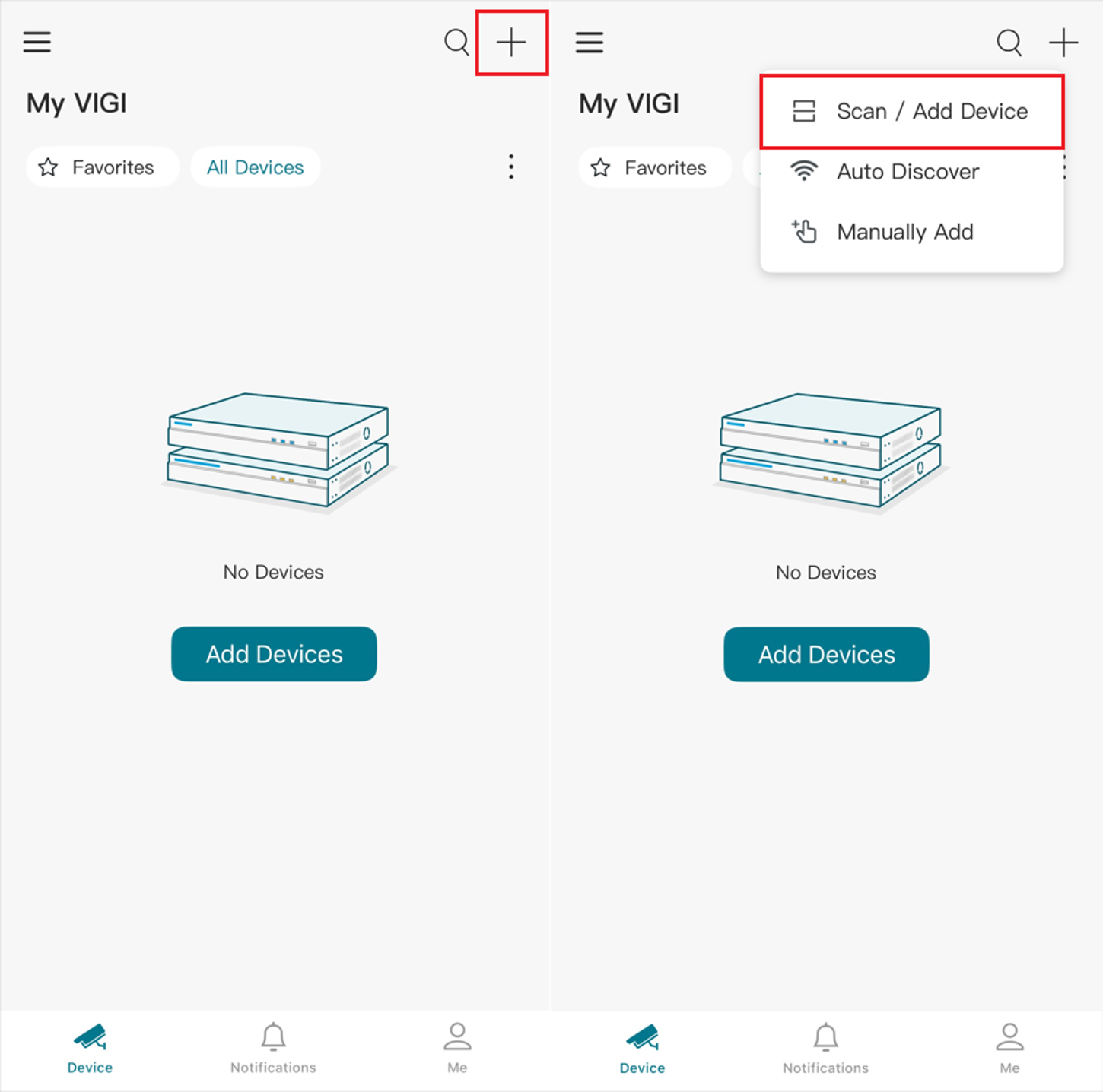
Step 3. Open the VIGI App and sign in using the Email account associated with your NVR. Tap the + icon in the upper-right corner and scan the QR code displayed on the NVR.
Note: Although the NVR is not connected to the internet, the mobile device running the VIGI App must have internet access to complete QR Code Verification.
After scanning the QR code, enter the verification code and follow the prompts to reset the password.
Recover the password using Security Questions
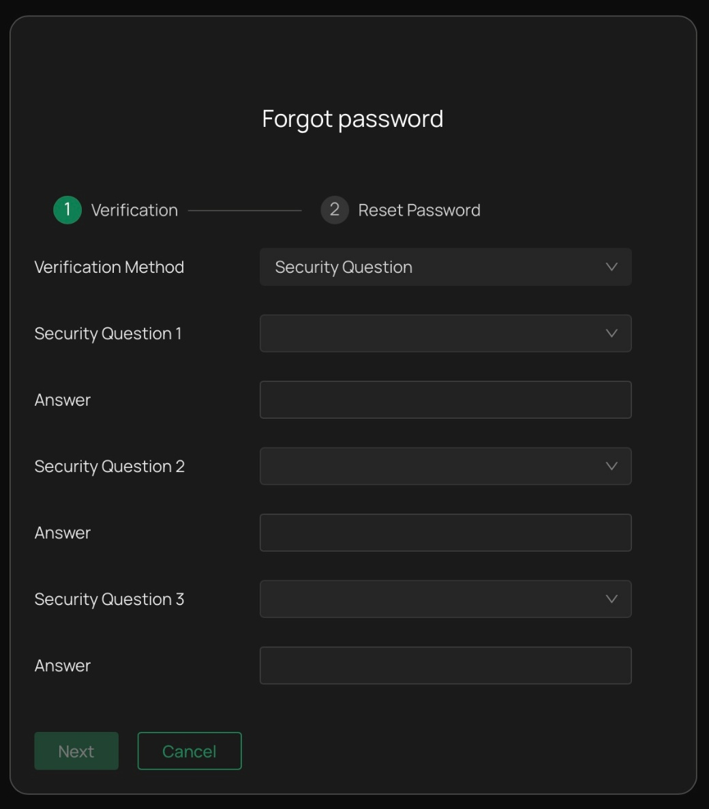
If Security Questions were configured during the initial setup, you can use them to recover your password.
On the Password Recovery page, select Security Questions, answer the configured questions correctly, and follow the prompts to create a new administrator password.
Conclusion
By following the appropriate recovery method for your deployment scenario, you can regain administrator access to your VIGI NVR without performing a factory reset. To ensure future password recovery remains available, verify that your recovery information, such as the Reset Password Email or Security Questions, is properly configured and kept up to date.
To learn more about each function and configuration, please visit Support Home to download or check the manual for your product.
QA
Q1: What is the Reset Password Email?
A1: The Reset Password Email is the Email address configured during the Quick Setup process. It is used only for password recovery and receiving verification codes.
Q2: What should I do if I do not receive the verification code?
A2:
- Check your Junk Mail or Spam folder.
- Add noreply@tp-link.com to the allow list or safe sender list of your Email service.
- Verify that no Email filtering rules are blocking TP-Link Emails.
- Request a new verification code and try again.
Q3: What should I do if none of the above methods work?
A3: You can refer to the VIGI NVR Factory Reset: 3 Ways to Restore Defaults | TP-Link to reset the VIGI NVR.
Looking For More
Είναι χρήσιμο αυτό το FAQ;
Τα σχόλιά σας συμβάλλουν στη βελτίωση αυτού του ιστότοπου.



TP-Link Community
Still need help? Search for answers, ask questions, and get help from TP-Link experts and other users around the world.