


How to Set a Speed Limit for Devices on Your TP-Link Router
The TP-Link Speed Limit (Bandwidth Control) feature lets you throttle internet speed on a per-device basis — useful for preventing one device from hogging bandwidth or keeping connections fair for everyone in the household. You can set independent download and upload limits for each connected device through Network Map on your router's web management page at tplinkwifi.net. This guide covers how to configure TP-Link bandwidth control in a few steps.
Key Takeaways
- The TP-Link Speed Limit (Bandwidth Control) feature lets you set individual download and upload speed limits for each device connected to your network. It is available on select Archer router models.
- To throttle internet speed on a TP-Link router, log in at tplinkwifi.net, go to Network Map, click Clients, find the device, and enable Speed Limit to configure limits.
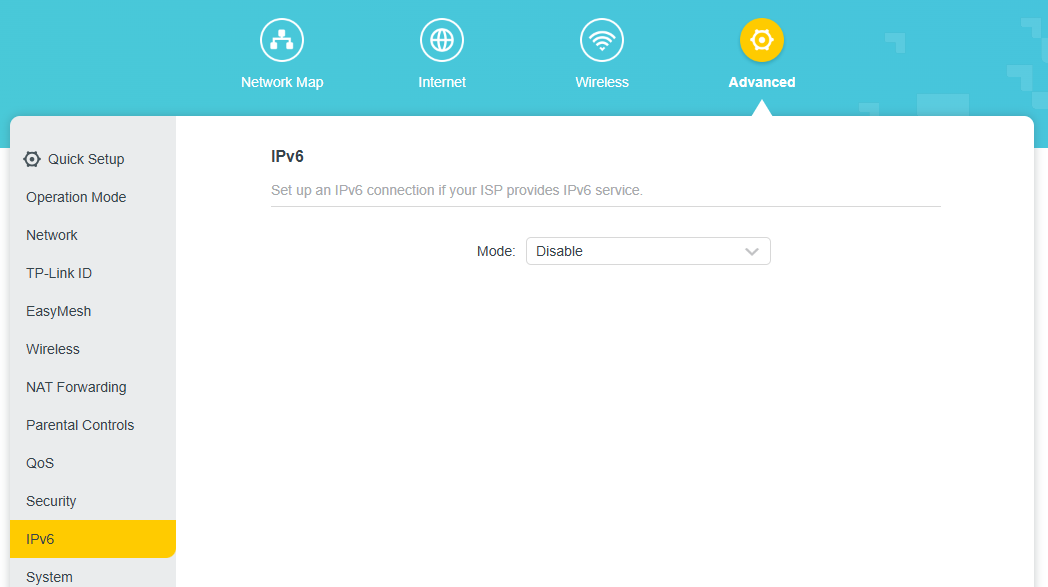
- If the speed limit does not take effect after configuration, go to Advanced > IPv6, disable the IPv6 function, and reboot the router.
The article explains how to limit device speeds using the Speed Limit (Bandwidth Control) feature on the TP-Link router.
The Network Map of TP-Link Routers visually outlines device connectivity in your network and helps you manage it easily.
How to Set a Speed Limit for Connected Devices
Step 1: Visit http://tplinkwifi.net, and log in with the password you set for the router.
Step 3: Click Clients to view the client devices in your network. The figure below shows Archer AX73’s Client page as an example.
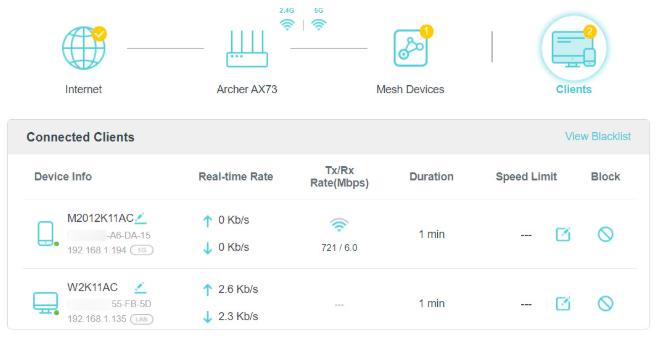
Step 4: Find the device you want to limit speeds, then click  in the Speed Limit column.
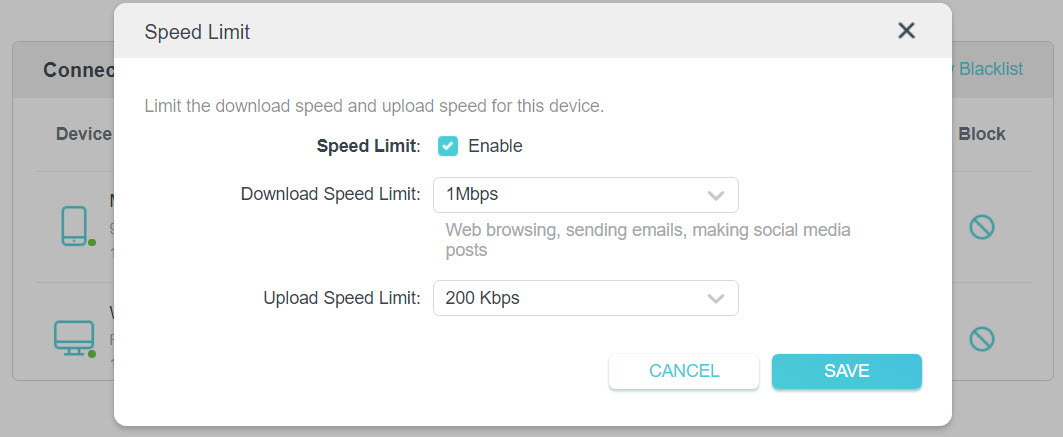
Step 6: Set the download and upload speed limit according to your needs.
Step 7: Save the settings. Now the speeds of the device will be limited.
Note: If the speed of the device is not limited successfully after configuration, please go to Advanced > IPv6 in the web page to disable IPv6 function and reboot the TP-Link device.
Looking For More
¿Es útil esta pregunta frecuente?
Sus comentarios nos ayudan a mejorar este sitio.
3.0_A_RGB_normal_1584493572647x.png)

TP-Link Community
Still need help? Search for answers, ask questions, and get help from TP-Link experts and other users around the world.