How to Position Your Router for the Best WiFi Signal at Home
Published: June 1, 2026 | Last Updated: June 1, 2026
|
Quick Answer
For the best WiFi signal at home, place your router in the most central location possible, elevated at least one meter off the floor, away from concrete walls, cabinets, appliances, and exterior windows. In Philippine homes built with concrete hollow blocks, this single change, repositioning the router, resolves most dead zones without any hardware upgrade. |
Why Router Placement Matters More In The Philippines than in Most Countries
Here is something Filipino households say constantly: "Our internet is so slow the signal doesn't even reach the bedroom." They blame the ISP. They blame the plan. And then we ask one question: Where is your router?
Most of the time, it is in the sala, inside a cabinet, beside the TV, or on the floor near where the modem cable reaches. Somewhere convenient during setup, not somewhere designed for coverage.
Most WiFi dead zones in Philippine homes are not caused by a slow internet plan. They are caused by where the router is sitting. A high-speed fiber subscription will still produce a weak signal in the bedroom if the router is tucked behind a cabinet, and that is exactly where most of ours end up.
Philippine homes are built with concrete hollow blocks that block WiFi signals far more aggressively than the drywall and timber construction used in most countries where WiFi guides are written. This is why placement advice written for Western audiences consistently underestimates how much a single wall costs you here.
WiFi signals travel as radio waves, radiating outward from the router in all directions. Those waves are stopped, absorbed, or reflected by the materials they pass through, and concrete hollow blocks, the standard building material in Philippine houses and low-rise condos, sit near the top of every signal-blocking materials list.
A single concrete wall can reduce 2.4 GHz signal strength by 10 to 20 decibels, depending on thickness and density. The 5 GHz band, the faster band your phone often prefers, loses 20 decibels or more through the same wall, and often significantly more through thicker CHB construction. In practical terms, one concrete wall between your router and your bedroom can cut your effective signal by half or worse. Two walls, and most of what your router broadcasts never reaches the device.
Quick check: count the concrete walls between your router and the room with the weakest signal.
|
Walls between the router and the device |
Expected signal impact |
|---|---|
|
1 concrete wall |
30–50% signal reduction |
|
2 concrete walls |
60–80% signal reduction |
|
3+ concrete walls |
A dead zone is almost certain, regardless of the internet plan |
This is why many households across the Philippines experience dead zones despite paying for fast PLDT, Globe, or Converge fiber plans. The ISP is delivering what was subscribed to, but the concrete is stopping it before it arrives.
For more on how router placement tips in the Philippines connect to the most common WiFi problems Filipino households face, the TP-Link Philippines guide to common WiFi fixes covers the full diagnosis.
Key takeaway: Before calling your ISP or buying new equipment, count the concrete walls between your router and the problem room. The wall is almost always the variable that explains the gap between what you are paying for and what you are getting.
The Five Router Placement Rules for Philippine Homes
The one-sentence answer: Position your router centrally, elevated off the floor, outside any cabinet, away from appliances and exterior walls. These five adjustments eliminate the most common causes of weak WiFi in Philippine homes without requiring any hardware change.
|
What to avoid |
Why does it hurt your WiFi |
What to do instead |
|---|---|---|
|
Inside a cabinet or drawer |
Wood and doors block the signal before it reaches the room |
Place on top of furniture in the open air |
|
On the floor |
The signal mostly radiates into the ground, not the room |
Elevate at least 1 meter on a shelf or table |
|
In a corner of the sala |
The signal must travel through the most walls to reach other rooms |
Move toward the center of the home |
|
Beside the microwave or TV |
2.4 GHz interference from appliances degrades the connection |
Keep 1–2 meters away from all electronics |
|
Against an exterior wall or window |
Signal escapes outside instead of covering your home |
Position facing inward, away from exterior surfaces |
|
Near a fish tank or water dispenser |
Water absorbs the WiFi signal significantly |
Keep at least 1 meter away from large water sources |
Rule 1: Place it in the center, not where the modem cable ends
The most common placement mistake is putting the router wherever the modem cable reaches, usually a corner near the main door or inside the sala cabinet. A router placed at the edge of a home must push its signal through the maximum number of walls to reach the opposite end. Every wall is a tax on signal strength.
Move the router as close to the geographic center of the home as the cable will allow. For a two-bedroom unit or townhouse, that usually means the sala in an open position, not inside furniture. If the cable does not reach the center, a WiFi extender or a Deco mesh node placed mid-home solves the problem without rewiring.
Rule 2: Elevate it at least one meter off the floor
Routers broadcast a signal in all directions, but the strongest coverage spreads outward horizontally. When the router is on the floor, a significant portion of that signal goes into the ground rather than into the room. TP-Link's own placement guidance recommends a table or shelf of around one to one and a half meters as the minimum. For a sala or living area, a shelf at waist or chest height is better. The higher the router, the more of the floor plan it can cover before a wall blocks the path.
Rule 3: Keep it out of the cabinet
Cabinet doors, whether wood, glass-fronted, or metal-framed, all reduce signal strength before the WiFi even begins traveling through the home. A router inside a wall cabinet is broadcasting into the wood on every side. If the cable setup forces the router near the TV console or the sala shelving, keep it on top of the furniture in open air with at least 20 to 30 centimeters of clearance around all sides.
Rule 4: Keep it away from the microwave, TV, and wireless devices
Microwave ovens operate at 2.45 GHz, squarely within the 2.4 GHz band that most home routers use. When the microwave is running, it radiates electromagnetic interference that directly disrupts WiFi. If your router is near the kitchen, the connection will slow down or drop every time someone heats a meal. Smart TVs, Bluetooth speakers, cordless phones, and baby monitors all create similar interference on overlapping frequencies. Keep the router at least one to two meters away from any of these.
Rule 5: Avoid exterior walls and windows
An exterior wall placement pushes a large portion of the router's signal outward toward the street or the next building rather than inward through the home. Windows allow the signal to escape outward rather than covering the rooms behind them. Position the router away from exterior walls and windows so the signal travels toward the interior spaces that need coverage.
Key takeaway: Most Philippine WiFi dead zones are solved by these five rules alone before spending on any new hardware. Central position, off the floor, out of the cabinet, away from appliances, facing inward. Apply all five before concluding a hardware upgrade is needed.
The Right Setup for the Home Type
The one-sentence answer: For a condo unit, reposition the router and add one extender if needed; for a two-story townhouse, a two-node mesh system is the most reliable solution; for larger homes, a three-node mesh system eliminates dead zones across all floors.
Studio and one-bedroom condo units
A single well-placed router is usually sufficient. The key variable is the concrete partition wall between the living area and the bedroom. Place the router in the common area on a high shelf, positioned to face toward the bedroom rather than the front door. If the bedroom still shows a weak signal, a compact extender like the TP-Link RE315 plugged halfway between the router and the bedroom resolves the dead zone in minutes. Browse the full TP-Link Philippines range extender lineup for all available options.
For a stronger Wi-Fi 6 upgrade on the extender, the RE605X delivers AX1800 speeds and includes a Gigabit Ethernet port, the better option when the device in the dead zone is a laptop, PC, or smart TV that benefits from a wired connection.
Two-bedroom and three-bedroom units or townhouses
Two-story concrete townhouses are where single-router setups most often fail. The concrete floor between storeys is the primary barrier; it blocks signals just as effectively as a concrete wall, and a router on the ground floor will consistently underperform in second-floor bedrooms regardless of the plan speed.
The most reliable solution for this layout is a Deco mesh system. One main Deco unit connects to the modem on the ground floor. A second node at the top of the stairs or in the second-floor hallway creates seamless whole-home coverage without fighting through the concrete ceiling. The Deco app confirms signal strength at each node's position before you finalize placement.
Larger single-detached homes
For homes with three or more bedrooms, a garage or storage area, or outdoor coverage needs, a single router is almost always insufficient. A three-node Deco mesh system, with one node per floor and one per far wing, eliminates dead zones throughout. The TP-Link Tether app's network map shows exactly where coverage is thin, so nodes go where they are actually needed.
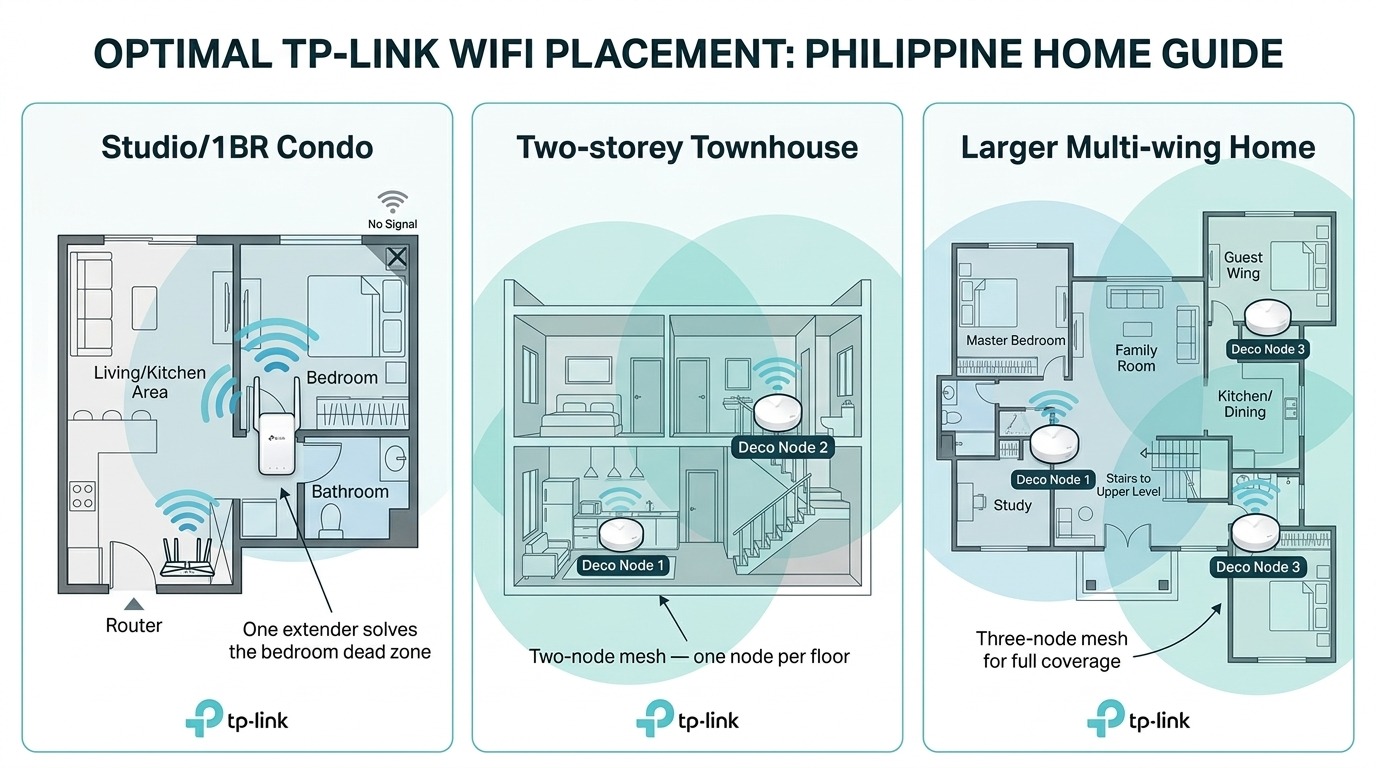 Key takeaway: The home type determines the solution. Condo with one dead zone: range extender. Two-story townhouse: two-node Deco mesh. Large multi-room home: three-node mesh. Each step up addresses what a single router physically cannot overcome through concrete.
One Antenna Adjustment that Makes a Difference in Two-Storey Homes
The one-sentence answer: On routers with external antennas, pointing one antenna vertically and tilting a second to 45 degrees improves upward signal reach without sacrificing horizontal coverage, a useful adjustment specifically for two-story concrete homes.
Antennas broadcast their signal strongest perpendicular to their orientation. A fully vertical antenna sends a signal outward horizontally, ideal for single-floor coverage. For homes with a second floor, tilting one antenna to roughly 45 degrees adds a vertical component to the broadcast pattern, improving how much signal reaches the ceiling and the floor above.
Routers with internal antennas, most modern Deco nodes, and compact routers handle this automatically. For standard Archer routers with two or more external antennas, the vertical-plus-angled combination is worth testing before adding a second device.
Key takeaway: Try the antenna angle adjustment before buying a mesh node or extender. On a two-story home with an external antenna Archer router, this costs nothing and takes 30 seconds.
When Placement alone is not Enough
The one-sentence answer: If repositioning the router does not resolve the dead zone, the issue is that one router cannot physically overcome the number of concrete walls between the device and the rooms that need coverage, and a mesh system or extender is the right next step.
|
Your situation |
Best solution |
|---|---|
|
Studio or 1BR condo, one dead zone in the bedroom |
WiFi extender (TP-Link RE315 or RE605X) fastest, most affordable fix |
|
2BR condo or apartment, weak signal in one room |
Reposition the router first; add an extender if the dead zone persists |
|
The two-story townhouse, the second floor has a weak signal |
Mesh system (Deco M4 or Deco X55) one node per floor |
|
Large house with multiple dead zones across floors |
3-node Deco mesh, one node per floor, one for any far wing |
|
Outdoor coverage needed (garage, garden, terrace) |
An outdoor-rated access point or a mesh node near the exterior door |
The TP-Link Tether app (free on iOS and Android) shows connected devices, real-time signal strength, and room-by-room speed test results. It is the fastest way to confirm whether the problem is placement, hardware, or plan speed before committing to any purchase.
Still dealing with dead zones after repositioning? Browse the full Deco mesh lineup to find the right system for your home size and budget.
Key takeaway: Tether app first, hardware second. The app shows you exactly where coverage is thin before you spend on a fix and often confirms that a placement change is all that is needed.
Frequently Asked Questions
What is the best place to put a WiFi router in a Philippine home?
The best position is the most central location in your home, elevated at least one meter off the floor, in open air, not inside a cabinet, and away from concrete walls, the kitchen, and exterior windows. In a two-bedroom unit or townhouse sala, a shelf or TV console surface positioned toward the center of the floor plan is usually the strongest single placement. For two-story homes, a mesh system with one node per floor outperforms any single-router placement.
Can I put my router inside a cabinet to keep the sala looking tidy?
Not recommended. Even a wooden cabinet door significantly reduces signal strength before the WiFi reaches the room. If aesthetics matter, TP-Link's Deco units and compact Archer routers are designed to sit openly on a shelf without being an eyesore. The performance trade-off from enclosing the router in furniture is always worse than the visual trade-off of leaving it exposed.
Do concrete walls really make that big a difference to WiFi?
Yes, more than most guides acknowledge, especially guides written for markets where homes are built with wood and drywall. A single concrete wall can reduce 2.4 GHz signal strength by 10 to 25 decibels. Two concrete walls and the reduction compounds significantly. This is why many Philippine households experience dead zones despite subscribing to fast fiber plans: the plan is delivering the speed, but the concrete is blocking the signal before it reaches the room.
Should I buy a range extender or upgrade to a mesh system?
For a single floor with one dead zone, a range extender is faster and more affordable. For a two-story concrete townhouse, the most common problem layout in the Philippines is that a mesh system like the Deco is the better long-term solution. It handles the concrete floor between storeys more effectively than an extender, and it maintains a single network name, so devices switch automatically as you move between floors without any manual intervention.
Does my microwave really interfere with WiFi?
Yes. Microwave ovens operate at 2.45 GHz, which overlaps directly with the 2.4 GHz band used by most home routers. When the microwave is running, it generates electromagnetic interference that can slow, drop, or destabilize your connection. The fix is simple: keep the router at least one to two meters away from the kitchen. If your router supports it, switch latency-sensitive devices to the 5 GHz band, which the microwave does not affect.
How do I find out where the signal is weakest in my home?
Download the free TP-Link Tether app and connect it to your router. It shows every connected device and its current signal strength. For a room-by-room picture, walk through the home while running a speed test on your phone. The drop in results identifies exactly where coverage becomes a problem. Once you know the weak spots, you can decide whether repositioning the router, adding an extender, or moving to a mesh system is the right fix.
Does the 5 GHz band work better than 2.4 GHz in Philippine concrete homes?
For devices close to the router within the same room or the next room without a concrete wall, 5 GHz delivers faster speeds. For devices farther away or separated by concrete, 2.4 GHz penetrates walls better and maintains a more reliable connection at a distance. TP-Link routers with Smart Connect automatically assign each device to the band that gives it the best balance of speed and range based on its location.
Simple placement, real results.
In most Philippine homes, the fastest and cheapest WiFi improvement is not a plan upgrade; it is moving the router to a central, elevated, open position and away from the concrete walls and appliances that are stopping the signal before it reaches the rooms that need it.
Many households are paying for fast internet and still living with dead zones, not because their ISP is underdelivering, but because the signal cannot travel through the construction between the router and the rooms. The concrete walls are doing their job. The router just needs to be somewhere that gives the signal a fighting chance.
Start with the five rules: central position, off the floor, out of the cabinet, away from appliances, and away from exterior walls. Most of the time, those changes alone are enough. When they are not, when the concrete between floors is too much for one router to overcome, the Deco mesh system is designed specifically for that problem. One main unit. One or two additional nodes. One seamless network throughout the home.
The difference between struggling with WiFi and reliable whole-home coverage is usually not the speed of the plan or the price of the router. It is knowing where to put it. Use the TP-Link Tether app to see exactly where your network stands right now, then make the one move that actually fixes it.




_20260112111606z.jpg)