
How to Check Who's Connected to Your TP-Link Wi-Fi Router
Published: June 1, 2026
|
Quick Answer Tether app: Open the Tether app, tap Local Device, then tap Clients to see every device on your network. Browser: Go to tplinkwifi.net or 192.168.0.1, log in, then go to Basic > Network Map or Advanced > Network > DHCP Client List. You can see every device connected to your TP-Link router in under a minute, either through the free Tether app on your phone or through your router's web admin panel on any browser. In a typical Filipino household where Wi-Fi passwords get shared with neighbors, relatives, or the repair guy who came three months ago, there are probably devices on your network that you did not authorize. Unauthorized connections slow your speed, increase security risk, and eat into the bandwidth you are paying for. |
Method 1: Check Connected Devices using the Tether App
The Tether app is the fastest way to see who is on your Wi-Fi. It takes about 30 seconds from opening the app to seeing a full list of connected devices, their names, IP addresses, and MAC addresses.
Step 1: Download and open the TP-Link Tether app. Available free on the Google Play Store and Apple App Store. Make sure your phone is connected to your TP-Link Wi-Fi, not mobile data.
Step 2: Tap Local Device. Tether will display your TP-Link router under Local Device. Tap it to open the management dashboard.
Step 3: Tap Clients. You will see a full list of every device currently connected. Each entry shows the device name (e.g., "Galaxy S24" or "LAPTOP-XXXXXX"), the band it is connected to (2.4 GHz or 5 GHz), its upload and download speed, and its IP and MAC address.
Step 4: Rename unfamiliar devices for easier identification. Tap any device name to rename it. This is useful for giving your family members' phones recognizable labels so you can spot an unauthorized device at a glance next time.
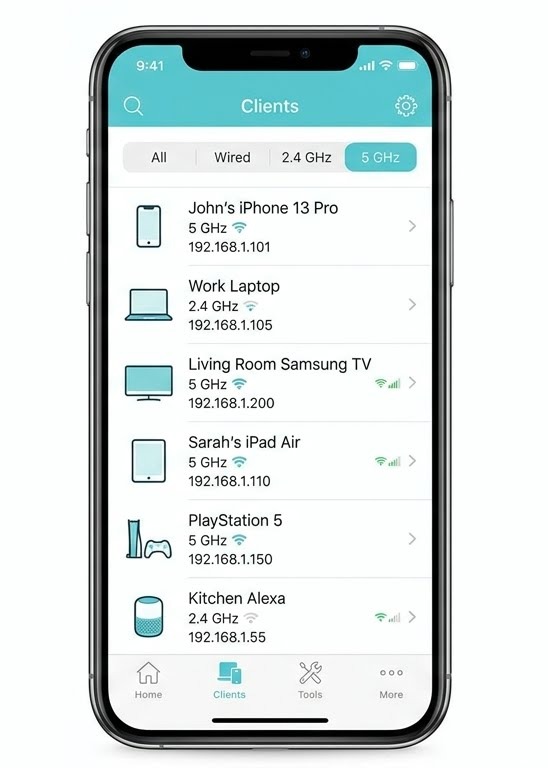
If a device appears on the list that you do not recognize, note its MAC address before blocking. The MAC address is the unique hardware identifier for that device, formatted as six pairs of characters like A4:C3:F0:XX:XX:XX.
Download the Tether app: Google Play | Apple App Store
Key takeaway: The Tether app Clients list is the fastest check, 30 seconds from opening the app to a full view of every device on your network, with rename and block options on the same screen.
Method 2: Check connected devices via the web admin panel
If you prefer to manage your router from a laptop or desktop, or if your router model is older and not fully supported by Tether, the web admin panel gives you the same information and more detailed network settings.
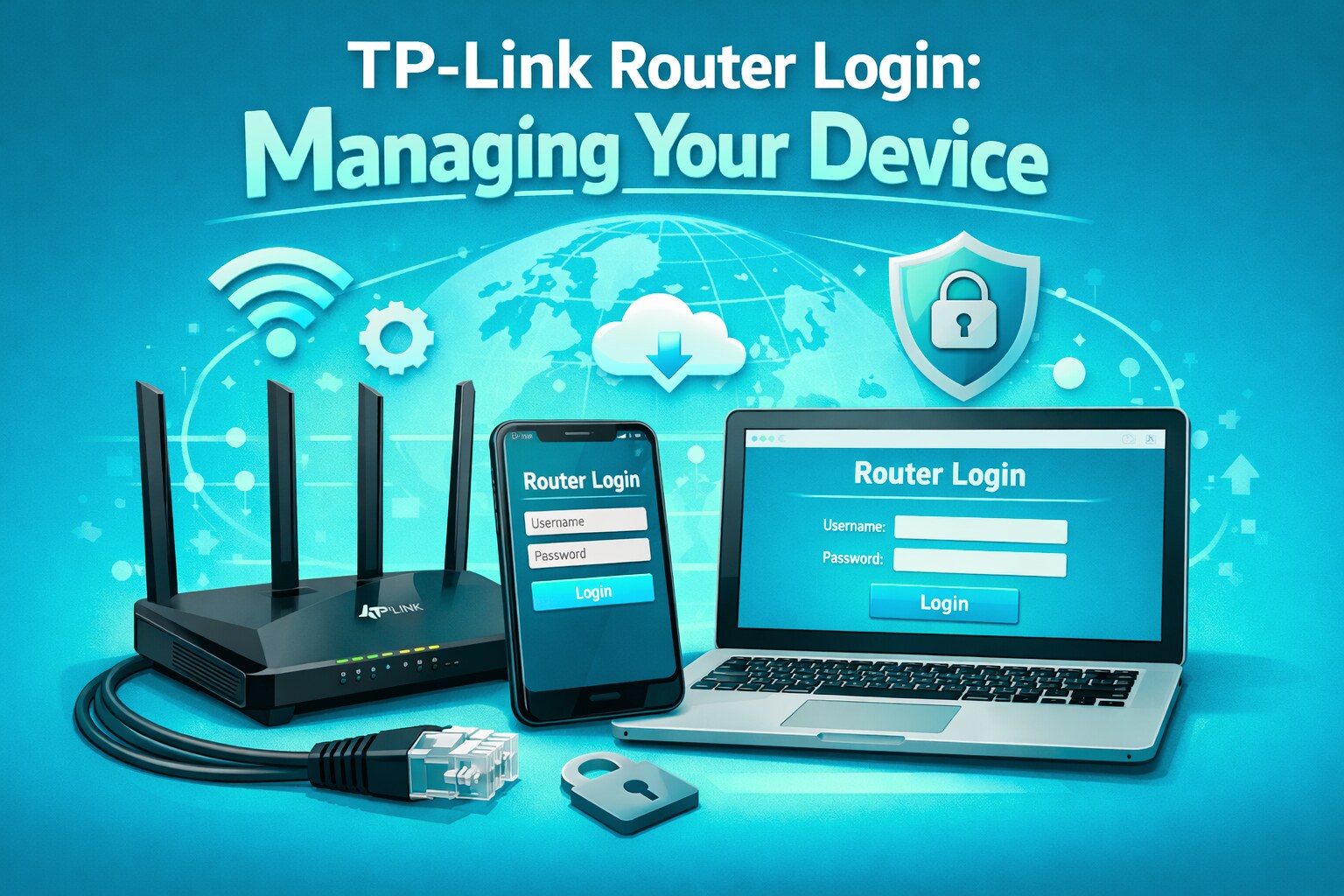
Step 1: Open any browser while connected to your TP-Link Wi-Fi. Go to tplinkwifi.net or type 192.168.0.1 in the address bar. If neither works, try 192.168.1.1.
Step 2: Log in with your admin credentials. Newer TP-Link routers prompt you to create a custom password on first setup. Older models use "admin" as both the default username and password. Check the sticker on the bottom of your router if you are unsure.
Step 3: Go to Network Map or DHCP Client List. On the Basic tab, the Network Map shows a visual overview of connected devices. For a full list of MAC addresses, go to Advanced > Network > DHCP Client List.
Step 4: Review the device list. Every device the router has assigned an IP address to will appear here, including wired devices connected by LAN cable. Compare the list against the devices you own. Any entry you cannot account for is worth investigating.
|
TP-Link Tether App |
Web Admin Panel (tplinkwifi.net) |
|
|---|---|---|
|
Best for |
Quick checks on your phone |
Detailed network management on a PC |
|
Works on |
iOS and Android |
Any browser on any device |
|
Shows |
Device name, band, IP, MAC address, upload/download speed |
All DHCP clients, MAC addresses, and more details |
|
Block device |
One tap from the Client's list |
Access Control with MAC address |
|
Requires |
Tether app installed |
No app needed, just your browser |
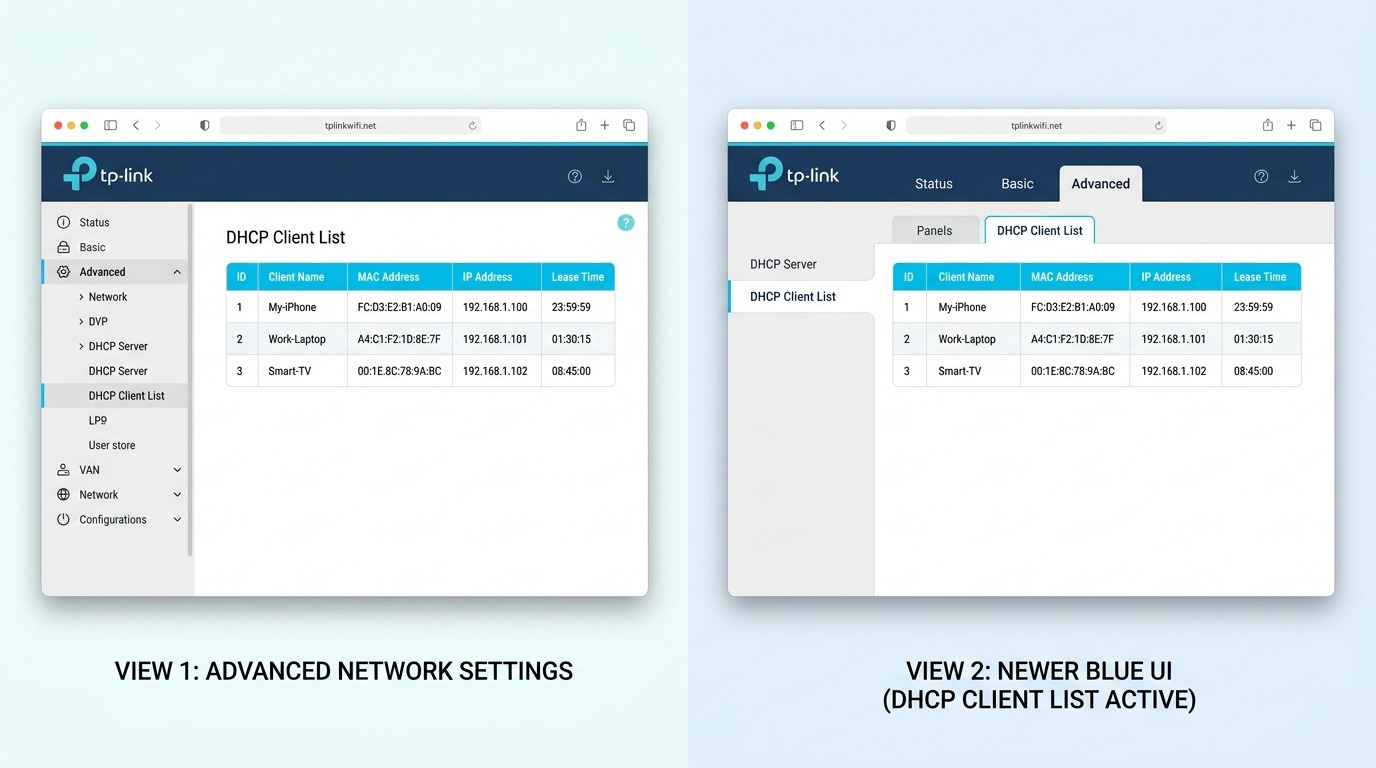
Note: Some devices may show generic names like "android-XXXX" or "iPhone." Tether lets you rename these for easier tracking.
Key takeaway: Use the Tether app for a quick daily or weekly check from your phone. Use the web admin panel when you need to investigate in detail, block devices that are offline, or configure Access Control rules that apply to your whole network.
How to Block a Device or Website on Your TP-Link Router
Once you have identified a device you want to remove or a website you want to restrict, TP-Link gives you two routes: block at the device level using Access Control or block at the content level using Parental Controls. Both work from either the Tether app or the web admin panel.
Block a device using the Tether app
This is the fastest method if you have already found the device in your Client list and want to cut it off immediately.
For Wi-Fi 6, 6E, and Wi-Fi 7 routers (Archer AX72, AXE95, BE800, BE900, and similar):
-
Open Tether and tap Local Device > your router.
-
Tap More > Block List > the + icon.
-
Select the device directly from your connected Clients list, or enter its MAC address manually.
-
To unblock: go to Block List, tap the icon to the right of the device, then select Unblock.
For older router models (Archer A8, C54, C5400, and similar):
-
Open Tether and tap Local Device > Clients.
-
Swipe left on the device name in the Clients list. A Block option will appear.
-
Tap Block to move the device to the Blocked Clients list.
-
To unblock: go to the Blocked Clients list and swipe left on the device, then select Unblock.
Important: On some older TP-Link models, a blocked device can still connect to your Wi-Fi but cannot access the internet. For full disconnection, change your Wi-Fi password after blocking.
Block a device via the web admin panel (Access Control)
The web admin panel's Access Control feature gives you more precision, particularly if you want to block a device that is not currently connected.
-
Log in at tplinkwifi.net or 192.168.0.1.
-
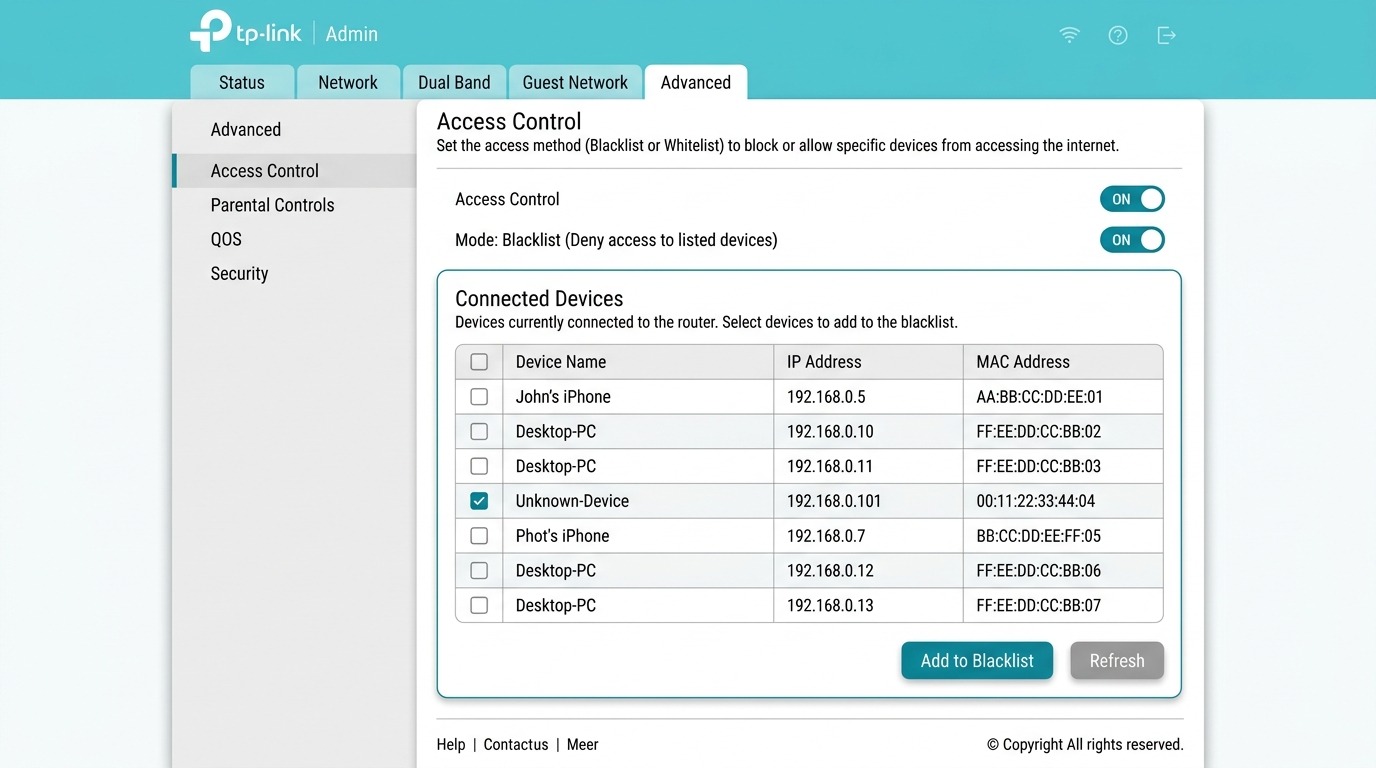
Go to Advanced > Security > Access Control.
-
Toggle Access Control to On.
-
Choose Blacklist mode to block specific devices while allowing everyone else, or Whitelist mode to allow only the devices you approve, which is recommended for maximum control.
-
In Blacklist mode: check the box next to any online device you want to block, or click Add to enter a MAC address manually for offline devices.
-
Click Save. The blocked device will lose internet access immediately.
If you want to block a specific device from your network entirely, Whitelist mode is more reliable. Add only your family's devices to the whitelist, and any unlisted device, including neighbors or unauthorized users, will be denied access automatically, even if they know your Wi-Fi password.
Full guide: How to set up Access Control on your TP-Link router
Block a website using Parental Controls
Parental Controls let you restrict specific websites or content categories for individual devices or user profiles. This is useful for parents managing their children's screen time or anyone who wants to block distracting sites on a work device.
Via Tether app:
-
Open Tether and tap Parental Controls from the main dashboard.
-
Create a profile or select an existing one. Assign the devices you want to manage to that profile.
-
Under Content Restrictions, tap Add Content Filter or Block URL.
-
Enter the website domain you want to block (e.g., facebook.com, tiktok.com) or select a content category (e.g., Adult, Gaming, Social Media).
-
Set time limits if needed, then save the profile.
Via web admin panel:
-
Log in at tplinkwifi.net or 192.168.0.1.
-
Go to Advanced > Parental Controls.
-
Enable Parental Controls and create a profile. Assign devices to the profile by their MAC address.
-
Under Content Filtering, add the websites you want to block under the Blocked Website section. Enter the domain (e.g., tiktok.com) and save.
-
Set access time schedules if you want the block to apply only during specific hours.
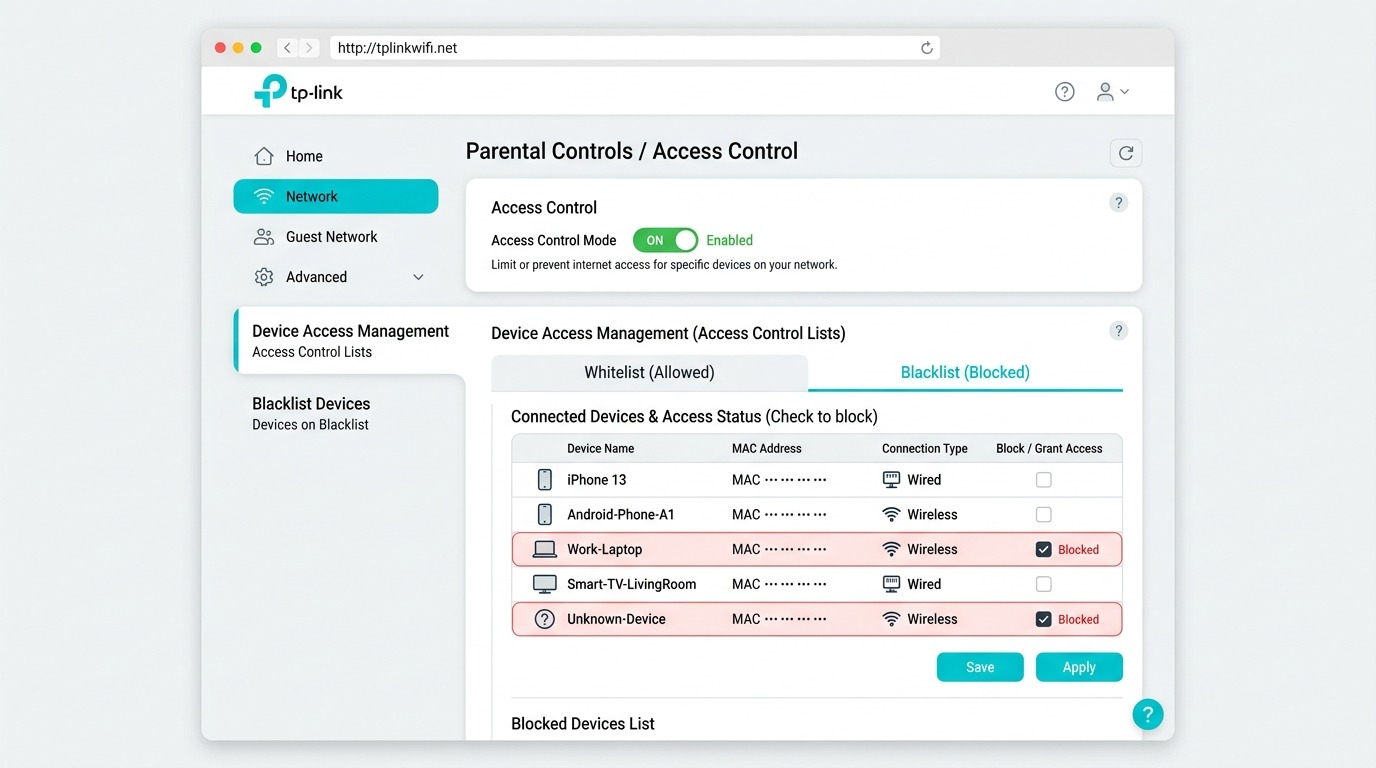
For TP-Link routers running HomeShield available on models released from 2020 onwards, the Parental Controls section inside the Tether app is significantly more powerful, with content category filtering, safe search enforcement, and weekly usage reports per profile.
For complete parental control setup guidance, including HomeShield features, see: TP-Link HomeShield Parental Controls Guide.
Limitation to know: Website blocking via Parental Controls works by domain name. If a site uses HTTPS and a device has a hardcoded DNS server (like Google's 8.8.8.8), some blocks may not apply. To enforce blocking reliably, disable custom DNS on the blocked device or use HomeShield's DNS-based filtering, which operates at the router level.
Key takeaway: Three levels of control block a device instantly via Tether, block by MAC address via Access Control for precision, or block by website and content category via Parental Controls for household management. Use all three together for full network control.
Why This Matters in a Filipino Home Network
The Philippines has one of the highest household sizes in Southeast Asia, averaging 4.1 members per home according to the Philippine Statistics Authority. In practice, many households run closer to six or more when extended family is counted, and Wi-Fi passwords get shared freely among relatives, visitors, and household staff.
Every unauthorized device on your network consumes bandwidth. On a 100 Mbps plan, a neighbor streaming HD video can pull 5 to 25 Mbps from the pool that your family is paying for. During peak hours when PLDT, Globe, Converge, and Sky networks are already congested between 6 and 10 PM, an unauthorized device compounds the slowdown.
The practical habit TP-Link Philippines recommends: check your connected device list once a month, rename unfamiliar entries so you can track them, and change your Wi-Fi password whenever a household member who previously had access moves out or no longer needs it. These three steps take less than five minutes and are the single most effective way to keep your home network performing at full speed.
Managing your network on a regular basis also helps you spot router performance issues early. For more on optimizing Wi-Fi in Philippine homes, read 12 Wi-Fi Speed Hacks for Philippine Homes.
Key takeaway: Monthly Client check, rename unknowns, and change the password when someone leaves. Five minutes a month is all it takes to keep unauthorized devices off the network you are paying for.
Frequently Asked Questions
Can I see what websites connected devices are visiting through my TP-Link router?
Basic TP-Link routers do not log individual browsing history. You can see which devices are connected and how much bandwidth they are using, but not a site-by-site history. TP-Link's HomeShield subscription, available on supported models, adds traffic monitoring and reporting that shows category-level usage per device, such as how much time was spent on social media or video streaming, but not individual URLs.
Will blocking a device from my router also disconnect it from the internet permanently?
Blocking a device through Tether or Access Control prevents it from using your router's internet connection. However, the device can still connect to other networks, such as mobile data or a neighbor's Wi-Fi. The block only applies to your router. On some older TP-Link models, the device remains connected to your Wi-Fi but loses internet access rather than being fully disconnected from the network.
How do I find the MAC address of a device I want to block that is not currently connected?
If the device has connected before, it may still appear in your DHCP Client List under Advanced > Network even if it is currently offline. On Android phones, find the MAC address under Settings > About Phone > Wi-Fi or Status. On iPhones and iPads, go to Settings > Wi-Fi and tap the network name. On Windows PCs, run "ipconfig /all" in the Command Prompt and look for the Physical Address under your Wi-Fi adapter.
Does changing my Wi-Fi password disconnect all current unauthorized devices?
Yes. Changing your Wi-Fi password immediately disconnects all currently connected devices; they will need the new password to reconnect. This is the fastest way to remove all unauthorized users at once, and it is the most reliable method when you are unsure which specific device you want to block. After changing the password, reconnect only your known devices.
What is the difference between Access Control and MAC Filtering on TP-Link routers?
These are two different features that accomplish a similar goal. Access Control, found under Advanced > Security, is available on newer TP-Link routers with the blue interface and lets you block or allow devices by MAC address across your entire network, both wired and wireless. MAC Filtering, found under Wireless settings on older models with the green interface, applies only to Wi-Fi connections and does not affect wired clients. If your router is a recent Archer, Deco, or Wi-Fi 6 model, use Access Control. If it is an older model, use MAC Filtering under Wireless settings.
Can I check connected devices on a Deco mesh system the same way?
Yes. The Deco app shows all connected devices across every node in your mesh network from one screen. Tap your Deco network, then tap Clients to see every device connected to any node. The Deco app also shows which node each device is connected to, which is useful for identifying devices that are connecting to unexpected nodes in your home. Blocking works the same way: tap the device and select Block.
What should I do if a device keeps reconnecting after I block it?
If a blocked device reappears on your network, it has likely been assigned a new MAC address, a feature called MAC randomization that is enabled by default on newer Android and iOS devices. To block it permanently, switch your Access Control to Whitelist mode and add only your known devices. Any device not on the whitelist, including one using a randomized MAC, will be denied access automatically.
Checking your connected devices takes one minute and should be a monthly habit.
Two steps cover almost everything: open Tether, tap Local Device > Clients, then block anything you do not recognize. If you manage your network from a laptop, the web admin panel at tplinkwifi.net gives you the same control with more detail.
For households where internet speed is consistently slow, especially during evening hours, an unauthorized device is often the cause. The check takes less time than the complaint does. Building it into a monthly routine, along with a periodic password change, keeps your network running at the speed you are paying for.
Explore TP-Link's full range of routers and mesh systems built for Philippine homes.

_20250110065519v.png)