


Tapo Doorbell Chime Setup: Add Tapo Chime, Hub, or Smart Speaker
The Tapo Doorbell includes a built-in ringer, but you can add extra chimes to get notified throughout your home whenever someone presses the doorbell. This guide covers two options: pairing a Tapo Chime or Tapo Hub through the Tapo app, and setting up an Alexa Echo or Google Assistant speaker as a wireless doorbell chime.
Note: Before you start, ensure your Tapo devices are set up successfully and have Internet access.
Key Takeaways
- The Tapo Doorbell supports extra chimes beyond its built-in ringer, including the Tapo Chime, Tapo Hub, Alexa Echo speakers and displays, and Google Assistant speakers and displays.
- Tapo Chime connects via Wi-Fi rather than a traditional wired connection, and can be installed anywhere in the home with Wi-Fi and Internet access.
- Tapo Hub supports functioning as a chime when paired with the Tapo Doorbell.
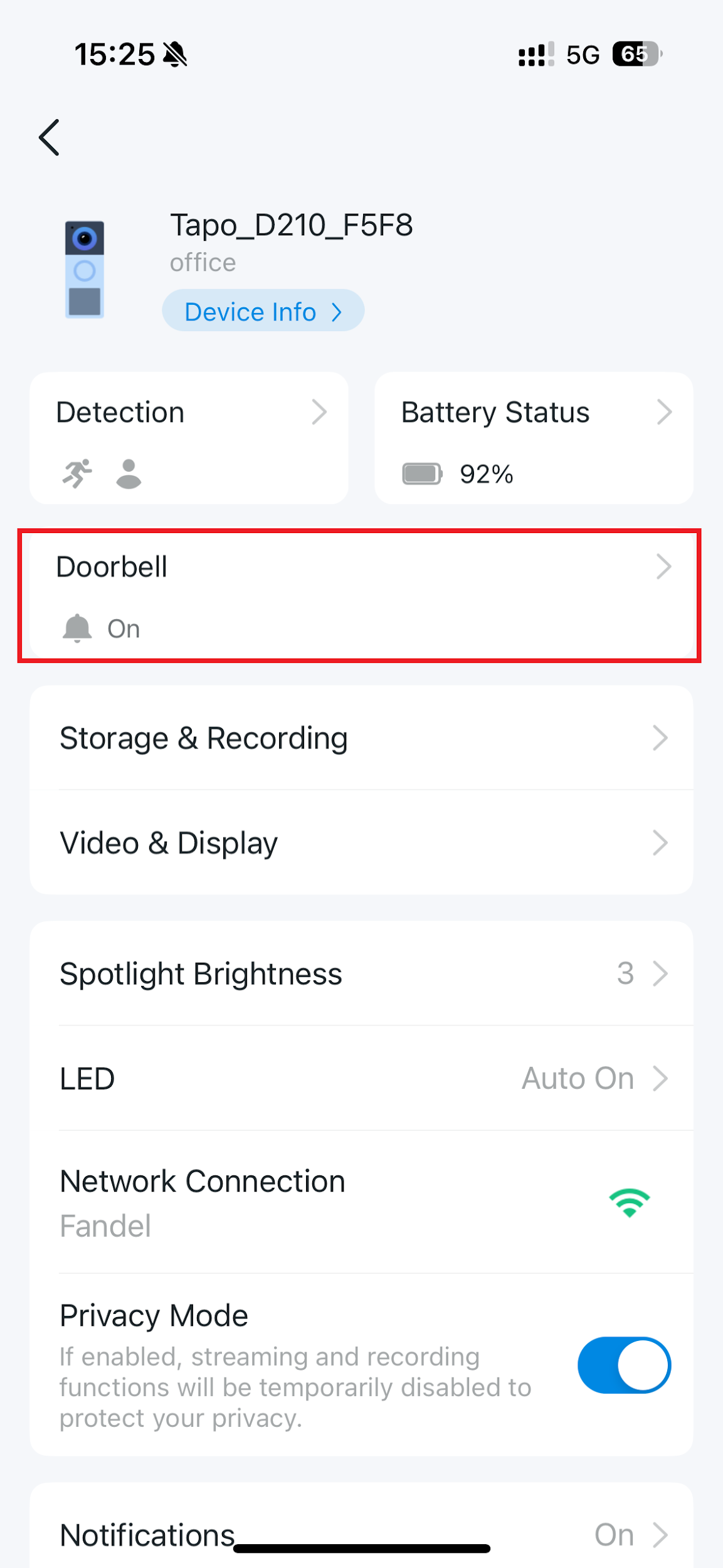
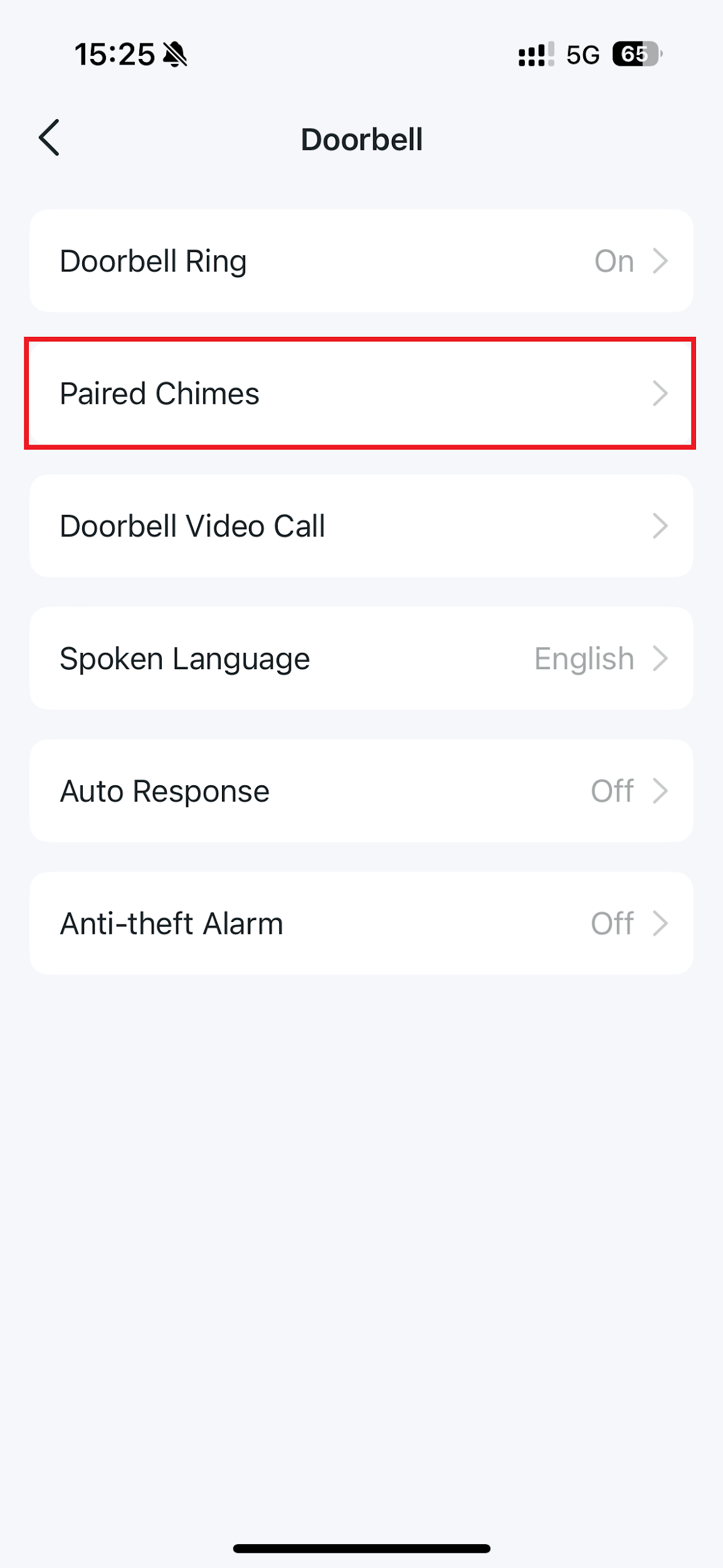
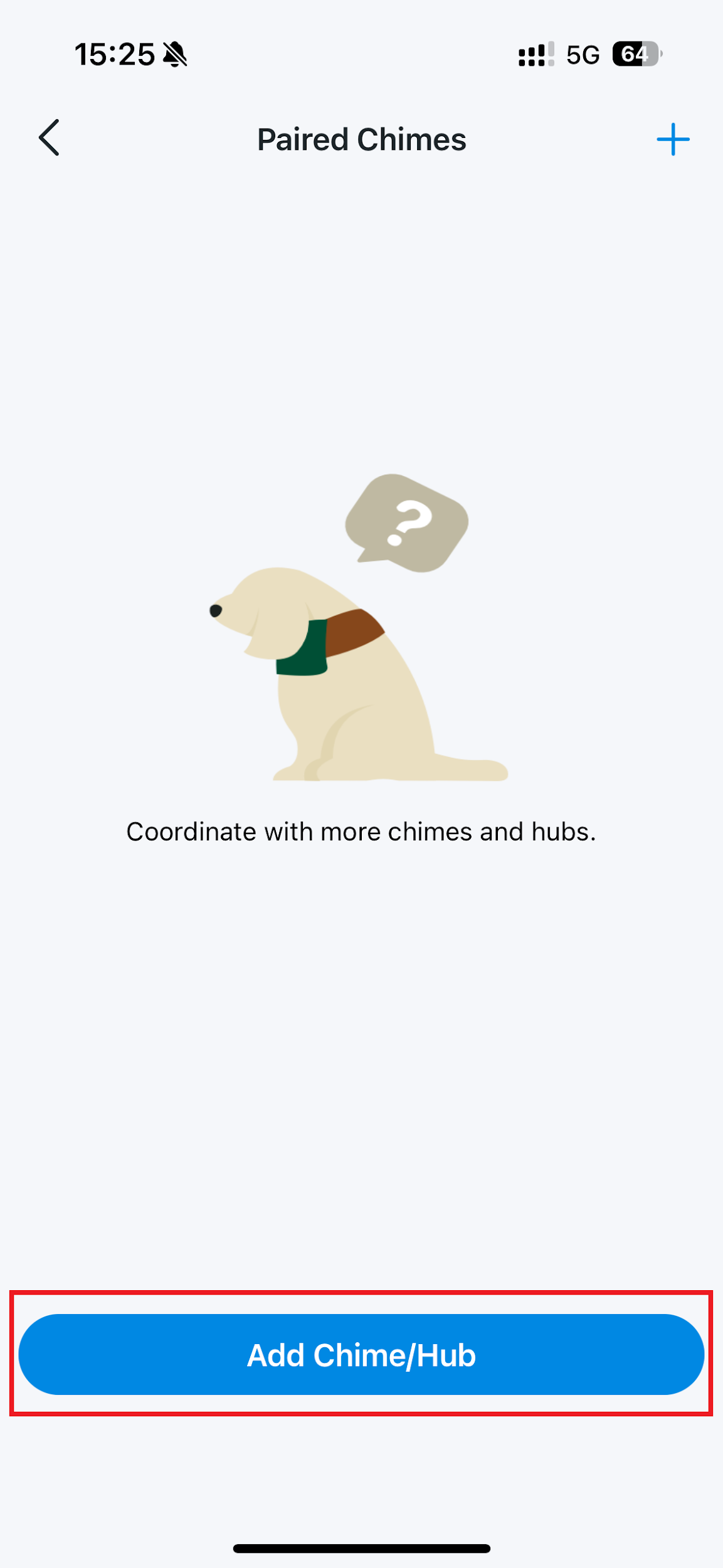
- To add a Tapo Chime or Hub through the app: go to Tapo App > Device Settings > Doorbell > Paired Chimes > Add Chime/Hub, then follow the pairing instructions.
- To use an Alexa Echo as a chime, first link the Tapo service in the Alexa app, then find the Tapo Doorbell in the Alexa device list and enable Doorbell Press Notifications.
Option 1: Add Tapo Chime or Tapo Hub
Step 1. To add a chime to your Tapo Doorbell, go to the Tapo app Home page and tap your device card to enter the doorbell live view page.
Step 2. On the Doorbell live view page, tap the gear icon in the upper right corner to access the Device Settings page.
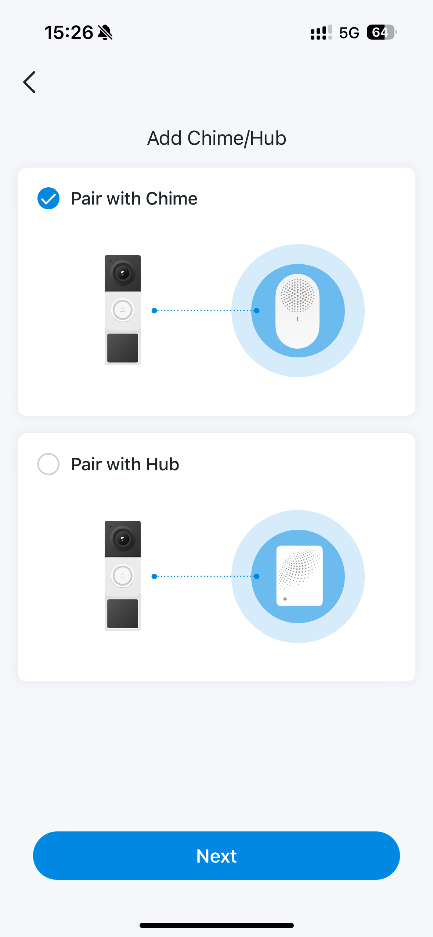
Step 3. On the Device Settings page, tap Doorbell > Paired Chimes > Add Chime/Hub, choose Tapo Chime or Tapo Hub, depending on your needs, then follow the app instructions to pair the product.
- Tapo Chime: Unlike traditional chimes, Tapo Chime connects to your router via Wi-Fi and can be installed anywhere with Wi-Fi and Internet access. It supports both local and remote pairing with the Tapo Doorbell.
- Tapo Hub: On the latest Tapo Hub firmware, the hub can also function as a chime.
Option 2: Add an Alexa Echo or Google Assistant Speaker/Display as a Chime
Note: Currently, only the Alexa Echo Speaker/Display or Google Assistant Speaker/Display can be paired with the Tapo Doorbell, and you need to set it up on the corresponding third-party platform.
We take the Alexa Echo Speaker/Display as an example.
Step 1. Link the Tapo service with Alexa by following the instructions here: How to make my Tapo / Kasa device work with Amazon Alexa
Step 2. Find the Tapo Doorbell in the Alexa App.
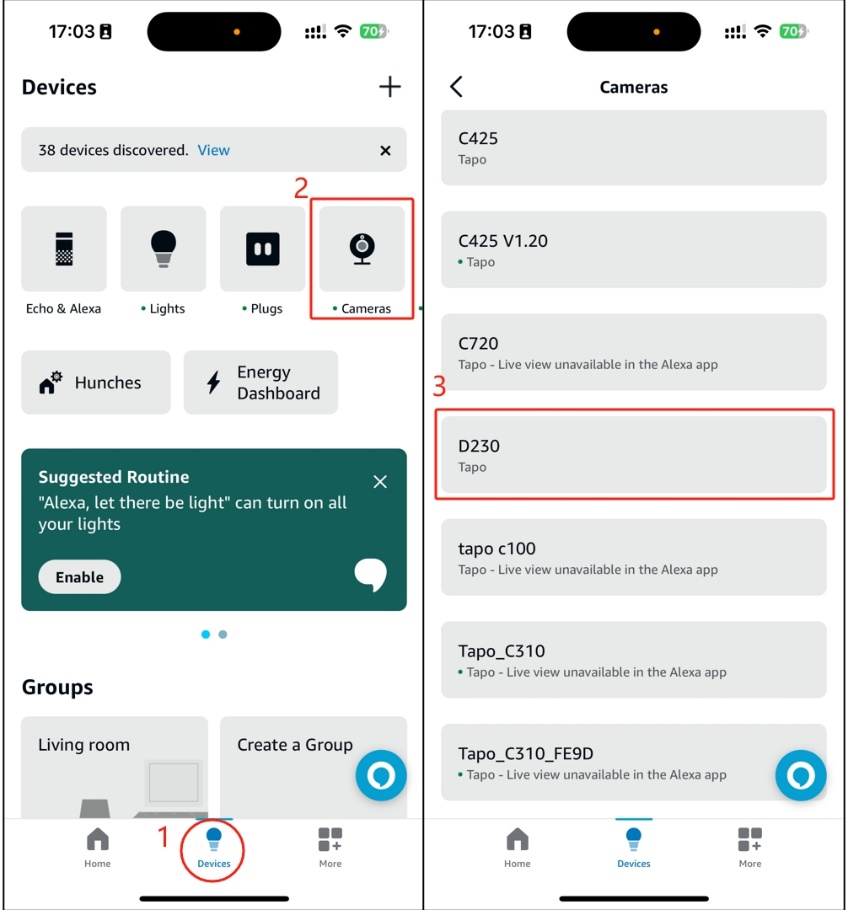
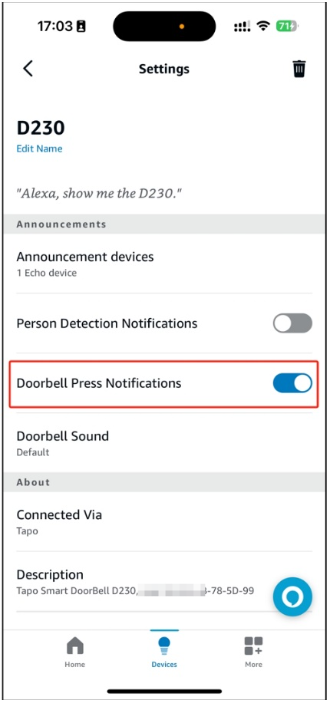
Step 3. Turn on Doorbell Press Notifications.
Q&A
Q19: How to change the Ringtones & Volume of the connected Tapo Chimes/Hubs
You can change the ringtones or volume of the Chime/Hubs connected to the Doorbell. Please go to Tapo app > Tap your Doorbell > Device Setting > Doorbell > Paired Chimes, adjust the Volume and select one of the Ringtone.
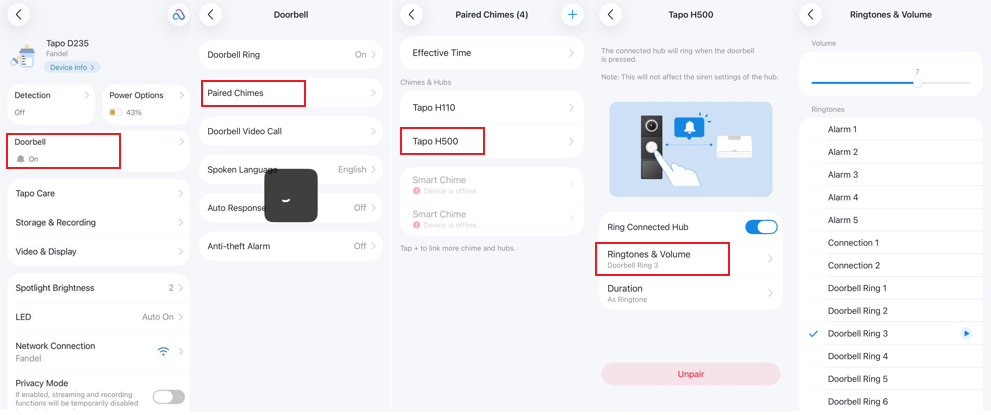
To learn more about each function and configuration, please visit the Download Center to download the manual for your product.
ค้นหาเพิ่มเติม
คำถามที่พบบ่อยนี้มีประโยชน์หรือไม่?
ความคิดเห็นของคุณช่วยปรับปรุงเว็บไซต์นี้


TP-Link Community
Still need help? Search for answers, ask questions, and get help from TP-Link experts and other users around the world.