


How to Set Up DHCP Reservation on Your Deco for a Fixed IP Address
DHCP reservation, also called address reservation, is Deco's recommended method for assigning a consistent, fixed IP address to any device on your network. For most home users, it achieves the same outcome as a static IP, a fixed and predictable IP address, without requiring manual IP configuration on the device itself. You can set it up in the Deco app by selecting a connected device from the client list or by manually entering a device's MAC address and IP address.
Key Takeaways
- DHCP reservation (address reservation) lets you assign a fixed IP address to a specific device on your Deco network, so it always receives the same IP address whenever it connects.
- The reserved IP is assigned by the Deco's DHCP server. No changes are needed on the device itself.
- There are two ways to create a reservation: selecting a currently connected device from the client list (which assigns its current IP), or manually entering a device's MAC address and IP address.
- To add an address reservation, open the Deco app and navigate to More > Advanced > Address Reservation, then tap the plus (+) icon.
- To remove a reservation on Android, press and hold the reservation profile until a delete option appears. On iOS, swipe the reservation left to reveal the delete option.
Understanding Static IP and DHCP Reservation
A static IP is an IP address configured manually on the device itself. This requires changing the device's network settings and carries some risk of IP conflicts if not managed carefully.
DHCP reservation assigns a fixed IP address through the router rather than on the device. The Deco's DHCP server always gives the same IP to a specific device based on its MAC address, but the device itself is still set to receive its address automatically.
For most home users, DHCP reservations are recommended. It achieves a predictable, fixed IP without the complexity or risk of configuring static IPs on individual devices.
How to Configure DHCP Reservation in the Deco App
Here, the Deco M5 is used as an example.
First, launch the Deco app, and tap More > Advanced > Address Reservation.
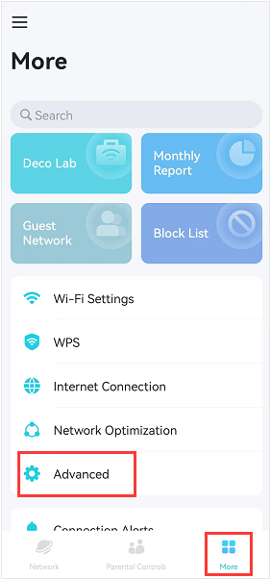
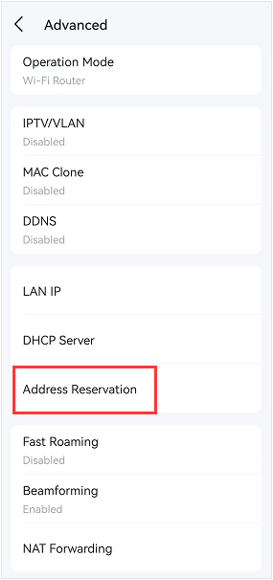
- Tap the plus icon in the upper right corner.
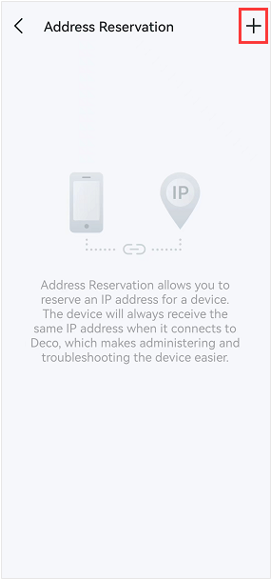
There are Two Methods to Create a Reservation for a Device.
Method 1: Select a Client From the List of Currently Connected Devices
- Choose “Select from Client”
- Check the Box of the Device you Would Like to Configure a Reservation For
- Then, tap Done
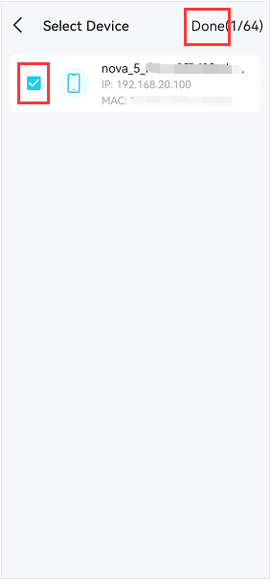
Note: This will assign the current IP to the device.
Method 2: Manually Enter a Device's MAC Address and IP Address
- Choose “Custom”
- Input the MAC Address and IP Address of the Device
- Then, Tap Save
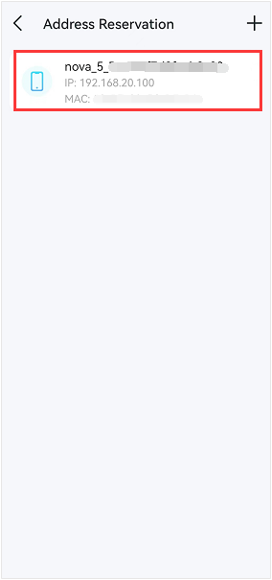
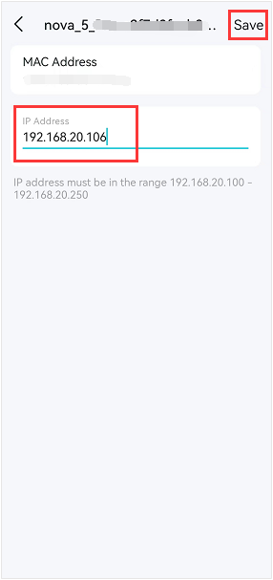
Changing the Assigned Address:
- Tap the Device in the List of Devices
- Change the IP address assigned to the device.
- Tap Save to save the settings.
Removing an Address Reservation:
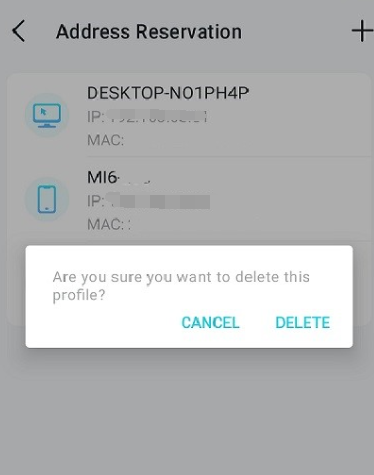
On Android:
- Hold the IP reservation profile, then it will prompt up an option to delete.
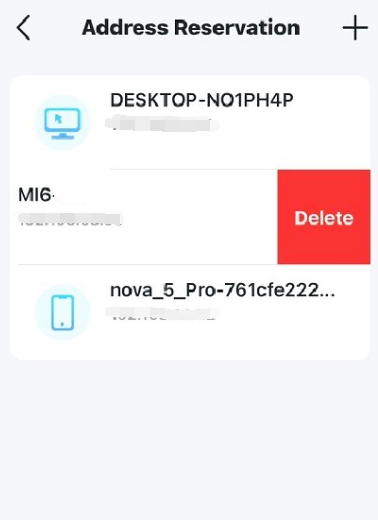
On IOS:
- Swipe the address reservation to the left, and it will prompt an option to delete.
Чи була ця стаття корисною?
Ваш відгук допомагає вдосконалити цей сайт.

_Overview_normal_20230128023814m.png)
