


Setup Guide
Tapo HB112 Solar Cam 2K Pan/Tilt (2-Cam Kit)
Welcome to the setup guide.
To ensure equal access for all users, we offer this accessible setup guide. This guide is designed to meet accessibility needs, enabling a successful setup. It will introduce the appearance of your CentralHubTM, cameras, and solar panels, including its ports, buttons and labels, and then guide you through the setup process.
Step 1. Know Your CentralHubTM
In this section, we will describe the device's appearance, including its ports, buttons, and labels.
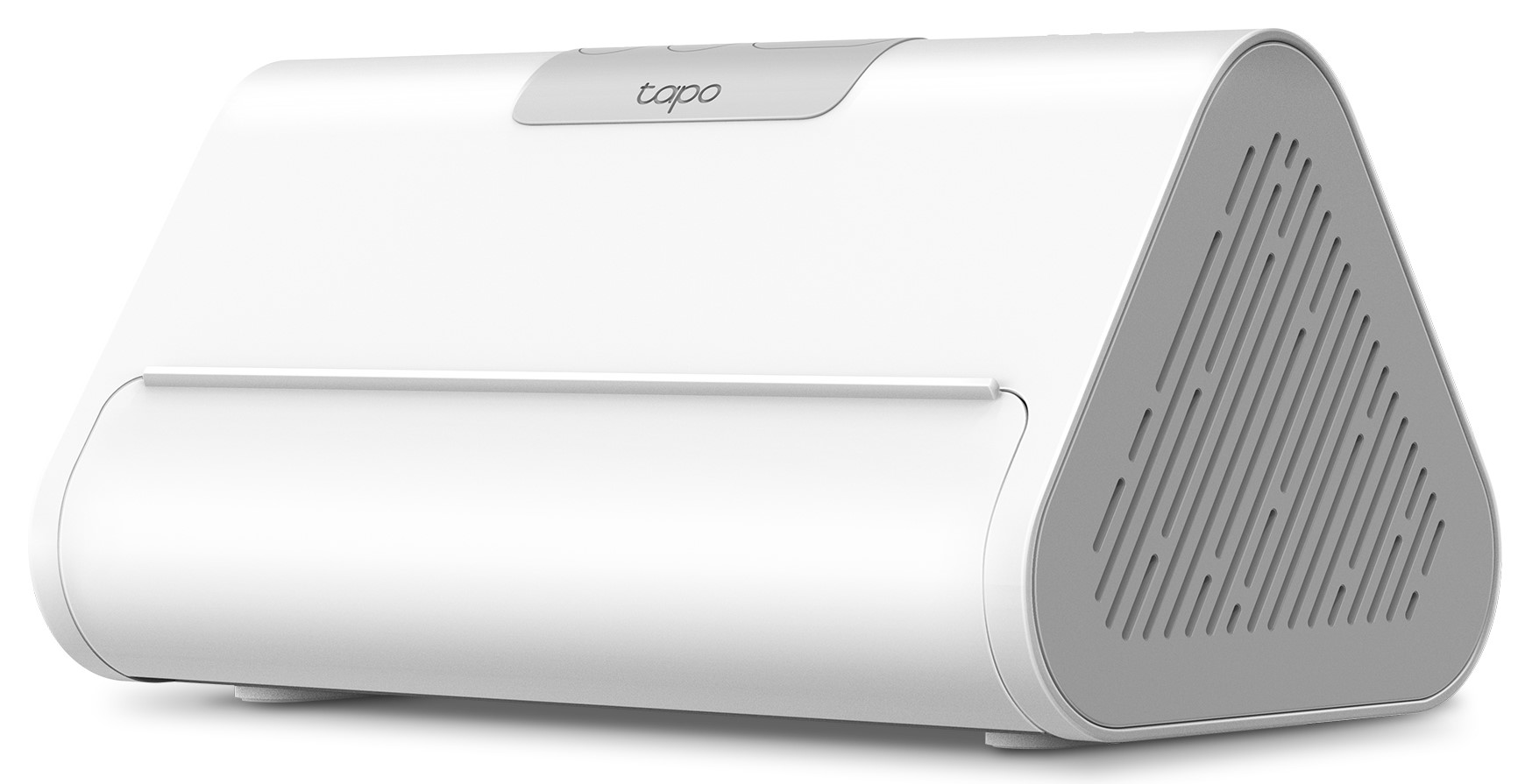
1. You can find your device and power adapter in the package.
Power Adapter: The power adapter is usually a rectangular or square block with a cord on one end that plugs into the power port to power it on.
2. Next, place your CentralHubTM on a horizontal surface, such as on a shelf or desktop. To ensure the CentralHubTM is placed correctly, make sure the ports facing backward and the Tablet Stand forward.
3. After positioning your CentralHubTM correctly, we will introduce the ports, buttons and labels on your device in a certain order.
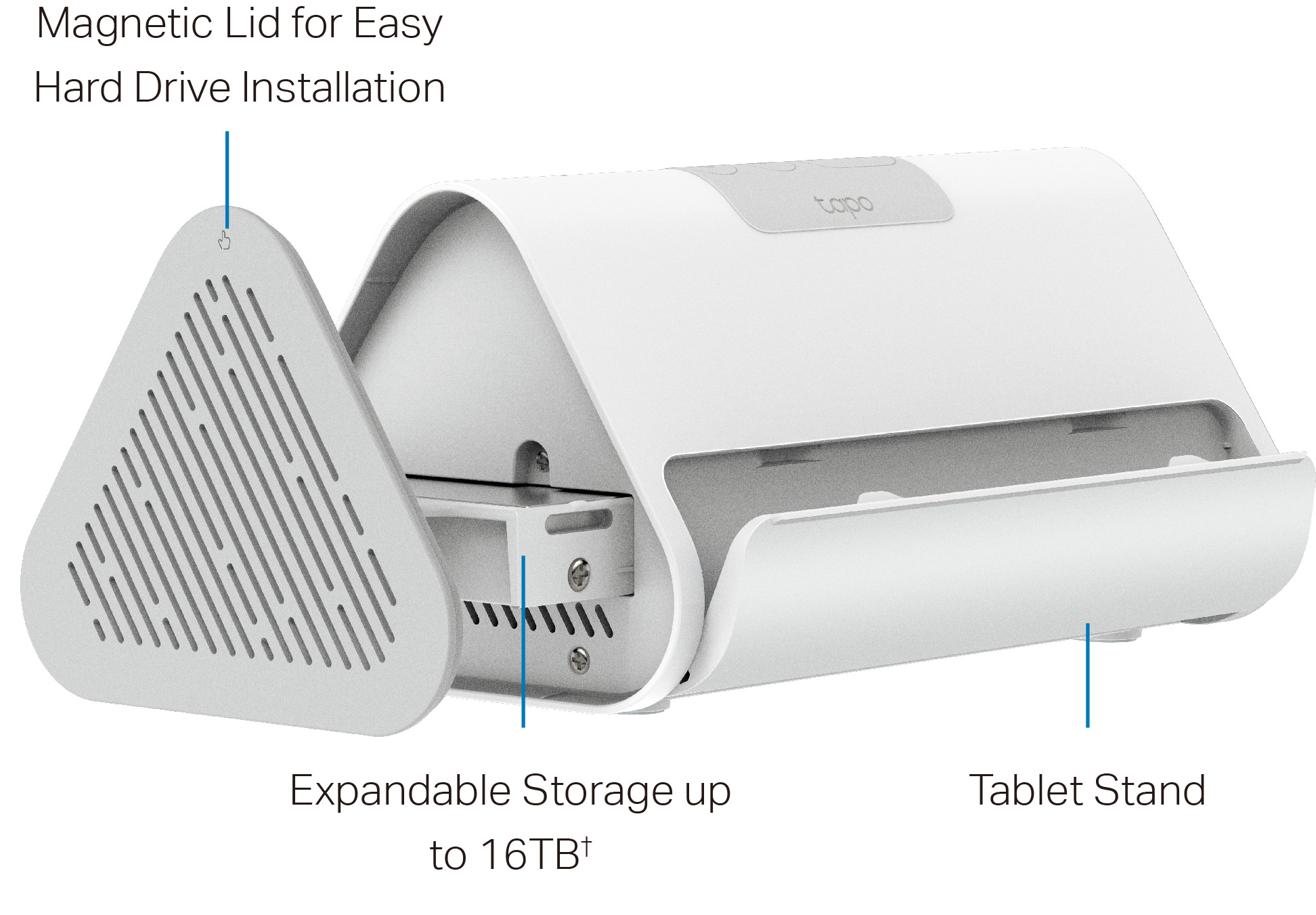
On the front panel is the Tablet Stand. The left panel covers the hard drive bracket. There is a magnetic lid for easy hard drive installation.
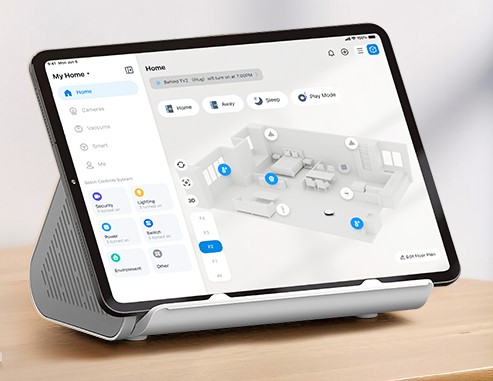
Tablet Stand: Grip the front edge of the tablet stand and pull it outward until it clicks into the open position. Place your pad in the groove so it sits securely and frees your hands.
Hard Drive Bracket: Install an extra 2.5-inch HDD/SSD drive (not included) to expand local storage.
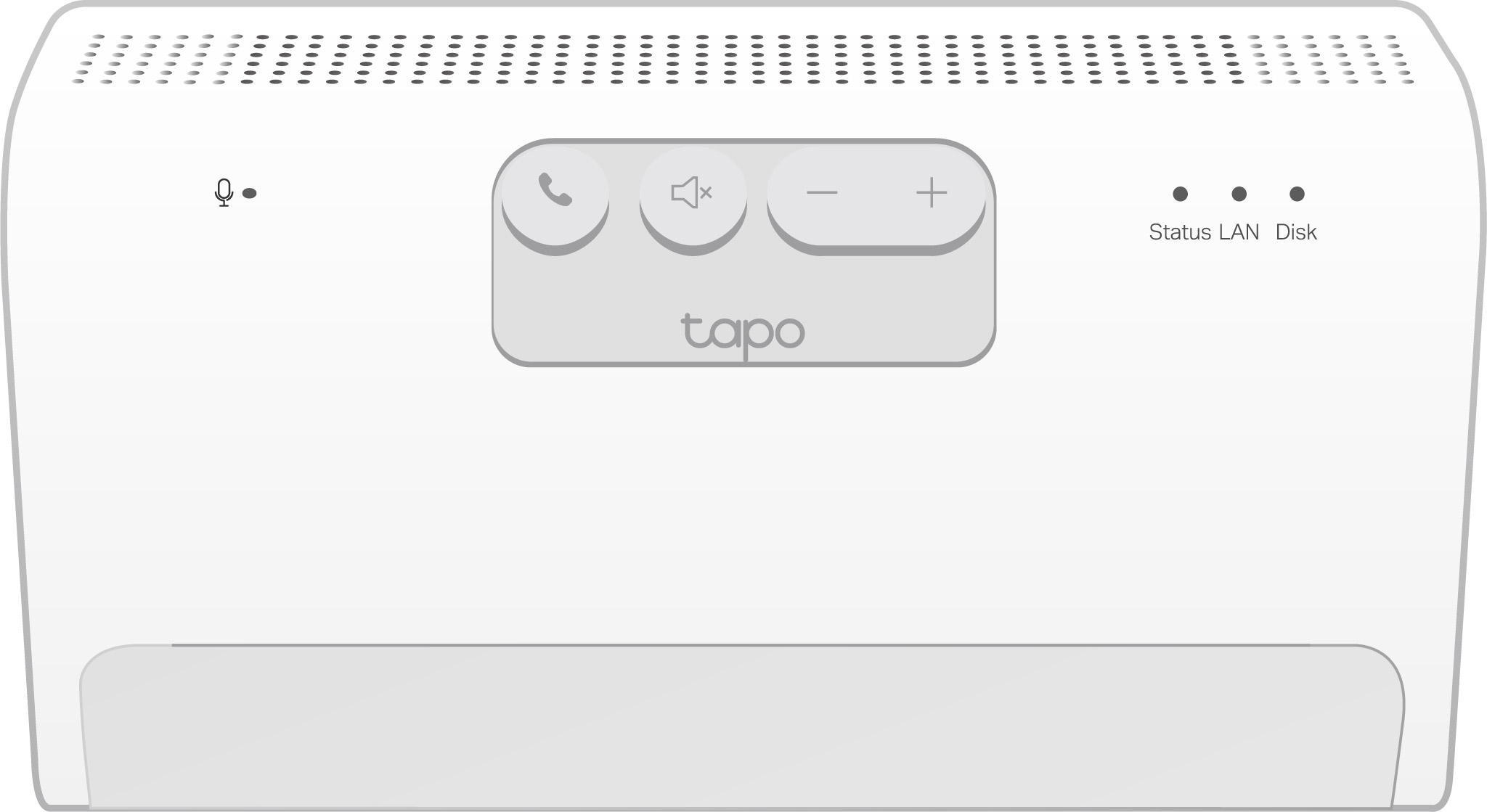
On the top of the CentralHubTM are the following from left to right.
Microphone: A tiny hole located on the upper left for capturing your voice.
Answer/SYNC Button: Press this button once to answer the video call, and press and hold for 3 seconds to enter pairing mode.
Decline/Mute Button: Decline the video call, or silence the alarm.
Volume Button: Lower (the left "-" button) or increase (the right "+" button) the volume.
Press and hold the Answer/SYNC button and the Volume button simultaneously to switch to the previous or next channel when using an HDMI output.
Or, go to Mirror Settings to configure the Dashboard Carousel in the Tapo app. You can set the channels to switch automatically in your preferred order and at a timed interval.
Status LED: It shows your device status. You can check the device status in the Tapo app.
LAN LED: It shows whether an Ethernet cable is connected.
Disk LED: It shows the hard drive status.
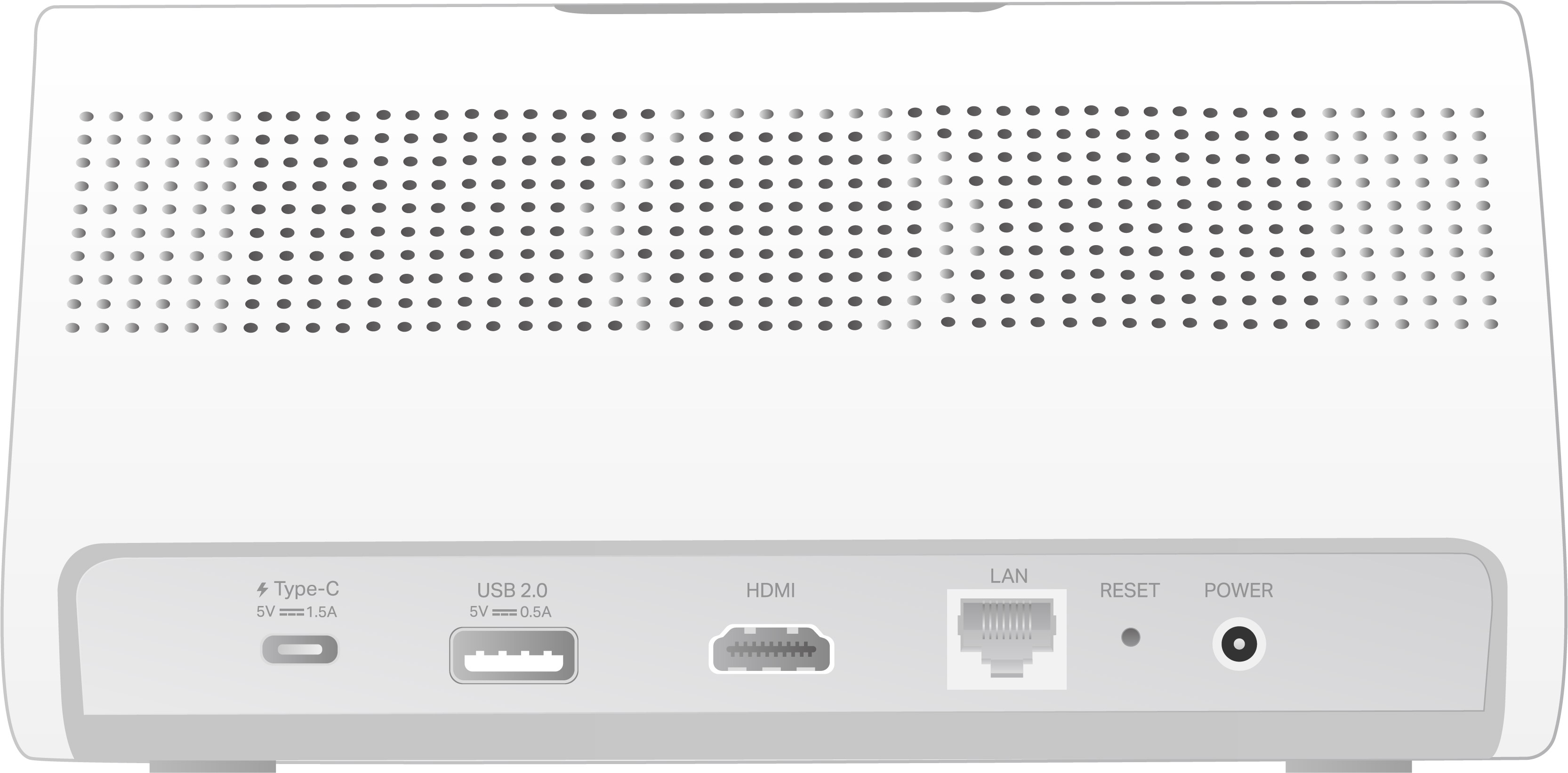
Turning to the back panel, you will find the following ports from left to right.
USB Type-C Charging Port: 5V/1.5A type-C port for charging your devices (e.g., battery-powered cameras). This port cannot transfer any data.
USB 2.0 Port: 5V/0.5A USB port for exporting data to another device.
HDMI Port: Output port for high-definition video signals. You can connect it to a TV or monitor for screen mirroring.
LAN Port: Connect to a router or a switch using an Ethernet cable.
Reset Button: Use a pin to press and hold for 10 seconds to reset to factory settings. You will hear voice prompts when reset successfully. You can also delete the device in the Tapo app to perform a factory reset.
Power Port: Plug in the power adapter to power on your device.
Step 2. Know Your Camera
In this section, we will describe the appearance of the solar panel, as well as the camera, including its ports, buttons, and labels.
1. You can find your solar panel and camera in the package.
Solar Panel: The solar panel is typically a rectangular panel with a power cord and a snap fit on the back. At the end of the power cord, there is a USB Type-C connector for plugging into the camera's charging port to begin solar charging.
The camera is composed of a body with a protruding spherical lens and a base with a flat surface on top.
2. Next, keep the flat surface on the top and the relatively round side of the base facing forward.
To ensure the camera is placed correctly, you should position it with the camera lens facing forward.
3. After positioning your camera correctly, we will introduce the ports, buttons, and labels on your device in a certain order.
Lens: For capturing things within its view.
Status LED: It is on the left side of the lens, showing your camera status. You can check the camera status on the Tapo app.
Microphone: For capturing your voice. It is on the right side of the lens.
IR LEDs: For creating black-and-white images at night. They are located in the middle, directly above the lens.
White Light LEDs: For creating colorful images at night. They are next to the IR LEDs above the lens.
Motion Sensor: It is below the camera Lens for detecting motion.
Tilt the camera lens up to find the speaker.
Speaker: For producing sound, allowing you to hear the audio.
Tilt the camera lens down to locate the silicone cover for the Reset button, Power button, and microSD card slot. Once opened, you'll find the Reset button on the left, the Power button on the right, and the microSD card slot beneath the Power button.
Reset Button: The reset button is a circular, raised button on the left. While the camera is on, press and hold the RESET button to reset the camera.
Press and hold for 5 seconds: Reset Wi-Fi settings only
Press and hold for 10 seconds: Reset to factory settings
Power Button: The power button is a circular, raised button on the right. Press the button for about 3 seconds to turn it on or off.
microSD Card Slot: While facing the front of the camera, insert a microSD card with the notch on the left side, and gold contacts facing the slot.
Underneath the camera base, you can find the product label.
Product Label: The product information is partially laser-engraved. The MAC address and serial number are printed on stickers.
On the right side of the camera base, you can find the silicone cover for the USB Type-C Charging Port.
USB Type-C Charging Port: Open the cover for USB charging.

Step 3. Set Up Your Kit
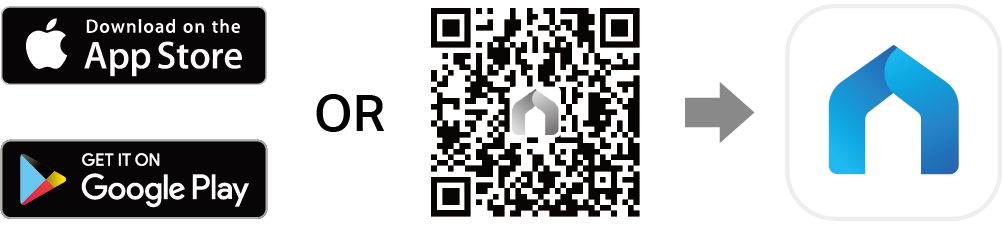
1. Get the Tapo app from the App Store or Google Play, then log in.
2. Connect the power adapter to the CentralHubTM and a power outlet to turn on the device. Wait about 1 minute for it to start up.
3. Tap the + button in the app, choose Add Device, select Hub/CentralHub, and then your model. Now you can press and hold the power button on your camera for about 3 seconds to turn it on. Wait about 30 seconds, and you will hear a clicking sound when the camera starts up. Then follow the app instructions to complete setup.
If you need help, please visit https://www.tapo.com/support/ for technical support, the user guide, FAQs, warranty & more.
For details on Tapo app accessibility, please check Accessibility Support.
Safety Information
For CentralHubTM:
• Do not use damaged charger or USB cable to charge the device.
• Do not attempt to disassemble, repair, or modify the device. If you need service, please contact us.
• Do not use any other chargers than those recommended.
• Do not use the device where wireless devices are not allowed.
• Adapter shall be installed near the equipment and shall be easily accessible.
• Use only power supplies which are provided by manufacturer and in the original packing of this product. If you have any questions, please don't hesitate to contact us.
• Keep the device away from water, fire, humidity or hot environments.
• Do not place near automatically controlled devices such as fire alarms. Radio waves emitted from this product may cause such devices to malfunction resulting in an accident.
• Observe restrictions on using wireless products in fuel depots, chemical plants or when blasting operations are in progress.
• Never put metal objects inside the product. If a metal object enters the product turn off the circuit breaker and contact an authorised electrician.
• This product is not intended to be used when providing medical care. Consult the manufacturer of any personal medical devices, such as pacemakers or hearing aids to determine if they are adequately shielded from external RF (radio frequency) energy.
• Do not use this product in health care facilities. Hospitals or health care facilities may be using equipment that could be sensitive to external RF energy.
• When you leave the product unused for a long time unplug the product from the power outlet.
• This product may interfere with other electronic products such as TV, radios, personal computers, phones or other wireless devices.
•Operating Temperature: 0 °C ~ 40°C (32°F ~ 104°F)
For Solar Panel:
•Keep the device away from fire or hot environments. DO NOT immerse in water or any other liquid.
•Do not attempt to disassemble, repair, or modify the device. If you need service, please contact us.
For Camera:
•This equipment can be powered only by equipment that complies with Power Source Class 2 (PS2) or Limited Power Source (LPS) defined in the standard of IEC 62368-1.
•Do not use damaged charger or USB cable to charge the device.
•Do not use any other chargers than those recommended.
•Do not use the device where wireless devices are not allowed.
•When using a USB charger, make sure the charger is easily accessible.
•Keep the device away from fire or hot environments. DO NOT immerse in water or any other liquid.
•Do not disassemble, repair or modify the product.
•Do not place near automatically controlled devices such as fire alarms. Radio waves emitted from this product may cause such devices to malfunction resulting in an accident.
•Observe restrictions on using wireless products in fuel depots, chemical plants or when blasting operations are in progress.
•Do not use liquid to clean the product. Only use a dry cloth.
•Never put metal objects inside the product. If a metal object enters the product turn off the circuit breaker and contact an authorised electrician.
•This product is not intended to be used when providing medical care. Consult the manufacturer of any personal medical devices, such as pacemakers or hearing aids to determine if they are adequately shielded from external RF (radio frequency) energy.
•Do not use this product in health care facilities. Hospitals or health care facilities may be using equipment that could be sensitive to external RF energy.
•Do not place heavy objects on top of the product.
•When you leave the product unused for a long time unplug the product from the power outlet.
•This product may interfere with other electronic products such as TV, radios, personal computers, phones or other wireless devices.
•Operating Temperature: -20°C ~ 45°C (-4°F ~ 113°F)
•Adapter should be used indoors where the ambient temperature is lower than or equal to 40°C.
| CAUTION! Avoid replacement of a battery with an incorrect type that can defeat a safeguard. Avoid disposal of a battery into fire or a hot oven, or mechanically crushing or cutting of a battery, that can result in an explosion. Do not leave a battery in an extremely high temperature surrounding environment that can result in an explosion or the leakage of flammable liquid or gas; Do not leave a battery subjected to extremely low air pressure that may result in an explosion or the leakage of flammable liquid or gas. |
|---|
Please read and follow the above safety information when operating the device. We cannot guarantee that no accidents or damage will occur due to improper use of the device. Please use this product with care and operate at your own risk.