


如何在 Kasa App 中建立智慧動作(Smart Action)?
簡介
本文將引導您了解及使用 Kasa 智慧動作(Smart Actions)功能。
Smart Actions 可讓您以智慧裝置狀態或時間作為觸發條件(Trigger),自動控制其他裝置、場景(Scene)或執行其他智慧動作。例如,您可以設定於每個工作天回家前幾分鐘自動開啟家中的燈光。
需求
請先於 Google Play Store、App Store 或透過掃描 QR Code 下載 Kasa App。

設定方式
情境 1:使用預設範本建立智慧動作
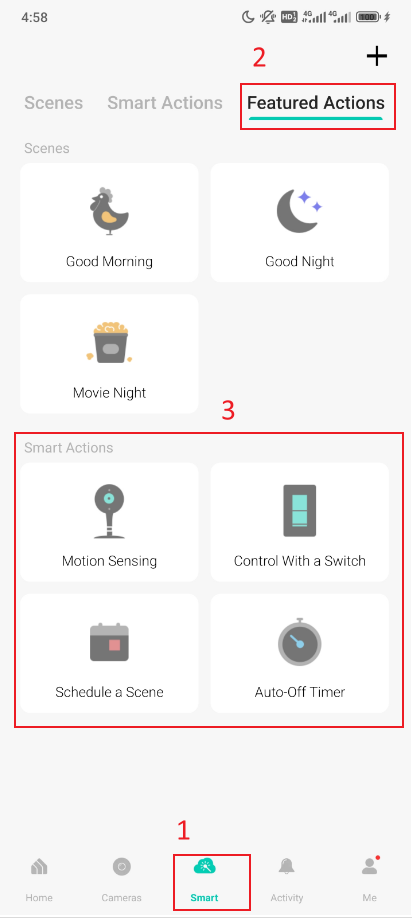
登入 Kasa App 後,前往 Smart > Featured Actions,系統提供 4 種預設智慧動作範本供您快速建立。
情境 2:建立自訂智慧動作
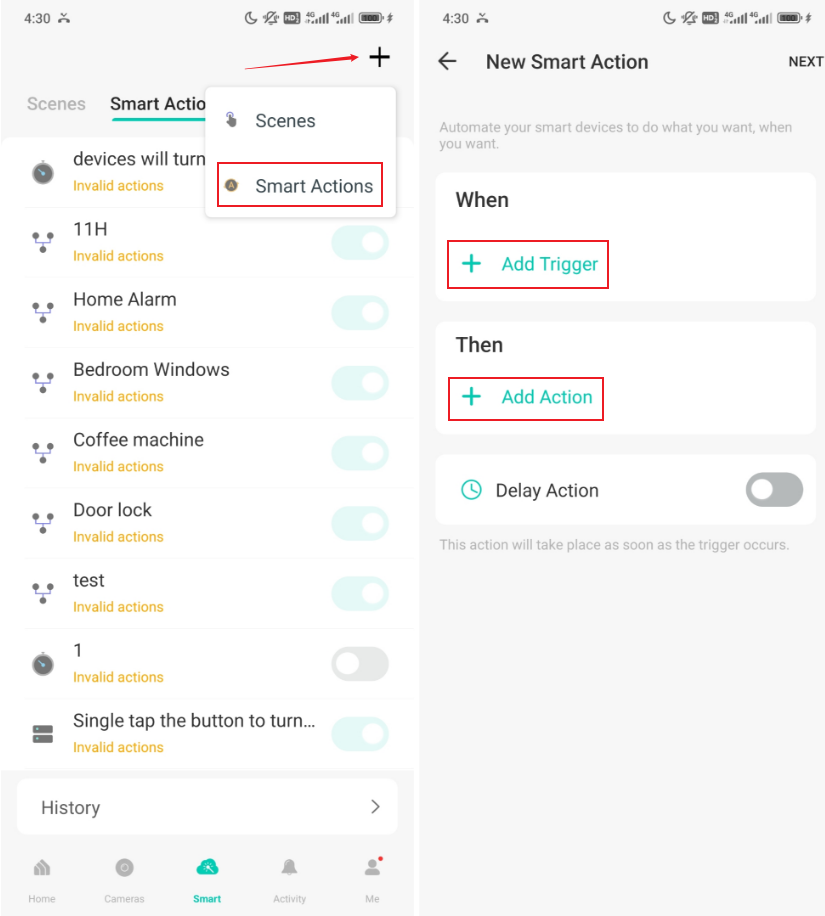
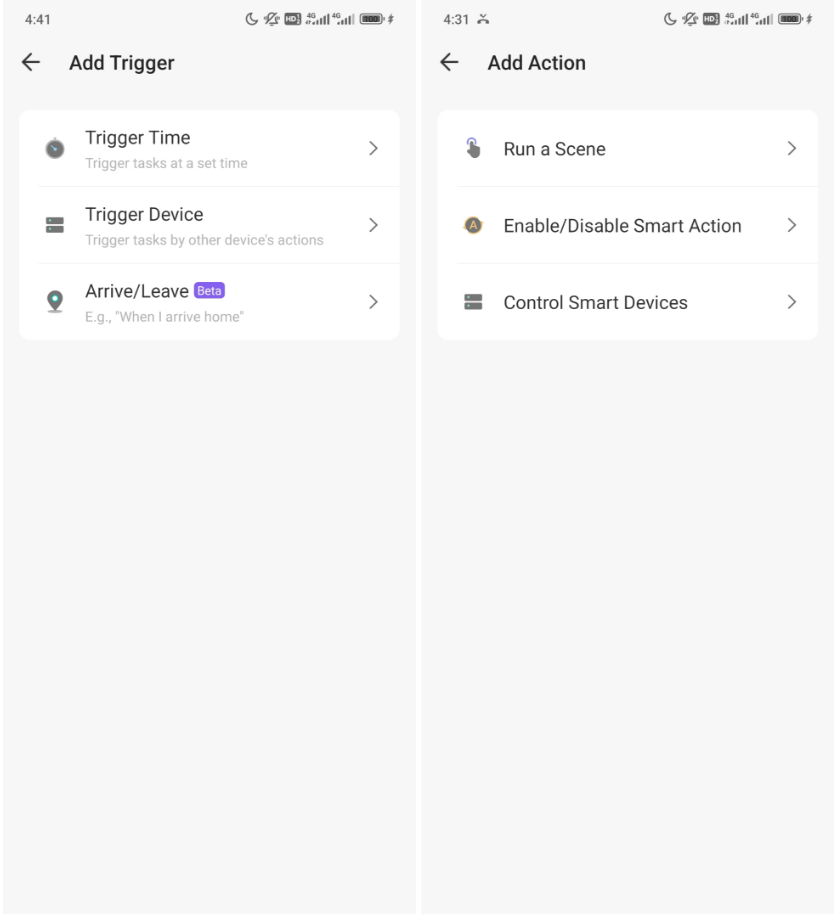
開啟 Kasa App,前往 Smart > 點擊右上角「+」> 選擇「Smart Actions」,然後點擊「+」新增觸發條件(When)及執行動作(Then)。
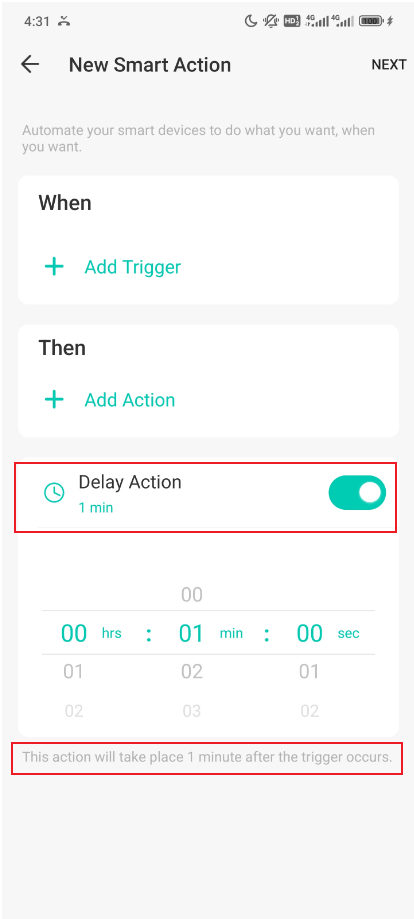
您亦可設定 Delay Action(延遲動作)。此功能可讓指定動作於觸發條件發生後的一段時間才執行,延遲時間可自行設定。
常見問題(FAQ)
Q1:什麼是 Smart Actions?
A1:Smart Actions 是 Kasa App 提供的智慧家庭自動化功能,可讓裝置之間互相聯動並實現自動控制。我們提供四種常用範本作為起點,包括:
- Motion Sensing(動作感應)
- Control with a Switch(透過開關控制)
- Schedule a Scene(場景排程)
- Auto-off Timer(自動關閉計時器)
除了預設範本外,您亦可自由組合觸發條件與執行動作,建立符合需求的自訂智慧動作。
Q2:Smart Actions 支援哪些 Trigger(觸發條件)及 Action(執行動作)?
A2:
- Trigger(觸發條件)
| 類型 | 條件 | 說明 |
|---|---|---|
| 時間 | 日出時(At Sunrise) | 可設定 ±5 小時 59 分偏移量 |
| 日落時(At Sunset) | 可設定 ±5 小時 59 分偏移量 | |
| 指定時間(At Specific Time) | 00:00 ~ 23:59 | |
| 到達/離開(Geofencing) | Arrive(到達) | 手機或平板進入指定區域時 |
| Leave(離開) | 手機或平板離開指定區域時 | |
| Kasa 攝影機 | Motion Detected | 偵測到移動 |
| Kasa 智慧插座 | Turn On / Turn Off | 插座狀態改變 |
| Kasa 智慧開關 | Turn On / Turn Off | 開關狀態改變 |
| Kasa 智慧燈具 | Turn On / Turn Off | 燈具狀態改變 |
| KE100 / KE110 溫控裝置 | Temperature Above | -20°C ~ 60°C |
| Temperature Below | -20°C ~ 60°C | |
| Humidity Above | 0% ~ 99% | |
| Humidity Below | 1% ~ 100% |
- Action(執行動作)
| 動作類型 | 內容 |
|---|---|
| Run a Scene | 執行已建立的 Scene(場景) |
| Enable / Disable Smart Action | 啟用或停用指定 Smart Action |
| Control One Device | 控制單一 Kasa 裝置(開啟/關閉) |
| Control Multiple Devices (Group) | 同時控制多個裝置群組(開啟/關閉) |
Q3:最多可建立多少組 Smart Actions?
A3:每個 Kasa 帳戶最多可建立 64 組 Smart Actions。
Q4:同時可啟用多少組 Smart Actions?
A4:最多可同時啟用 64 組 Smart Actions。
Q5:在最新版 Kasa App 中找不到 SR20 的 Smart Actions 怎麼辦?
A5:SR20 的 Smart Actions 已移至裝置設定頁面,請依照以下路徑操作:
Kasa App → 選擇 SR20 → Device Settings(裝置設定)→ Smart Actions
Q6:能否透過一個 Smart Action 去觸發另一個 Smart Action?
A6:不能。
為了確保 Kasa 自動化系統的穩定性與可靠性,一個 Smart Action 不會因另一個 Automation 或 Shortcut 的執行結果而被觸發。
範例:
Automation 1:晚上 10:00 開啟客廳智慧插座。
Automation 2:當客廳智慧插座開啟時,自動開啟走廊燈。
在此情況下,如果客廳智慧插座是由 Automation 1 自動開啟,則 Automation 2 不會被觸發。
Looking For More
這篇faq是否有用?
您的反饋將幫助我們改善網站


TP-Link Community
Still need help? Search for answers, ask questions, and get help from TP-Link experts and other users around the world.