How to Find Your TP-Link Router LAN IP Address
Your router's IP address (also called the default gateway) is what you type into a browser to reach the admin panel, where you can manage Wi-Fi settings, run firmware updates, and configure port forwarding. Most TP-Link routers use 192.168.0.1 or 192.168.1.1 as their default IP. Deco mesh systems use 192.168.68.1. This guide covers how to find your TP-Link router IP address on every major operating system, including Windows, Mac, Linux, iOS, Android, and Chrome OS.
Key Takeaways
- The default IP for most TP-Link routers is 192.168.0.1 or 192.168.1.1. For Deco mesh systems, the default IP is 192.168.68.1.
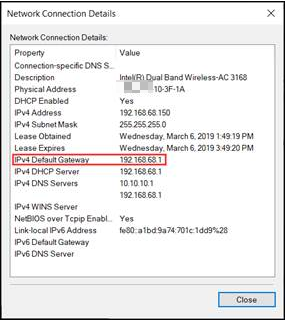
- On Windows, the router IP appears as "Default Gateway" in your network connection details.
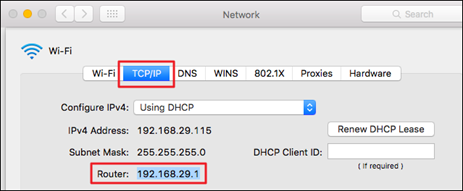
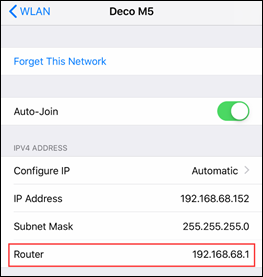
- On Mac and iOS, it shows as "Router" under the TCP/IP or Wi-Fi settings.
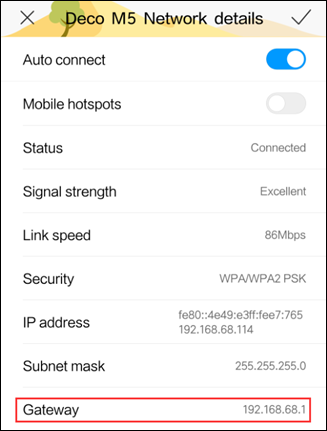
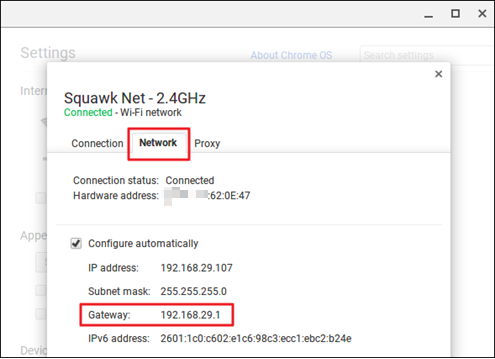
- On Android and Chrome OS, it appears as "Gateway" in your network details.
- You can also use tplinkwifi.net (standard routers) or tplinkdeco.net (Deco) instead of the IP address to access the admin panel.
- If your default IP was changed by a network administrator, use your device's network settings to look up the current address.
- You must be connected to the router's network before you can find or use its IP address.
Default TP-Link Router LAN IP Addresses
If no one has changed your network settings, one of these default IPs will take you straight to your router's admin panel:
|
Device Type |
Default IP Address |
Domain Name |
|
Standard TP-Link routers |
192.168.0.1 or 192.168.1.1 |
tplinkwifi.net or tplinkmodem.net |
|
TP-Link Deco mesh systems |
192.168.68.1 |
tplinkdeco.net |
You can also use domain name to enter the IP directly. If neither of those loads, see why tplinkwifi.net may fail to connect for troubleshooting steps. To use the IP to log in to your router's admin panel, see how to log in to the TP-Link router web management page.
If your IP has been changed and the defaults above don't work, use the steps below to find the current address from your device.
Find Your Router's IP Address on Windows
Using Windows Settings (Windows 10 and 11):
- Open Settings and go to Network and Internet.
- Click your active network connection, then scroll down to view the connection properties.
- Your router's IP address is listed as IPv4 DNS server or Default Gateway.
Using Control Panel:
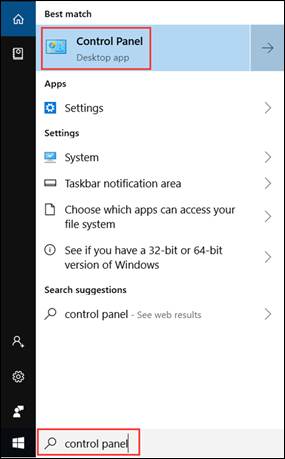
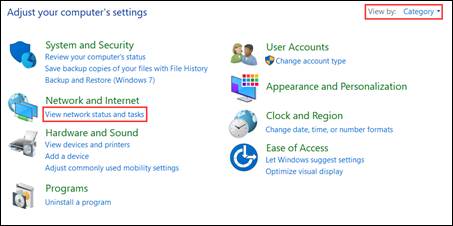
- Open Control Panel and set the view to Category in the top right corner.

- Click View network status and tasks under Network and Internet.

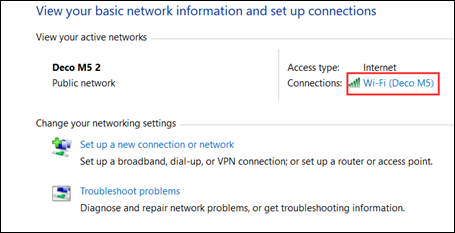
- Click your active network connection.

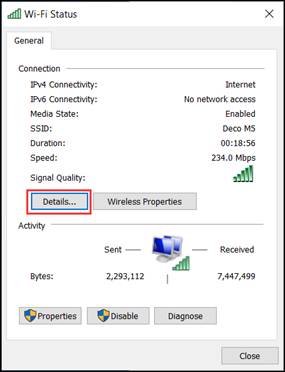
- Click Details in the status window.

Find Your Router's IP Address on Mac
On macOS Ventura and later:
- Click the Apple menu and open System Settings.
- Click Wi-Fi, then click Details next to your connected network.
- Select the TCP/IP tab. Your router's IP address is listed as Router.
On macOS Monterey and earlier:
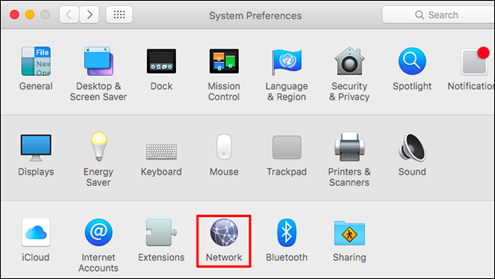
- Click the Apple menu and go to System Preferences, then Network.

- Click your active network connection, then click Advanced at the bottom right.
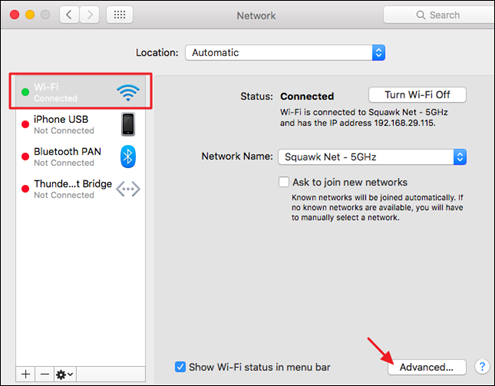
- Select the TCP/IP tab. Your router's IP address is listed as Router.

Find Your Router's IP Address on Linux
- Click the settings icon in the taskbar.
- Click Connection Information.
- Your router's IP address appears as Default Router.

Find Your Router's IP Address on iOS
- Go to Settings and tap WLAN.
- Tap your connected Wi-Fi network.
- Your router's IP address appears as Router.

Find Your Router's IP Address on Android
- Go to Settings and tap Wi-Fi (or WLAN).
- Tap the details icon next to your connected network.
- Your router's IP address appears as Gateway.

Find Your Router's IP Address on Chrome OS
- Click the notification area on the right side of the taskbar.
- Click Connected to, then select your active network connection.
- Click Network.
- Your router's IP address appears as Gateway.

Can't Connect to the Admin Panel?
If you have the right IP address but still can't reach the admin panel, see what to do if you can't log in to the web-based interface of your TP-Link device for step-by-step help. If you need to set up your router after logging in, see how to set up a TP-Link Wi-Fi router on the web management page. If you need to reset your router and start fresh, see how to reset a TP-Link router to factory defaults.
このFAQは役に立ちましたか?
サイトの利便性向上にご協力ください。