


How to Create an Account in VIGI App
Contents
Log in with an existing TP-Link ID
Introduction
A TP-Link ID is used to access cloud-based services in the VIGI App, including remote device management and notifications. This article explains how to create a TP-Link ID and sign in to the VIGI App.
Requirements
VIGI App installed on a mobile device
Configuration
Follow the steps below to create a TP-Link ID and sign in to the VIGI App.
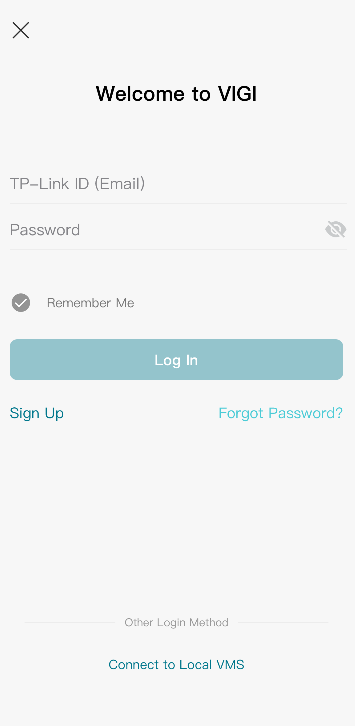
Log in with an existing TP-Link ID
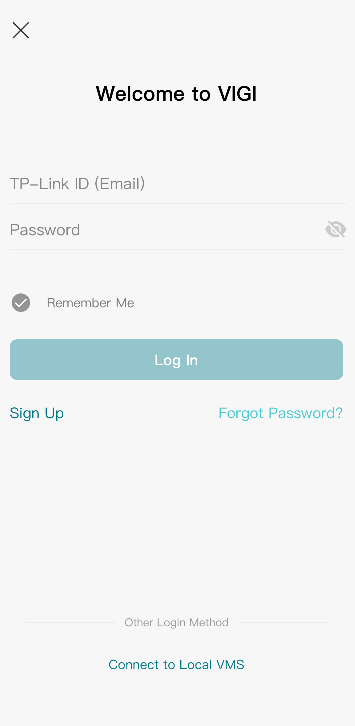
Step 1. Open the VIGI App
Step 2. Enter your TP-Link ID email address and password
Step 3. Tap Log In
Create a new TP-Link ID
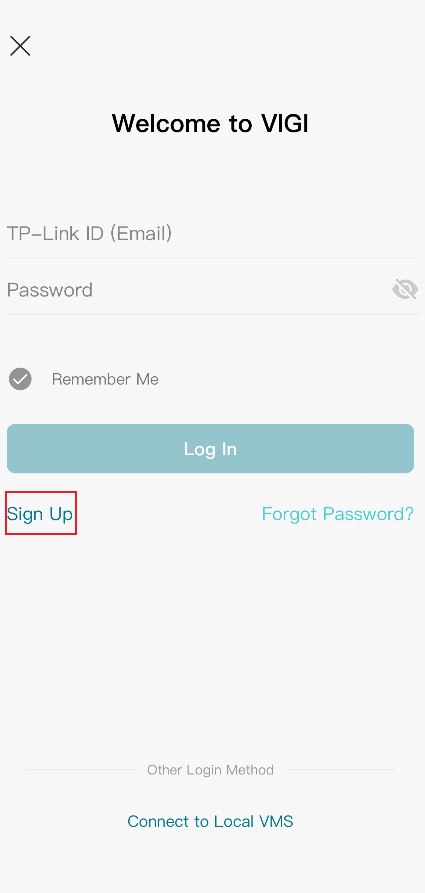
Step 1. Open the VIGI App and tap Sign Up
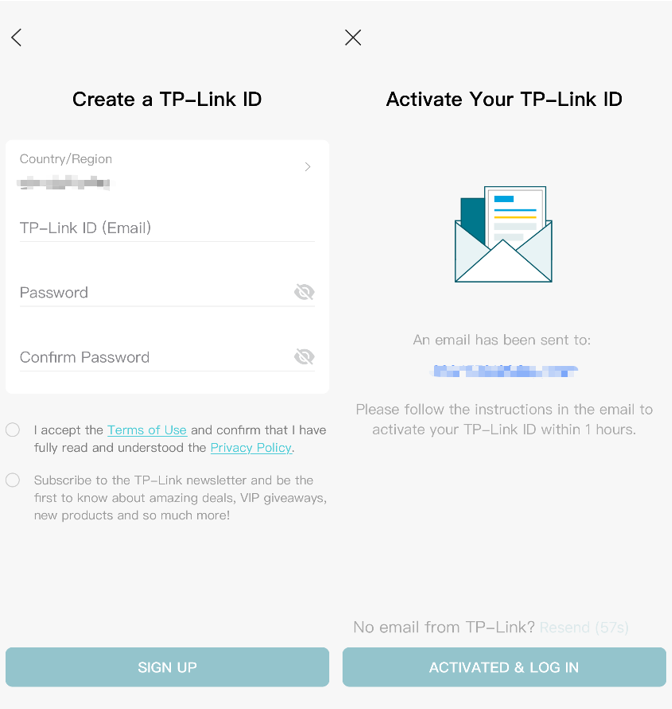
Step 2. Create a TP-Link ID
Enter a valid email address and create a password for your TP-Link ID.
A verification email will be sent to the specified email address.
Note: The verification link must be completed within the validity period stated in the email.
Step 3. Verify the email address
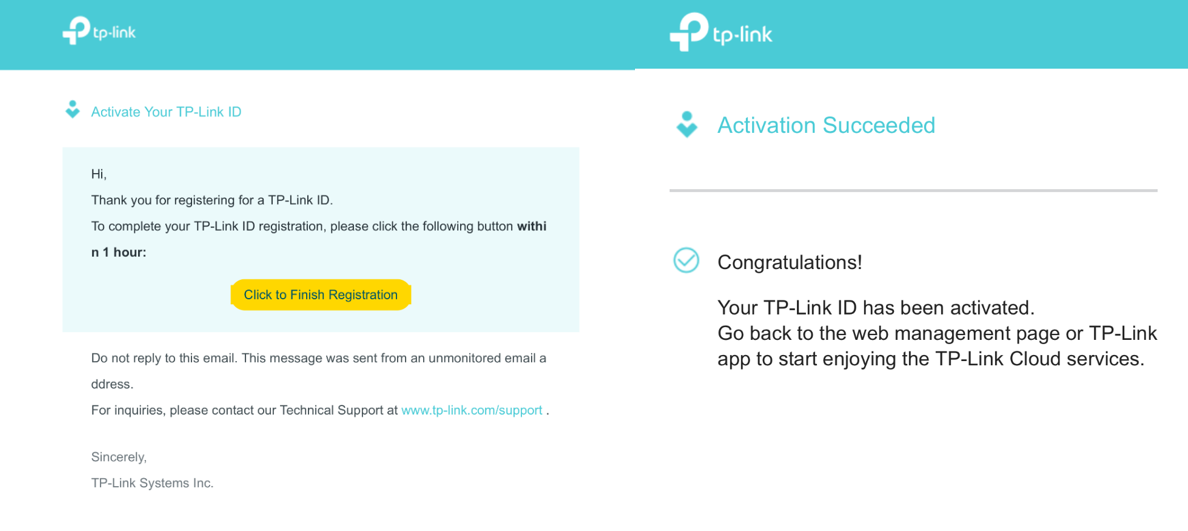
Open the verification email and select Click to Finish Registration.
Once the verification process is complete, the TP-Link ID will be activated.
Step 4. Sign in to the VIGI App
Return to the VIGI App and sign in with the TP-Link ID you just created.
Conclusion
You have now successfully created and activated a TP-Link ID for use with the VIGI App. You can use this account to access cloud-based features, manage devices remotely, and receive event notifications.
To learn more about each function and configuration, please visit Support Home to download or check the manual for your product.
QA
Q1: What should I do if I cannot receive the verification email?
A1: If you cannot receive the verification email, try the following:
- Check your Junk Mail or Spam folder.
- Add noreply@tp-link.com to the allow list or safe sender list of your email service.
- Verify that no email filtering rules are blocking TP-Link emails.
- Request a new verification code and try again.
Looking For More
¿Es útil esta pregunta frecuente?
Sus comentarios nos ayudan a mejorar este sitio.

_UN_1.20_normal_20240513065341k.png)
_UN_1.20_normal_20240513063212e.png)

TP-Link Community
Still need help? Search for answers, ask questions, and get help from TP-Link experts and other users around the world.