


How to Configure Image Exposure Settings on VIGI Cameras
Contents
Understanding image exposure settings
Configure image exposure settings through the VIGI App
Configure image exposure settings through VIGI Cloud VMS
Configure image exposure settings through VIGI PC Client
Introduction
Image exposure settings determine how much light enters the camera and directly affect image brightness and clarity. Incorrect exposure settings may result in overexposed or underexposed images, loss of detail, or Night Vision overexposure caused by infrared (IR) reflections. VIGI Cameras provide image optimization features such as Exposure, WDR (Wide Dynamic Range), BLC (Backlight Compensation), HLC (Highlight Compensation), and Prevent IR Overexposure to improve image quality under different lighting conditions.
Requirements
- VIGI Camera
- VIGI App, VIGI Cloud VMS, or VIGI PC Client
Configuration
The following sections describe how to adjust image exposure settings using different VIGI management platforms.
Understanding image exposure settings
- Exposure
Exposure refers to the amount of light captured by the camera and directly affects image brightness. Overexposure results in an image that is too bright, while underexposure leads to a dark image that lacks clarity. Increasing Gain or using a slower Shutter Speed can increase image brightness, while reducing Gain or using a faster Shutter Speed decreases it.
- WDR (Wide Dynamic Range)
WDR improves image quality in high-contrast lighting conditions where both bright and dark areas are present in the field of view.
- BLC (Backlight Compensation)
BLC optimizes the camera to increase light exposure in darkened areas, improving image visibility and detail.
- HLC (Highlight Compensation)
HLC reduces the impact of strong light sources, such as vehicle headlights, streetlamps, or spotlights, by suppressing excessively bright areas in the image.
It is commonly used in scenarios where direct light sources may cause overexposure or glare.
- Prevent IR Overexposure
Prevent IR Overexposure adjusts the brightness of the infrared illuminator to reduce excessive IR reflections during Night Vision operation.
Configure image exposure settings through the VIGI App
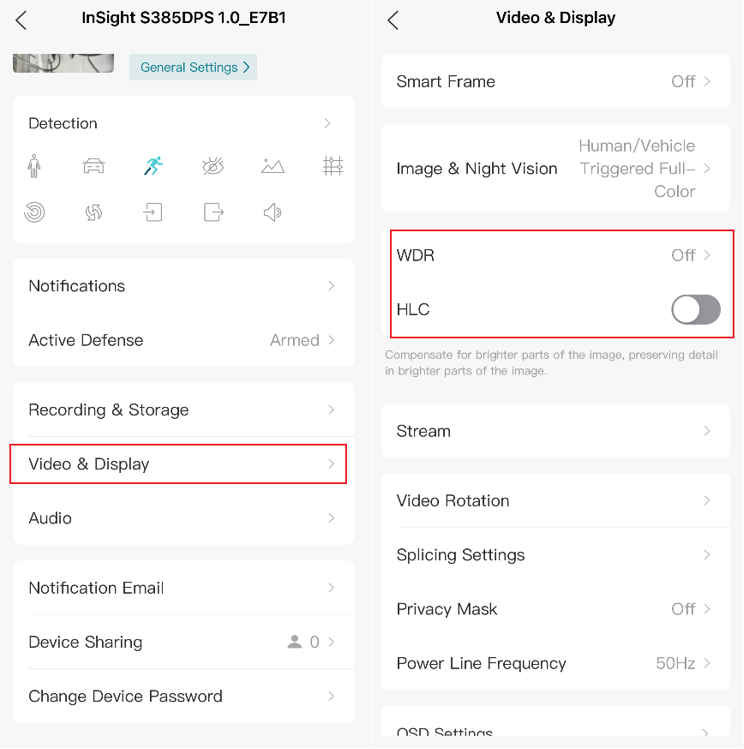
Navigate to Device > More Settings > Video & Display, and adjust available image settings according to the deployment environment.
Configure image exposure settings through VIGI Cloud VMS
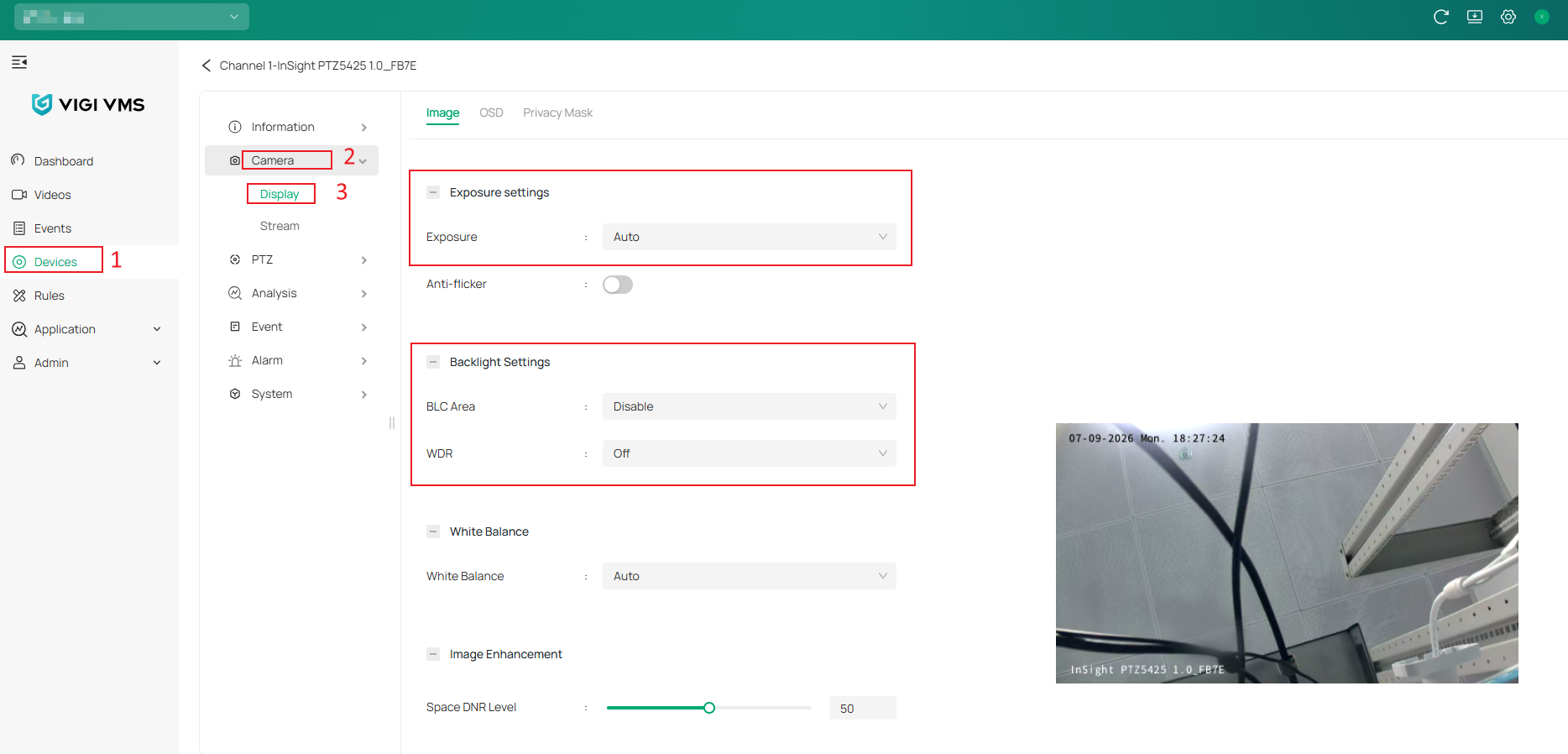
Navigate to Devices > Device Management > Edit Device, then go to Camera > Display > Image, to adjust the required image parameters.
Note: WDR and BLC are disabled by default on most models, while Exposure is typically set to Auto.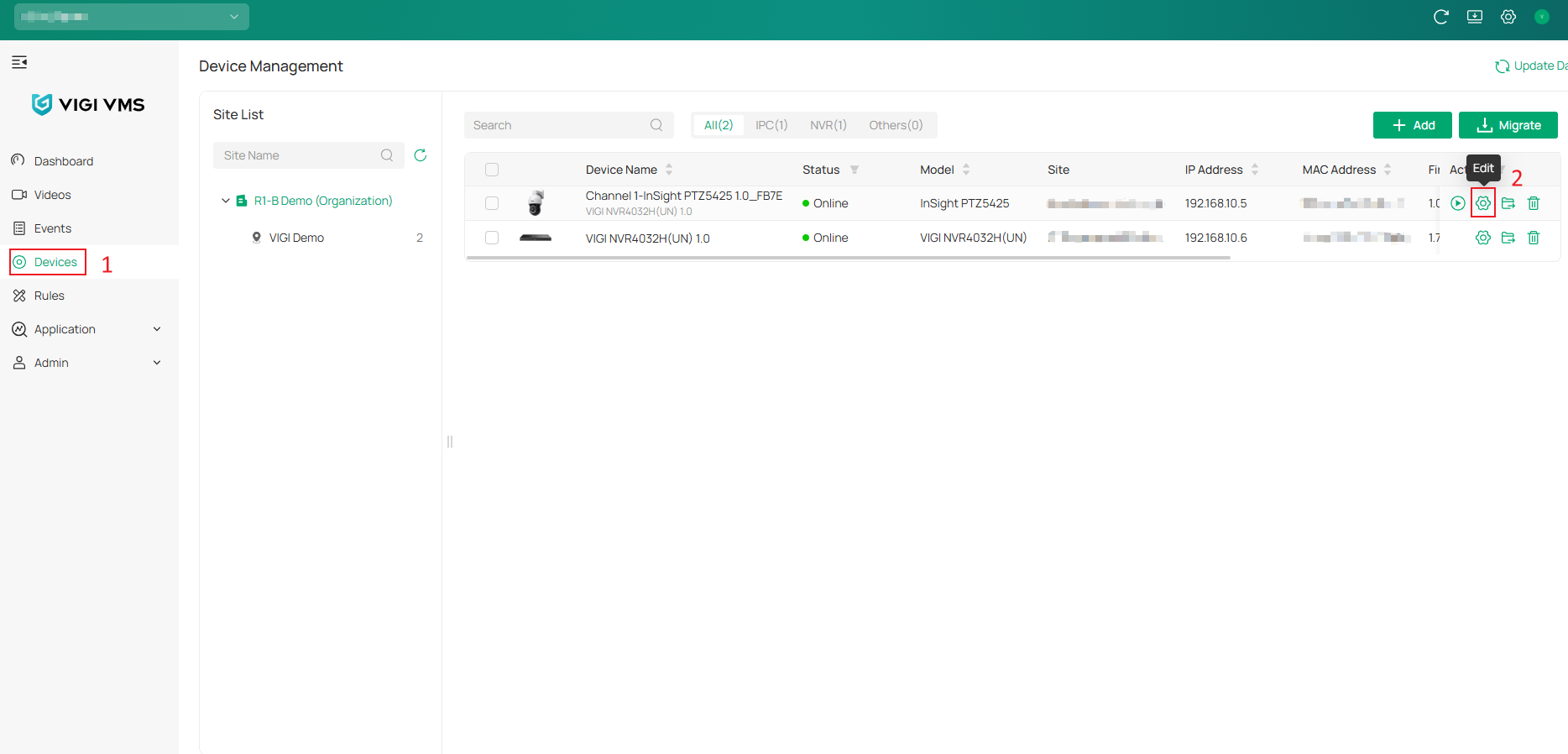
Configure image exposure settings through VIGI PC Client
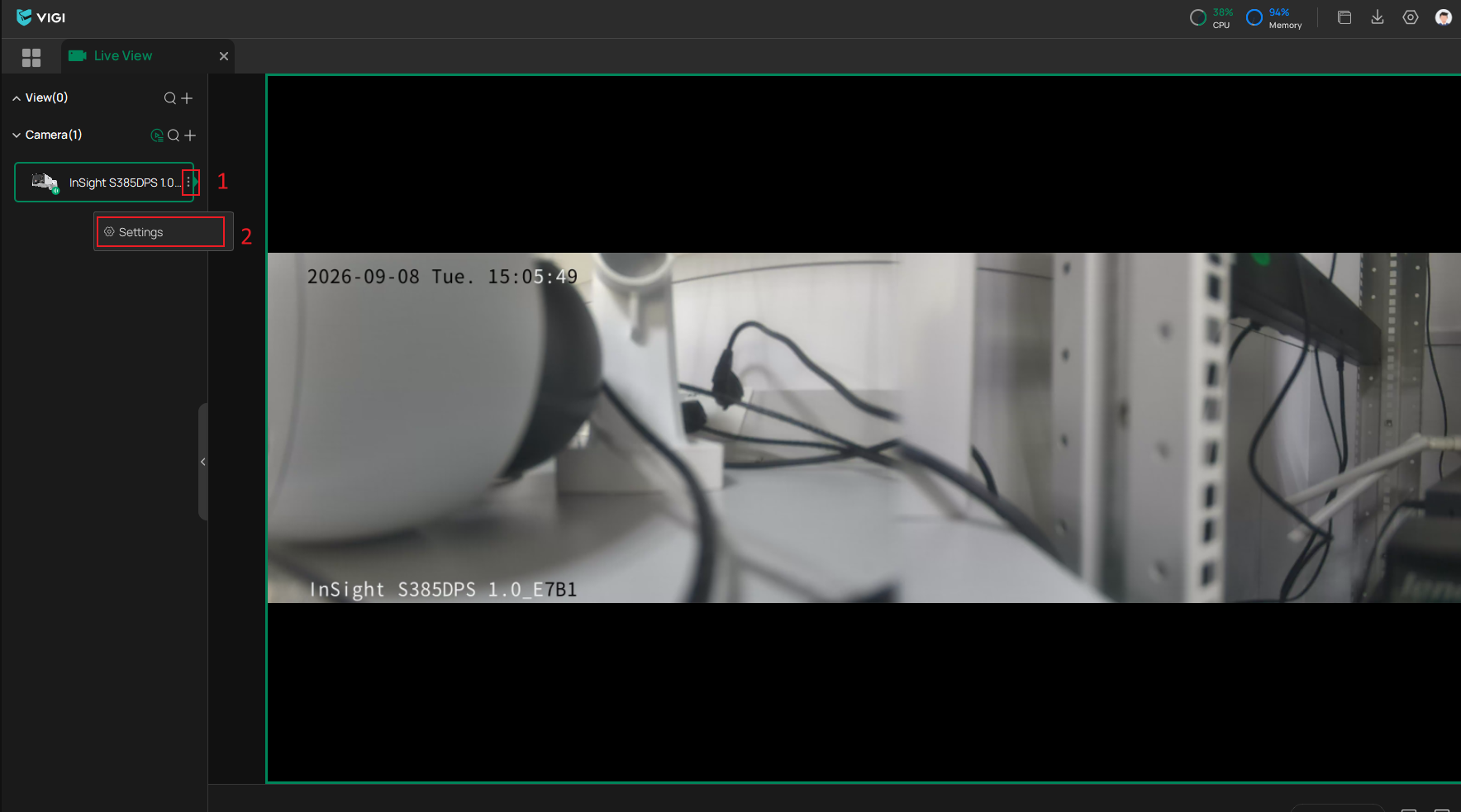
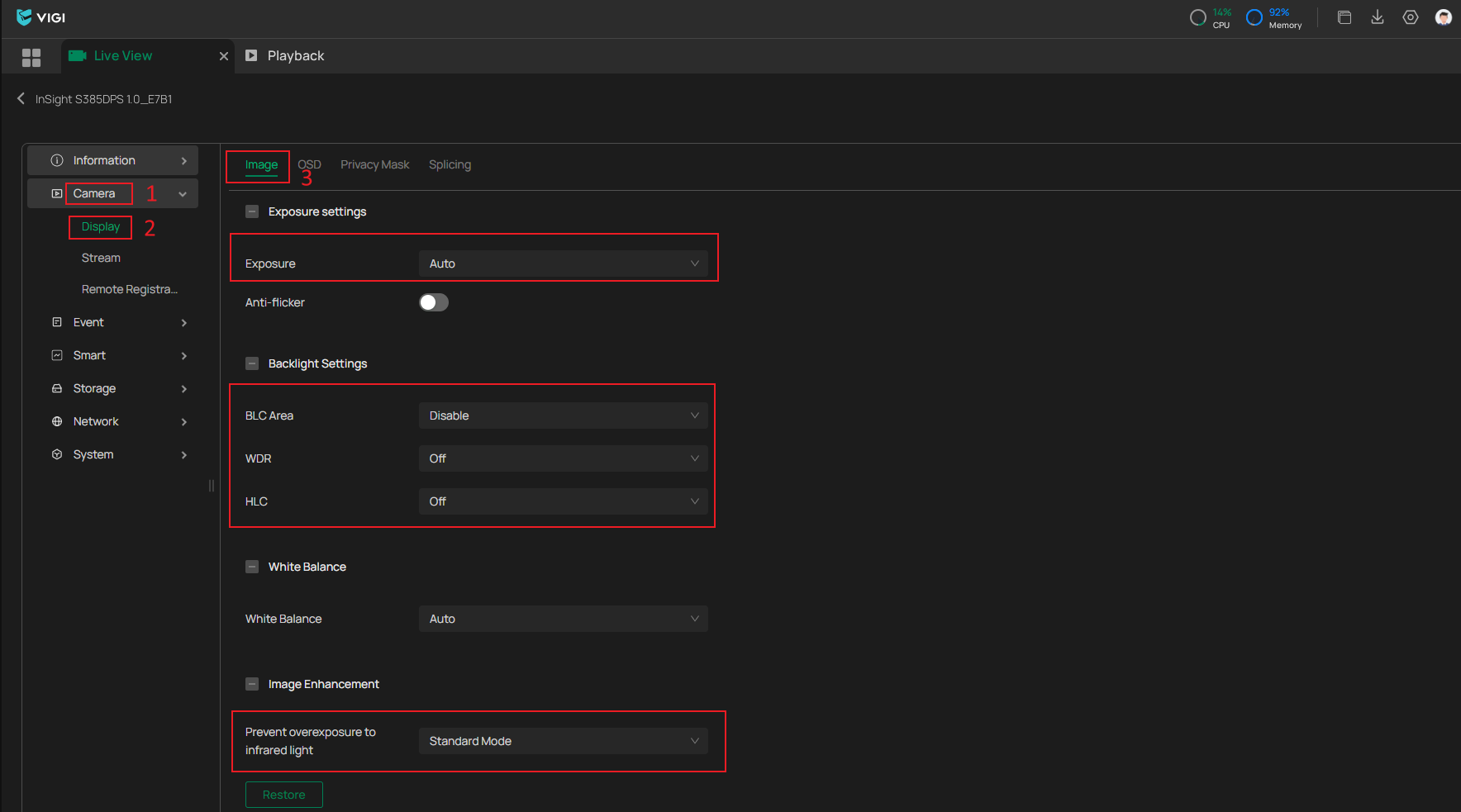
Navigate to Live View > Camera Settings > Display > Image, then adjust Exposure, WDR, BLC, HLC, and Prevent overexposure to infrared light (if available) according to the monitoring environment.
Note: Available options may vary depending on the device model and software version.
Conclusion
You have now completed the configuration of image exposure settings on a VIGI Camera. By properly adjusting Exposure, WDR, BLC, HLC, and Prevent IR Overexposure settings, image quality can be optimized for different lighting conditions and monitoring environments.
To learn more about each function and configuration, please visit Support Home to download or check the manual for your product.
QA
Q1: What is the difference between WDR and BLC?
A1: WDR balances both bright and dark areas across the entire image, while BLC focuses on compensating for strong backlighting in a specific area.
Q2: Why does the image become overexposed at night?
A2: Excessive infrared reflection from nearby objects such as walls, glass, or camera housing components may cause Night Vision overexposure. Adjusting the Prevent IR Overexposure settings can help reduce this issue.
Q3: What is the difference between HLC and BLC?
A3: HLC (Highlight Compensation) suppresses extremely bright light sources such as vehicle headlights or spotlights, while BLC (Backlight Compensation) enhances subjects that appear dark because of strong backlighting.
Looking For More
Is this faq useful?
Your feedback helps improve this site.



TP-Link Community
Still need help? Search for answers, ask questions, and get help from TP-Link experts and other users around the world.