


How to Use Recovery Mode to Restore a VIGI NVR or Camera
Contents
Introduction
Recovery Mode provides a way to restore firmware on a VIGI NVR or Camera when the device becomes unresponsive after a failed firmware upgrade or an unexpected power interruption. This article describes the symptoms that may indicate firmware corruption and provides step-by-step instructions for accessing the firmware recovery page and restoring the device to normal operation.
Requirements
- VIGI Camera or VIGI NVR
- PC with an Ethernet port
Symptoms
If you experience the following symptoms with your VIGI security devices, you may need to use recovery mode to recover the firmware:
1. The NVR cannot boot successfully. When connected to a monitor via HDMI, it may display a prompt to enter Recovery Mode.
2. The Camera doesn’t respond to any operations, such as device adding or video streaming via RTSP.
Configuration
Follow the steps below to recover firmware using Recovery Mode.
Step 1. Configure a static IP address on the PC
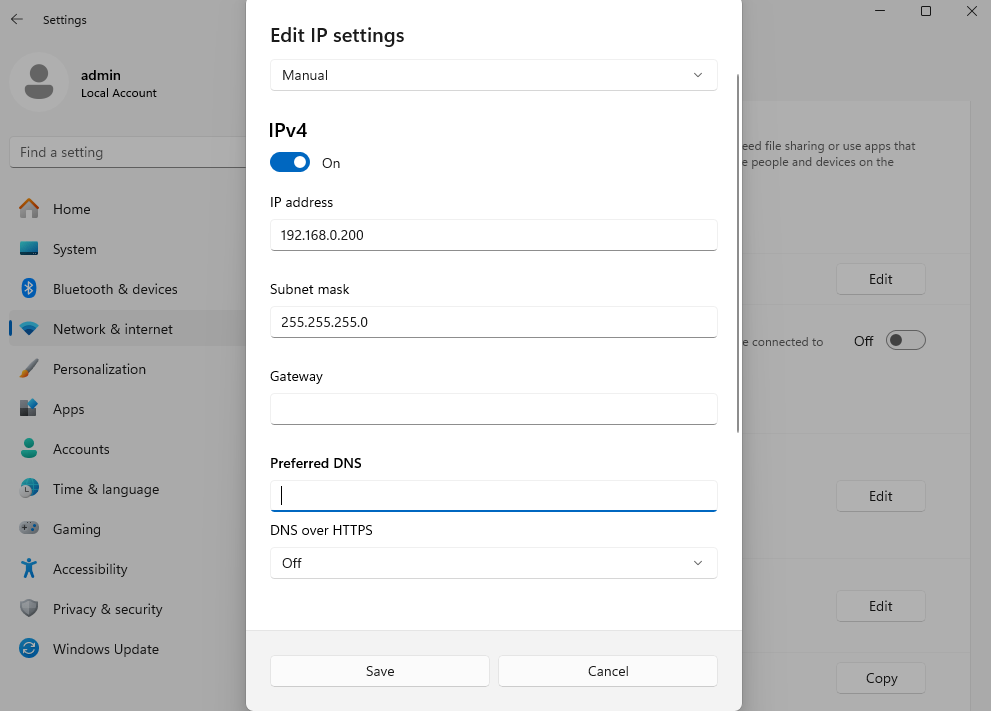
Configure the PC with a static IP address in the subnet 192.168.0.1/24, but do not use 192.168.0.60 or 192.168.0.240. Follow the guide to set it up: How to configure static IP on the computer
Example:
IP Address: 192.168.0.200
Subnet Mask: 255.255.255.0
Step 2. Connect the PC directly to the device
Power on the VIGI Camera or VIGI NVR. Connect the PC directly to the Ethernet port of the device. For VIGI NVR4032H, use LAN Port 2.
Note: Do not use a switch or router between the device and the PC.
Step 3. Open the Recovery Mode page
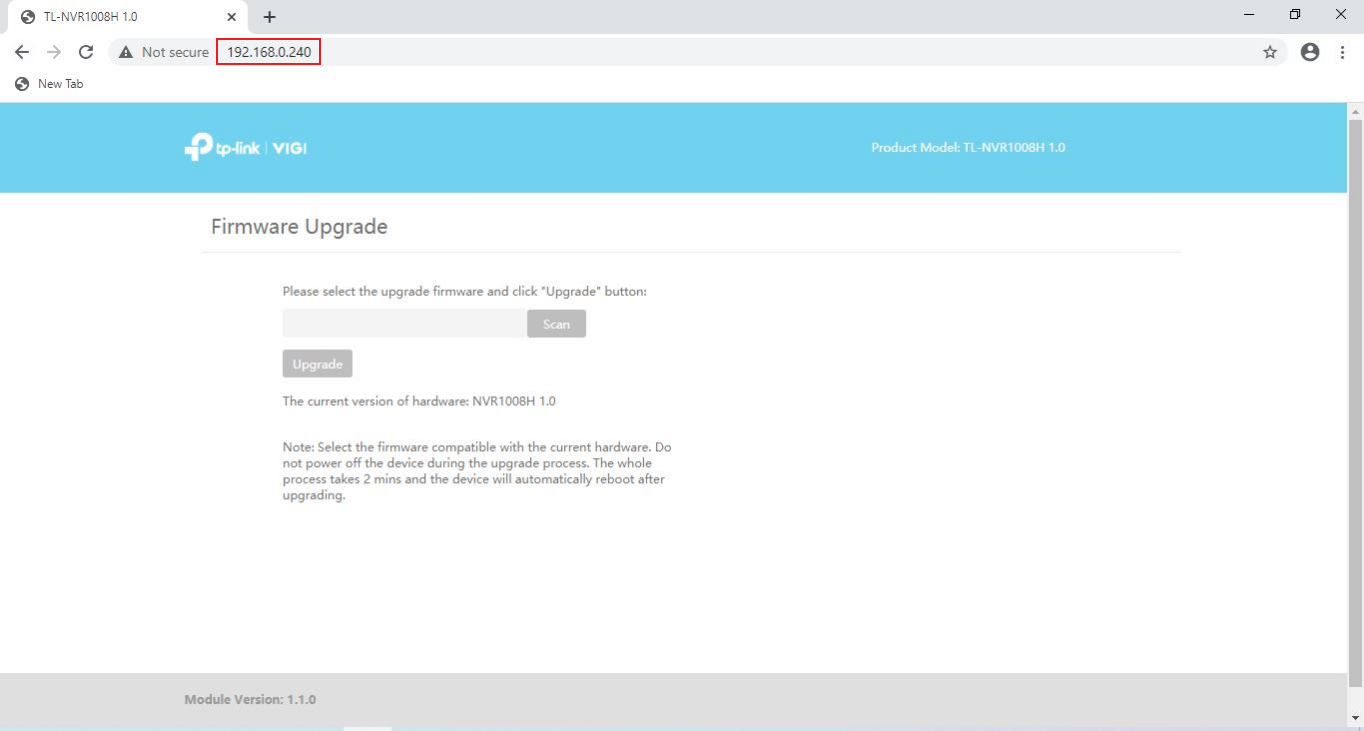
Open a web browser and access the Recovery Mode address:
For VIGI Cameras: http://192.168.0.60
For VIGI NVRs: http://192.168.0.240
The Recovery Mode page should appear.
Step 4. Upload the firmware file
Download the correct firmware version from Download Center | TP-Link.
Select the firmware file and upload it through the Recovery Mode page.
Important:
- Verify the device model.
- Verify the hardware version.
- Use only official firmware released by TP-Link.

Step 5. Wait for the recovery process to complete
After the firmware upload is complete, the device will automatically reboot.
Do not disconnect power or network cables during the recovery process.
Recovery normally completes within several minutes.
Conclusion
You have now completed the firmware recovery procedure for a VIGI Camera or VIGI NVR. Recovery Mode can restore device functionality when a firmware upgrade fails, or firmware becomes corrupted.
To learn more about each function and configuration, please visit Support Home to download or check the manual for your product.
QA
Q1: What should I do if the recovery page won’t load?
A1: Verify that the PC uses a static IP address in the 192.168.0.1/24 subnet and that the Ethernet cable is connected directly to the device. Disconnect other connected networks, such as your Wi-Fi connection, temporarily disable active VPN clients, and try Incognito mode.
Q2: Do I upload the downloaded .zip file directly to the recovery page?
A2: No. You must unzip or extract the downloaded folder on your computer first. The recovery page requires the extracted .BIN firmware file.
Looking For More
Is this faq useful?
Your feedback helps improve this site.



TP-Link Community
Still need help? Search for answers, ask questions, and get help from TP-Link experts and other users around the world.