


Table of Contents
Safety & Certification Reference
FCC Authentication Info
FCC compliance information statement

Product Name: BBA GPON Routers
Model Number: BBA GPON Routers
| Component Name | Model |
| I.T.E. Power | T120200-2B1 |
Responsible party:
TP-Link Systems Inc.
Address: 10 Mauchly, Irvine, CA 92618
Website: http://www.tp-link.com/us/
Tel: +1 626 333 0234
Fax: +1 909 527 6804
E-mail: sales.usa@tp-link.com
This equipment has been tested and found to comply with the limits for a Class B digital device, pursuant to part 15 of the FCC Rules. These limits are designed to provide reasonable protection against harmful interference in a residential installation. This equipment generates, uses and can radiate radio frequency energy and, if not installed and used in accordance with the instructions, may cause harmful interference to radio communications. However, there is no guarantee that interference will not occur in a particular installation. If this equipment does cause harmful interference to radio or television reception, which can be determined by turning the equipment off and on, the user is encouraged to try to correct the interference by one or more of the following measures:
• Reorient or relocate the receiving antenna.
• Increase the separation between the equipment and receiver.
• Connect the equipment into an outlet on a circuit different from that to which the receiver is connected.
• Consult the dealer or an experienced radio/ TV technician for help.
This device complies with part 15 of the FCC Rules. Operation is subject to the following two conditions:
1. This device may not cause harmful interference.
2. This device must accept any interference received, including interference that may cause undesired operation.
Any changes or modifications not expressly approved by the party responsible for compliance could void the user’s authority to operate the equipment.
Note: The manufacturer is not responsible for any radio or TV interference caused by unauthorized modifications to this equipment. Such modifications could void the user’s authority to operate the equipment.
FCC RF Radiation Exposure Statement
This equipment complies with FCC RF radiation exposure limits set forth for an uncontrolled environment. This device and its antenna must not be co-located or operating in conjunction with any other antenna or transmitter.
To comply with FCC RF exposure compliance requirements, this grant is applicable to only Mobile Configurations. The antennas used for this transmitter
must be installed to provide a separation distance of at least 23 cm from all persons and must not be co-located or operating in conjunction with any other
antenna or transmitter.
We, TP-Link Systems Inc., has determined that the equipment shown as above has been shown to comply with the applicable technical standards, FCC
part 15. There is no unauthorized change is made in the equipment and the equipment is properly maintained and operated.
Issue Date: 2026.7.20
FCC compliance information statement
Product Name: I.T.E. Power Supply
Model Number: T120200-2B1
Responsible party: TP-Link Systems Inc.
Address: 10 Mauchly, Irvine, CA 92618
Website: http://www.tp-link.com/us/
Tel: +1 626 333 0234
Fax: +1 909 527 6804
E-mail: sales.usa@tp-link.com
This equipment has been tested and found to comply with the limits for a Class B digital device, pursuant to part 15 of the FCC Rules. These limits are designed to provide reasonable protection against harmful interference in a residential installation. This equipment generates, uses and can radiate radio frequency energy and, if not installed and used in accordance with the instructions, may cause harmful interference to radio communications. However, there is no guarantee that interference will not occur in a particular installation. If this equipment does cause harmful interference to radio or television reception, which can be determined by turning the equipment off and on, the user is encouraged to try to correct the interference by one or more of the following measures:
• Reorient or relocate the receiving antenna.
• Increase the separation between the equipment and receiver.
• Connect the equipment into an outlet on a circuit different from that to which the receiver is connected.
• Consult the dealer or an experienced radio/ TV technician for help.
This device complies with part 15 of the FCC Rules. Operation is subject to the following two conditions:
1. This device may not cause harmful interference.
2. This device must accept any interference received, including interference that may cause undesired operation.
Any changes or modifications not expressly approved by the party responsible for compliance could void the user’s authority to operate the equipment.
We, TP-Link Systems Inc., has determined that the equipment shown as above has been shown to comply with the applicable technical standards, FCC part 15. There is no unauthorized change is made in the equipment and the equipment is properly maintained and operated.
Issue Date: 2026.7.20
IC Authentication Info
Canadian Compliance Statement
This device contains licence-exempt transmitter(s)/receiver(s) that comply with Innovation, Science and Economic Development Canada’s licence-exempt RSS(s). Operation is subject to the following two conditions:
1. This device may not cause interference.
2. This device must accept any interference, including interference that may cause undesired operation of the device.
L’émetteur/récepteur exempt de licence contenu dans le présent appareil est conforme aux CNR d’Innovation, Sciences et Développement économique Canada applicables aux appareils radio exempts de licence. L’exploitation est autorisée aux deux conditions suivantes :
1. l’appareil ne doit pas produire de brouillage;
2. l’utilisateur de l’appareil doit accepter tout brouillage radioélectrique subi, meme si le brouillage est susceptible d’en compromettre le fonctionnement
Caution:
The device for operation in the band 5150–5250 MHz is only for indoor use to reduce the potential for harmful interference to co-channel mobile satellite
systems;
DFS (Dynamic Frequency Selection) products that operate in the bands 5250- 5350 MHz, 5470-5600MHz, and 5650-5725MHz.
Avertissement:
Le dispositif fonctionnant dans la bande 5150-5250 MHz est réservé uniquement pour une utilisation à l’intérieur afin de réduire les risques de brouillage
préjudiciable aux systèmes de satellites mobiles utilisant les mêmes canaux;
Les produits utilisant la technique d’atténuation DFS (sélection dynamique des fréquences) sur les bandes 5250- 5350 MHz, 5470-5600MHz et 5650-5725MHz.
Radiation Exposure Statement:
This equipment complies with IC radiation exposure limits set forth for an uncontrolled environment. This equipment should be installed and operated
with minimum distance 20cm between the radiator & your body.
Déclaration d’exposition aux radiations:
Cet équipement est conforme aux limites d’exposition aux rayonnements IC établies pour un environnement non contrôlé. Cet équipement doit être installé et utilisé avec un minimum de 20cm de distance entre la source de rayonnement et votre corps.
Industry Canada Statement
CAN ICES-003 (B)/NMB-003(B)
BSMI Authentication Info
NCC Notice & BSMI Notice:
注意!
取得審驗證明之低功率射頻器材,非經核准,公司、商號或使用者均不得擅自變更頻率、加大功率或變更原設計之特性及功能。
低功率射頻器材之使用不得影響飛航安全及干擾合法通信;經發現有干擾現象時,應立即停用,並改善至無干擾時方得繼續使用。
前述合法通信,指依電信管理法規定作業之無線電通信。
低功率射頻器材須忍受合法通信或工業、科學及醫療用電波輻射性電機設備之干擾。
應避免影響附近雷達系統之操作。
高增益指向性天線只得應用於固定式點對點系統。
安全諮詢及注意事項
• 安全諮詢及注意事項
• 請使用原裝電源供應器或只能按照本產品注明的電源類型使用本產品。
• 清潔本產品之前請先拔掉電源線。請勿使用液體、噴霧清潔劑或濕布進行清潔。
• 注意防潮,請勿將水或其他液體潑灑到本產品上。
• 插槽與開口供通風使用,以確保本產品的操作可靠並防止過熱,請勿堵塞或覆蓋開口。
• 請勿將本產品置放於靠近熱源的地方。除非有正常的通風,否則不可放在密閉位置中。
• 不要私自拆開機殼或自行維修,如產品有故障請與原廠或代理商聯繫。
限用物質含有情況標示聲明書
| 設備名稱:GPON Routers 型號(型式): Equipment name Type designation (Type) |
||||||
|---|---|---|---|---|---|---|
| 單元 Unit |
限用物質及其化學符號 Restricted substances and its chemical symbols |
|||||
| 鉛 Lead (Pb) |
汞 Mercury (Hg) |
鎘 Cadmium (Cd) |
六價鉻 Hexavalent chromium (Cr+6) |
多溴聯苯 Polybrominated biphenyls (PBB) |
多溴二苯醚 Polybrominated diphenyl ethers (PBDE) |
|
| PCB | ○ | ○ | ○ | ○ | ○ | ○ |
| 外殼 | ○ | ○ | ○ | ○ | ○ | ○ |
| 電源供應器 | − | ○ | ○ | ○ | ○ | ○ |
| 其他及其配件 | ○ | ○ | ○ | ○ | ○ | ○ |
| 備考1.〝超出0.1 wt %〞及〝超出0.01 wt %〞係指限用物質之百分比含量超出百分比含量基準值 Note 1:“Exceeding 0.1 wt %” and “exceeding 0.01 wt %” indicate that the percentage content of the restricted substance exceeds the reference percentage value of presence condition. 備考2.〝○〞係指該項限用物質之百分比含量未超出百分比含量基準值。 Note 2:“○” indicates that the percentage content of the restricted substance does not exceed the percentage of reference value of presence. 備考3.〝-〞係指該項限用物質為排除項目。 Note 3:The “−” indicates that the restricted substance corresponds to the exemption. |
||||||
Other Authentication Info
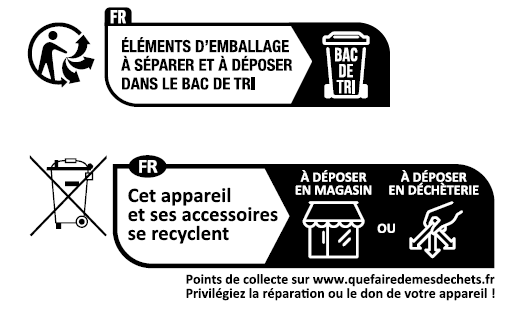
Triman Logo
Safety Info
Safety Information
• Keep the device away from water, fire, humidity or hot environments.
• Do not attempt to disassemble, repair, or modify the device. If you need service, please contact us.
• Do not use damaged charger or USB cable to charge the device.
• Do not use any other chargers than those recommended
• Do not use the device where wireless devices are not allowed.
• Adapter shall be installed near the equipment and shall be easily accessible.
• Use only power supplies which are provided by manufacturer and in the original packing of this product. If you have any questions, please don’t hesitate to contact us.
• This product uses radios and other components that emit electromagnetic fields. Electromagnetic fields and magnets may interfere with pacemakers and other implanted medical devices. Always keep the product and its power adapter more than 15 cm (6 inches) away from any pacemakers or other implanted medical devices. If you suspect your product is interfering with your pacemaker or any other implanted medical device, turn off your product and consult your physician for information specific to your medical device.
• Operating Temperature: 0℃~40℃
Please read and follow the above safety information when operating the device. We cannot guarantee that no accidents or damage will occur due to improper use of the device. Please use this product with care and operate at your own risk.
Explanation of the symbols on the product label
Note: The product label is on the bottom of the product and its power supply. Symbols may vary from products.
注意:產品標籤可以在產品底部和其I.T.E.電源供應器上找到。符號可能因產品而異。
| Symbol 符號解釋 |
Explanation 解釋 |
|---|---|
 |
Class II equipment Class II 設備 |
 |
Class II equipment with functional earthing 具有功能接地的Class II 設備 |
 |
Alternating current 交流電 |
 |
DC voltage 直流電壓 |
 |
Polarity of output terminals 輸出端子極性 |
 |
Indoor use only 僅限室內使用 |
 |
Dangerous voltage 危險電壓 |
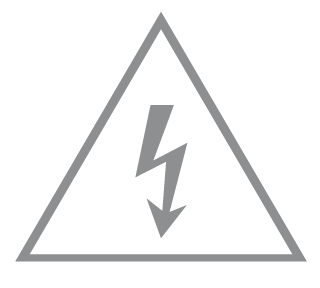 |
Caution, risk of electric shock 注意,有觸電危險 |
 |
Energy efficiency Marking 能源效率標示 |
 |
Protective earth 保護接地 |
 |
Earth 接地 |
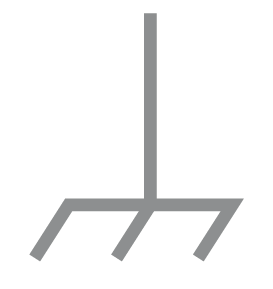 |
Frame or chassis 機架接地 |
 |
Functional earthing 功能接地 |
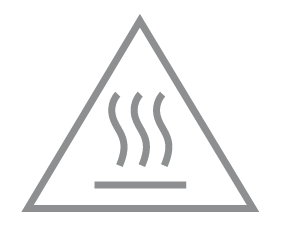 |
Caution, hot surface 警告,表面高溫 |
 |
Caution 警告 |
 |
Operator’s manual 操作手冊 |
 |
Stand-by 待機 |
 |
“ON”/”OFF” (push-push) 「開」/「關」 ( 按壓式) |
 |
Fuse 保險絲 |
 |
Fuse is used in neutral N 保險絲用於中性線N |
 |
RECYCLING This product bears the selective sorting symbol for Waste electrical and electronic equipment (WEEE). This means that this product must be handled pursuant to European directive 2012/19/EU in order to be recycled or dismantled to minimize its impact on the environment. User has the choice to give his product to a competent recycling organization or to the retailer when he buys a new electrical or electronic equipment. 回收利用 本產品標示有「廢棄電氣電子設備(WEEE)」的分類回收標誌。這表示本產品必須依據歐盟指令 2012/19/EU 進行妥善回收或拆 解,以減少對環境的影響。 使用者可選擇將本產品交給合格的回收機構,或在購買新電器或電子設備時,交回給零售商進行回收處理。 |
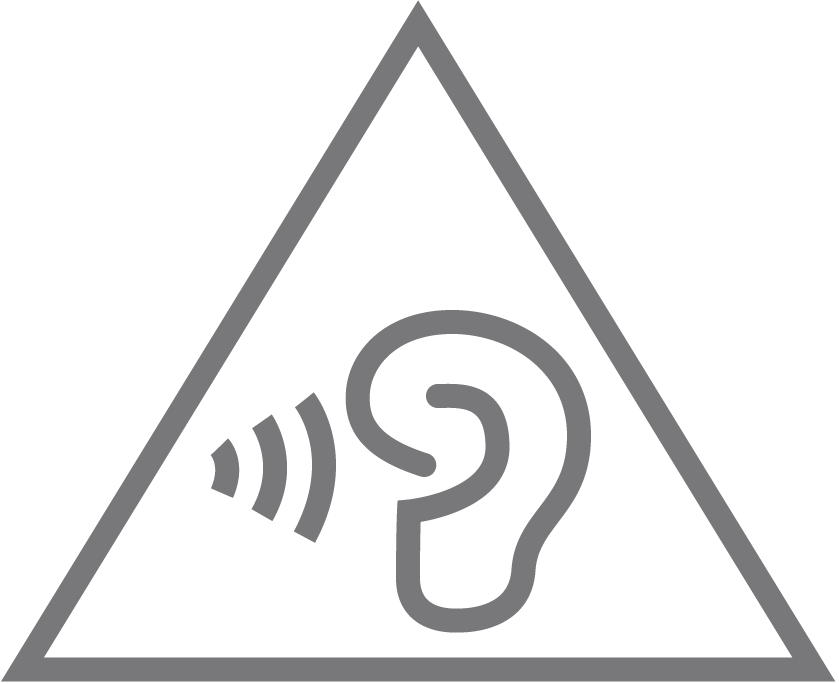 |
Caution, avoid listening at high volume levels for long periods 注意,避免長時間以高音量收聽 |
 |
Disconnection, all power plugs 斷開所有電源插頭 |
| m | Switch of mini-gap construction 微間隙結構的開關 |
| µ | Switch of micro-gap construction (for US version) Switch of micro-gap / micro-disconnection construction (for other versions except US) 微小間隙結構開關(適用於美國版) 微小間隙 / 微小斷開結構開關(適用於美國以外的其他版本) |
| ε | Switch without contact gap (Semiconductor switching device) 無接點間隙開關(半導體開關裝置) |
運作溫度: 0°C~40°C (32°F~104°F)
適配器應安裝在設備附近,並應易於接近。
請使用製造商提供的電源適配器。如果您有任何問題,請隨時與我們聯繫。
XX534v(US1) 1.0
Energy efficiency information:
Power consumption in off mode: 0.1W
Power consumption in networked standby: 6.2 W.
Power consumption in networked standby when all network ports are connected: 7.3 W.
The default period of time after which the power management function switches the equipment automatically into a condition providing networked standby: 20 minutes.
How to activate and deactivate wireless network: Enter the webpage of product through wired or wireless connecting. The wireless function can be turn on/off via ‘Basic -> Wireless -> Enable 2.4G/5G Wireless Network’.
XC220-G3v(US1) 2.40
1. Power consumption in networked standby: 4.9W.
2. Power consumption in networked standby when all wired network ports are connected and all wireless network ports are activated: 7.0W.
3. The default period of time after which the power management function switches the equipment automatically into a condition providing networked standby: 20 minutes.
4. How to activate and deactivate wireless network: Enter the webpage of product through wired connecting. The wireless function can be turn on/off via ‘Basic -> Wireless -> Wireless Settings -> Enable 2.4GHz/5GHz Checkbox’.
XX531(US1) 2.0
(1) Power consumption in networked standby: 6.2W
Power consumption in off mode: 0.08W
(2) Power consumption in networked standby when all wired network ports are connected and all wireless network ports are activated: 7.8W.
(3) The default period of time after which the power management function switches the equipment automatically into a condition providing networked standby: _20__minutes
(4) How to activate and deactivate wireless network: Enter the webpage of product through wired connecting. The wireless function can be turn on/off via ‘Basic ->Wireless -> 2.4GHz/5GHz Wireless Network:-> Enable Wireless Checkbox’.
XB232v Pro(ESDIGI) 1.20
Use only power supplies listed in the user instructions:
|
Manufacturer |
Model |
|
TP-Link |
T120150-2C1 |
XC220-G3v(GL1) 3.0 and XC220-G3v(EU1) 3.0
Power consumption in networked standby: 4.2 W.
Power consumption in networked standby when all wired network ports are connected and all wireless network ports are activated: 5.7 W.
The default period of time after which the power management function switches the equipment automatically into a condition providing networked standby: 20 minutes.
How to activate and deactivate wireless network: Enter the webpage of product through wired connecting. The wireless function can be turned on/off via ‘Basic -> Wireless -> Wireless Settings -> Enable 2.4GHz/5GHz Wireless Network’
XX531(US1) 1.0
Power consumption in networked standby: 6.2 W
Power consumption in off mode: 0.08W
Power consumption in networked standby when all wired network ports are connected and all wireless network ports are activated: 7.8 W.
The default period of time after which the power management function switches the equipment automatically into a condition providing networked standby: _20__minutes
How to activate and deactivate wireless network: Enter the webpage of product through wired connecting. The wireless function can be turn on/off via ‘Basic ->Wireless -> 2.4GHz/5GHz Wireless Network:-> Enable Wireless Checkbox’
With the GPON router, you can access your network from anywhere within the wireless network coverage. However, the wireless signal strength and coverage varies depending on the actual environment where your GPON router is in. Many obstacles may limit the range of the wireless signal, for example, concrete structures, thick walls. For your security and best Wi-Fi performance, please:
• Do Not locate the GPON router in the place where it will be exposed to moisture or excessive heat.
• Keep away from the strong electromagnetic radiation and the device of electromagnetic sensitive.
• Place the GPON router in a location where it can be connected to the various devices as well as to a power source.
• Make sure the cables and power cord are safely placed out of the way so they do not create a tripping hazard.
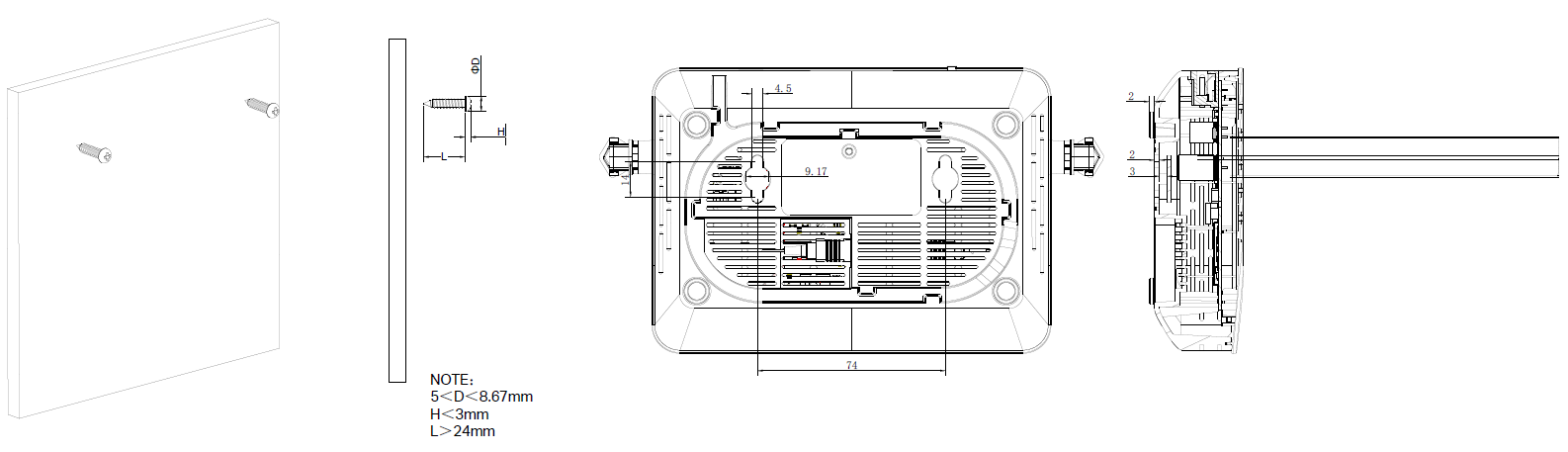
• Generally, the router is placed on a horizontal surface, such as on a shelf or desktop.
• The device also can be mounted on the wall.
Note: The diameter of the screw head, 5mm<D<8.67mm, and the distance of two screws is 74mm. The screw that project from the wall need around 4mm based, and the length of the screw need to be at least 24mm to withstand the weight of the product.
Use only power supplies listed in the user instructions:
|
Manufacturer |
Model |
|---|---|
|
TP-Link |
T120150-2C1/2D1/2E1 |
XX535v(US1) 1.0
1. Power consumption in networked standby: 6.1 W.
2. Power consumption in networked standby when all wired network ports are connected and all wireless network ports are activated: 7.2 W.
3. The default period of time after which the power management function switches the equipment automatically into a condition providing networked standby: 20 minutes.
4. How to activate and deactivate wireless network: Enter the webpage of product through wired connecting. The wireless function can be turned on/off via ‘Basic -> Wireless -> Wireless Settings -> Enable 2.4GHz/5GHz Wireless Network’.
XGB230v Pro(EU1) 1.0
Energy efficiency information:
1. Power consumption in networked standby: _7.85_W
2. Power consumption in networked standby when all wired network ports are connected and all wireless network ports are activated: _8.73_ W.
3. How to activate and deactivate wireless network: Enter the webpage of product through wired connecting. The wireless function can be turn on/off via ‘Wireless - -> Enable Wireless Checkbox’.
XB230v Pro(EU1)1.0
1. Power consumption in networked standby: 6.7W.
2. Power consumption in off mode: 0.08W.
3. Power consumption in networked standby when all wired network ports are connected and all wireless network ports are activated: 9.7W.
4. The default period of time after which the power management function switches the equipment automatically into a condition providing networked standby: 20 minutes.
5. How to activate and deactivate wireless network: Enter the webpage of product through wired connecting. The wireless function can be turned on/off via ‘Basic -> Wireless -> Wireless Settings -> Enable 2.4GHz/5GHz Wireless Network’.
XC220-G3(EU1)1.20
For EU Version, use only the power supplies provided by the manufacturer in the original product package, or those listed in the user instructions:
|
Manufacturer |
Model |
|
TP-Link |
T120100-2B1 T120100-2C1 T120100-2I1 |
1.Power consumption in networked standby: 4.0 W.
2.Power consumption in networked standby when all wired network ports are connected and all wireless network ports are activated: 5.5 W.
3.The default period of time after which the power management function switches the equipment automatically into a condition providing networked standby: 20 minutes.
4.How to activate and deactivate wireless network: Enter the webpage of product through wired/wireless connecting. The wireless function can be turned on/off via ‘Basic -> Wireless -> Enable 2.4G/5G Wireless Network’.
XZ001-G6(UN) 1.0
1. Power consumption in networked standby: 3.6W.
2. Power consumption in networked standby when all wired network ports are connected and all wireless network ports are activated: 3.6W.
3. The default period of time after which the power management function switches the equipment automatically into a condition providing networked standby: 20 minutes.
NB420v(EU1)1.0
Power Adapter (For EU versions):
| Manufacturer | Model |
| TP-Link Systems Inc. | T120250-2C4 |
Power consumption in networked standby: _7.0_W
Power consumption in off mode: _0.2_W
Power consumption in networked standby when all wired network ports are connected and all wireless network ports are activated: _9.8_ W.
The default period of time after which the power management function switches the equipment automatically into a condition providing networked standby: _20__minutes
How to activate and deactivate wireless network: Enter the webpage of product through wired connecting. The wireless function can be turn on/off via‘Advanced ->Wireless -> Wireless Settings ->2.4GHz/5GHz/MLO·-> Enable Wireless Radio Checkbox’.
NX540v(EU1)1.0
Power Adapter (For EU versions):
| Manufacturer | Model |
| TP-Link Systems Inc. | T120250-2C4 |
Power Consumption & Management:
Power consumption in networked standby: 7.0 W
Power consumption in off mode: 0.2 W
Power consumption in networked standby when all wired network ports are connected and all wireless network ports are activated: 8.9 W.
The default period of time after which the power management function switches the equipment automatically into a condition providing networked standby: Less than 20 minutes.
How to activate and deactivate wireless network: Enter the webpage of product through wired connecting. The wireless function can be turn on/off via ‘Advanced-> Wireless-> Wireless Settings->Enable’.